Archive
Software-based laser pointer in PowerPoint
- You can activate software laser pointer in PowerPoint by pressing CTRL and P (= Pointer) while displaying your slideshow. Then you can draw on your show to highlight points, just like with a laser pointer – but unlike that, it cannot run out of battery power!
- Other keys you can press:
- Erase = E (unlike with a laser pointer, you have to),
- deActivate = CTRL and A.
- Other advantages: unlike some other screen drawing tools that freeze the screen (MS-ZoomIt notably), the software laser pointer:
- allows you to proceed through the PowerPoint presentation normally;
- can be saved as ink annotations, and will show up if you convert your PowerPoint to a video or play it with narrations.
Sanako Web browsing activity not compatible with modern web infrastructure (SunGard Portal, Outlook Web Access)?
- To access campus resources – here an assignment in a Moodle course – our students need to log into a SunGard portal (with SSO – a pretty common product in higher education)l, but already the redirection after login fails with this session expiration error.
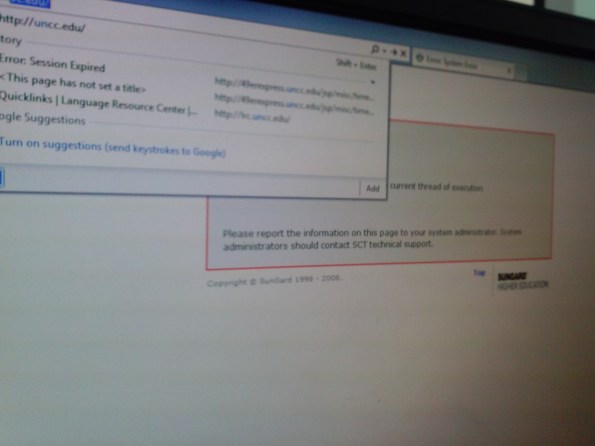
- We could work around this problem by browsing to the target site and logging into Moodle directly. But our students normally do not know how to do that.
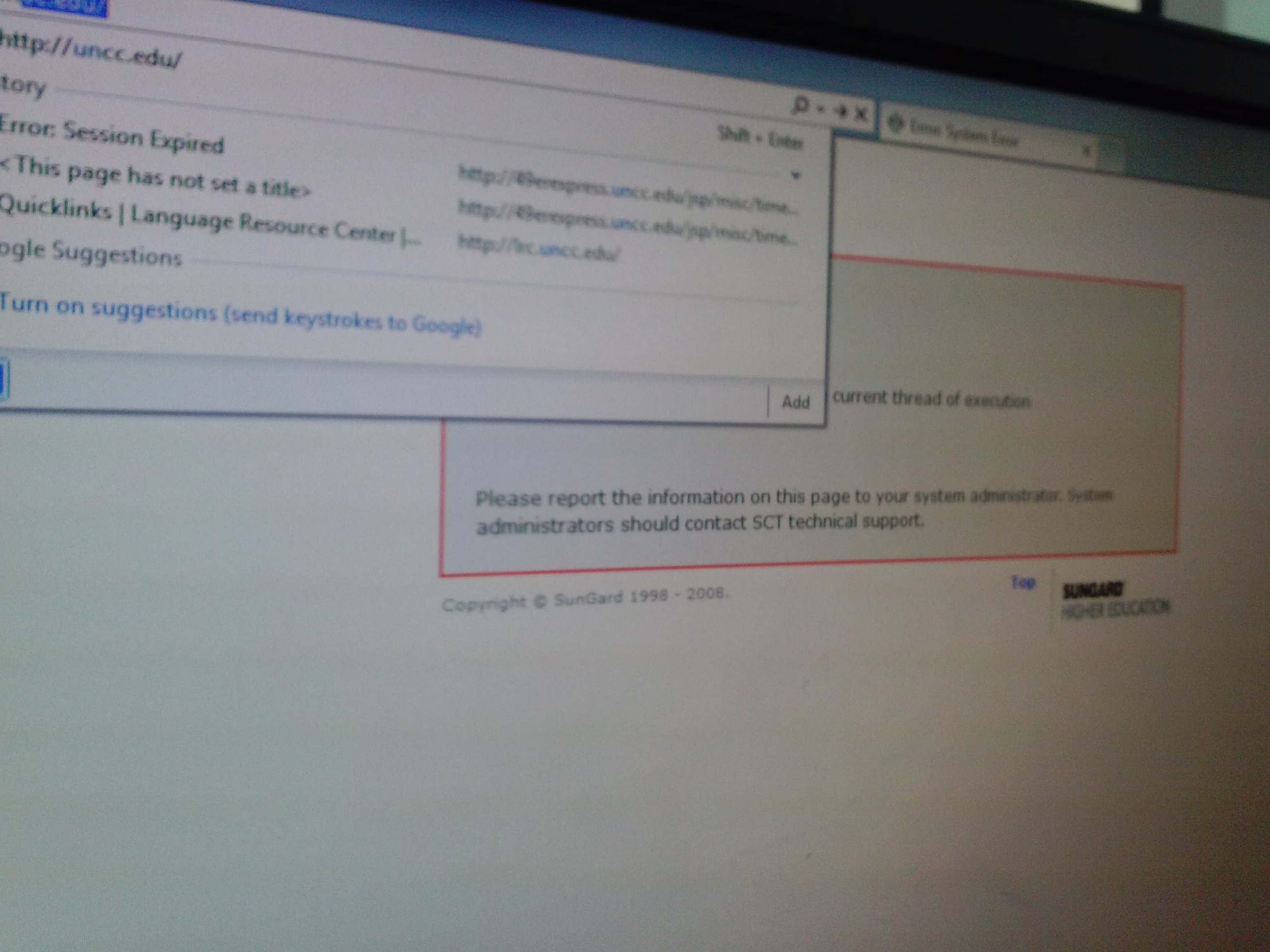
- More problems arose when students tried to open an email in their campus OWA, in a popup window, which, however, gets redirected to the first browser homepage.
- This was during an “open/prevent policy” web browsing-activity, where – to keep students on task – only certain sites (social web, webmail) were blocked.., as can be seen in this screenshot:


Save the web, with Clip to OneNote
No, I don’t mean save from proprietary vendors or from spies  – I mean: save it to your personal storage during web browsing, like so:

The essence of http://blogs.office.com/2014/03/17/onenote-clipper-clip-the-web-right-to-onenote/. https://www.onenote.com/Clipper/OneNote should be useful not only for personal research on the web.
Configuring UNCC staff (MS-Exchange 10) email on Android 4.1.2


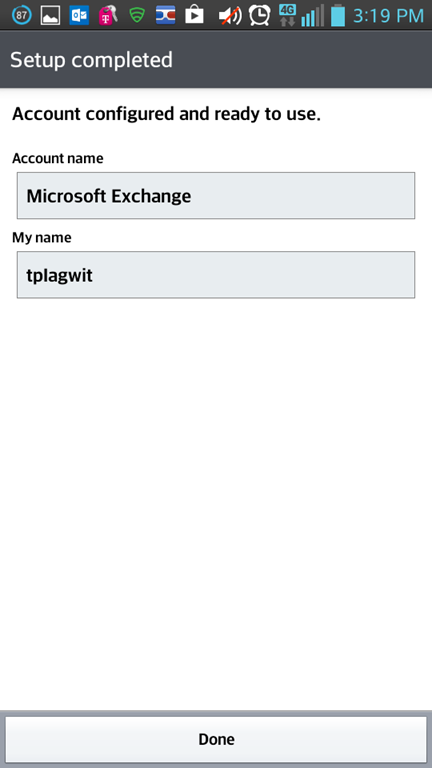

May come in useful not only during initial setup… I had trouble sorting out the webpages addressing different versions, and translating the picture-less instructions, an so have others when they come to the LRC for help. May this help some.
How to resolve error “Speech Recognition could not start because the language configuration is not supported”
- Problem: I have seen this error
 ,
, - Root cause: when the display language and speech language do not match (the latter is set to default to the former in the LRC, but it seems they can get out of sync), as you can witness here (English display does not match Chinese speech recognition):

- Solution: Follow the instructions in the error message, i.e.
- Access the Speech recognition control panel here:
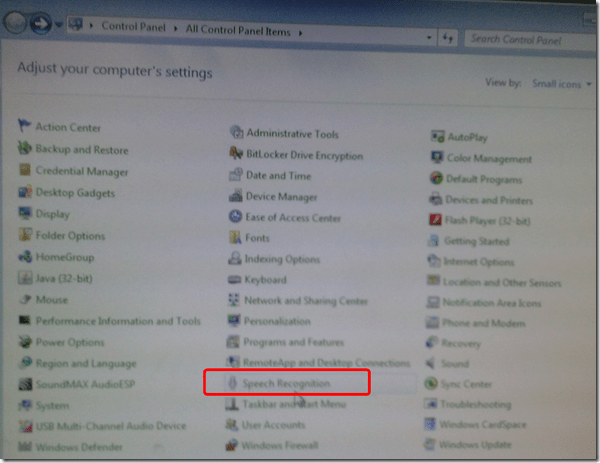
- Then change the speech recognition language to match the display language, like I am doing here:

- Quick workaround: Not sure about how quick, but in the LRC, you can also just try and restart the computers, they are “frozen” to a default configuration in display and speech recognition language (English/English – matches).


How students can manage sidetone manually
Sidetone echoes your voice from the microphone back into your headphone speakers. It makes wearing the headphones feel more natural, and lets you evaluate your pronunication better.
Until it is configured properly out of the box, to enable it, you have to:
Open sound settings: 
Check and Increase the sidetone volume until you can hear yourself talking well: 


Questions? Read the About. Or just ask me a quick Our Databases: Resources with calendars -- Language learning material Moodle Sites, multimedia files -- films


FAQs for LRC student staff or for students or for teachers. To search our FAQs, in the browser addressbar, add after "https://plagwitz.wordpress.com/feed/?tag=faqs+/" "+TAG1" (from tag cloud below) OR "https://plagwitz.wordpress.com/feed/tag=faqs
&category_name=" "CAT1" (from category hierarchy below). OR search both categories and tags, and multiple TAGs/CATs (connect with "," for OR-search, with "+" for AND-search), like so: https://plagwitz.wordpress.com/feed/?tag=TAG1+TAG2+...TAGn&category_name=CAT1
+CAT2+...CATn"
Other ways to find help
If you cannot find it here, look there: 5,500 Language-Learning Links and Programs for learning or teaching 150 languages
Shortcuts:Our Lists, Our Maps, LRC Staff Moodle Site,LRC Project Moodle Site, 49erexpress, UNCC Moodle, Student Recordings: s:claslcslrcsanakostudent
Learning usage samples: Sanako oral exam, Kaltura webcam presentation, Dictation with speech recognition, Sanako written exam, Chinese and Japanese interactive stroke-order practice
Test the Sanako Installer, Webbrowser Popup Konfigurator for XP, or Windows7, faster LRC TeacherPC Log-in Let MS facilitate diacritics writing by installing for you US-International keyboard layout
This is my personal blog (Google+). The views expressed on these pages are mine alone and not those of my employer. The information in this weblog is provided “AS IS” with no warranties, and confers no rights.
 Thomas' Work Space
