Archive
I2speak.com: Web-based IPA Keyboard
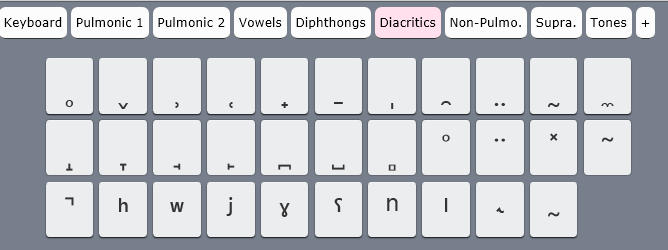
The Sciweavers Team announces http://www.i2speak.com: “an online Smart IPA Keyboard that lets you quickly type IPA phonetics without the need to memorize any symbol code. For every Roman character you type, a popup menu displays a group of phonetic symbols that share the same sound or shape beneath typed character. Use arrow keys to select the proper symbol then hit the Enter button. I2Speak also supports the following features:
1. The Sampa English Keyboard lets you type English phonetics using Roman characters according to SAMPA (Speech Assessment Methods Phonetic Alphabet) rules.
2. The IPA English Keyboard provides you with a full English phonetics keyboard. Press the symbol of interest using a suitable input device.
3. You can type directly on your physical keyboard or on the virtual on-screen keyboard using a suitable input device such as mouse or touch screen device.
4. You can change the keyboard symbols by selecting another layout from the list box located above the virtual keyboard.
5. For every keyboard layout, more symbols can be displayed by pressing the CAPS Lock.
6. When you hover the mouse over an English phonetic button, a slick tooltip will show some example English words.
7. You can save typed phonetics as an MS-Word file by clicking the Save button, copy them to clipboard using the Copy button, or post them to Twitter, Facebook, etc. by clicking the desired button.”



Protected: Moodle streaming video recording assignment glitches 3, 4, 5, 6, 7 & 8: A running log
Protected: Moodle-Kaltura webcam recording assignment results
How to use Google translate for writing Cyrillic letters with a western keyboard, pronunciation help, and text-to-speech
Go to Google translate and do like so. Useful for learning, as well as typing when teaching.
Test of Join.me for Remote assistance/Screensharing across the internet
- How easy is this? (not a rhetorical question, we will have to try and test):
- originator
- goes to http://join.me, clicks on share, downloads and installs an Applet.
- receives a join.me URL with a session number which he gives to (best over the phone)
- receiver who loads this session URL to view the screen.
- originator
- What works
- from wireless to wired intranet TBA
- from off-campus to wired on-campus
- What does not work
- accurate reporting of remote mouse position
- Demo: viewing laptop connected over wireless laptop to desktop

- Test in practice worked flawlessly (with one limitation: it (the basic version?) only shares only your primary screen), when connecting a software reseller 400miles away to troubleshoot, here is the pretest:


How to fix Canon Vixia “Cannot write on card” error when starting recording by initializing
- To fix this error,
- go to: Menu / Function / Tools / Tab: / menu item: Initialize – choose the card slot A or B with the mal-formatted card.
- or view how to access the initializing procedure here TBA
- To avoid this problem: You may get this error after you the SD card has been formatted in another device but the camera (e.g. on your computer, using a memory card reader). If you are trying to delete footage, initialize the card within the camera instead. This page is taken from the Vixia manual, the full manual you can find linked in our list of bookable resources under Vixia.


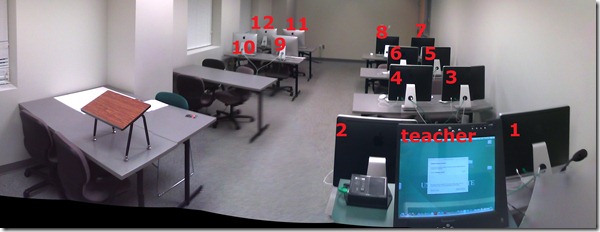
LRC Coed037 Film studies lab
- Panorama with computer numbering in lieu of a layout

Things you can try when having trouble playing video from the internet
There are several things you can try when having trouble playing video from the internet. I made a list here (less would be more, but hey, it’s computers, right?):
- Refresh the web page (f5 or ctrl-f5).
- Can you see an error message on the page itself? some video services prevent you from watching video abroad BBC iPlayer used to do this, since it is financed by fees of a local audience – so are ARD and ZDF, but they do not bother restricting by viewer location. However, they assume you are in Germany, and in their time zone, so they restrict you from watching the equivalent of R-rated content during daytime in Germany.
- Restart the web browser.
- Can your web browser play a video from a different website. Good candidates are Youtube.com (may be HTML5 delivered by now), hulu.com, ARD Mediathek if trying ZDF Mediathek or vice versa). Maybe your plug-in has crashed – try restarting your computer.
- Try a different web bowser (chrome, internet explorer, Firefox, safari, opera are all free downloads).
- Can you discern a notification bar on top of your web browser window telling you of an error or asking you to upgrade something?
- At this point it might be easier to come to the LRC and use what we maintain for you there, or, if you are trying to use your office computer, alter the helpdesk.
- Do you have to upgrade your video-plugin? Currently (before HTML5 delivered plug-in free video), most videos are plug-in based. search for adobe flash and MS-Silverlight upgrades.
- Do you have to upgrade your browser?
- Do you have to upgrade your operating system? your computer hardware? Let’s hope you do not get to here in this list…


Questions? Read the About. Or just ask me a quick Our Databases: Resources with calendars -- Language learning material Moodle Sites, multimedia files -- films


FAQs for LRC student staff or for students or for teachers. To search our FAQs, in the browser addressbar, add after "https://plagwitz.wordpress.com/feed/?tag=faqs+/" "+TAG1" (from tag cloud below) OR "https://plagwitz.wordpress.com/feed/tag=faqs
&category_name=" "CAT1" (from category hierarchy below). OR search both categories and tags, and multiple TAGs/CATs (connect with "," for OR-search, with "+" for AND-search), like so: https://plagwitz.wordpress.com/feed/?tag=TAG1+TAG2+...TAGn&category_name=CAT1
+CAT2+...CATn"
Other ways to find help
If you cannot find it here, look there: 5,500 Language-Learning Links and Programs for learning or teaching 150 languages
Shortcuts:Our Lists, Our Maps, LRC Staff Moodle Site,LRC Project Moodle Site, 49erexpress, UNCC Moodle, Student Recordings: s:claslcslrcsanakostudent
Learning usage samples: Sanako oral exam, Kaltura webcam presentation, Dictation with speech recognition, Sanako written exam, Chinese and Japanese interactive stroke-order practice
Test the Sanako Installer, Webbrowser Popup Konfigurator for XP, or Windows7, faster LRC TeacherPC Log-in Let MS facilitate diacritics writing by installing for you US-International keyboard layout
This is my personal blog (Google+). The views expressed on these pages are mine alone and not those of my employer. The information in this weblog is provided “AS IS” with no warranties, and confers no rights.
 Thomas' Work Space