Archive
Archive for the ‘audience-is-language-learning-center-temp-staff’ Category
Camera available to document issues
2014/01/13
Leave a comment
Find it in coed436 and take it with you during routine checks and when assisting clients.

LRC daily walkthrough for all computers
2014/01/02
Leave a comment
- Push chairs under desk
-
Remove any trash from computers desk.
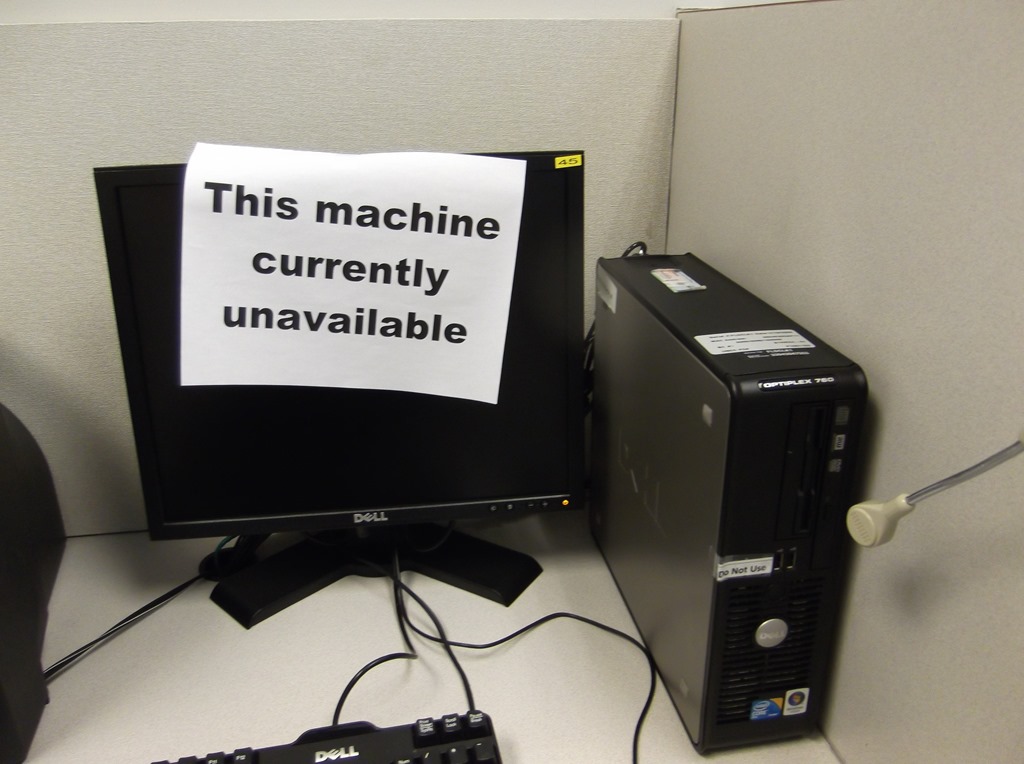
- "Machine unavailable" signs
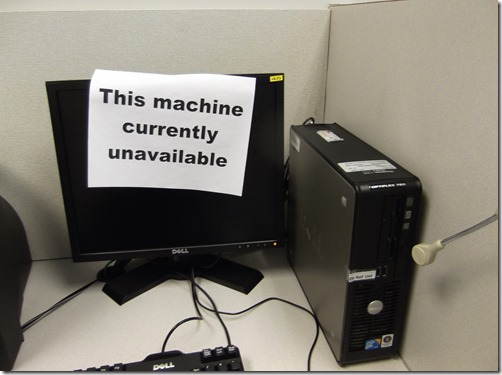
- Make sure each computer has one attached to it (or apply spares from box on reception desk).
- Put the "unavailable"sign down, where needed: Requires that you first look up which computers currently unavailable in here: http://goo.gl/RqSLme, in sheet"computers+monitors",column:"unavailable (= is the sign down), they are marked as "1" (sort the column to see).
- Make sure computers that are available are turned on and ready for students to log in.


LRC headset test on PCs
2014/01/02
Leave a comment
- Log in on a PC.
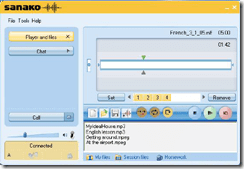
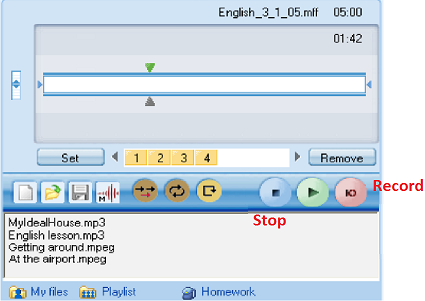
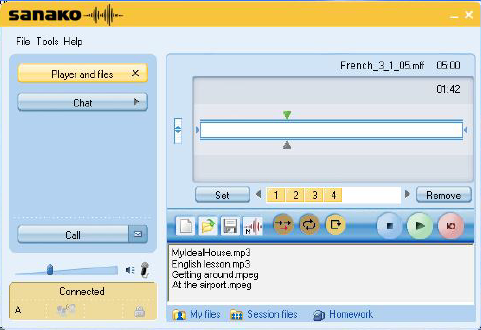
- Launch the Sanako student recorder form the desktop:

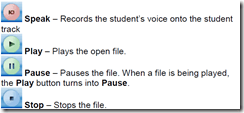
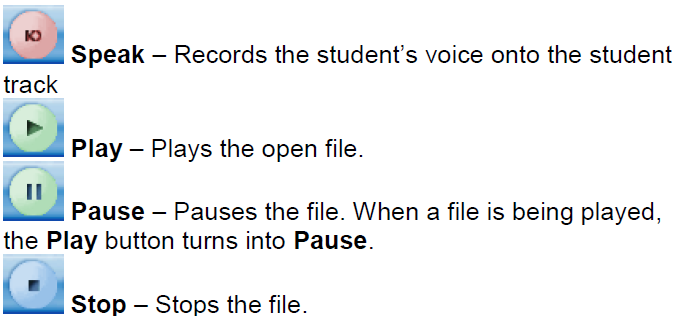
- Click the red recording button then record for 5 sec (speak into the microphone; then tab the microphone with your finger several times, to make sure you are recording through this source), then the blue stop button
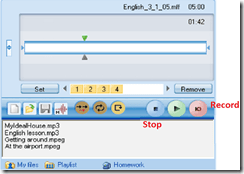
- Click the green Play (from beginning):
- can you hear yourself speaking/ the noise from the tabs?
- turn your head left and right: can you still hear (sometimes a short cuts out the sound).
- If not check headsets cables as described in LRC routine walkthrough for classroom PCs (Sanako headsets) or in LRC routine walkthrough for listening and group room stations(brown headsets).
- If it still does not work, report Computer # on clip board.

LRC daily walkthrough for classroom PCs
2014/01/02
Leave a comment
- Find a time when the classroom is not busy on the LRC calendar – if necessary, do it earlier rather than later.
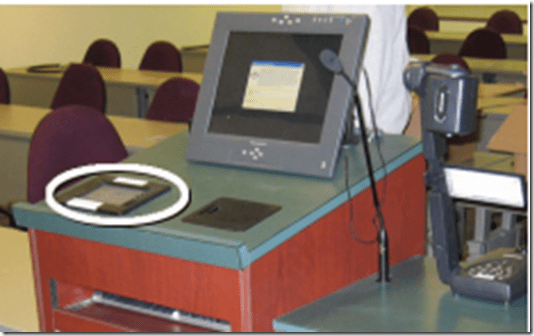
- If somebody else than coordinator or director is logged onto the teacher computer, tell the LRC coordinator.
- Check the projector? Turned off , screen up


- Make sure classroom blinds are closed

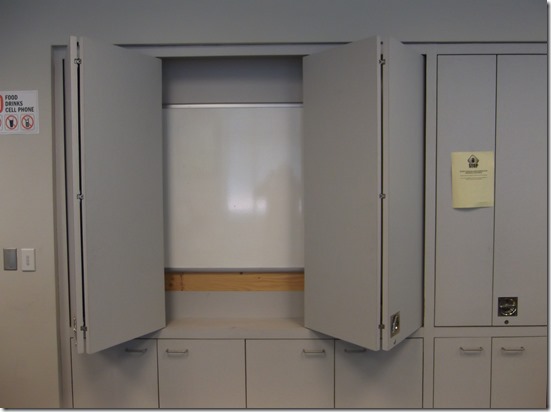
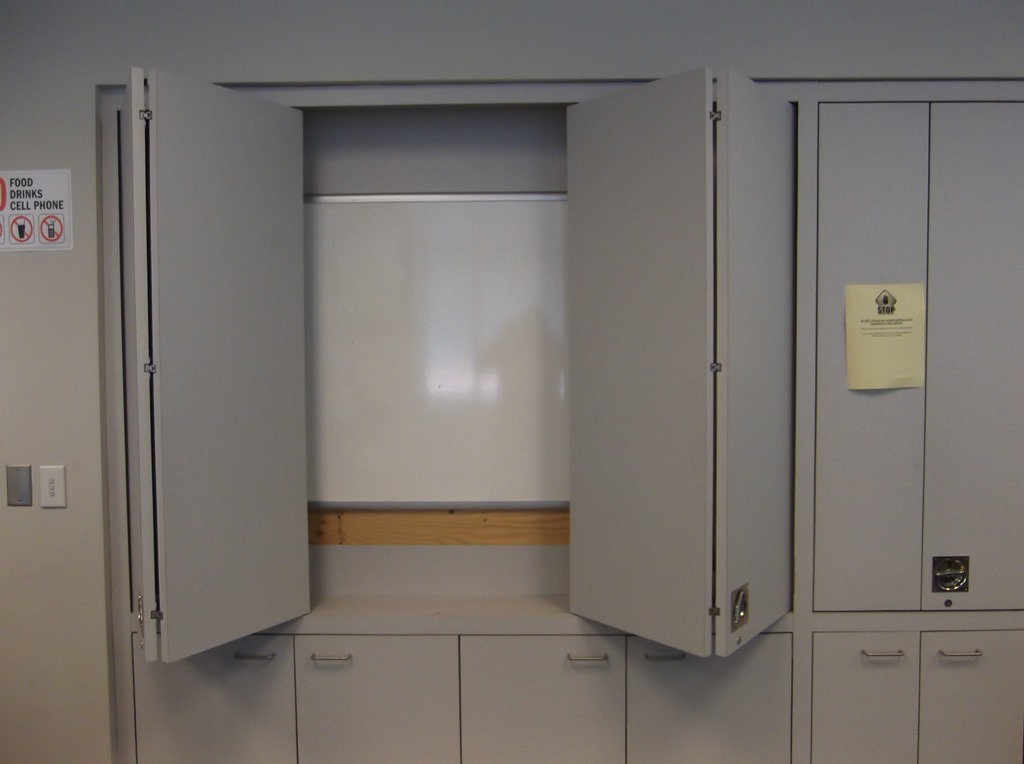
- Make sure the classroom whiteboard is clean
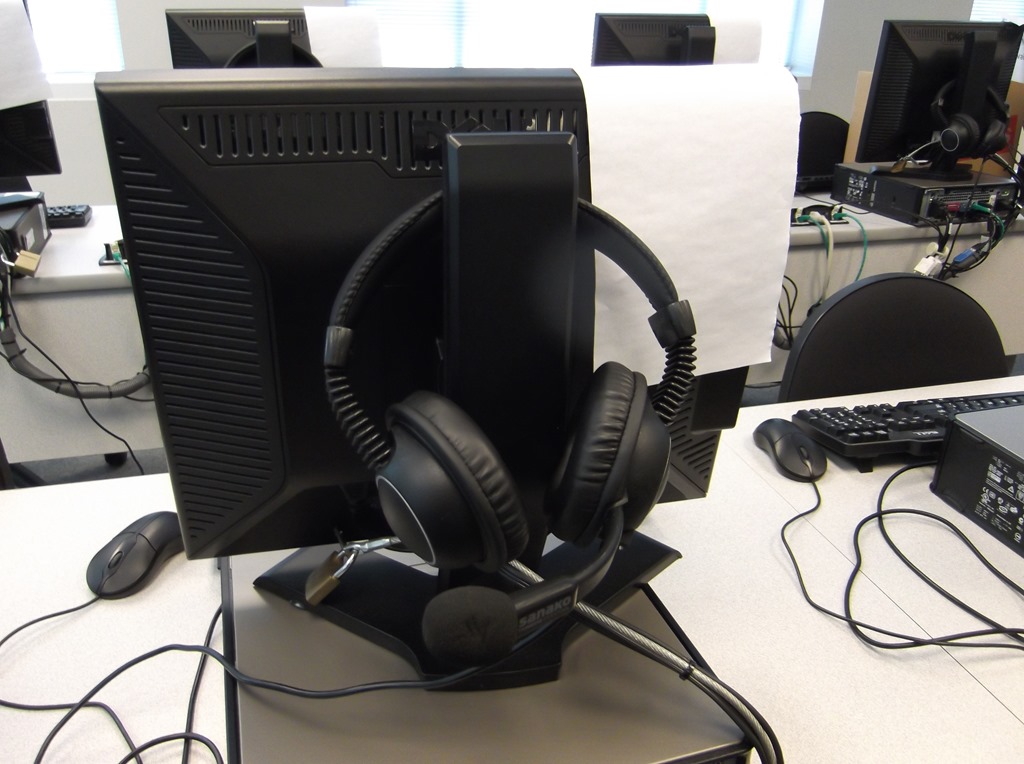
- Make sure headsets are
- hanging on the back of the monitor in the classroom (each headset on the computer it is connected to, and not a neighboring computer).

- and are
- firmly plugged in
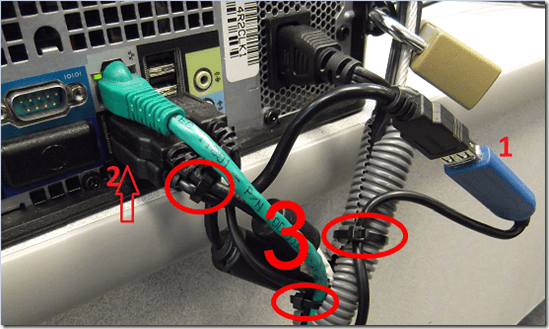
- plugged in firmly AND and in the correct (= bottom left) USB port
- cable-tied ((spares in coed436 box “office supplies”).


LRC daily walkthrough for iMacs and printer
2014/01/02
Leave a comment
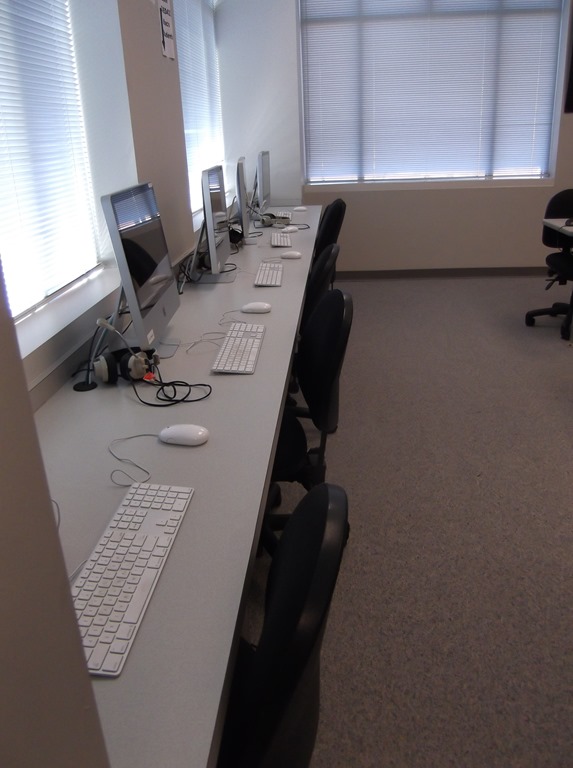
- For the iMacs,

- make sure headset is plugged into the USB adapter as pictured,
- make sure the 2 “Do not use” labels on the adapter and over the inputs on the rear of the screen are in place and intact (or apply spares from box on reception desk).
- Check that the printer has papers (or replenish paper from the reserves shelves in coed436).


LRC daily walkthrough for listening and group room stations
2014/01/02
Leave a comment
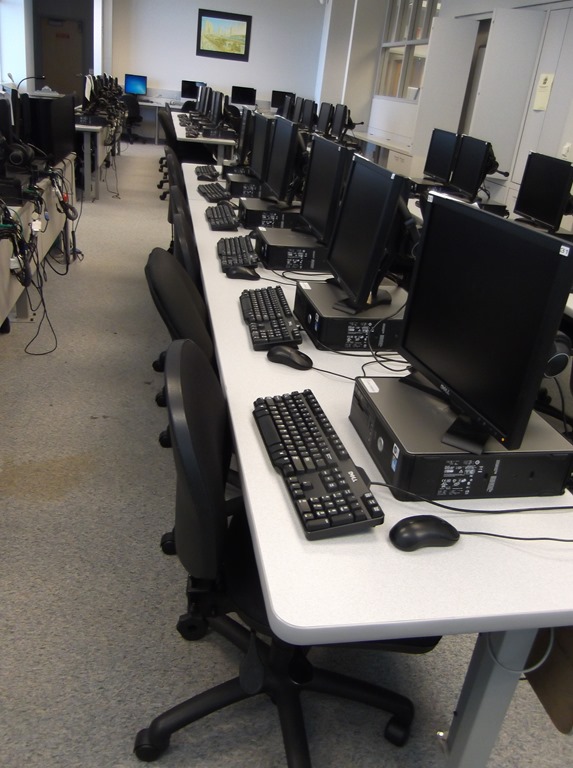
- Ensure that the listening station/group room PC headsets are stored hanging from the side cubicle walls:

- Headsets need to be plugged into the rear:
- Make sure "Do Not Use" sticker is on the front panel (or apply spares from box on reception desk).

- As pictured:
- Plug headset to in the right rear outlets (black into green, red into red/blue).
- Make sure cables are secured with a cable tie (or apply spares from box "office supplies” on shelves in coed436).


LRC headset test on iMacs
2014/01/02
Leave a comment
- Logon to the iMac.
-
Double click Macintosh HD.
-
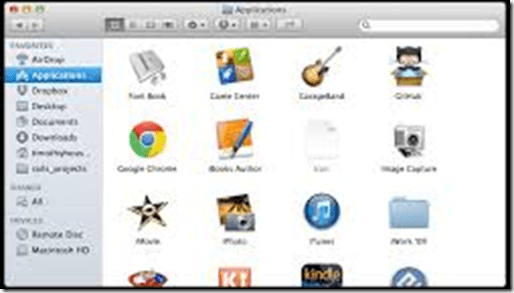
Click Application.
-
Find Garage band and double click it.
-
-
Save the file to the desktop
-
Press record

-
Speak into the microphone; then tab the microphone with your finger several times, to make sure you are recording through this source.
-
Stop then play
-
If there is no sound or you cannot hear anything, go to the Apple menu

-
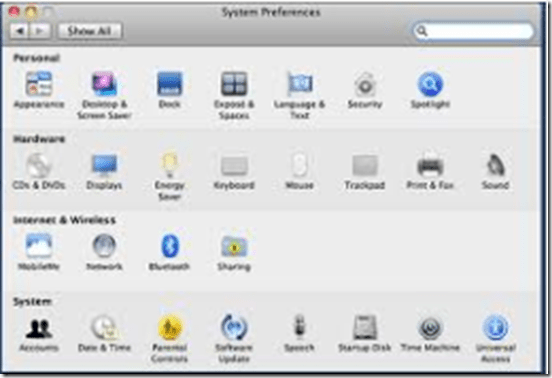
and click system preferences
-
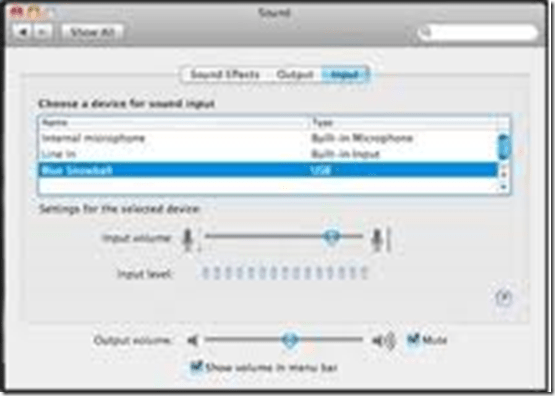
Click sound then select the output tab
-
-
Choose the usb option
-
Select the input tab then again choose the usb option
-
Close system preferences
-
Try again to record then listen.
-
Still not working? Check the iMac headset hardware , as described here: LRC routine walkthrough for iMacs and printer.
-
If it still does not work, report Computer # on clip board.





Checklist for the LRCCamera15
2013/12/23
Leave a comment
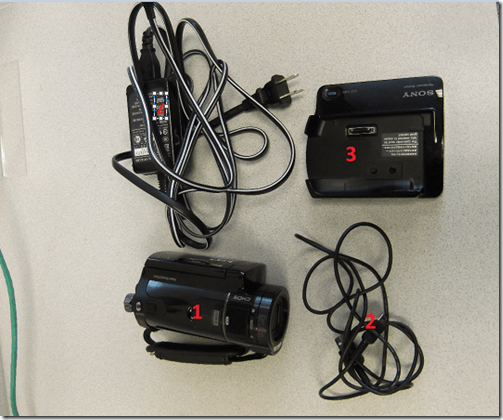
- Are the Parts there?
- camera
- USB Cable
- camera station
- Power cord
- Test the Functionality
- Plug power to camera
- Record for 15sec. By pressing "start, then same button "stop"
-

- TBA: Playback: how?
- Maintenance
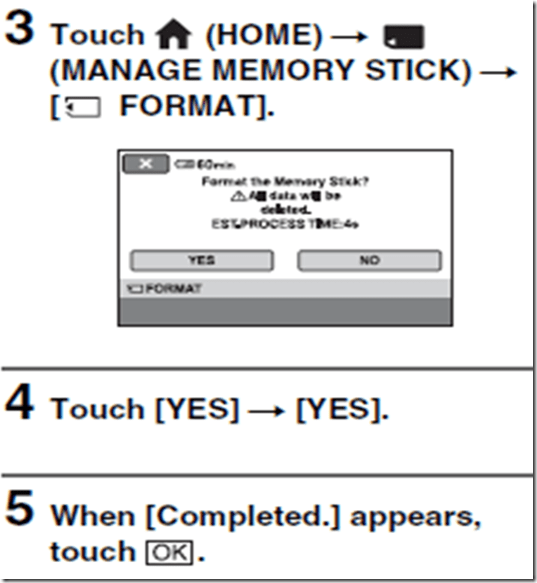
- Format memory to completely delete , according to manual (add screenshot of necessary menu operations): Turn camera on /
- Charge battery
- Overview




Questions? Read the About. Or just ask me a quick Our Databases: Resources with calendars -- Language learning material Moodle Sites, multimedia files -- films


FAQs for LRC student staff or for students or for teachers. To search our FAQs, in the browser addressbar, add after "https://plagwitz.wordpress.com/feed/?tag=faqs+/" "+TAG1" (from tag cloud below) OR "https://plagwitz.wordpress.com/feed/tag=faqs
&category_name=" "CAT1" (from category hierarchy below). OR search both categories and tags, and multiple TAGs/CATs (connect with "," for OR-search, with "+" for AND-search), like so: https://plagwitz.wordpress.com/feed/?tag=TAG1+TAG2+...TAGn&category_name=CAT1
+CAT2+...CATn"
Other ways to find help
If you cannot find it here, look there: 5,500 Language-Learning Links and Programs for learning or teaching 150 languages
Shortcuts:Our Lists, Our Maps, LRC Staff Moodle Site,LRC Project Moodle Site, 49erexpress, UNCC Moodle, Student Recordings: s:claslcslrcsanakostudent
Learning usage samples: Sanako oral exam, Kaltura webcam presentation, Dictation with speech recognition, Sanako written exam, Chinese and Japanese interactive stroke-order practice
Test the Sanako Installer, Webbrowser Popup Konfigurator for XP, or Windows7, faster LRC TeacherPC Log-in Let MS facilitate diacritics writing by installing for you US-International keyboard layout
This is my personal blog (Google+). The views expressed on these pages are mine alone and not those of my employer. The information in this weblog is provided “AS IS” with no warranties, and confers no rights.
 Thomas' Work Space