Archive
Archive for the ‘audience-is-language-learning-center-staff’ Category
Protected: Exchange 2010 Resource Mailboxes: Running Log
2011/09/22
Enter your password to view comments.
How to allow students to reply to News Forum posts in Moodle
2011/09/22
Leave a comment
- E.g. with this: “I have seen this post. I have followed the instructions. It worked for me.”

- Answered here: http://moodle.bath.ac.uk/faq/content/12/182/en/can-students-reply-to-news-forum-posts.html
- Does not work in our installation which is being investigated – maybe with good reason: I every study is forced to subscribe and can respond, their tend to be email floods which rather hide than surface important information.
- Workaround:
- Hide the news forum;
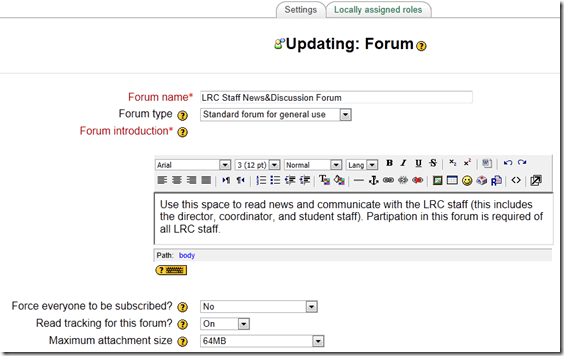
- create a regular Moodle Forum, where students can respond by default
- ask your users to read it and maybe monitor reading with tracking
- do not force them to subscribe = receive email
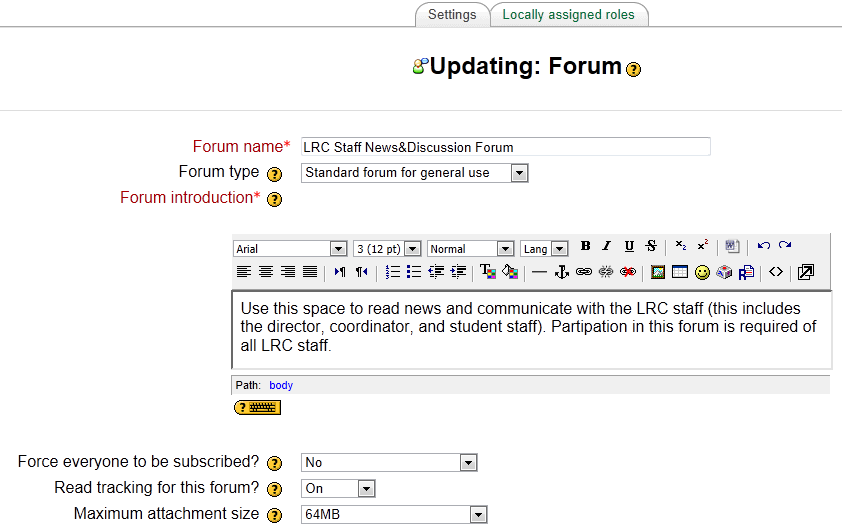
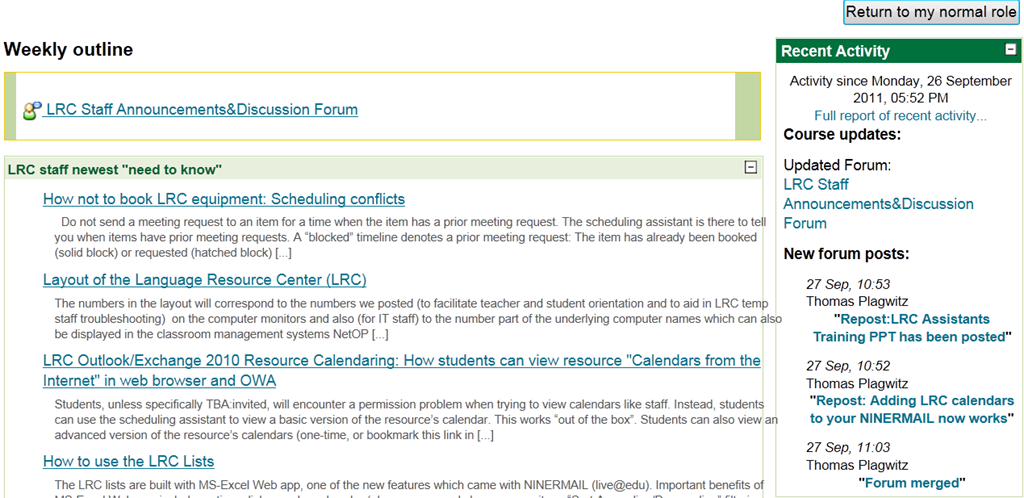
- I also hid the “Latest News” block, in the hope that the “Recent Activity” block can replace it:

MS-Exchange 2010 and OWA: Set Resource Calendar Response messages for Automateprocessing
2011/09/21
1 comment
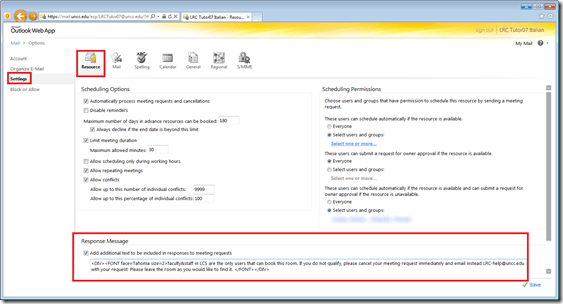
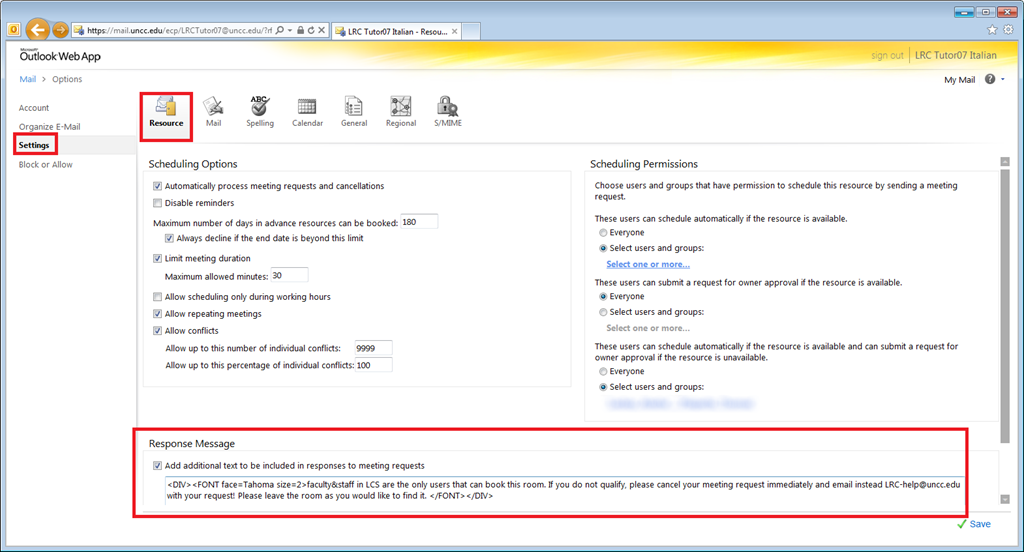
- You do not need your Exchange Admin to manage and change the ResponseMessages that your Resources Mailbox Assistants sent out by your Calendar Assistants.
- In OWA, impersonating the mailbox, in the upper right corner, go to “Options” / menu item: “see all options”, and then:
How to use the LRC Lists
2011/09/20
2 comments
- The LRC lists are built with MS-Excel Web app, one of the new features which came with NINERMAIL (live@edu, try logging into http://skydrive.com .
- Important benefits of MS-Excel Web app include
- sorting: click on column header / down arrow, and choose menu item: “Sort Ascending/Descending”
- filtering: click on column header / down arrow, and choose menu item:
- either “filter”,
 , to choose from a condensed overview of all unique items that occur in the column, and e.g. filter out “Blanks” by removing the checkmark in front of it: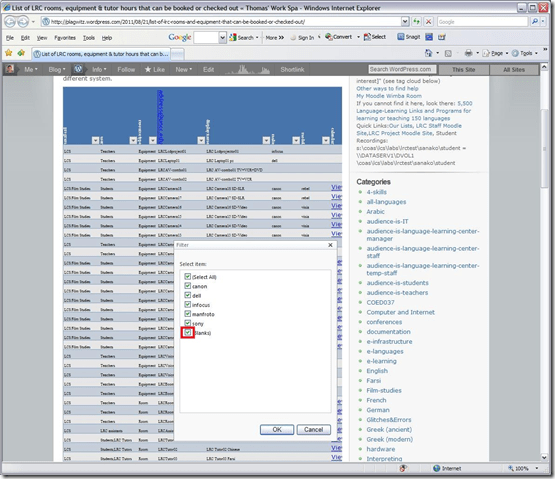
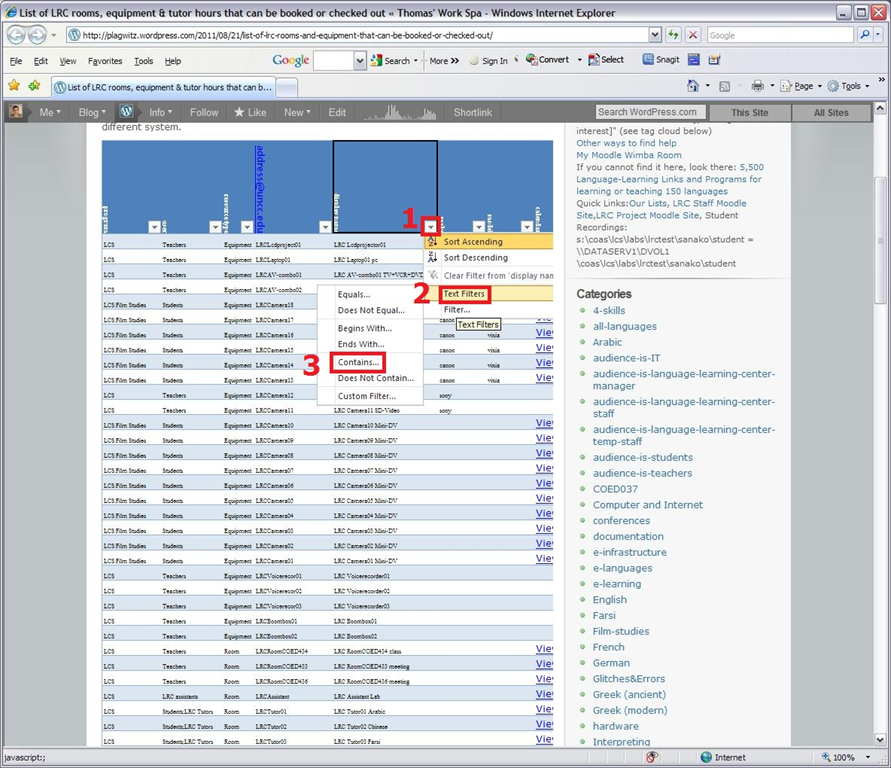
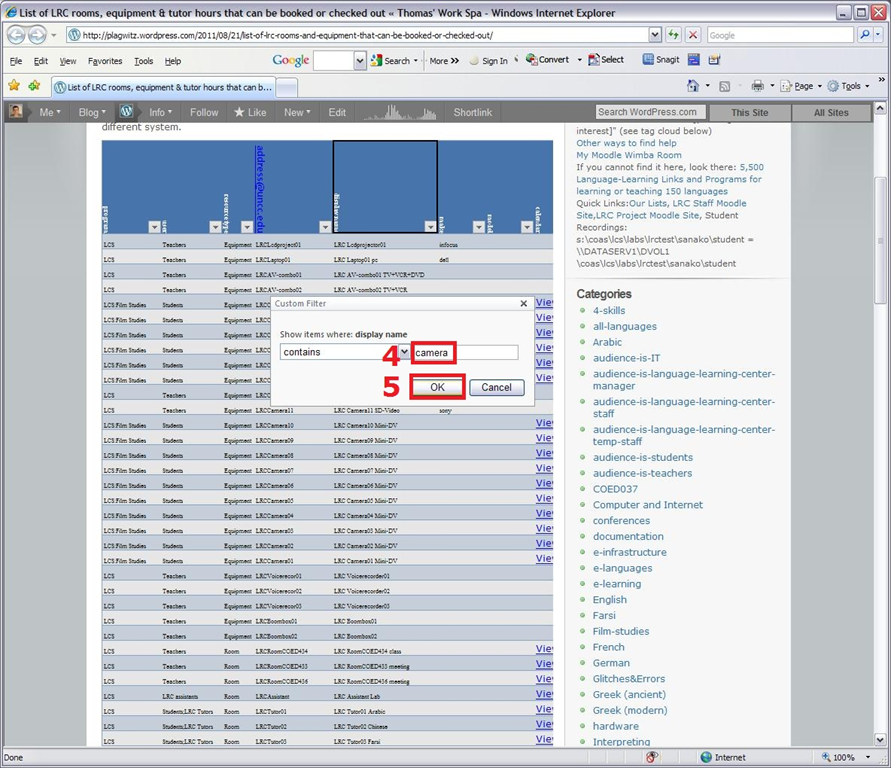
- or the advanced “number filter” (in columns with numbers) or “textfilter”,
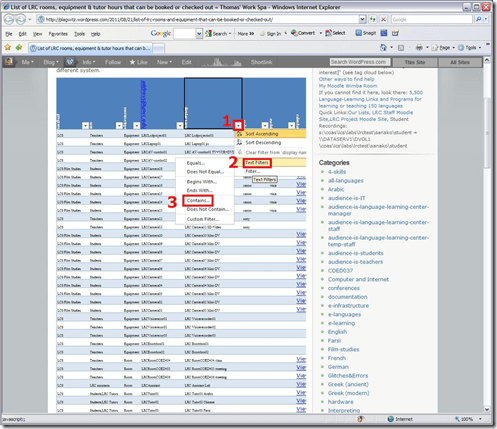 , to do more advanced searches, like for all items that contain “camera”: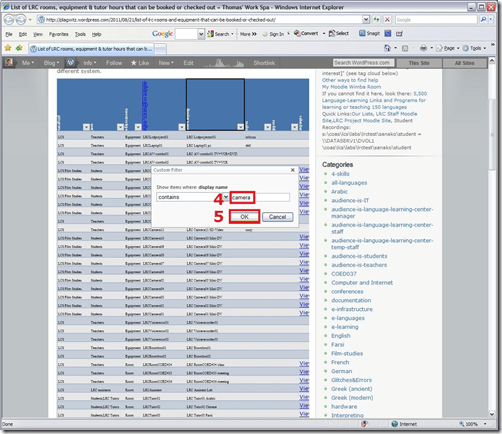
- sharing beyond viewing: Authorized users can click on an “edit link” below the list display to update the information from their web browser.
- either “filter”,


Our Office 2010 natural language features upgrade: A running log
2011/09/15
1 comment
- Just logging some notes, observations, issues, step-by-step instructions… – other than non-natural-language, most collaboration features, which are being logged here.
- Office 2010 proofing tools (proofing-tools2010-install.wmv),:
- again, we select custom install, “run all from Computers”
- install is extensive, but uneventful
- Office 2010 proofing tools (proofing-tools2010-first-run-German-set-language.wmv), first run:
- German is not autodetected. You have to set the language of the selected text manually, and first find the button on the ribbon:reviewing
- While choosing the language, you can see from the checkmark which languages now have proofing tools installed
- Foreign Language Support
- One of the strongest benefits of upgrading to MS-Office 2010 in the language center is the improved foreign language support licensing for so called “Language Packs”, and that we have a complete set of licenses to the MS-Proofing Tools.
- In addition MS-Office supports free download of so called “Language interface packs” which seem essentially downscaled language packs for LCTL (usually come only with (see feature list) a spell checker and help in the language). Compare: “If a language is available in a language pack or as a fully localized version, it is not available as a language interface pack”.
- Unfortunately multi-user (= learner of different language) support is not the primary usage scenario of these tools. It is, however, possible, to set the language to a default (e.g. Spanish, Arabic or Chinese, depending on your environment). Switching to another language is relatively easy for a user
- changing the screen-tip language: http://skydrive.live.com/embedicon.aspx/screencasts/office-2010-switch-screentip-language.wmv?cid=4fa3329905d7e1ce&sc=photos
How LRC assistants log into the reception desk computers
2011/09/08
Leave a comment
- Let the computer finish its startup tasks:
- Browsers: both internet Explorer and Firefox will open on relevant pages, since you and your client will have to work in different browsers, ensuring that both your and your client can be logged into different NINERNET accounts.
- Excel will load a checkin.xlsm. In Excel, under the ribbon, press button:"Enable content". Use this to generate codes that you can paste into users"’ meeting requests when they check in and out LRC equipment. The spreadsheet will not save the codes since your computer is frozen.
- A program called bginfo will analyze the computer settings and display the results on the desktop
- ZoomIt: press “ok” on the startup dialogue. You can now press CTRL-2 (thanks Ashley) and drag the left mouse button (ESC to stop) to paint on screen to communicate with client across mirrored screens, and vice versa.
- Do you have a client at the counter?
- yes: press CTRL-ALT-F10 to clone/mirror (= show the same screen on) both monitors. You can now collaborate with the client using a computer (e.g. in OWA or in a database)
- no client: press CTRL-ALT-F11 to extend the desktop. You can now display an informational window on the LRC-facing monitor, while working on your own monitor in privacy.
- The reception computers use Deepfreeze. You cannot save information on reception desk computers between reboots.
- All personal information you want to save needs to go to your H: drive.
- All information you want to share with LRC staff needs to go into LRC Moodle site, UNCC-LRC website or NINERMAIL.
Reception area PCs: Remaining issues with the software image
2011/09/08
Leave a comment
- That’s a new one:
 . likely fixed by logging in with an admin account first before freezing.
 - IE8 windows in kiosk mode where clients need to log in (and out, using the built in links not by closing the browser)
- 49erexpress , the rest is linked there and opens in a new window which can also be closed, as long as the login dialogue stays up
- mail.uncc.edu
- Moodle
- Safari
- default dialogues need to be changed
- no “not default browser”:
- close w/o saving settings/tabs
- no “not default browser”:
- should start and load the UNCC-LRRC calendar (could be home page)
- default dialogues need to be changed
- Chrome
- business chrome install, but interferes with zoomit shortcuts
- Firefox
- is missing tab 49erexpress: use this also for lrc assistants
- LRC Moodle
- LRC lists
- loads its required tabs twice – probably related to “save and quit” feature which needs to be set to “quit” and “never ask again”.
- Spreadsheet opens read-only.
- Trying to set the file attribute to read/write fails

- Trying to set the file attribute to read/write fails
- not needed, store in outlook, also we do not output code to spreadsheet anymore anyway to discourage manual copy: Writable spreadsheet is not useful anyway on a frozen PC
- w/o thawspace: implement one in Deepfreeze (which requires alteration of the DFWks.exe installer) (and during creation of the image, fake the drive letter from which the spreadsheet autoloads, with a removable drive).
- Better would be Faronics Igloo which would with install of deepfreeze redirect spreadsheet folder to thawed virtual partition, but is not available
- Deepfreeze did install and could be frozen, but does not accept its password for thawing locally and needs to be thawed from the Deepfreeze Console. Password has been updated.
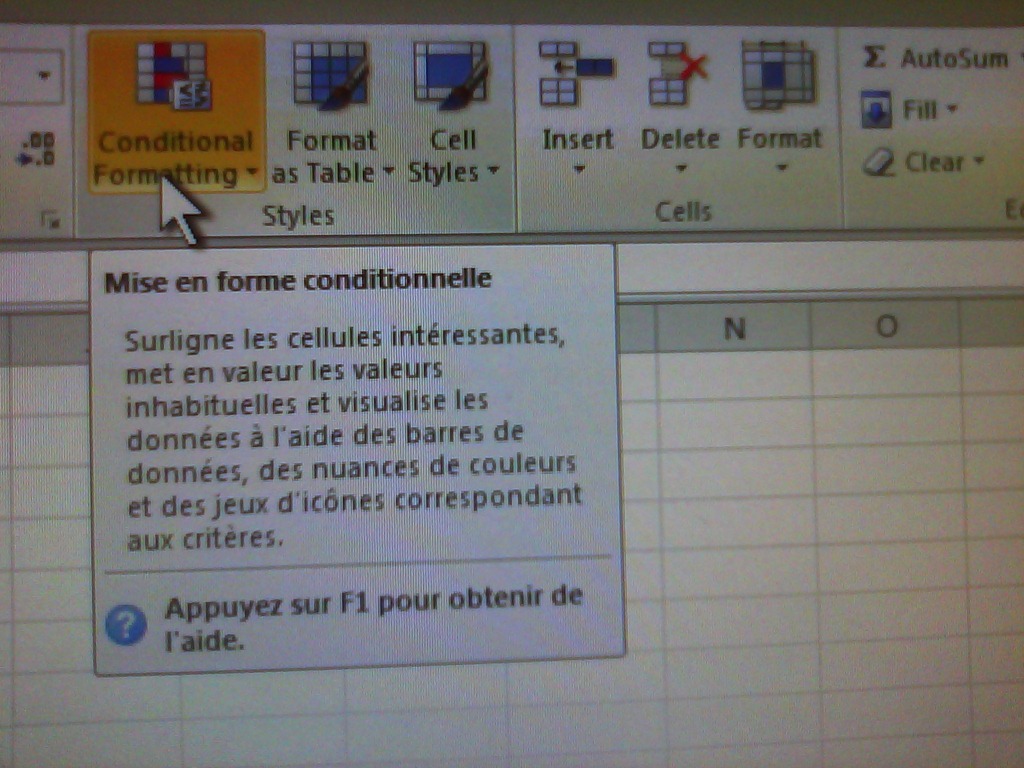
- The MS-Office tooltips are set to French – this is for testing:

- Internet Explorer managed to sneak in Bing as the default search provider;

- When starting MS-word, there is a DOCUMENT Recovery pane.
- in explorer, protected operating files are not shown, but hidden files
- label screens on lrc assistant side.
- LRC assistants use Firefox, clients use Internet explorer (full-screen – use ALT+TAB to switch windows)
- show on 2nd screen:
- SAFARI with UNCC-LRC calendar
- Moodle Spanish announcement (?)
- Printers
- department: optional
- Ricoh: default



The new way of booking LRC rooms and equipment from Fall 2011: Why?
2011/09/01
2 comments
- With the upgrade to Outlook 2011, MS-Exchange 2010, and live@edu, unfortunately, we had to revise our booking system over the summer. Please note: Teachers cannot not use calendars in the public folders of Outlook desktop anymore since ”Public folders are going away”. The earlier instruction has been updated accordingly and links now to here.
- Fortunately, this upgrade also allowed us to expand our booking system, to now include:
- more than rooms and tutors. You can now also book LRC equipment – see the complete list of LRC resources that you can book or check out . And we hope to set up that you can truly sign up for tutoring.
- more than staff: We hope that, with Ninermail (live@edu), students will also be able to book and check out. We hope to achieve better resource utilization this w
- more and faster information to act on, and thus a better workflow
- you get an immediate response
- you can get always a positive response since in “scheduling assistant”, you can see the prior bookings, both times and organizers (hover your mouse over busy times), and can thus either can fit your request into the schedule, or contact the prior organizer for a resolution.
- your bookings and cancellations are immediately disseminated through the scheduling assistant and resource calendars, for others (students, teachers, support staff) to work with/around
- Read more here on how to book LRC resources


Questions? Read the About. Or just ask me a quick Our Databases: Resources with calendars -- Language learning material Moodle Sites, multimedia files -- films


FAQs for LRC student staff or for students or for teachers. To search our FAQs, in the browser addressbar, add after "https://plagwitz.wordpress.com/feed/?tag=faqs+/" "+TAG1" (from tag cloud below) OR "https://plagwitz.wordpress.com/feed/tag=faqs
&category_name=" "CAT1" (from category hierarchy below). OR search both categories and tags, and multiple TAGs/CATs (connect with "," for OR-search, with "+" for AND-search), like so: https://plagwitz.wordpress.com/feed/?tag=TAG1+TAG2+...TAGn&category_name=CAT1
+CAT2+...CATn"
Other ways to find help
If you cannot find it here, look there: 5,500 Language-Learning Links and Programs for learning or teaching 150 languages
Shortcuts:Our Lists, Our Maps, LRC Staff Moodle Site,LRC Project Moodle Site, 49erexpress, UNCC Moodle, Student Recordings: s:claslcslrcsanakostudent
Learning usage samples: Sanako oral exam, Kaltura webcam presentation, Dictation with speech recognition, Sanako written exam, Chinese and Japanese interactive stroke-order practice
Test the Sanako Installer, Webbrowser Popup Konfigurator for XP, or Windows7, faster LRC TeacherPC Log-in Let MS facilitate diacritics writing by installing for you US-International keyboard layout
This is my personal blog (Google+). The views expressed on these pages are mine alone and not those of my employer. The information in this weblog is provided “AS IS” with no warranties, and confers no rights.
 Thomas' Work Space