Archive
Archive for the ‘LRCRoomCoed434’ Category
How to record your screen with MS-Community Clips
2013/11/06
Leave a comment
- During presentations, when creating demonstrations etc., it can be useful to record your screen (and your voice, if you speak into the headphone microphone). In the LRC, we have MS Community Clips pre-installed for this purpose. To start recording:
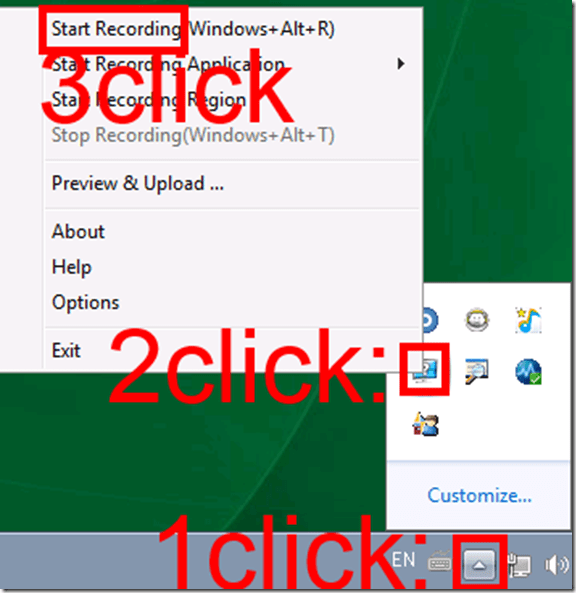
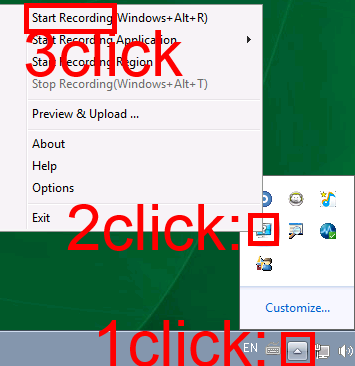
- To stop recording, follow the same steps, but in step 3 choose “stop”.
- Or forget about the menus and remember the keyboard shortcuts: WIN+ALT+R or T.
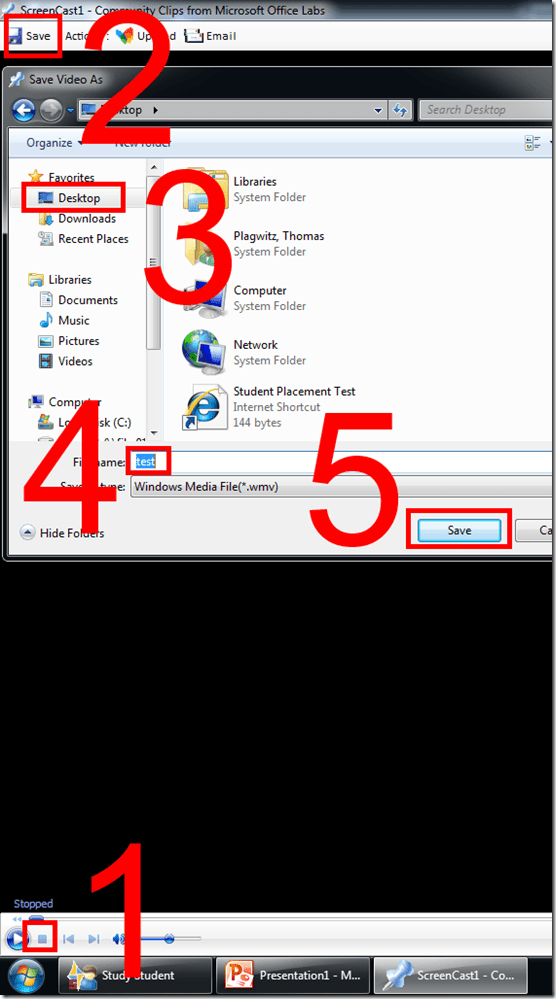
- The video will play automatically. Click stop, menu: Save, Save your recording where you need it (e.g. Desktop).
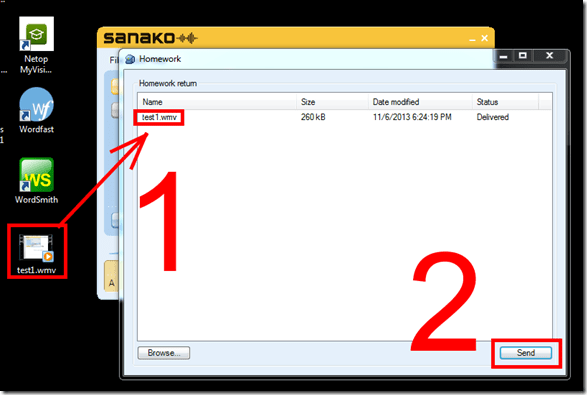
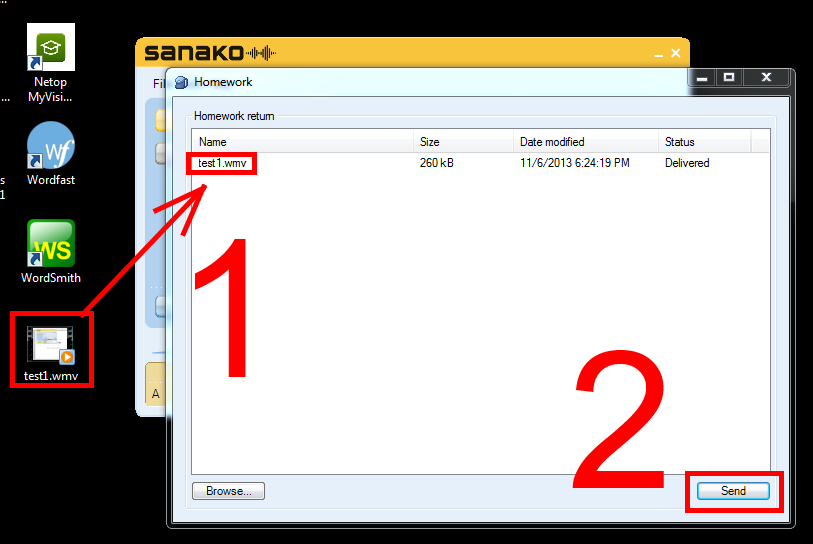
- If your teacher wants you to submit your recording, in the LRC you can drop it into the Sanako Homework window and “send” it:

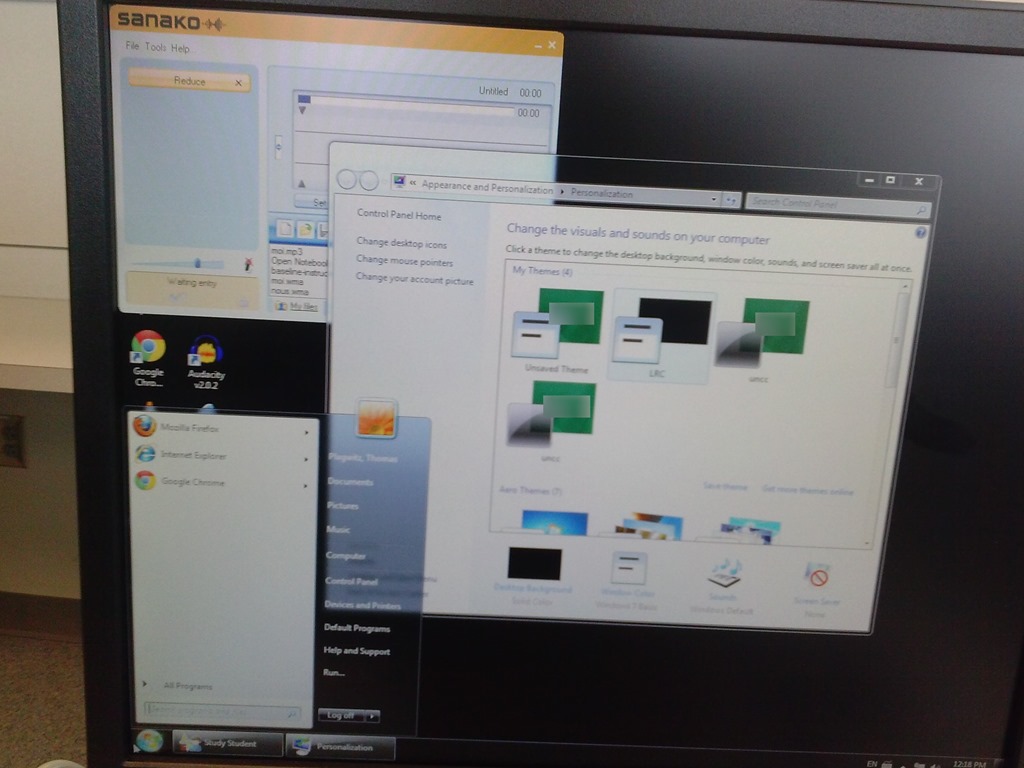
Forced downgrade to Color scheme Windows 7 Basic since “exceeded its allowed memory”
2013/10/31
Leave a comment
-

-
This warning and forced downgrade appeared on the teacher after starting using MS-Community Clips (which is just a GUI wrapper for Windows Media Encoder internally, which we used on the same machine successfully while it was still on XP).
-
The error seems slightly more informative than what we received earlier, but I did not manage to investigate since this was in the middle of supporting a teaching use .

How to run a microphone test before taking an ACTFL exam on languagetesting.com
2013/10/28
Leave a comment
- To avoid having your test recordings rejected for quality reasons (and having to take the entire test again), please run this simple microphone test OUTSIDE of languagetesting.com:
- This microphone test can be run either
- at the listening stations (see sign 433a, brown headsets) or
- (PREFERABLY) in the main classroom (see sign 434, black headsets).
- After logging in, put the headphones on. No need to re-plug anything.
- From the desktop, open Audacity
 .
. - In Audacity, Press the red RECORD button
 .
. - Speak into the microphone.
- Check the results:
- You should see something like this:

- Press the green PLAY button
 and listen to your recording.
 - Does the recording look AND sound OK?
- NO: let the LRC staff at the reception desk know the computer number and switch computers.
- Yes: Save the recording using menu: File / Export / [name = number of computer].mp3 to your “my documents” folder (if your test gets rejected, you have evidence that you ran the test and that the LRC headset hardware you used was o.k.).
- You should see something like this:
- This microphone test can be run either
- You also need to run the test WITHIN languagetesting.com (which just tests for volume, not for quality).


Switch to Color Scheme Basic not working for students
2013/10/25
Leave a comment
- Works for me:

- Does not work for students for whom it primarily has to work:

- Strangely, student seems to be not stuck on the original, but on an unsaved theme:


Can we get rid of Adobe Acrobat Reader’s Accessibility Setup Assistant dialogue?
2013/10/03
Leave a comment

For users not registered in AD as needing Accessibility this is distracting.
example os from the teacher station, assumed that is the same in the base image.
How a teacher can start up the Sanako Study 1200 for her class
2013/09/30
Leave a comment
- The Sanako Tutor software starts automatically, when you log in on the teacher station in the LRC:

- Choose from “saved classes” what best you fits your class-size:
- “Both halfs” (still not the full classroom, due to lack of licenses),
- or, for small class sizes up to 16 computers, left or, preferably, right-half
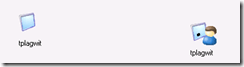
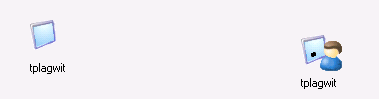
- Students also need to log in, and class is not ready for the Sanako until all students show up as Student icons like the right me:
-
- We can get there faster once we
- upgrade to faster computers
- fix that they manually have to choose their client
- have at least the teacher already log in from her office
- Hint: Log in yourself on a couple of student computers, to have them ready for latecomers (easier to deal with them being logged in as you than if the class has to wait for 5-10 minutes).
- We can get there faster once we
- Then, choose how to display the students on your classroom map:

- Finally,
- during your class’ first visit can play them this screencast introduction into Sanako digital audio lab procedures
- during later visits, you can refresh their knowledge of the basics in the digital audio lab with this slideshow.


Categories: audience-is-teachers, digital-audio-lab, Presenter-Computer
FAQs, sanako-study-1200
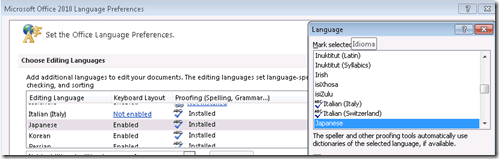
Japanese Language Tools (Proofing, dictionary, furigana) in the LRC MS-Office 2010 installation
2013/09/30
Leave a comment
- Even if not showing in MS-Word’s Language selector),
-
-

-
Even though there is no Japanese Thesaurus:

-
There are these tools:
-
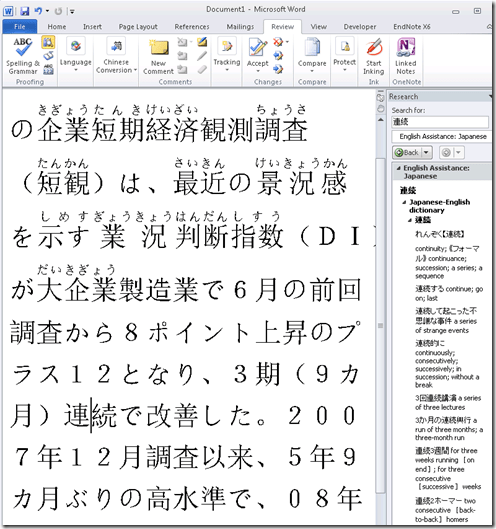
In the Research pane, "English Assistance: Japanese" (in the ribbon / "Review" tab, Proofing section, press the
 , then ALT-Click a character to start a lookup:
 -
-
a Japanese Consistency Checker:

-
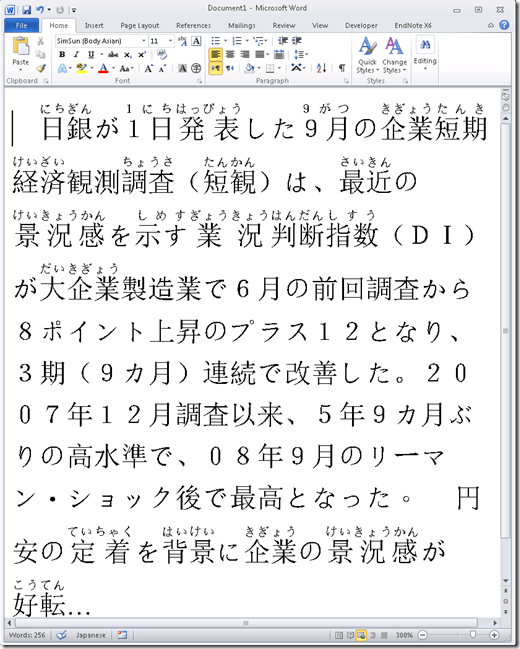
Furigana:
-
To enable:

-
Result (in view / Web layout):
-
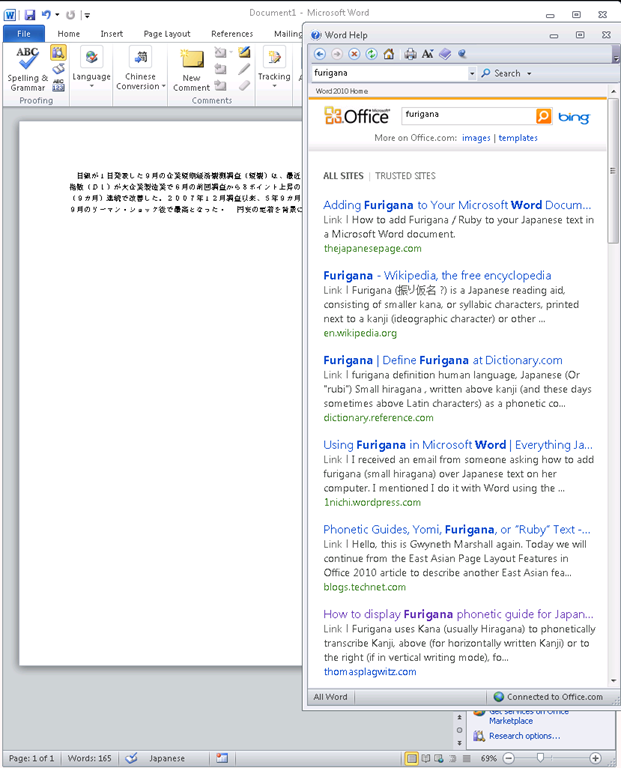
Incidentally, my blog has not quite made it into the TOP 5 of MSW-Office help content:

-
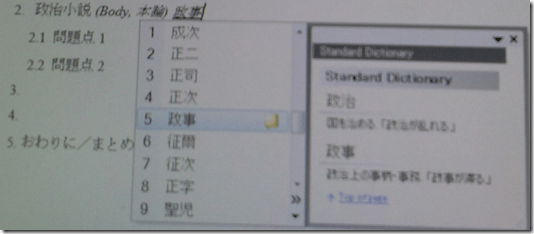
In addition, for Office, but also beyond, there are the tools of the MS-Office Input method editor (which include dictionary help when you write):



Categories: audience-is-students, audience-is-teachers, Dictionaries, e-languages, Japanese, Listening-Stations, LRCRoomCoed434, office-software, Presenter-Computer, Reading, service-is-configuring-learning-tools, small-group-work-spaces, Student-Computers, Writing
dictionaries, furigana, proofing-tools
Creating site-specifically useful learning content for the Sanako Study 1200 vocabulary testing
2013/09/06
Leave a comment
- The usefulness of the Sanako Study 1200 new (from ver 6) vocabulary test activity hinges on the availability of site-specific vocabulary lists.
- Sanako UK
- seems aware of this and publishes vocabulary collections for textbooks and assessments commonly used in UK secondary education.
- Sanako favors using the built-in format and saving it on the network share that is required for the Sanako study 1200.
- Vocabulary tests are organized and can be discovered and browsed by file name only.
- TBA: How could something similar be done in a US HE context? One would need:
- establish which textbooks are (and will remain) in use?
- are they e-books or would the material need digitization?
- is the chapter vocabulary easily accessible as a list? Appendix glossaries encompass usually much more than the vocabulary required to study, so testing on these would quickly become frustrating
- how best to reformat the materials (from turning into a table to handling linguistic metadata) for easy use with the Sanako vocabulary test?
- how best to publish the material?
- to make it manageable for the updaters: crowdsourcing? copyright issuew?
- to make it easily selectable for the teacher: filter by integrated linguistic and course metadata?
- Last not least: How to do all this economically? Taking into consideration teacher preference, enrollment, preexisting materials…?
- cost lowered if tabular lists of vocabulary already exists
- benefit is lowered if online flash card applications already exist.


Questions? Read the About. Or just ask me a quick Our Databases: Resources with calendars -- Language learning material Moodle Sites, multimedia files -- films


FAQs for LRC student staff or for students or for teachers. To search our FAQs, in the browser addressbar, add after "https://plagwitz.wordpress.com/feed/?tag=faqs+/" "+TAG1" (from tag cloud below) OR "https://plagwitz.wordpress.com/feed/tag=faqs
&category_name=" "CAT1" (from category hierarchy below). OR search both categories and tags, and multiple TAGs/CATs (connect with "," for OR-search, with "+" for AND-search), like so: https://plagwitz.wordpress.com/feed/?tag=TAG1+TAG2+...TAGn&category_name=CAT1
+CAT2+...CATn"
Other ways to find help
If you cannot find it here, look there: 5,500 Language-Learning Links and Programs for learning or teaching 150 languages
Shortcuts:Our Lists, Our Maps, LRC Staff Moodle Site,LRC Project Moodle Site, 49erexpress, UNCC Moodle, Student Recordings: s:claslcslrcsanakostudent
Learning usage samples: Sanako oral exam, Kaltura webcam presentation, Dictation with speech recognition, Sanako written exam, Chinese and Japanese interactive stroke-order practice
Test the Sanako Installer, Webbrowser Popup Konfigurator for XP, or Windows7, faster LRC TeacherPC Log-in Let MS facilitate diacritics writing by installing for you US-International keyboard layout
This is my personal blog (Google+). The views expressed on these pages are mine alone and not those of my employer. The information in this weblog is provided “AS IS” with no warranties, and confers no rights.
 Thomas' Work Space