Archive
Archive for August, 2013
Example 6: How even a false beginner can work with foreign language Speech recognition on Windows 7 Enterprise
2013/08/14
Leave a comment
- Executive summary: Don’t let initial poor speech recognition results discourage your from using this feature. Results will much improve if you go through a few minutes of the built-in voice training for speech recognition. Like in the last 30 seconds of this video.
- With the upgrade to Windows 7 Enterprise in the LRC – and the continued availability of high-quality Sanako headphones on the majority of LRC PCs – , we can now offer speech recognition in a number of foreign languages – including French.
- This feature can be used for language learning exercises, including dictation, like in this example. How robust is windows 7 speech recognition?
- You can expose yourself to some embarrassingly bad French in this screencast – and that is the point. (My French is limited to a mere 2 high school years of 3-hour per week voluntary French studies, more than 30 years ago, no practice since).
- The screencast shows how even a (false) beginner can,
- 0:00-1:00: from terrible initial results,
- 11:45-12:10: considerably improve (not make perfect!) the foreign language (here French) speech recognition on Windows 7,
- 1:00-10:40: by going through the built-in voice training.
- The LRC computers are “frozen”between reboots, but students still need to train them only once, since they can back up and restore their training data easily.

- (This is not proof of the overall validity of the recognition – for that, you are better off watching this screencast with Windows 7 Enterprise speech recognition in German).
How to view the full MS-Exchange resource booking details in scheduling assistant
2013/08/13
3 comments
- If you set resource mailbox calendar default permissions to “full details” like so:
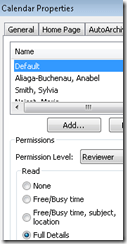
- you will get the benefit of seeing immediately the contact info of other bookers of the resource in the scheduling assistant , like so:
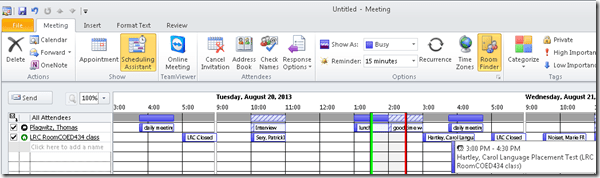
- That is more personal and personable – in Outlook! In OWA of exchange 2010 sp2, you still do not, and you have to go through the full calendar (subscribed or published with full detail like in the view links here).
- Here is a little bonus for the recent commenter: You may have to trigger a refresh (wait time seemed bit enough). The information for the resources at the bottom I started seeing only after I switched back and forth between scheduling assistant/appointment/scheduling assistant view.


Categories: e-infrastructure
ms-exchange-2010, outlook-2010, OWA, scheduling assistant
Sanako Study 1200 version 7 datetime format of file saves has changed
2013/08/09
Leave a comment
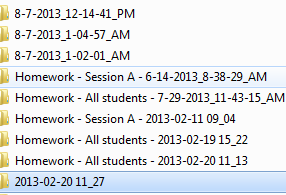
- The top items are samples from “before” (ver 5.2, XP), the bottom of “after”(ver 7, Windows 7):
 . Somewhere in between (not sure when, we skipped Sanako Study 1200 version 6 and MS-Windows-Vista), the default file naming of Sanako has changed.
 - I found out that Sanako version 7 now uses settings from the Windows Regional settings. This seems to make sense, but likely should have been always the case (it breaks or rather forces me to extend my langlabemailer), and has some disadvantage.
- So if you want a different datetime format in the file names that Sanako creates when collecting student assessments and assignments, you need to change it in Windows Regional settings now.
Categories: digital-audio-lab
datetime, langlabemailer
Sanako Study 1200 classroom map can now scroll to fit on small screens
2013/08/09
Leave a comment
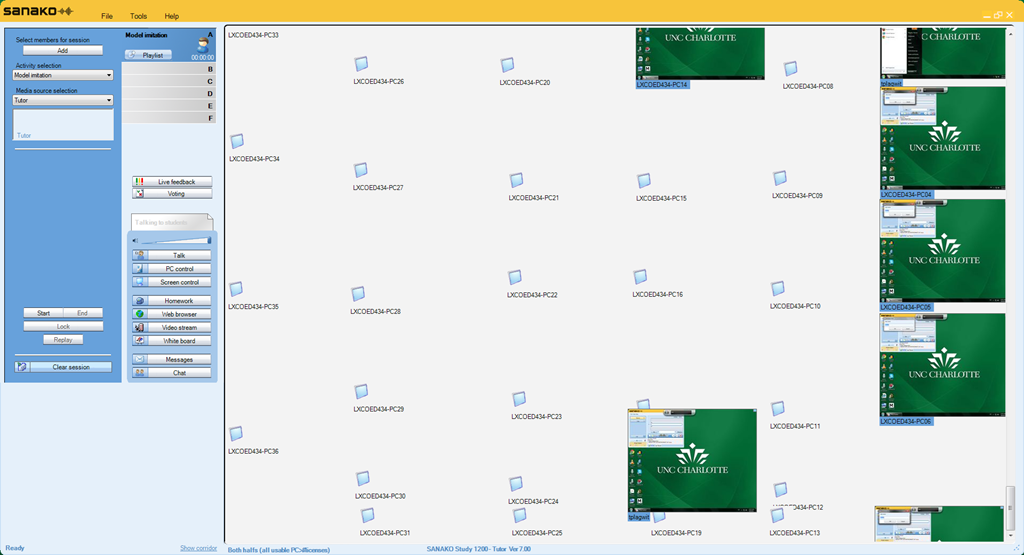
- We are now on Sanako Study 1200 ver 7.
- As you can see in this thumbnail view (note the vertical scrollbar on the right), it does help,
-

-
but not enough. Here is why:
-
I can get it to scroll only vertically.
-
I can only marginally move the student icons off the map when I use the GUI (ctrl-shift drag&drop). Wondering whether I have to dig into the XML source to force an even wider layout…
Categories: e-languages, Presenter-Computer
classroom-layout, sanako-study-1200
Workaround for Sanako study 1200 tutor v7 window limitations
2013/08/06
Leave a comment
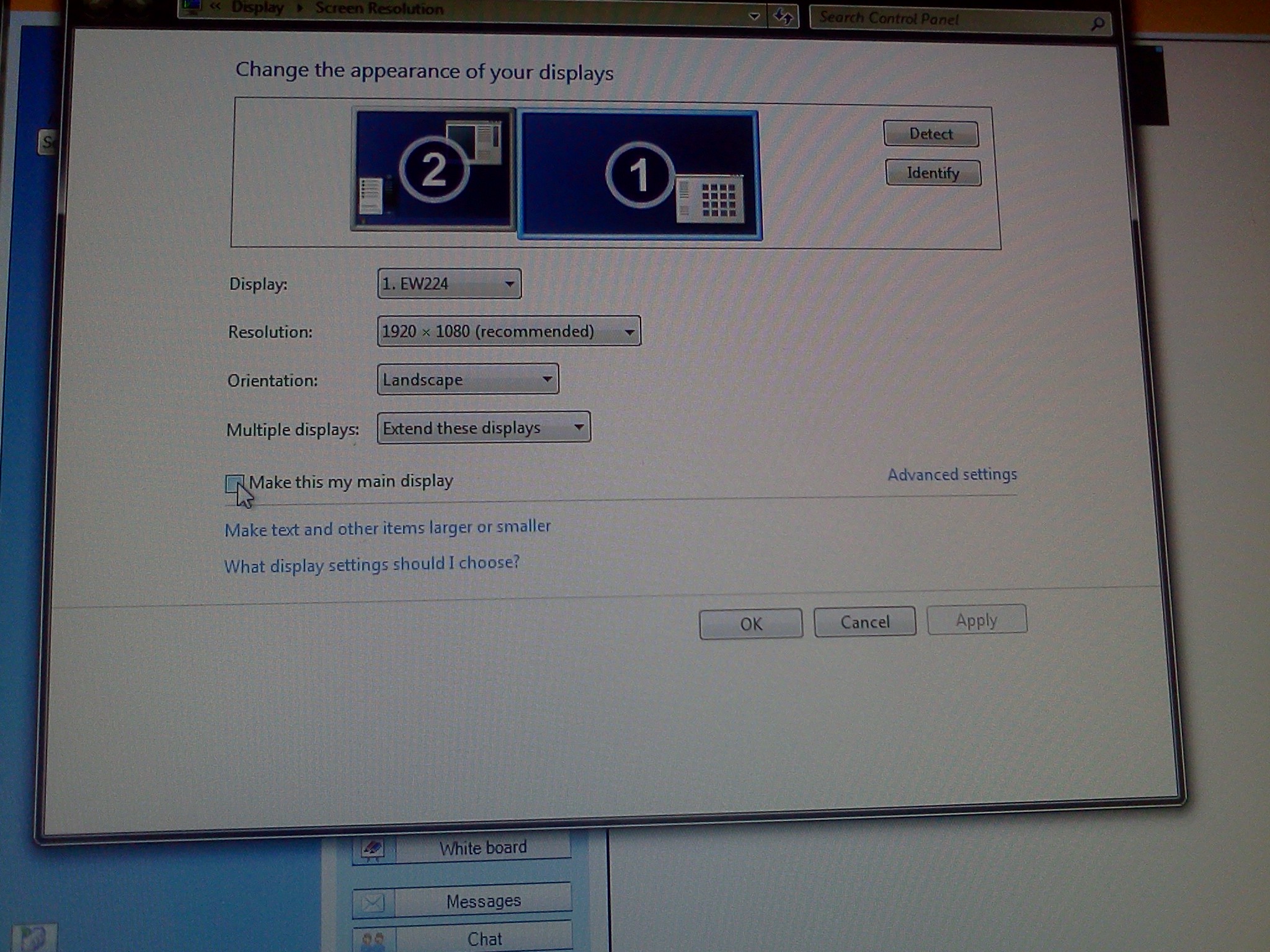
- Problem: Window maximizes only to size of,and location defaults to, primary screen. This is now on windows7.
- Workaround: make the screen whose size you desire the primary (and live with the side effects).
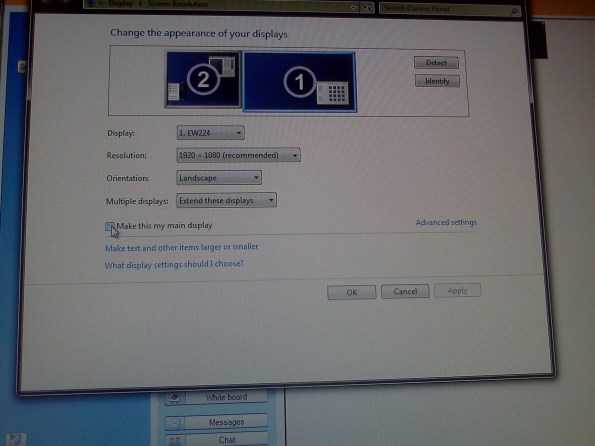
- Downside:
- Screencast recordings of instruction won’t work: Community Clips can only record the primary screen, which is not the screen displayed to students during regular teaching. Windows Media Encoder does not work with our non-standard dual screen configuration on Windows7.
Sanako student lite recorder needs reconfiguration
2013/08/06
Leave a comment
- Because of a misconfiguration, students now always have to make these two changes (on teacher screen) from the default configuration (on student screen) before their Sanako will become operational:

- If you made the default, but wrong choice “Lite recorder”, you will get stuck with this:
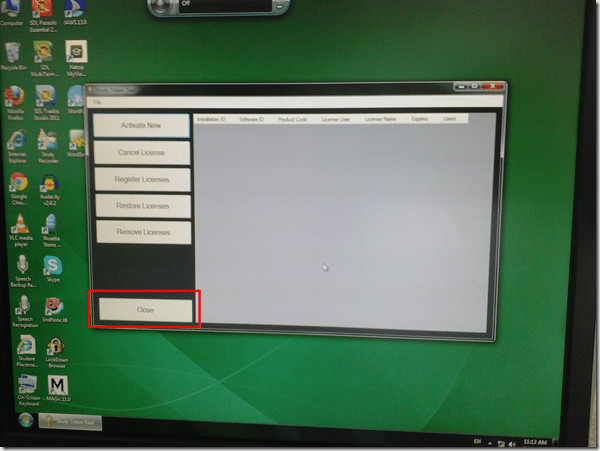
- To get out of it, click button:”close”and start over.




Questions? Read the About. Or just ask me a quick Our Databases: Resources with calendars -- Language learning material Moodle Sites, multimedia files -- films


FAQs for LRC student staff or for students or for teachers. To search our FAQs, in the browser addressbar, add after "https://plagwitz.wordpress.com/feed/?tag=faqs+/" "+TAG1" (from tag cloud below) OR "https://plagwitz.wordpress.com/feed/tag=faqs
&category_name=" "CAT1" (from category hierarchy below). OR search both categories and tags, and multiple TAGs/CATs (connect with "," for OR-search, with "+" for AND-search), like so: https://plagwitz.wordpress.com/feed/?tag=TAG1+TAG2+...TAGn&category_name=CAT1
+CAT2+...CATn"
Other ways to find help
If you cannot find it here, look there: 5,500 Language-Learning Links and Programs for learning or teaching 150 languages
Shortcuts:Our Lists, Our Maps, LRC Staff Moodle Site,LRC Project Moodle Site, 49erexpress, UNCC Moodle, Student Recordings: s:claslcslrcsanakostudent
Learning usage samples: Sanako oral exam, Kaltura webcam presentation, Dictation with speech recognition, Sanako written exam, Chinese and Japanese interactive stroke-order practice
Test the Sanako Installer, Webbrowser Popup Konfigurator for XP, or Windows7, faster LRC TeacherPC Log-in Let MS facilitate diacritics writing by installing for you US-International keyboard layout
This is my personal blog (Google+). The views expressed on these pages are mine alone and not those of my employer. The information in this weblog is provided “AS IS” with no warranties, and confers no rights.
 Thomas' Work Space