Archive
Protected: UNCC Webtimeentry for hourly paid staff – demo screencasts
LRC demo, troubleshooting and debugging screencasts
- The LRC student PC image contains a file C:\temp\screencastfullhighaudio.wme
- Doubleclick or run the file, in the encoder window that comes up, click the green menu button to record your screen.
- When done demonstrating on screen, swtich back to the encoder window and click the red button to stop recording.
- Rename and archive (the student hard drive is “frozen”) the screencast video output file which you will find in c:\temp\screencast.wmv.
Protected: live@edu Resource mailboxes not autoaccepting when requested from cloud?
Screencasts for Spring 2012 Student Staff Workshop: LRC layout,, calendaring, tutoring, example Japanese
- Here are two screencasts of my presentation:
- one for the right screen/participant screen (using the Study1200 teacher to student screen casting). Requires Windows Media Player on PC, like in the LRC: download from MS-SkyDrive.
- one for the left screen/projector, where I displayed mostly a PowerPoint. You can watch this in parallel using another player, e.g. the VLC player, like in the LRC. However, it can also stream from MS-SkyDrive.
How to use a drawing tablet and Windows XP writing pad IME to write Japanese and Mandarin characters with autosuggest
- Our small group work spaces each now have a Wacom Bamboo drawing tablet installed.
- You can use these tablets in conjunction with the Windows XP writing pad IME to input Mandarin/Kanji character strokes and receive autosuggest options you can pick you character from which make not only writing faster, but also reward you for remembering your characters, expose you to more and help you identify the correct one from a list of options.
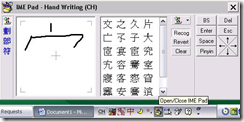
- Here is what the Windows XP writing pad IME and Wacom tablet looks like in action:
 (behind the pen: our Japanese tutor).
 - Here is how to access Windows XP Japanese IME keyboard and handwriting:
- Open the application you want to write in, e.g. MS Word (the language input option is specific to the current window and defaults to”English-US international” in the LRC if you open a new window).
- In the taskbar, in the language toolbar section, select Japanese or Chinese or Korean.
- If only the language identifier is showing in the language toolbar, right-click on it and choose “Show additional icons”
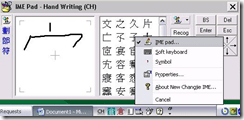
- Select as input method for the chosen language from icon “Options” or “Tools”” , the “IME pad” / “Handwriting”
- Prerequisites
- you need to have the handwriting IME installed for Japanese or Chinese or Korean in Control Panel / Regional and Language Options / Text Input, and East Asian language support).
- For simplified Chinese, the IME Pad may not be checked to be displayed by default. Access the Tools icon menu to check it.
- For both simplified and traditional Chinese, if checked, the IME Pad becomes a separate top-level ion in the language bar.
- Some screenshots may help:




Using WebParts syntax to navigate OWA?
When you train in OWA, you can take advantage of sending your students directly to certain interfaces of OWA, for doing specific hands-on tasks. If they are not alreay logged in, they seem to get redirected to the desired view in the end Working example:
https://mail.uncc.edu/owa/?cmd=contents&fpath=Calendar&view=Weekly&archivestub=1
Limitations seem to be in the browsers: IE> Firefox > Safari.
However, I could not find a way to send a user to a specific view of an OWA published calendar (seems to default always to monthly). Non-working eexamples:
bad request http://mail.uncc.edu/owa/calendar/LRCtutor11@uncc.edu/Calendar/calendar.html?view=Weekly 404 http://mail.uncc.edu/owa/calendar/LRCtutor11@uncc.edu/Calendar/Weekly/calendar.html#
See documentation here: http://technet.microsoft.com/en-us/library/bb232199.aspx
Can you use webbparts to save your users to have to change the view  when they open up a calendar like http://mail.uncc.edu/owa/calendar/LRCRoomCOED434@uncc.edu/Calendar/calendar.html#, or another way to open this calendar not in its (monthly) default view?
Spanish movie subtitles exercise project
- objective:
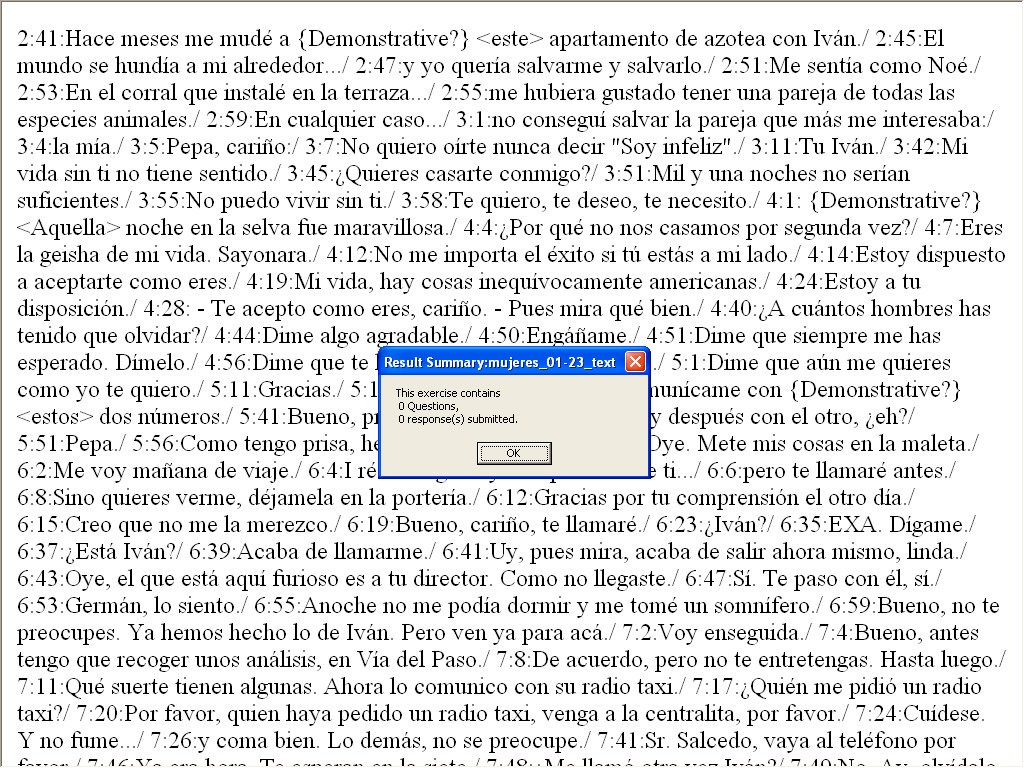
- To facilitate lesson delivery and student interaction in our Language Resource Center I have programmed a VBA- and MS-Word- based cloze quiz template with batch creation based on a simple markup language and rich autocorrecting functions that use string metric algorithms (Damerau-Levenshtein).
 The template supports typical activities in the digital language lab: digital audio- and video-based listening comprehensions, e.g. Quiz Template with Chanson Lyrics,
 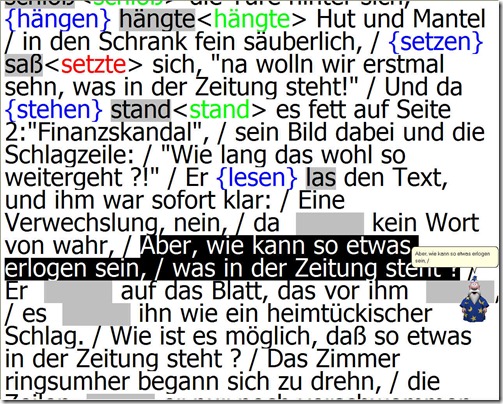 and speaking and dialoguing activities for language learning or other examples):
 - Teachers can use them as exercise-generating engines: the templates allow copy/paste of their own exercises into this template. To also automatically create language teaching materials with the required markup in French, German, Italian and Spanish (mostly based on movie subtitles) for this template, I wrote a C#-program that applies an expanding library of regular expressions which can match typical language learner tasks:
- function words,
 e.g for Spanish Movie Subtitling Exercise Creation,
- affixes/infixes
- and lexical subsets taken from corpus linguistic research on word-frequency (SUBTLEX, Opensubtitles)).
- function words,
- This template support the learner by strengthening learner autonomy and providing immediate corrective feedback and – in conjunction with the grouping facilities of the Center’s classroom management system infrastructure – allow for custom-tailored instruction based on the immediately available outcome of formative assessments, and also automated summative feedback:
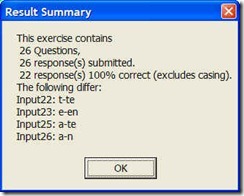
- A Spanish TA can provide meaningful vocabulary and grammar questions as input for cloze listening comprehension exercises that I will create on the basis of subtitles I have for Spanish movies being used in (= put on reserve for viewing in the LRC by) the Spanish program consistent exercises that students can take while watching the movie in class adapted meaningfully to technical possibilities of template
- Screencasts Demos:
- making of template exercises
- manually marked up: Part II to minute 4, Part III
- alternatively, markup can be generated by regular expressions which we will try to develop:
- use of template exercises : Part II, from minute 4
- materials
- source texts:subtitle files for proof reading
- Amores Perros
- Pedro Almodovar – Mujeres al borde de un ataque de nervios
- Pedro Almodovar – Hable Con Ella
- ideas for exercise needs that fit into this cloze format
- grammar
- function words
- affixes
- vocabulary
- frequency-based wordlists from corpus linguistics
- word lists from current textbook
- grammar
- source texts:subtitle files for proof reading
- Deliverables: combos of
- materials
- exercise ideas
- making of template exercises
- To facilitate lesson delivery and student interaction in our Language Resource Center I have programmed a VBA- and MS-Word- based cloze quiz template with batch creation based on a simple markup language and rich autocorrecting functions that use string metric algorithms (Damerau-Levenshtein).





Questions? Read the About. Or just ask me a quick Our Databases: Resources with calendars -- Language learning material Moodle Sites, multimedia files -- films


FAQs for LRC student staff or for students or for teachers. To search our FAQs, in the browser addressbar, add after "https://plagwitz.wordpress.com/feed/?tag=faqs+/" "+TAG1" (from tag cloud below) OR "https://plagwitz.wordpress.com/feed/tag=faqs
&category_name=" "CAT1" (from category hierarchy below). OR search both categories and tags, and multiple TAGs/CATs (connect with "," for OR-search, with "+" for AND-search), like so: https://plagwitz.wordpress.com/feed/?tag=TAG1+TAG2+...TAGn&category_name=CAT1
+CAT2+...CATn"
Other ways to find help
If you cannot find it here, look there: 5,500 Language-Learning Links and Programs for learning or teaching 150 languages
Shortcuts:Our Lists, Our Maps, LRC Staff Moodle Site,LRC Project Moodle Site, 49erexpress, UNCC Moodle, Student Recordings: s:claslcslrcsanakostudent
Learning usage samples: Sanako oral exam, Kaltura webcam presentation, Dictation with speech recognition, Sanako written exam, Chinese and Japanese interactive stroke-order practice
Test the Sanako Installer, Webbrowser Popup Konfigurator for XP, or Windows7, faster LRC TeacherPC Log-in Let MS facilitate diacritics writing by installing for you US-International keyboard layout
This is my personal blog (Google+). The views expressed on these pages are mine alone and not those of my employer. The information in this weblog is provided “AS IS” with no warranties, and confers no rights.
 Thomas' Work Space