Archive
Archive for January, 2012
How to search/replace a color in an image – for free using Paint.net
2012/01/05
Leave a comment
- I changed your mind about the style some documentation I produced, but did not want to redo it from scratch.
- Enter the jchunn effects plugin for Paint.net: Download jchunn and expand the dll into the Effects folder of your Paint.net installation).
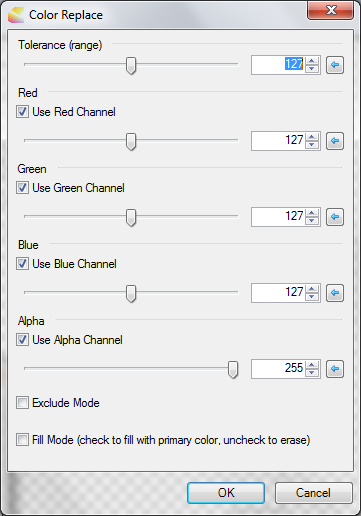
- Restart paint.net and access the plug-in dialogue from the menu:effects.
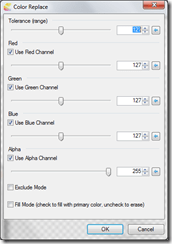
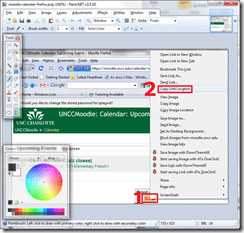
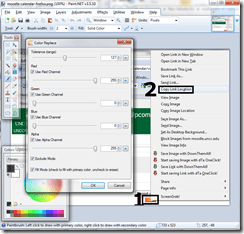
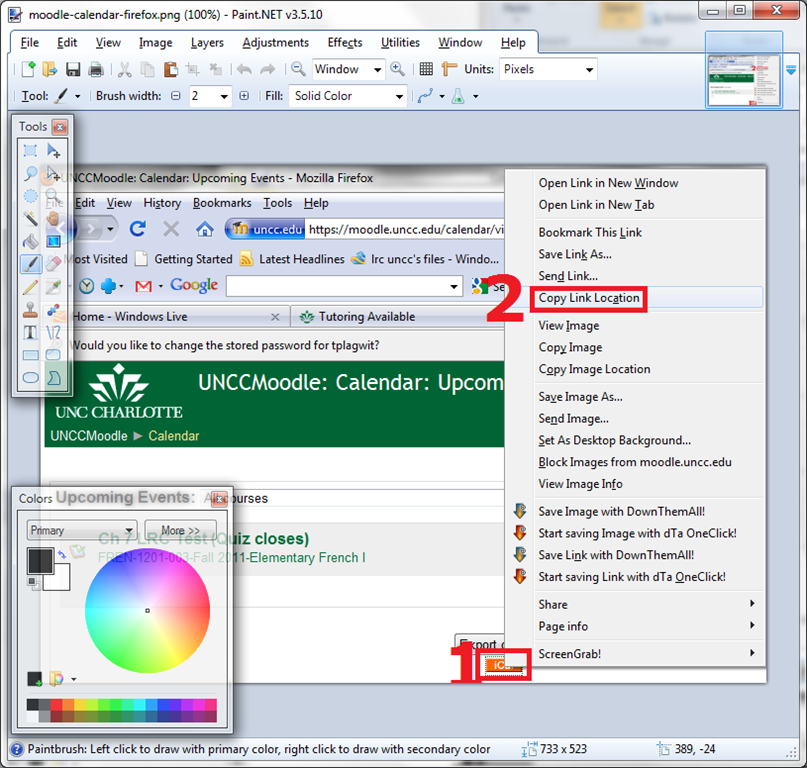
- Here are a few example screenshots:



Protected: LRC Outlook/Exchange Resource mailboxes update for Winter 2012
2012/01/05
Enter your password to view comments.
How we improve LRC assistants’ and tutors’ visibility using name tags
2012/01/05
Leave a comment
- We posted name tag holders on lanyards at the bulletin board behind the reception desk.
- When you come in, take one, insert your student id card, and wear it during your shift.
- At the end of your shift, do not forget to return the name tag holders to the bulletin board for the next LRC assistant/tutor.


Calendaring: How to view all your Moodle course assignments in Ninermail, OWA or MS-Outlook – Shortest
2012/01/05
3 comments

Categories: audience-is-students, audience-is-teachers, documentation, lms, Screenshots, step-by-step-guides
calendaring, FAQs, moodle, ms-outlook, OWA
Windows Live Messenger Advanced Options
2012/01/04
Leave a comment

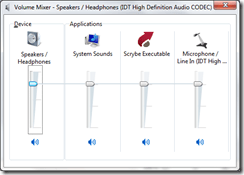
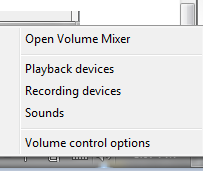
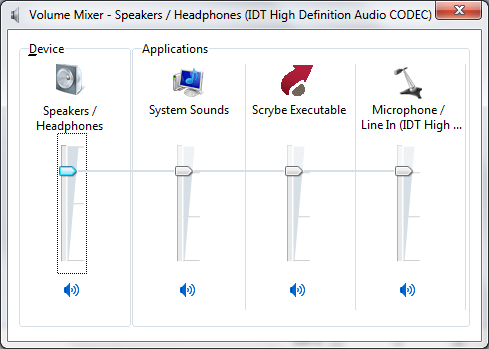
- mixer:
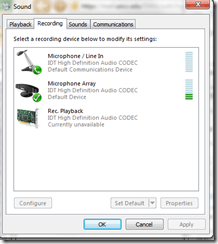
- recording devices (playback is the other tab) : does your input volume meter show activity? Can you press a button: “configure to activate/turn on the microphone? meter
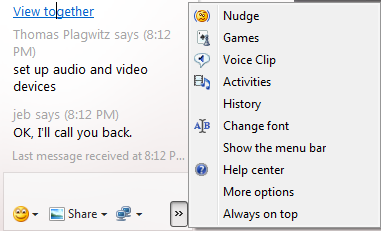
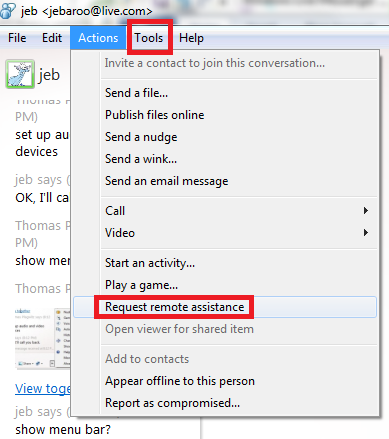
- how to request remote assistance ( via screen and control sharing)
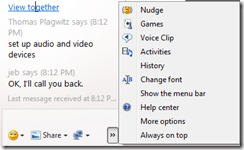

- or so



Categories: software, web-conferencing
audio, ms-live-messenger
Sharing and reusing Moodle learning content using backup and restore, part III: Shared intermediate courses
2012/01/03
1 comment
- You can facilitate the sharing process if you link source and destination Moodle courses via a Moodle course that is itself shared between the teachers (= all teachers can backup from or restore/import into this shared course), but not to students.
- By backing up to and restoring from such a shared Moodle course, you can more easily inspect the shared course content than
- if you’d import into the destination course to inspect,
- or either inspect the unzipped XML of the Moodle course backed-up content format, like here:
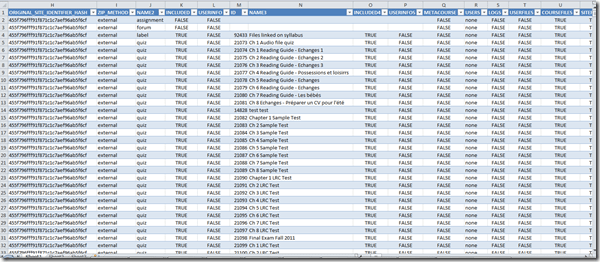
- which can be a daunting perspective on your content:

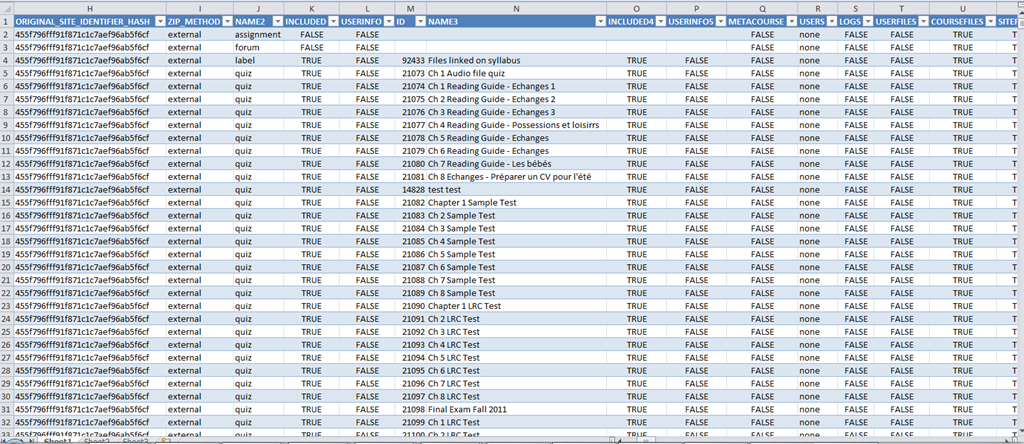
- A little more instructive are the Moodle course export file columns in a handy list, with sample content (where available in our case – sample content does not represent an actual “row”, but merges multiple “rows”, using Excel’s “Paste Special’/ “Skip blanks”):
- As you can see, there are fewer than 254 column (meaning you can even load this into Excel <2007), and apparently you get to actual teaching content already on nesting level 3.



Questions? Read the About. Or just ask me a quick Our Databases: Resources with calendars -- Language learning material Moodle Sites, multimedia files -- films


FAQs for LRC student staff or for students or for teachers. To search our FAQs, in the browser addressbar, add after "https://plagwitz.wordpress.com/feed/?tag=faqs+/" "+TAG1" (from tag cloud below) OR "https://plagwitz.wordpress.com/feed/tag=faqs
&category_name=" "CAT1" (from category hierarchy below). OR search both categories and tags, and multiple TAGs/CATs (connect with "," for OR-search, with "+" for AND-search), like so: https://plagwitz.wordpress.com/feed/?tag=TAG1+TAG2+...TAGn&category_name=CAT1
+CAT2+...CATn"
Other ways to find help
If you cannot find it here, look there: 5,500 Language-Learning Links and Programs for learning or teaching 150 languages
Shortcuts:Our Lists, Our Maps, LRC Staff Moodle Site,LRC Project Moodle Site, 49erexpress, UNCC Moodle, Student Recordings: s:claslcslrcsanakostudent
Learning usage samples: Sanako oral exam, Kaltura webcam presentation, Dictation with speech recognition, Sanako written exam, Chinese and Japanese interactive stroke-order practice
Test the Sanako Installer, Webbrowser Popup Konfigurator for XP, or Windows7, faster LRC TeacherPC Log-in Let MS facilitate diacritics writing by installing for you US-International keyboard layout
This is my personal blog (Google+). The views expressed on these pages are mine alone and not those of my employer. The information in this weblog is provided “AS IS” with no warranties, and confers no rights.
 Thomas' Work Space