Home
> Arabic, e-infrastructure, Farsi, Glitches&Errors, Greek (modern), Japanese, Korean, Mandarin, Russian > How to: Send email with non-western (e.g. Japanese) characters in Outlook Web Access (e.g. 2003, e.g. from Safari)
How to: Send email with non-western (e.g. Japanese) characters in Outlook Web Access (e.g. 2003, e.g. from Safari)
- If your emails with Japanese sent from Safari arrive with unreadable characters (squares or question marks, meaning the recipient’s computer cannot decode how to display the character your computer sent), you may have set your browser to the wrong characterr encoding.
- However, the encoding Unicode (e.g. UTF-8) can handle both western and .
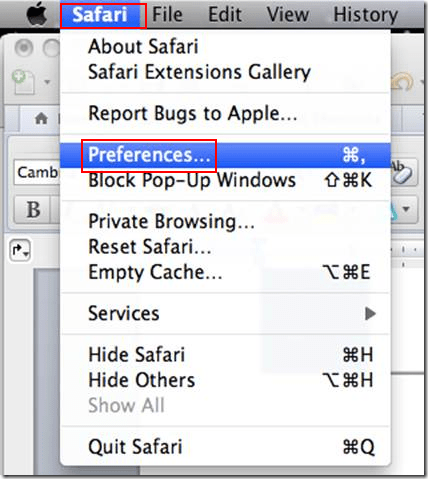
- Simply go to Safari (similarly in other browsers)/ Preferences / Appearances / Default Encoding and change to UTF-8, like so:


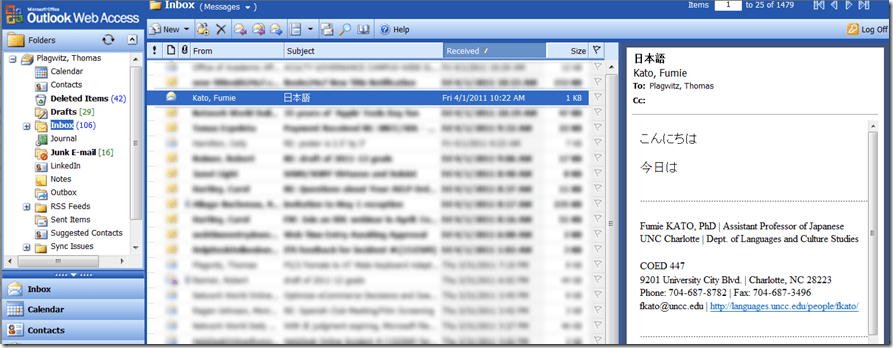
- This has been tested to work already from/to OWA 2003.
- However, for your reference, here a matrix of imminent upgrades of email clients on your computer and the corresponding university server software:


|
When? |
Your office computer |
recommended? |
Any computer (travel, home) |
University server |
|
|
mac |
pc |
|
|||
|
soon |
Outlook 2011 |
Outlook 2010 |
is better than |
Outlook web access 2010 |
Exchange 2010 |
|
recommended? |
is better than |
is better than |
|
is better than |
is better than |
|
now |
Entourage (limited support for Exchange) |
Outlook 2007 |
is better than |
Outlook web access 2003 |
Exchange 2003 |
Categories: Arabic, e-infrastructure, Farsi, Glitches&Errors, Greek (modern), Japanese, Korean, Mandarin, Russian
Comments (0)
Trackbacks (0)
Leave a comment
Trackback


Questions? Read the About. Or just ask me a quick Our Databases: Resources with calendars -- Language learning material Moodle Sites, multimedia files -- films


FAQs for LRC student staff or for students or for teachers. To search our FAQs, in the browser addressbar, add after "https://plagwitz.wordpress.com/feed/?tag=faqs+/" "+TAG1" (from tag cloud below) OR "https://plagwitz.wordpress.com/feed/tag=faqs
&category_name=" "CAT1" (from category hierarchy below). OR search both categories and tags, and multiple TAGs/CATs (connect with "," for OR-search, with "+" for AND-search), like so: https://plagwitz.wordpress.com/feed/?tag=TAG1+TAG2+...TAGn&category_name=CAT1
+CAT2+...CATn"
Other ways to find help
If you cannot find it here, look there: 5,500 Language-Learning Links and Programs for learning or teaching 150 languages
Shortcuts:Our Lists, Our Maps, LRC Staff Moodle Site,LRC Project Moodle Site, 49erexpress, UNCC Moodle, Student Recordings: s:claslcslrcsanakostudent
Learning usage samples: Sanako oral exam, Kaltura webcam presentation, Dictation with speech recognition, Sanako written exam, Chinese and Japanese interactive stroke-order practice
Test the Sanako Installer, Webbrowser Popup Konfigurator for XP, or Windows7, faster LRC TeacherPC Log-in Let MS facilitate diacritics writing by installing for you US-International keyboard layout
This is my personal blog (Google+). The views expressed on these pages are mine alone and not those of my employer. The information in this weblog is provided “AS IS” with no warranties, and confers no rights.
 Thomas' Work Space