Archive
Posts Tagged ‘ms-exchange’
How to share your calendar from Outlook (desktop)
2013/08/15
Leave a comment
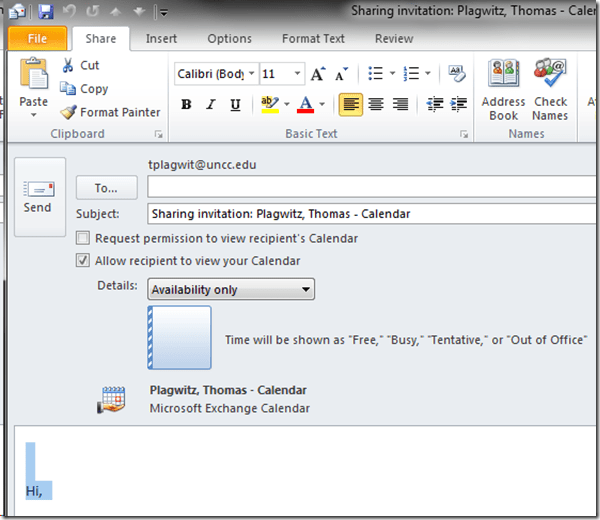
- Click “Share Calendar”:

- Choose your settings, then click “Send”:
- Or you could just rely on the campus default and have colleagues use the “scheduling assistant” in the “meeting request”,
- After adding participants

- their calendars can be seen – in timeline format, good for comparing availability of multiple meeting participants –after you click on ribbon item: “scheduling assistant”.

- In current OWA., “meeting request” and “scheduling assistant” look a bit different from/reduced (including permissions) compared to Outlook, as you can see here e.g..


Categories: audience-is-teachers, e-infrastructure, office-software
calendaring, ms-exchange, outlook, scheduling, sharing
First steps with MS-Calendar Analytics
2013/06/22
2 comments
- After installing Calendar analytics (and, if you do not already have it, PowerPivot), open the Calendaranalytics spreadsheet from your desktop and click on “Refresh Calendar”.
- “Enter your full email address. Users with more than 1 email address may need to try each of them.”


- “Enter a start date and end date for the timeframes for the Dashboard to reflect”/
- “The interface will prompt you for the user’s aliases to add. You can add multiple.”
- “Type in users’ aliases of whom you have permission (i.e. “Full details”) to access their Outlook calendar and click Add”
-

- Do not use the fully qualified email address for the alias, or else:

- You cannot comma delimit (so AutoIt to the rescue).

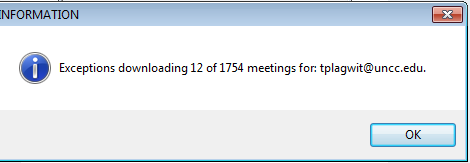
- You can continue after such a non-fatal error:


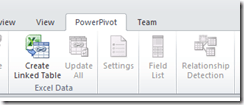
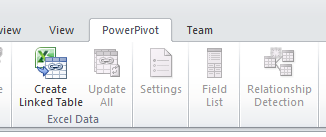
- Is your “Update all” greyed out ? Restart Excel.

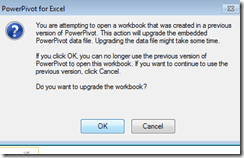
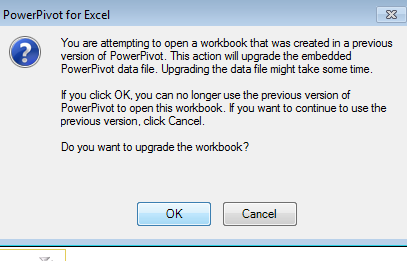
- Accept the offer to upconvert:
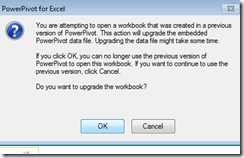


- Update all becoame available after restart of excel, even with download exceptions – maybe the unsaved update of the spreadsheet form powerpivot 1 was the root cause ?
- Not that here upconversion to the new powerpivot version does not “take”:

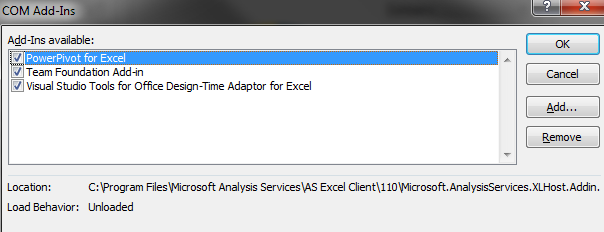
- If after a restart of excel your powerpivot tab on the ribbon does not show, reenable the powerpivot addin.
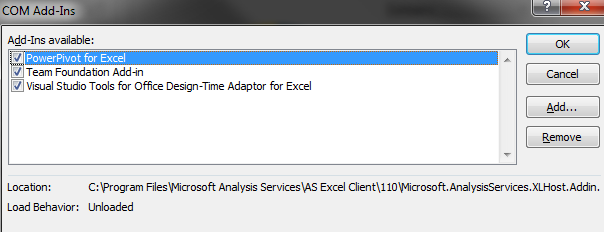
- How to reenable: excel file/ options / select dropwdown: addins, button:go, check the Checkbox in front of powerpivot:
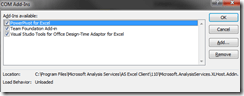
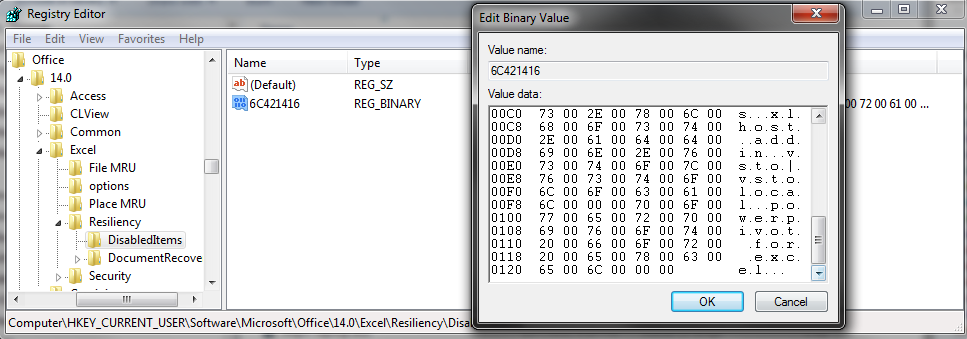
- What if even after a restart of excel, this does not “take”? See whether in the registry the key CURRENT_USER\Software\Microsoft\Office\14.0\Excel\Resiliency\DisabledItems contains the path to your powerpivot add-in,like here:
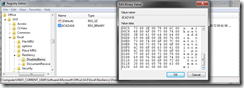
- Delete the key and restart excel, your powerpivot ribbon tab =should be back. Hope this will last?

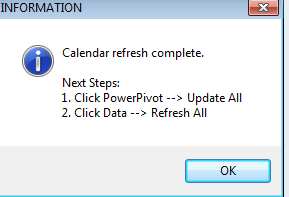
- Now updating does something:

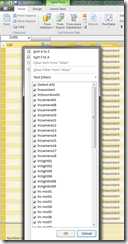
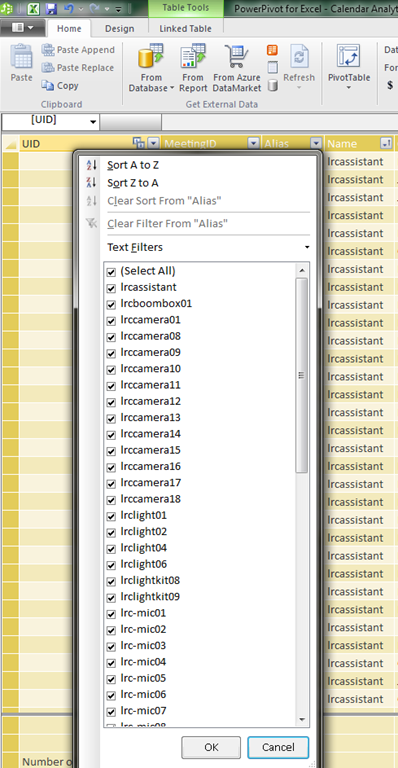
- This opens the powerpivot window with the meeting data collected fro mms-exchange:
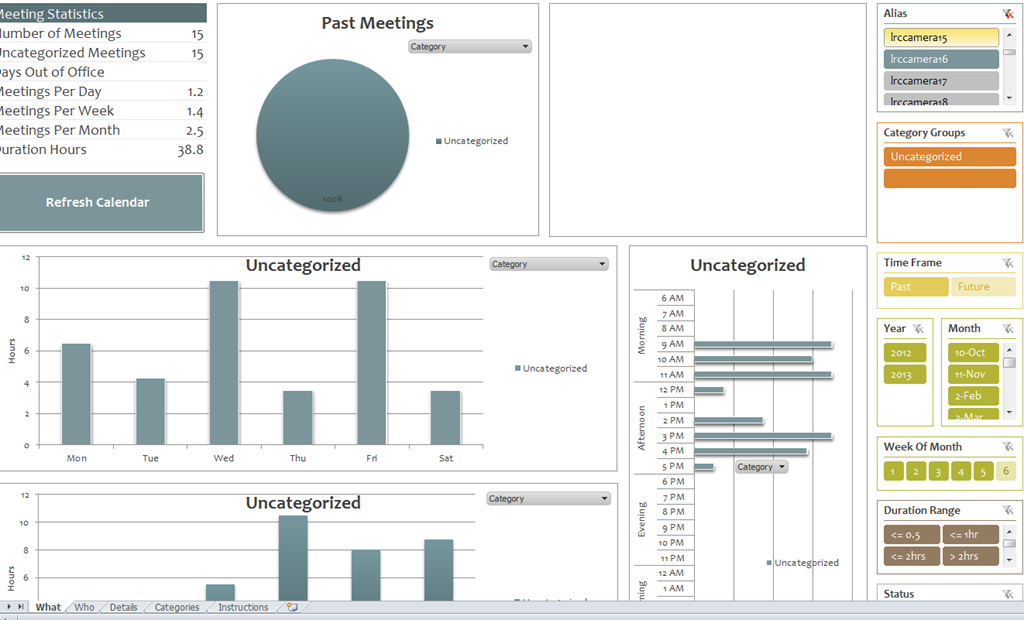
- Which can be interactively: visualized in the calendaranalytics sheet
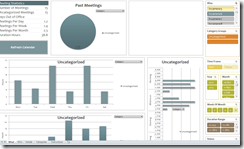
- More results here.









Status of the language lab and purpose of the LangLabEmailer
2013/06/07
3 comments
- Status of the language lab: Modern language labs – digital audio labs with integrated computer classroom management systems, like the Sanako Lab 300 and Study 1200 –
- are great tools for driving the use and benefit of computer technology into the face-to-face language teaching classroom,
- but for years have been sorely lacking integration with the rest of the digital campus workflow, mostly through the web-based LMS
- Sanako once had a Blackboard integration that allowed to bring media files stored in Blackboard to the file, but not upload student assessments into the gradebook.
- I once ran a Sanako Lab 100 that acknowledged that need by providing USB thumb drives for students, and a mechanism to load class recorded files to them at the end of class.
- Online components being developed by language lab vendors seem to be lacking the face-to-face teaching component.
- Synchronous distance education software (like Adobe Connect, Blackboard Wimba, or Saba Centra) – if not just used like a giant loud speaker in supporting lecture presentations, interspersed with calling up individual students for responses – seems currently best positioned to bring some of the benefits of computer technology to the synchronous teaching arena, but in a different (not applicable to what is still the non-distance norm in language instruction), actually more challenging non-face-to-face setting, and – first and foremost – without special consideration (and tools, like a remote controllable dual track recorder) for language learning.
- Purpose of this software:
- The LangLabEmailer combines knowledge of
- how teaching and learning is done in modern language departments
- including common issues in the lab (late students)
- needs outside the lab
- grading from home
- documenting longitudinal language development for eportfolio initiatives
- how (some: you can help us!) digital audio labs save assessments,
- how AD tracks ownership,
- how MS-Exchange can be automated.
- how teaching and learning is done in modern language departments
- in order to
- let the language lab classroom activities (summative assessments, but also formative in the widest sense made so easy by digital audio labs) break out of their isolation in the lab and enter the learning workflow,
- by automatic immediate (we have set to 16 times daily) distribution of assessment files (recordings and writing)
- to teachers
- and – without or with added teacher feedback, including aural – to students via campus email ;
- in 30000 digital audio lab equipped classrooms in the world
- minus the ones that do not have MS-Exchange infrastructure
- plus the ones from other vendors than Sanako – for the above number of classrooms is from SANAKO –, if you share your lab’s configuration back.
- The LangLabEmailer combines knowledge of
- Next: Features. Or Langlabemailer (table of contents).
How to easily view resource mailboxes calendar free/busy using Outlook calendar groups
2013/05/29
Leave a comment
- Display all items in a category with a single click on the checkbox I front of the calendar group
-
Display any portion of the time line in " scheduling view" by
-
Selecting the days in the square calendar sheet in the upper left
-
Navigate the time line with the bottom horizontal scrollbar
-
Note the additional helpful "from [start date]" indicator in a mailboxes booking that is not displayed completely
-


How to quickly add resource mailbox calendars as an Outlook calendar group
2013/05/29
Leave a comment
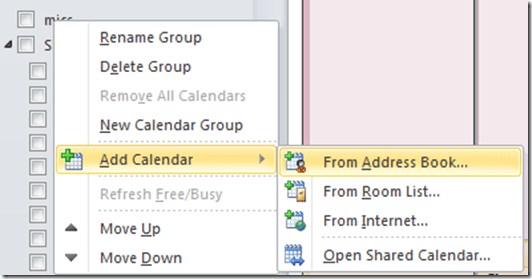
- Right-click the left calendar tree.
-
Choose context menu item: add calendar group / from address list:
-
-
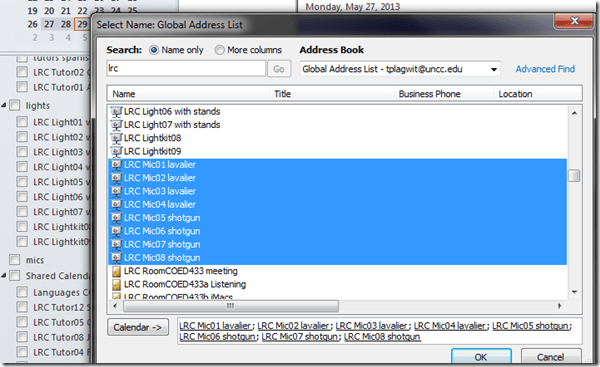
Type " LRC" to search – or the consistent naming scheme you implemented (I hope!).
-
Select all relevant calendars to add.
-
Click on button: "calendar".
-
Click on button: "ok":
-
-
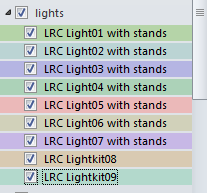
Done:
-


How to respond to a poll for the best meeting time using Meeting Requests
2013/04/18
Leave a comment
This 30-sec video shows how to cycle through optional meeting time slots: While keeping an eye on the (red underlined) time slot currently polled, click green checkmark or red cross, you will be moved through the messages automatically:
Takes merely a minute, a few mouse clicks, hardly any mouse moves, and will clean up your inbox and send your vote to me at the same time.
Categories: audience-is-teachers, e-infrastructure
2010, calendaring, meeting-requests, ms-exchange, ms-outlook, OWA


Questions? Read the About. Or just ask me a quick Our Databases: Resources with calendars -- Language learning material Moodle Sites, multimedia files -- films


FAQs for LRC student staff or for students or for teachers. To search our FAQs, in the browser addressbar, add after "https://plagwitz.wordpress.com/feed/?tag=faqs+/" "+TAG1" (from tag cloud below) OR "https://plagwitz.wordpress.com/feed/tag=faqs
&category_name=" "CAT1" (from category hierarchy below). OR search both categories and tags, and multiple TAGs/CATs (connect with "," for OR-search, with "+" for AND-search), like so: https://plagwitz.wordpress.com/feed/?tag=TAG1+TAG2+...TAGn&category_name=CAT1
+CAT2+...CATn"
Other ways to find help
If you cannot find it here, look there: 5,500 Language-Learning Links and Programs for learning or teaching 150 languages
Shortcuts:Our Lists, Our Maps, LRC Staff Moodle Site,LRC Project Moodle Site, 49erexpress, UNCC Moodle, Student Recordings: s:claslcslrcsanakostudent
Learning usage samples: Sanako oral exam, Kaltura webcam presentation, Dictation with speech recognition, Sanako written exam, Chinese and Japanese interactive stroke-order practice
Test the Sanako Installer, Webbrowser Popup Konfigurator for XP, or Windows7, faster LRC TeacherPC Log-in Let MS facilitate diacritics writing by installing for you US-International keyboard layout
This is my personal blog (Google+). The views expressed on these pages are mine alone and not those of my employer. The information in this weblog is provided “AS IS” with no warranties, and confers no rights.
 Thomas' Work Space