Archive
How to shoot movies with the Canon Eos Rebel T2i– and “movie recording has been stopped automatically”
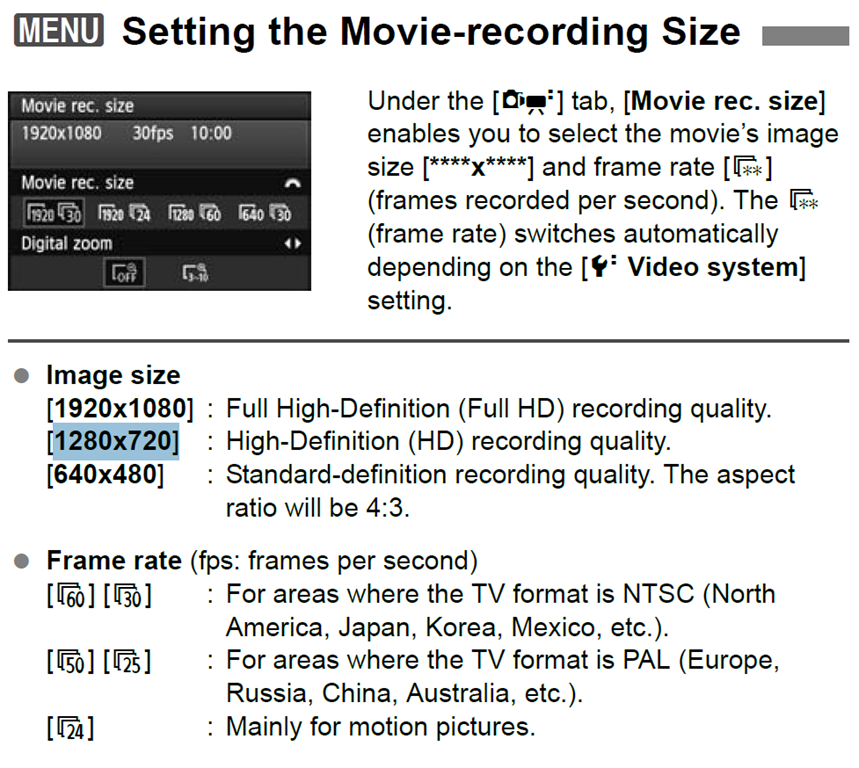
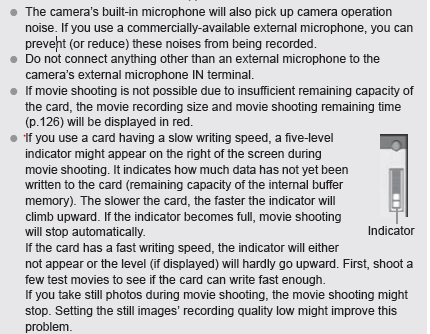
If the camera stops recording after a short while with the error “movie recording has been stopped automatically”, you most likely have an internal memory buffer overrun (there is a bar chart visible warning you off that shortly before the camera stops). This may be due to you not using a Class (6) or faster SDHC card. Try first a low level format inside the camera, or get a faster memory card. (Per the manual below, a lowering to standard HD should not help!).
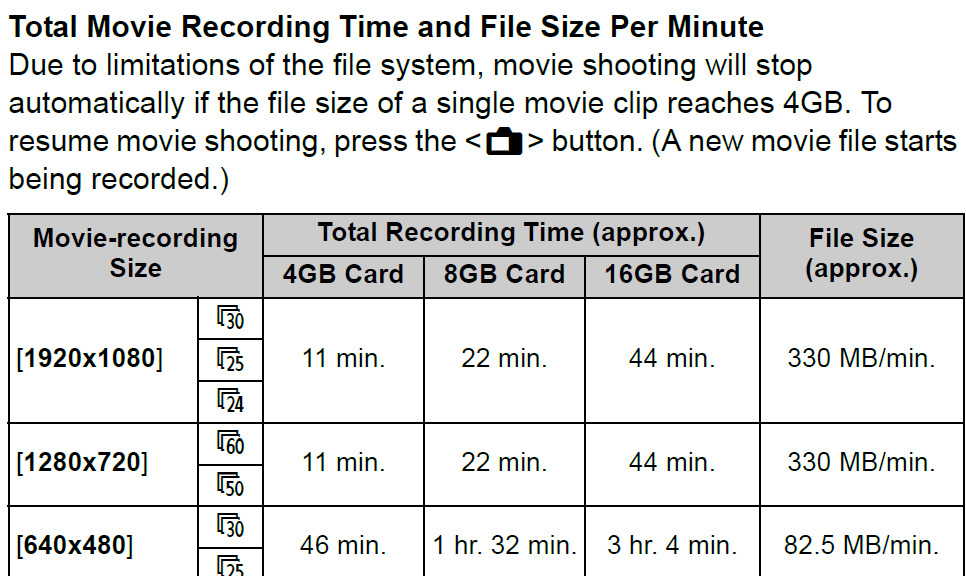
Note also: The camera stops the recording when the file size has reached 4GB (3.99 in Windows – FAT32 limit). It is left as an exercise for the reader when that point in time is. May be related to the fact that this camera is primarily meant for photos, not video. I felt I had to use the lowest HD setting with my untested SD card (the one that buffer overran slightly later with the earlier SD card: 1280*720, 60fps – which produces 1GB/3 minute).
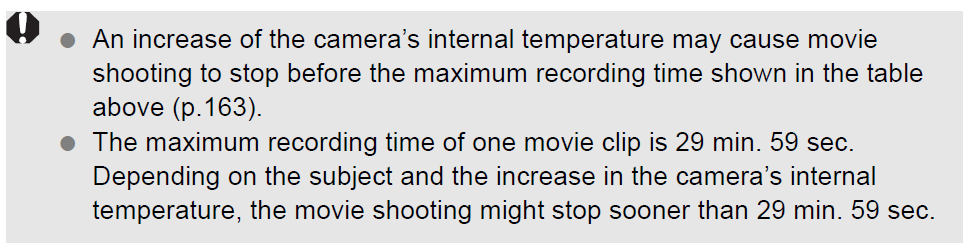
Note finally: camera might stop also due to overheating.
How-to for the new Vixia HF M500 camera
Here it is, and available for checkout per instructions here. Also see the video size considerations.
Step-by-step for Basic Recording:


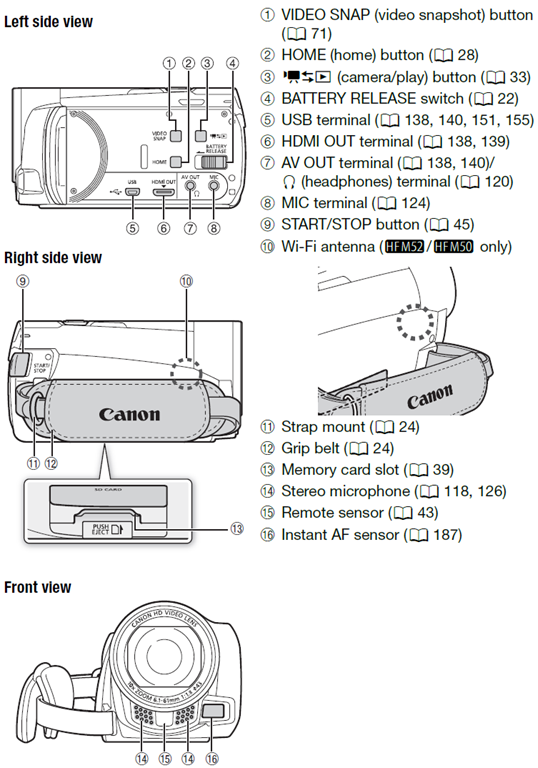
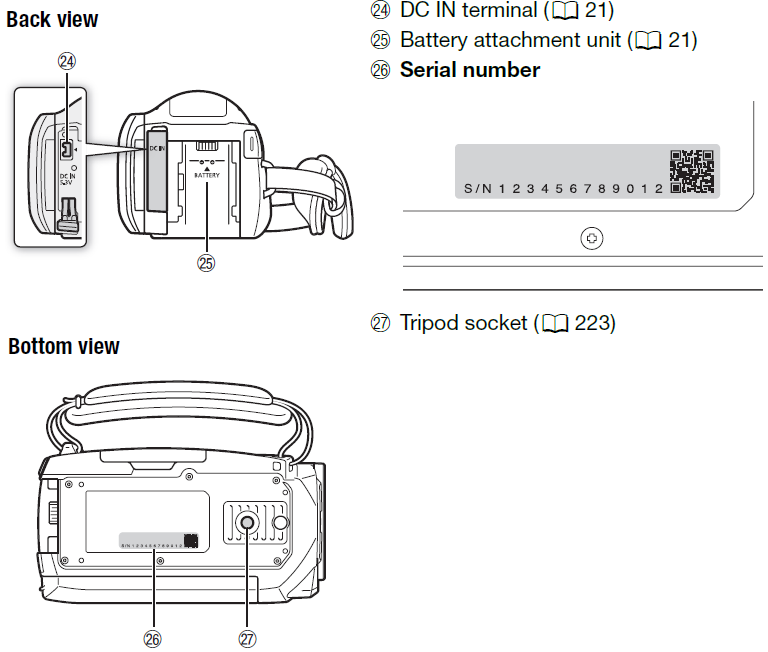
The Parts and Controls of the Camera:

How to use Sony PMB software and a Rosewill memory card reader to read your Sony MS-PRO (and bring Windows-XP to its knees)
- The Rosewill rcr-ic001 card reader seems temperamental – you need to try several times to insert the card for the reader light to reliably flash.
- It seems you need the Sony-provided software installed to have Windows recognize the drive:
 .
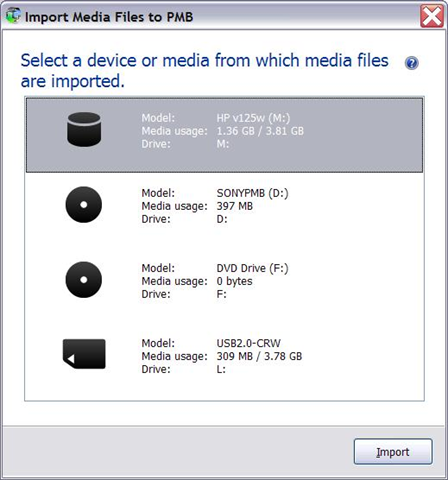
. - And offer an import:

- However, the import of videos fails for me (only images get imported)
 .
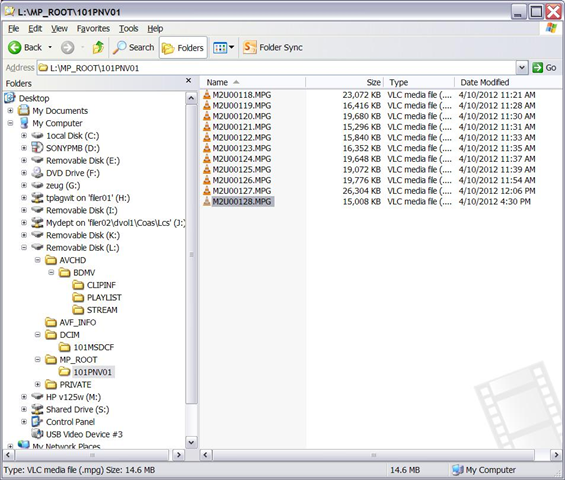
. - But at least I can access the videos through Windows, from here (for non-HD):
-
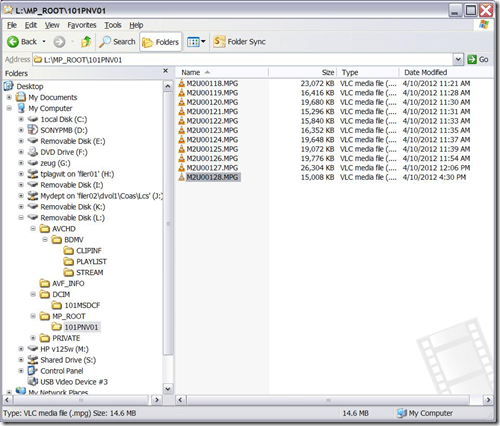
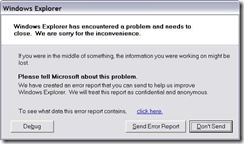
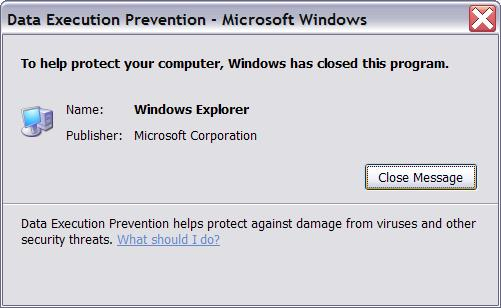
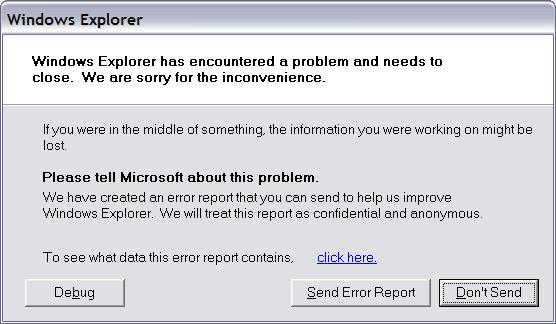
- Until things go bad (computer slows to a crawl, then explorer crashes):



How to fix Canon Vixia “Cannot write on card” error when starting recording by initializing
- To fix this error,
- go to: Menu / Function / Tools / Tab: / menu item: Initialize – choose the card slot A or B with the mal-formatted card.
- or view how to access the initializing procedure here TBA
- To avoid this problem: You may get this error after you the SD card has been formatted in another device but the camera (e.g. on your computer, using a memory card reader). If you are trying to delete footage, initialize the card within the camera instead. This page is taken from the Vixia manual, the full manual you can find linked in our list of bookable resources under Vixia.


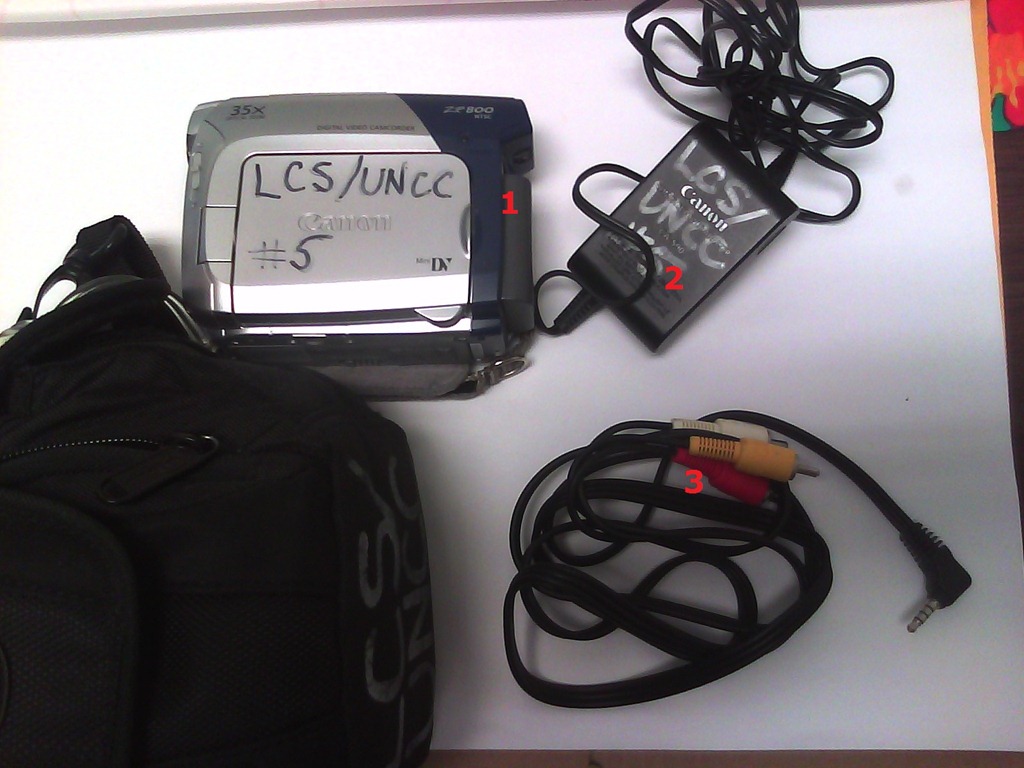
How to check if components of Canon camera (01-10) are complete
- Battery
- Battery Charger
- AV cable – FIREWIRE cables for transferring video are not included, we do not have enough. Use in the LRC only.

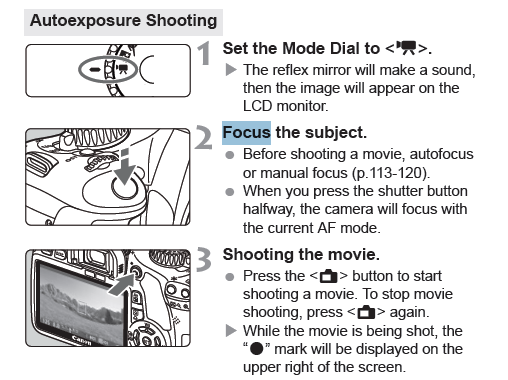
How to shoot movies with the Canon Eos Rebel T2i
Note: Also read the recording stops FAQs.
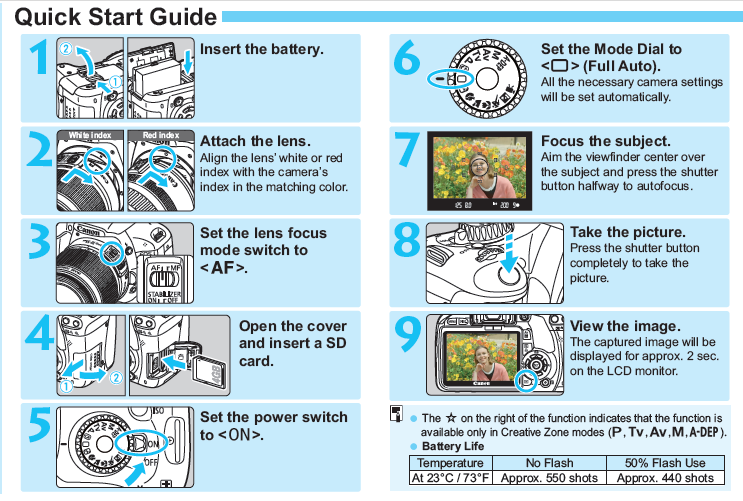
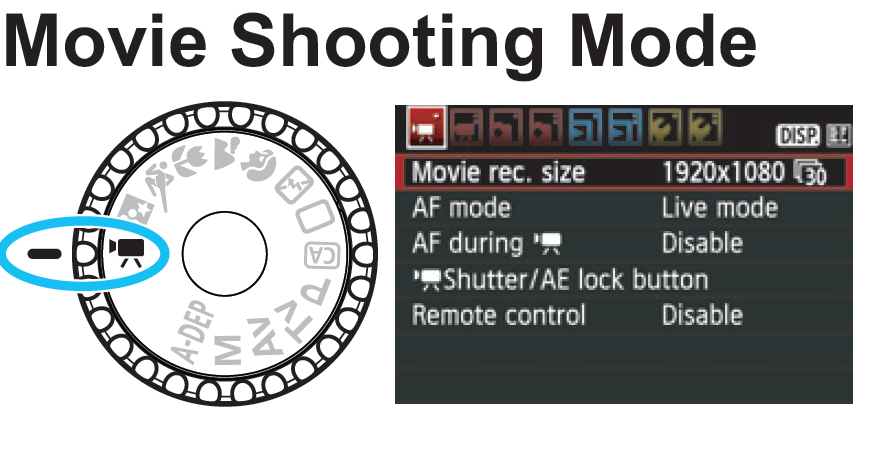
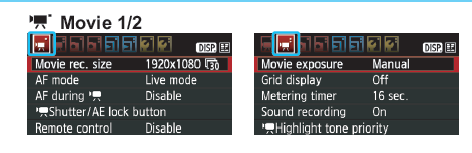
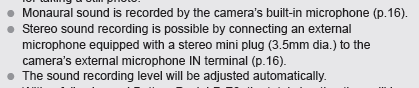
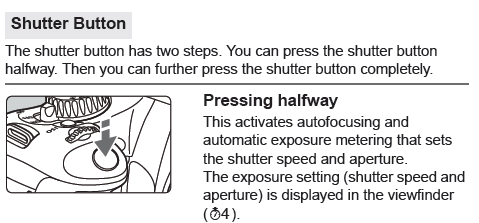
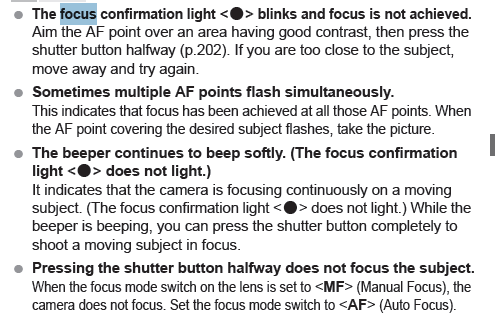
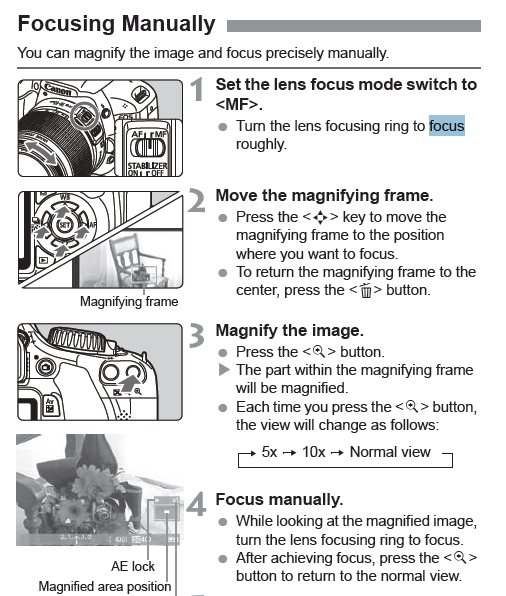
Here are the most relevant pages for movie shooting from the manual/quick which can be downloaded from the products page:



Canon ZR-200 LLC Camera Basics
The camera can store only about 30 [check, might be 100 or more, recording size is 5MB per 1 min video] minutes on its SD card
Currently we are using my personal SD card, bring your own to extend the recording time (by swapping the cards. You can move video clips onto classroom computers’ network shares if the classroom computer is in MS-Active Directory (which most should be) and if the classroom computer has an SD card reader (which most will NOT have).
Video–clips (internal access only) showing how to operate the camera are here:
camera-canon-zr200-Inserting&Removing_Memory_Card_Starting&Stopping&Filming.avi
camera-canon-zr200-Inserting_Memory_Card_into_Card_Reader_on_Assistant-Computer.AVI
camera-canon-zr200-moving_video_from_memory_card_to_H-Drive.avi
For base documentation, see these graphics:


You can change the audio modes:


Optimum video mode with card is 320*240.
All in all: Quick and dirty recording and archiving for basic assessments…


Questions? Read the About. Or just ask me a quick Our Databases: Resources with calendars -- Language learning material Moodle Sites, multimedia files -- films


FAQs for LRC student staff or for students or for teachers. To search our FAQs, in the browser addressbar, add after "https://plagwitz.wordpress.com/feed/?tag=faqs+/" "+TAG1" (from tag cloud below) OR "https://plagwitz.wordpress.com/feed/tag=faqs
&category_name=" "CAT1" (from category hierarchy below). OR search both categories and tags, and multiple TAGs/CATs (connect with "," for OR-search, with "+" for AND-search), like so: https://plagwitz.wordpress.com/feed/?tag=TAG1+TAG2+...TAGn&category_name=CAT1
+CAT2+...CATn"
Other ways to find help
If you cannot find it here, look there: 5,500 Language-Learning Links and Programs for learning or teaching 150 languages
Shortcuts:Our Lists, Our Maps, LRC Staff Moodle Site,LRC Project Moodle Site, 49erexpress, UNCC Moodle, Student Recordings: s:claslcslrcsanakostudent
Learning usage samples: Sanako oral exam, Kaltura webcam presentation, Dictation with speech recognition, Sanako written exam, Chinese and Japanese interactive stroke-order practice
Test the Sanako Installer, Webbrowser Popup Konfigurator for XP, or Windows7, faster LRC TeacherPC Log-in Let MS facilitate diacritics writing by installing for you US-International keyboard layout
This is my personal blog (Google+). The views expressed on these pages are mine alone and not those of my employer. The information in this weblog is provided “AS IS” with no warranties, and confers no rights.
 Thomas' Work Space