Archive
Posts Tagged ‘calendaring’
Calendaring: How to view all your Moodle course assignments in Ninermail, OWA or MS-Outlook – Short version
2011/11/21
2 comments
- In Moodle:
- With Firefox (3.6 here), go to Moodle Calendar: https://moodle.uncc.edu/calendar/view.php?view=upcoming&course=1
- Right-Click on
 and choose “Copy Shortcut”: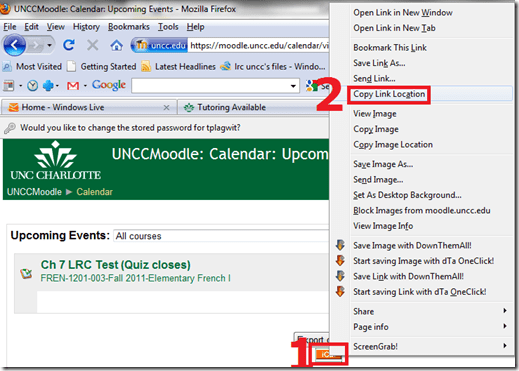
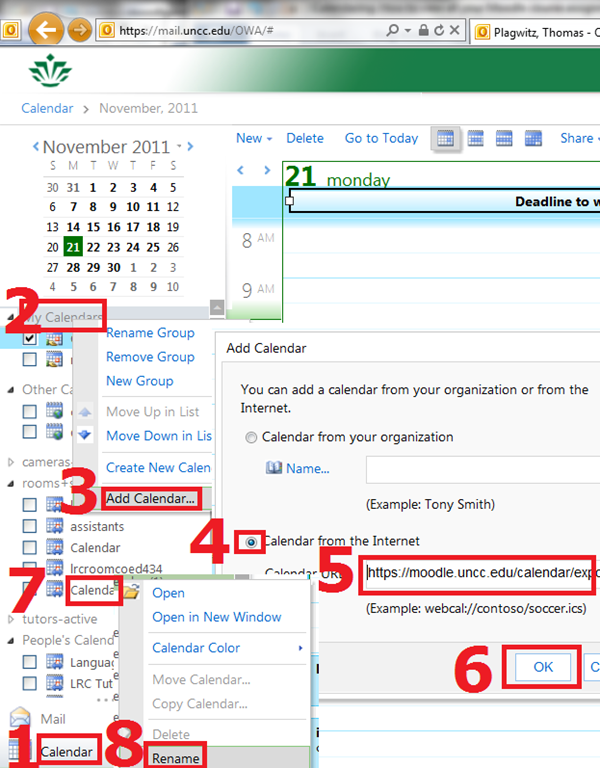
- In Ninermail/OWA: click “Calendar”, right-click “My calendars” , click “Add calendar’, click radio-button “From internet”, paste URL you put in clipboard into textbox, click button “OK”, right-click calendar added, click “rename” and call it “Moodle”

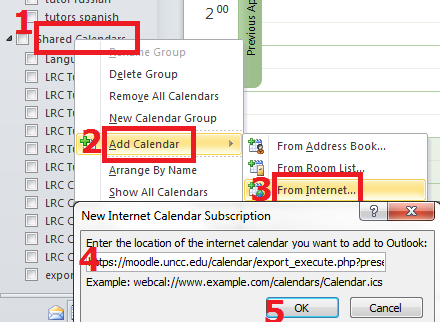
- Alternatively, in Outlook Desktop: go to “calendars”, right-click “shared calendars” , click “add calendar’, click “from internet”, paste URL you put in clipboard into textbox, click button “OK”, right-click calendar added, click “rename” and call it “Moodle”

- Want a longer explanation?

Categories: audience-is-students, audience-is-teachers, documentation, lms
calendaring, moodle, ms-outlook, OWA
Calendaring: How to view all your Moodle course calendars in one place (like live@edu, Google calendar or MS-Outlook)
2011/11/16
Leave a comment
- UPDATE: this does work, just make sure to give it some time to update AND to have actual appointments in the time window (length of that window is a setting you can change in Moodle) that you are trying to display.
- Static inclusion of syllabus deadlines in your calendar
- Go to your Moodle Course / “Go to calendar…” / select from dropdown: “Upcoming Events”: “All courses”/ click on “Export Calendar/. Open with MS-Outlook (fails in IE8).
- Here is showing how: screencast demo loading Moodle’s iCal into MS-Outlook (desktop).
- This is a static export of all your Moodle calendar information – taught and enrolled courses combined (despite
 showing in each of your courses. The dropdown: “Upcoming Events” does default to the current course, though).
 - The utility of this (= what “all” comprises, and how helpful the event information is) depends on how the course designers use the Moodle calendar functionality – or allow Moodle to do it for them: For setting a start/end (= deadline) for any assignment or assessment automagically adds this event to the Moodle course calendar.
- Go to your Moodle Course / “Go to calendar…” / select from dropdown: “Upcoming Events”: “All courses”/ click on “Export Calendar/
- A potentially even more useful dynamic subscription(that will reflect late-breaking changes, like extended deadlines in your courses or additional assignments)
- you can get if you right click on
 and choose “Copy link” from the context menu.
 - I have not found a way to feed the Moodle iCal link manually into MS-Outlook 2010 (Shared Calendars / Add Calendar / From Internet) or OWA (different problem comes and goes. Just subscribe while problem is gone
 ). In MS-Outlook, you can subscribe to this link via menu:tools / tab:internet calendars / button: new / dialogue new internet calendar subscription / paste the URL you copied.
 ![moodle-calendar-outlook-2010-subscri[1]](https://thomasplagwitz.com/wp-content/uploads/2012/01/moodle-calendar-outlook-2010-subscri1_thumb.png?w=244&h=180 "moodle-calendar-outlook-2010-subscri[1]")
- Don’t forget to rename your calendar to something more useful than the default, like “My classes”, by right-clicking and choosing “Rename”in OWA or “Properties” in Outlook2010.
![moodle-calendar-outlook-2010-subscri[3]](https://thomasplagwitz.com/wp-content/uploads/2012/01/moodle-calendar-outlook-2010-subscri3_thumb.png?w=244&h=228 "moodle-calendar-outlook-2010-subscri[3]")
![moodle-calendar-outlook-2010-subscri[2]](https://thomasplagwitz.com/wp-content/uploads/2012/01/moodle-calendar-outlook-2010-subscri2_thumb.png?w=195&h=244 "moodle-calendar-outlook-2010-subscri[2]")
- Your syllabus deadlines are now always only two clicks away in your Ninermail:
- click on “Calendar”
- click on checkbox “Moodle”.
- you can get if you right click on
- What seems not possible with any current version of Moodle is editing/updating your calendar in MS-Outlook and having the changes synch with Moodle, or any import actually – only the opposite direction works. So the tool is more useful for students (who don’t need to edit) than teachers (but still a nice aggregator of teaching information for the latter).
- More on Calendar you can find in the official 1.9 Moodle calendar doc and FAQ.
- I would prefer to use other calendaring software, but the export options of the Moodle (1.9 and 2.)) calendars are limiting. So I also find myself adjusting the settings when using the Moodle calendar:


![moodle-calendar-outlook-2010-subscri[1]](https://thomasplagwitz.com/wp-content/uploads/2012/01/moodle-calendar-outlook-2010-subscri1.png "moodle-calendar-outlook-2010-subscri[1]")
![moodle-calendar-outlook-2010-subscri[3]](https://thomasplagwitz.com/wp-content/uploads/2012/01/moodle-calendar-outlook-2010-subscri3.png "moodle-calendar-outlook-2010-subscri[3]")
![moodle-calendar-outlook-2010-subscri[2]](https://thomasplagwitz.com/wp-content/uploads/2012/01/moodle-calendar-outlook-2010-subscri2.png "moodle-calendar-outlook-2010-subscri[2]")

- Adjusting these settings may also fix the following error in OWA which reads like ICS link is invalid/broken, but may only mean that no events where returned for the time window that Moodle defaults to (with performance reasons, which, however, does not apply if Moodle does not have to return *any* events to your request). In other words: Try expanding the time window for events, e.g. to include the full term.


Categories: audience-is-students, audience-is-teachers, e-infrastructure
calendaring, moodle, ms-outlook
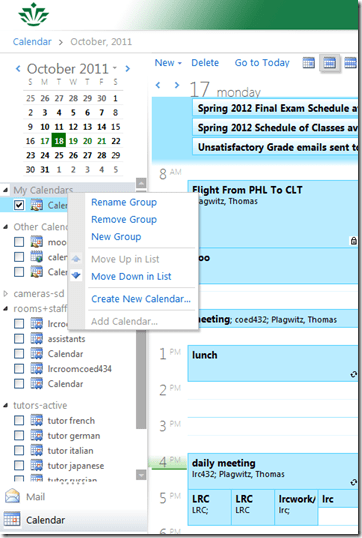
Why is the “Add calendar” item in the OWA’s My Calendars context menu often grayed out/not available
2011/10/18
2 comments
- This can been observed in IE8 and IE9.
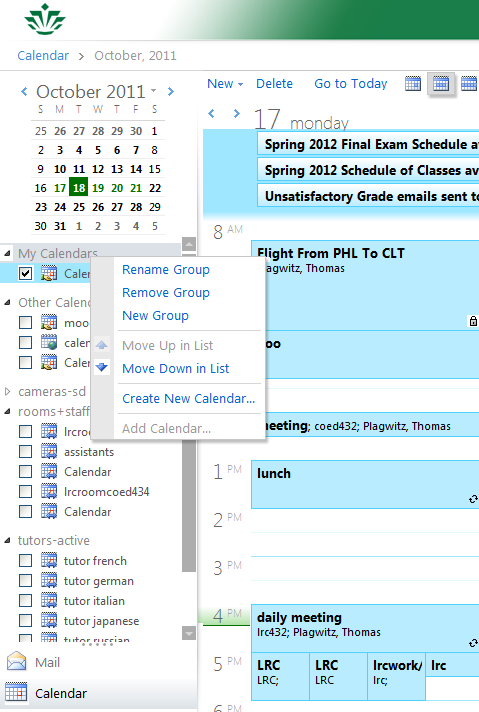
Categories: e-infrastructure, Glitches&Errors
add-calendars, calendaring, OWA
How not to book LRC equipment: Avoid scheduling conflicts by not using “Show times as free”
2011/10/18
1 comment
- Appointments and Meeting requests default to “Show time as busy”.
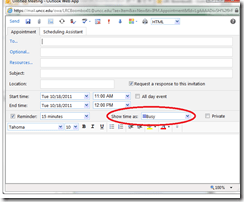
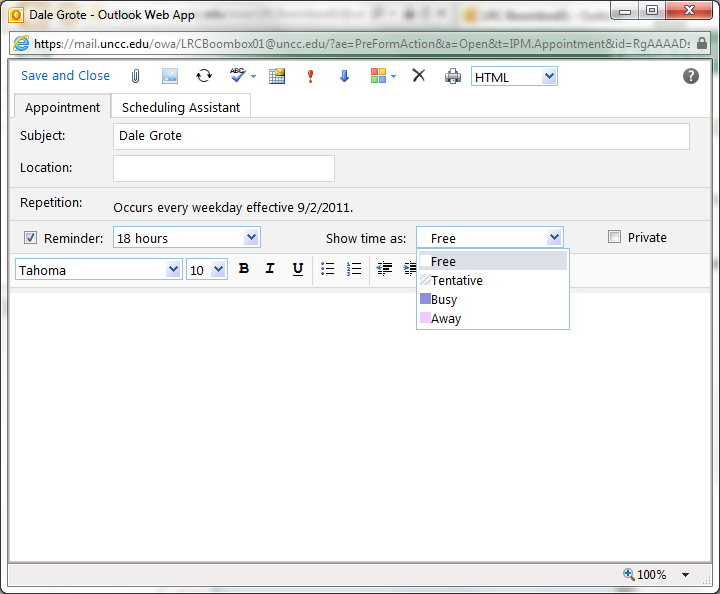
- Before you change this, like so:
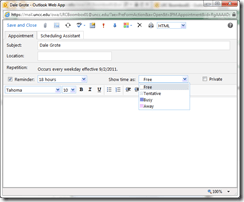 . Note this “Gotcha”: “If you have already specified that this is an all day event, Save As is set automatically to Free “.
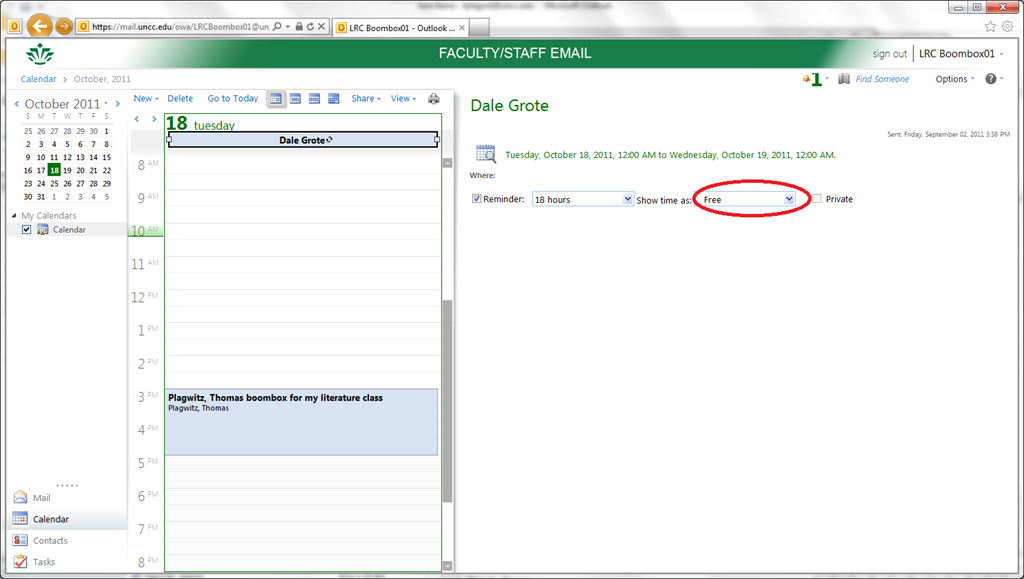
 - consider this: a scheduling conflict can easily result, if people coming after you cannot see the resource as “busy”, they might inadvertently book over your booking:
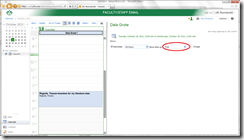
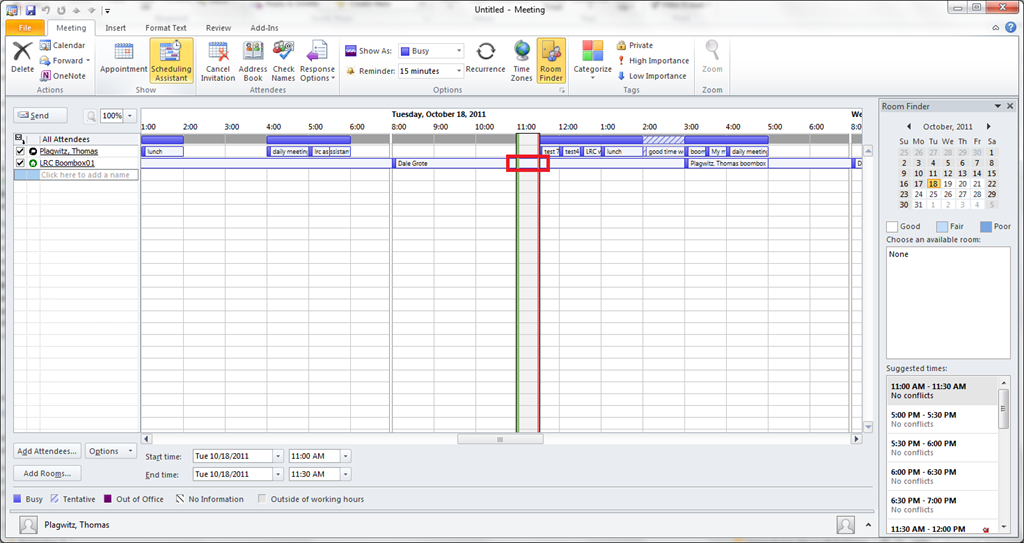
- Remember this is a platform for collaboration, not for spreading confusion: If you leave your appointment as “busy”, per the default, voilà, others can see that the resource is busy, and work around it:


Categories: e-infrastructure, service-is-library
2007, 2010, 2011, calendaring, Gotchas, ms-exchange, outlook, resources, scheduling
Protected: Sharing the LRC main classroom, using LRC Calendar LRCRoomCoed434
2011/10/12
Enter your password to view comments.
Categories: LRCRoomCoed434, Presenter-Computer, Student-Computers
calendaring, outlook-live, scheduling
LRC Outlook/Exchange 2010 Resource Calendaring: How LRC staff can group calendars in Outlook 2010
2011/09/28
1 comment
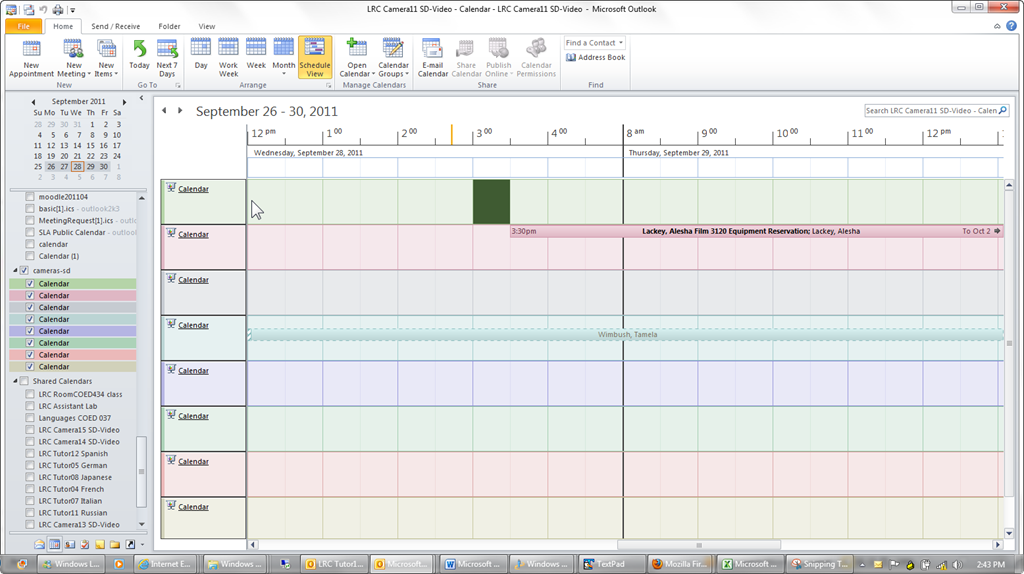
- You can save the currently loaded calendars as a preset or “group” from the ribbon in the calendar view of outlook 2010, like so:

- The group and its members will be added to your calendar tree, and you can load all members with one click, like so:

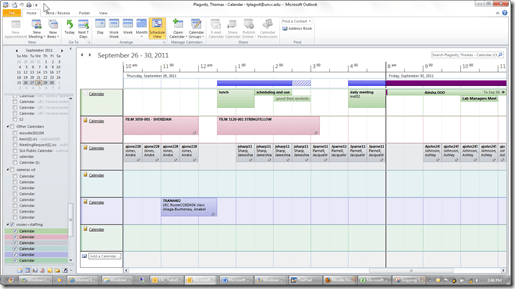
- Then you can create multiple presets which correspond to your typical workflows: E.g. when you do not have to check the availability of equivalent sets of equipment, you may want to have an easy overview of staffing in the LRC:
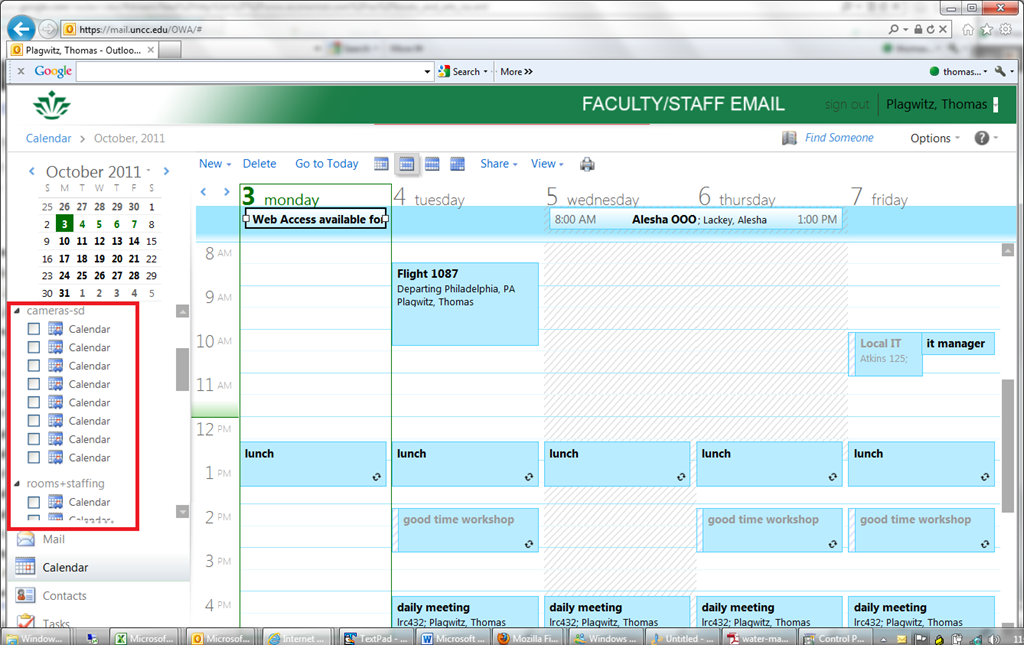
- Note that – while we have to load individually the calendars of other mailboxes we own –, calendar groups we create in Outlook are automagically mirrored in OWA
- But the calendar names get lost in the process? And: the batch select checkbox is missing. And: only up to 5 calendars can be viewed in OWA simultaneously. And: OWA does not support overlay mode for calendars.):

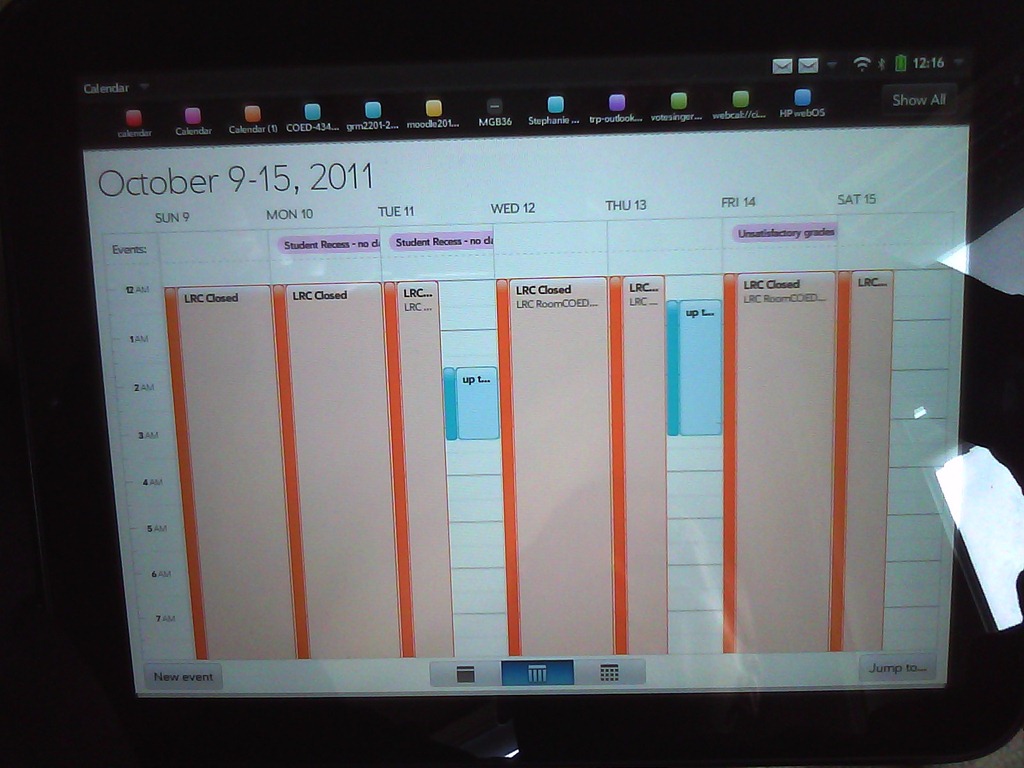
- It would be great if calendar groups, with the help of ActiveSync, even worked their way through to mobile devices, but apparently they do not:



LRC Outlook/Exchange 2010 Resource Calendaring: How to display a Room/Staff/Tutor calendar aggregate at the reception desk using live@edu
2011/09/28
1 comment
- The LRC needs an overview aggregate calendar of its many rooms and services for clients in the entrance area. This should be always on display on the higher one of the reception area dual screen computers when screens are in extended mode
- From the calendar mailbox in OWA , these calendars can and have been published to the internet.
- LRC assistants can load and bookmark multiple (published or shared) calendars in their OWA, but there are limitations
- We do not want to clutter LRC Assistants OWA with LRC calendars more than we have to.
- OWA displays calendars (currently = 2011) only side-by-side, there is no overlay (=aggregate) mode like in Outlook 2010, and only up to 5 simultaneously, again unlike Outlook 2010 (30) (Students do not have Outlook (although it is being considered installing it on student staffed computers).
- A standard web browser allows for display of only one (HTML) calendar at a time in a web browser.
- ICS compatible applications like live@edu
- LRC assistants can load and bookmark multiple (published or shared) calendars in their OWA, but there are limitations
- can display many (=aggregate) ICS-based calendars in overlay mode.
- In addition, it is easy to change the display color (like in Outlook 2010) and display color (unlike in Outlook 2010, for me at least).
- In live@edu, this looks promising:

- To display more meaningful/less misleading subjects than “Busy” for pseudo-rooms (“offices” like LRC assistants or language tutors), add a subject (office name “LRC Assistant”or max class-level tutored).
- To have LRC assistants easily and consistently load this aggregate calendar view,
- we need to give tutors the password to uncc-lrc credentials – being “friends” not enough (which makes their own access to SkyDrive which we finally achieved yesterday useless – unless they log in as themselves and as uncc-lrc in 2 different browsers)
- However, I have not found a way to aggregate calendar ics files and display them without password (ideally in Joomla)
- Workaround: use a AutoIT auotmation script that runs when LRC Assistant logs in form the All users Startup Folder.

How not to book LRC equipment: Scheduling conflicts
2011/09/23
3 comments
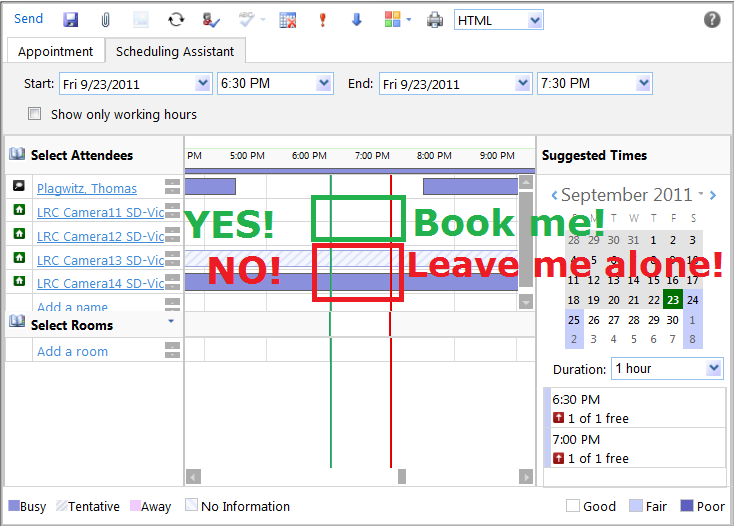
- Do not send a meeting request to an item for a time when the item has a prior meeting request.
- The tab: scheduling assistant within the meeting request you edit is there to tell you when items have prior meeting requests.
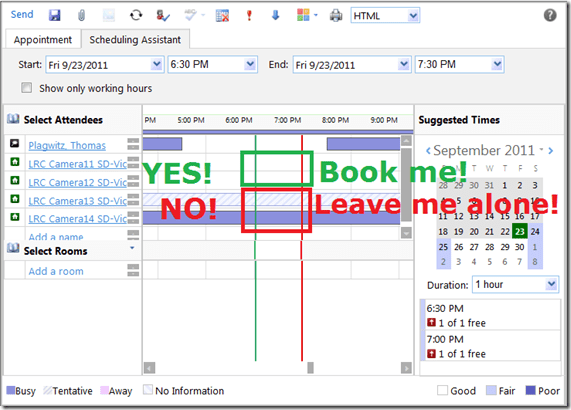
- A “blocked” timeline denotes a prior meeting request: The item has already been booked (solid block) or requested (hatched block) during the start and end time of your meeting. Do not crash their party.
- “blank” timeline means “item is free”. Go ahead: You can request a meeting with this item between your start and end time.
- Once you have this overview, you can easily remove, by right-clicking on the resource, extra resources that you cannot book or could, but which you do not need:

- Once the university has mail-enabled your cloud-accounts on campus, we will have a computer decline such conflicting requests automatically, and force you to start over with a new meeting request. It will be still worth your while memorizing the above: You can save time and avoid disappointment.



Questions? Read the About. Or just ask me a quick Our Databases: Resources with calendars -- Language learning material Moodle Sites, multimedia files -- films


FAQs for LRC student staff or for students or for teachers. To search our FAQs, in the browser addressbar, add after "https://plagwitz.wordpress.com/feed/?tag=faqs+/" "+TAG1" (from tag cloud below) OR "https://plagwitz.wordpress.com/feed/tag=faqs
&category_name=" "CAT1" (from category hierarchy below). OR search both categories and tags, and multiple TAGs/CATs (connect with "," for OR-search, with "+" for AND-search), like so: https://plagwitz.wordpress.com/feed/?tag=TAG1+TAG2+...TAGn&category_name=CAT1
+CAT2+...CATn"
Other ways to find help
If you cannot find it here, look there: 5,500 Language-Learning Links and Programs for learning or teaching 150 languages
Shortcuts:Our Lists, Our Maps, LRC Staff Moodle Site,LRC Project Moodle Site, 49erexpress, UNCC Moodle, Student Recordings: s:claslcslrcsanakostudent
Learning usage samples: Sanako oral exam, Kaltura webcam presentation, Dictation with speech recognition, Sanako written exam, Chinese and Japanese interactive stroke-order practice
Test the Sanako Installer, Webbrowser Popup Konfigurator for XP, or Windows7, faster LRC TeacherPC Log-in Let MS facilitate diacritics writing by installing for you US-International keyboard layout
This is my personal blog (Google+). The views expressed on these pages are mine alone and not those of my employer. The information in this weblog is provided “AS IS” with no warranties, and confers no rights.
 Thomas' Work Space