Archive
How to use a drawing tablet and Windows XP writing pad IME to write Japanese and Mandarin characters with autosuggest
- Our small group work spaces each now have a Wacom Bamboo drawing tablet installed.
- You can use these tablets in conjunction with the Windows XP writing pad IME to input Mandarin/Kanji character strokes and receive autosuggest options you can pick you character from which make not only writing faster, but also reward you for remembering your characters, expose you to more and help you identify the correct one from a list of options.
- Here is what the Windows XP writing pad IME and Wacom tablet looks like in action:
 (behind the pen: our Japanese tutor).
 - Here is how to access Windows XP Japanese IME keyboard and handwriting:
- Open the application you want to write in, e.g. MS Word (the language input option is specific to the current window and defaults to”English-US international” in the LRC if you open a new window).
- In the taskbar, in the language toolbar section, select Japanese or Chinese or Korean.
- If only the language identifier is showing in the language toolbar, right-click on it and choose “Show additional icons”
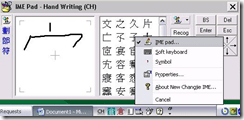
- Select as input method for the chosen language from icon “Options” or “Tools”” , the “IME pad” / “Handwriting”
- Prerequisites
- you need to have the handwriting IME installed for Japanese or Chinese or Korean in Control Panel / Regional and Language Options / Text Input, and East Asian language support).
- For simplified Chinese, the IME Pad may not be checked to be displayed by default. Access the Tools icon menu to check it.
- For both simplified and traditional Chinese, if checked, the IME Pad becomes a separate top-level ion in the language bar.
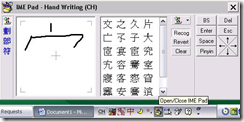
- Some screenshots may help:




Using WebParts syntax to navigate OWA?
When you train in OWA, you can take advantage of sending your students directly to certain interfaces of OWA, for doing specific hands-on tasks. If they are not alreay logged in, they seem to get redirected to the desired view in the end Working example:
https://mail.uncc.edu/owa/?cmd=contents&fpath=Calendar&view=Weekly&archivestub=1
Limitations seem to be in the browsers: IE> Firefox > Safari.
However, I could not find a way to send a user to a specific view of an OWA published calendar (seems to default always to monthly). Non-working eexamples:
bad request http://mail.uncc.edu/owa/calendar/LRCtutor11@uncc.edu/Calendar/calendar.html?view=Weekly 404 http://mail.uncc.edu/owa/calendar/LRCtutor11@uncc.edu/Calendar/Weekly/calendar.html#
See documentation here: http://technet.microsoft.com/en-us/library/bb232199.aspx
Can you use webbparts to save your users to have to change the view  when they open up a calendar like http://mail.uncc.edu/owa/calendar/LRCRoomCOED434@uncc.edu/Calendar/calendar.html#, or another way to open this calendar not in its (monthly) default view?
Sharing vs. subscribing to Calendars in OWA/Ninermail
- Why does this matter? Different information may be visible to you, especially shared calendars can display more sensitive information than internet published calendars.
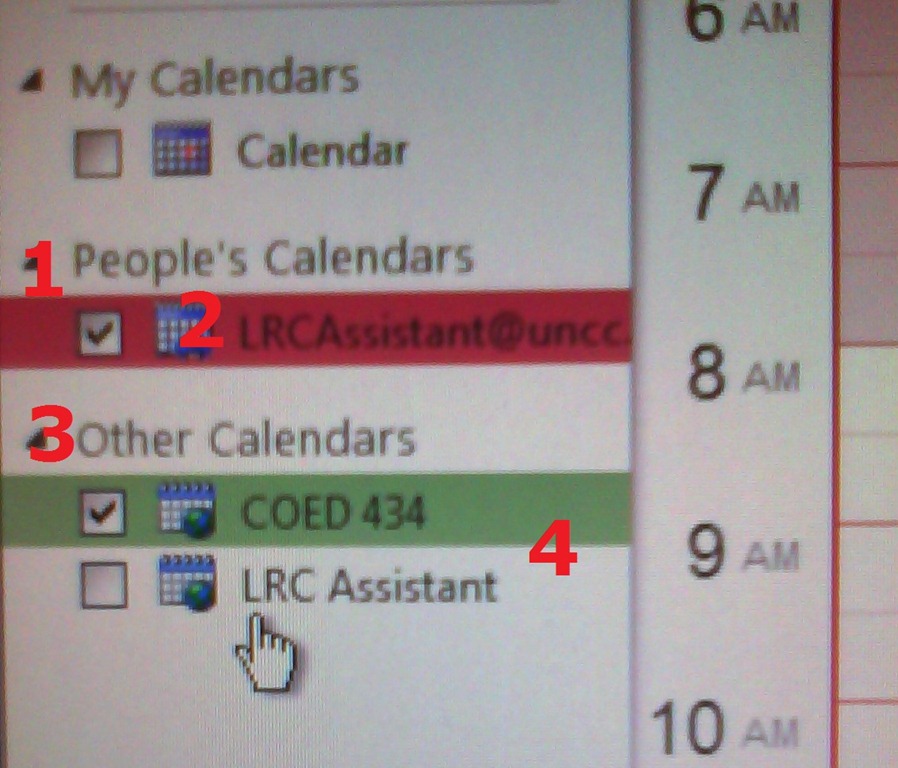
- How can I tell the difference? Apart from the amount of information that gets displayed to you, different calendar types appear :
- in a different place:
- Shared calendars appear under (1) heading “people” (even if it is a room or other resource),
- subscribed calendars under (3) heading “Other Calendars”
- with a different type of name:
- Shared calendars have as name the email address (2) “@uncc.edu”
- subscribed calendars have as default name only “calendar”. Only if you rename the calendar, it has a meaningful identifier, like was done here (4)
- in a different place:

Failure due to timeouts when capturing image from Symantec-Ghost
- do not thin I Have not seen that before: image capture starts successfully, but client times out in the middle; happens repeatedly both during the day and at night?

- What else to try?
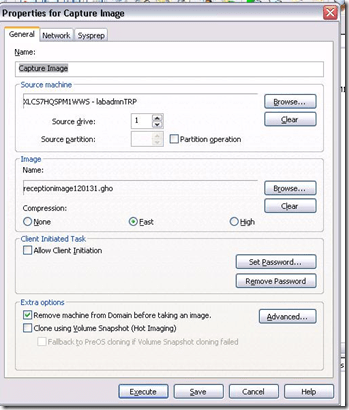
- Solution/workaround: inconclusive. First try w/o Deepfreeze installed and with high compression worked. But third try without any changes had also finally succeeded (although deploying that image was not tested).


iMac Imaging documentation
- for Coed037: Word Web app: https://skydrive.live.com/view.aspx?cid=0025C841818181C2&resid=25C841818181C2%21148
Problem with Endnote and Word 2010 on Teacher computer
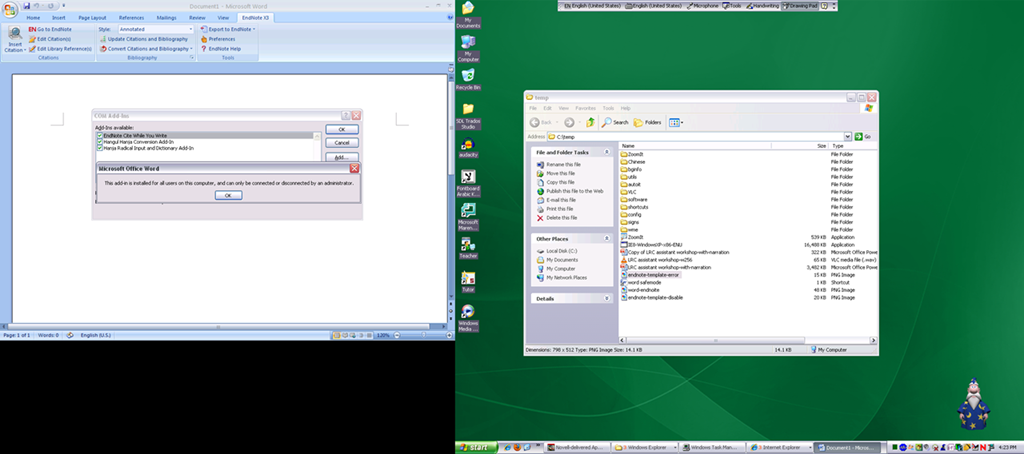
- errors abound when opening word:


- workaround: disable endnot Add-in
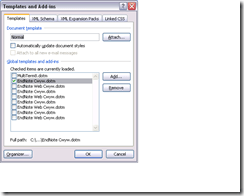
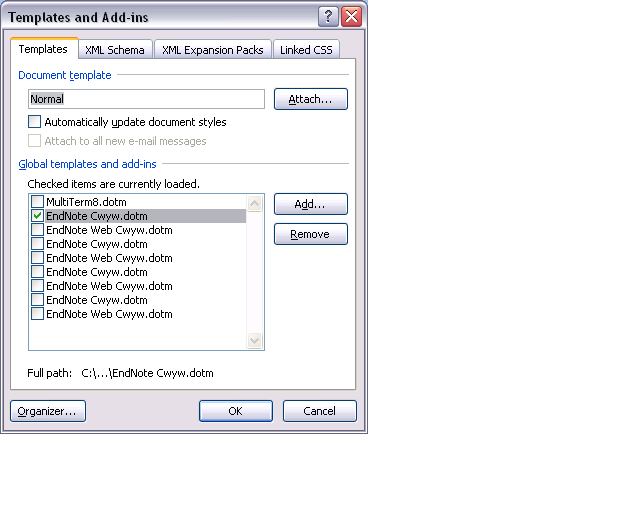
- more errors when having recovered documents in the document template.
- Workaround: start MS-word in safe mode, clean the document recovery template.


Protected: Novell migration and drive letter mapping
How a teacher best adds cues and pauses to an mp3-recording with Audacity to create student language exercises
- The first screencast example uses insert tones and a gut amount of pause, for an interpreting exercise, into an authentic German political speech
- 1:00 search for a break (button: play/stop – pause prevents edits)
- 1:05 move the cursor to the break (mouse left-click on timeline)
- 1:20 insert a pause (menu:Generate / Silence )
- 1:25 zoom in (button:magnifying glass, CTRL + mouse scroll wheel)
- 1:45 generate a tone (menu:Generate / Noise), change the duration
- 2:10 do not replace the selection
- 2:20 use undo, just like in MS-word and other programs
- 2:30 move the cursor to the start of the selection (mouse left-click on timeline)
- 2:40 generate a tone (menu:Generate / Noise)
- don’t forget to review results before distributing to students
- the second screencast example, of post-editing a questions/response exercise in ESL, takes the amount of pause inserted from the recorded teacher instruction for the student, and uses copy/paste to speed things up even more.
- You can also only insert tones and not pauses, as in the 3rd screencast, and allow the students flexible pause lengths, if you can rely on the Sanako Student recorder Voice insert. Or if you must, let students use audacity for recording also, and have them learn how to move the recording cursor around manually, and throw away the source track.


Questions? Read the About. Or just ask me a quick Our Databases: Resources with calendars -- Language learning material Moodle Sites, multimedia files -- films


FAQs for LRC student staff or for students or for teachers. To search our FAQs, in the browser addressbar, add after "https://plagwitz.wordpress.com/feed/?tag=faqs+/" "+TAG1" (from tag cloud below) OR "https://plagwitz.wordpress.com/feed/tag=faqs
&category_name=" "CAT1" (from category hierarchy below). OR search both categories and tags, and multiple TAGs/CATs (connect with "," for OR-search, with "+" for AND-search), like so: https://plagwitz.wordpress.com/feed/?tag=TAG1+TAG2+...TAGn&category_name=CAT1
+CAT2+...CATn"
Other ways to find help
If you cannot find it here, look there: 5,500 Language-Learning Links and Programs for learning or teaching 150 languages
Shortcuts:Our Lists, Our Maps, LRC Staff Moodle Site,LRC Project Moodle Site, 49erexpress, UNCC Moodle, Student Recordings: s:claslcslrcsanakostudent
Learning usage samples: Sanako oral exam, Kaltura webcam presentation, Dictation with speech recognition, Sanako written exam, Chinese and Japanese interactive stroke-order practice
Test the Sanako Installer, Webbrowser Popup Konfigurator for XP, or Windows7, faster LRC TeacherPC Log-in Let MS facilitate diacritics writing by installing for you US-International keyboard layout
This is my personal blog (Google+). The views expressed on these pages are mine alone and not those of my employer. The information in this weblog is provided “AS IS” with no warranties, and confers no rights.
 Thomas' Work Space