Archive
Archive for the ‘e-learning’ Category
How a student takes a Moodle MS-Word file upload assignment for writing
2012/01/12
1 comment
- Find your file upload writing assignment and click on it:

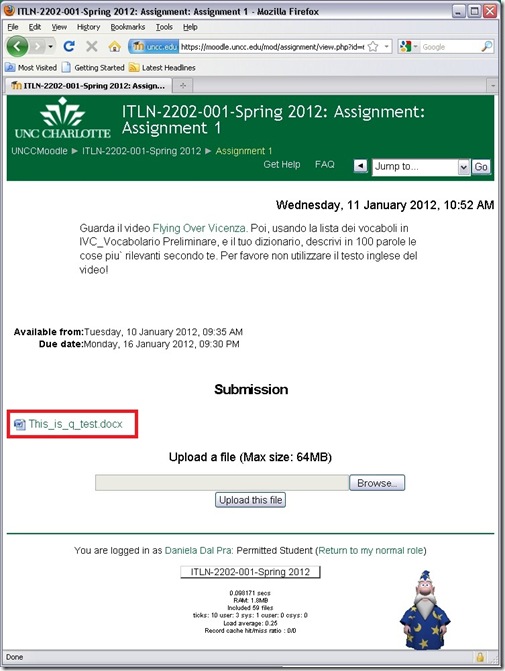
- Read the assignment text, write an MS-Word file (format not required, but your teacher will likely send you MS-Word back if she uses track changes) and attach it, like so:

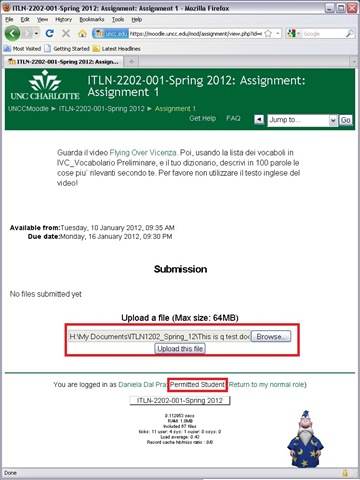
- If this shows, you have finished the assignment:
- Wait for notification, then go TBA:review your teacher’s comments.


Categories: all-languages, audience-is-students, documentation, e-learning, lms, Uncategorized, Writing
moodle, MS-Word, track-changes
How to search this blog: Combining searching for tags and categories with feed display in Internet Explorer
2011/12/14
Leave a comment
- By adapting this mask in the address-bar: https://plagwitz.wordpress.com/tag/YOUR-1ST-TAG+YOUR-2ND-TAG+…+YOUR-NTH-TAG/feed/?category_name=YOUR-1ST-CATEGORY+YOUR-2ND-CATEGORY+…+YOUR-NTH-CATEGORY
- you can combine into an AND-Search
- a tag-search (e.g. for the posts tagged as “FAQs”. You can find other tags from the tag-cloud in the right column of the blog; note that it is not complete, but only the most frequent tags are displayed there. Tags are a metadata collection that can flexibly grow on demand)
- a category_search (e.g. for “audience-is-teachers”. You can find other tags from the category-hierarchy in the right column of the blog; note that this hierarchy is complete, all categories tags are displayed here, top categories alphabetically, sub-categories alphabetically under their respective parent. Categories are a more controlled metadata collection)
- and the display of only the “feed”
- which makes for a quicker overview of large search result sets than the complete articles that a search without “ /feed” would return)
- and allows for subscribing to (or saving stored) searches
- Internet Explorer’sfeed display is
- compact
- provides a (1) cumulative overview of all tags and categories (the “ tag cloud for search results” that is missing on WordPress.com ) within the search results which is easy to browse and drill into, for searches within search results (click to “filter by category” and tag: Internet Explorer subsumes both tags and categories of WordPress.com’s blogs under the term “category”).
- (2) evidence of an AND-search across tags and categories (e.g. find only FAQs that are for meant for teachers: 15 matches for the former, 15 matches for the latter, 15 matches overall)
- Result:

- Limitations
- To browse categories by view (syntax /category/[CATEGORYNAME]), you would have to travel the full path of the category hierarchy. Using “&category_name=” seems easier, especially since the view does not allow for searching within the entire category sub-branch. Each node stands by itself.
- Remember that this is not full-text, but metadata (“human curated”) search technology. The quality of the search results hinges on the quality of the metadata originally added to the blog posts by the author (“To err is human”, or “Garbage in, garbage out”).
- Worse: There is no provision for collaborative tagging on WordPress.com.
- more hints:
- “/feed” works only before ?query-string-syntax, but only after /view-syntax, like in the following examples around “Arabic”.
- you do NOT need to give the whole branch of categories when using the view-syntax (and also not only for the 1st and 2nd level): https://plagwitz.wordpress.com/feed/?category_name=arabic works, but so does https://plagwitz.wordpress.com/category/arabic/feed and also https://plagwitz.wordpress.com/category/study-program-is-any/all-languages/arabic/feed.

Categories: audience-is-any, blog, documentation, e-learning
meta, metadata, searching
Plagwitz– eLearning Workshops delivered
2011/12/13
Leave a comment
Categories: Documents, e-learning, Personal
cv
How to allow resubmitting of Moodle Kaltura video assignments
2011/12/12
Leave a comment
- Students may need a number of tries to complete a Kaltura video recording assignments, especially if they do not take advice to do it in the LRC, with the provided support structure, but overly confident, prefer to try “relying on their own metal”.
- To allow them to learn from their mistakes, one is best advised to allow for resubmission of their assignment.
- If you have not enabled the assignment, click on the assignment on the Moodle course home page – apparently no need to “turn editing on” prior –, and in the upper right corner of the assignment page, click button: “update this assignment”, like so:

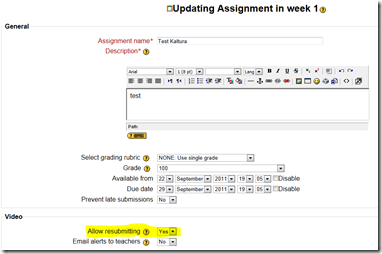
- On the assignment settings page, make sure, “allow resubmitting” is set to “yes”, like highlighted below:


Categories: audience-is-teachers, e-learning, lms
kaltura, moodle
Screencasts for Fall 2011 Workshop: Computer classroom management in the LRC using Sanako Study 1200
2011/12/08
Leave a comment
- The workshop stayed “this side of the digital audio lab”, i.e. focused on those generic teaching tasks that the Sanako Study 1200 can facilitate which have the widest teaching application (including in, but also beyond language-skill-courses):
- remote controlling student computers,
- screen sharing, collaborating with students,
- launching applications on students computers,
- sending students to webpages,
- launching handout files to students and collecting their input back
- locking their computers, screens or keyboards,
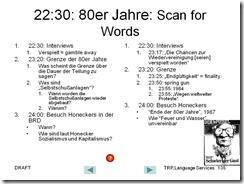
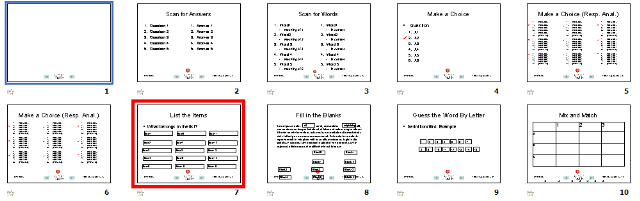
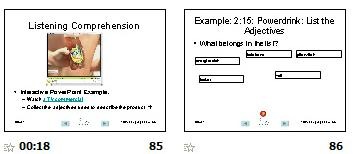
- “clicker” classroom polls, for which I have written a PowerPoint Template you can base your own clicker-like face-to-face class exercises on.
- and more…
- Here are two screencasts of my presentation:
- one for the right screen/participant screen (using the Study1200 teacher to student screen casting). Requires Windows Media Player on PC, like in the LRC: download from MS-SkyDrive.
- one for the left screen/projector, where I displayed mostly a PowerPoint. You can watch this in parallel using another player, e.g. the VLC player, like in the LRC. However, it can also stream from MS-SkyDrive.
A PowerPoint Template to base your clicker-like face-to-face class exercises on
2011/12/08
2 comments
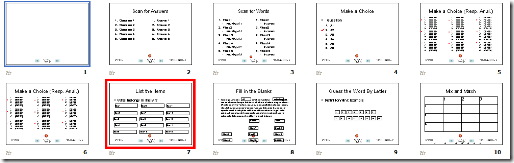
- Enables easy exercise creation:
- Resides on S:\coas\lcs\labs\lrctest\templates\Teacher.pot;
- Requires MS-PowerPoint 2010, as installed on the teacher computer in LRCRoomCoed434.
- Training videos are available for download here (requires Windows Media Player on Windows, as installed in the LRCRoomCoed434).
- powerpoint_template_overview_default_slide.wmv
- powerpoint_template_sequential_slides.wmv
- powerpoint_template_interactive_slides.wmv
- Usage samples available on request from
- German Beginners,

- Intermediate

- and Advanced Classes.


How to start the term with making your Moodle courses available to your students
2011/11/30
Leave a comment
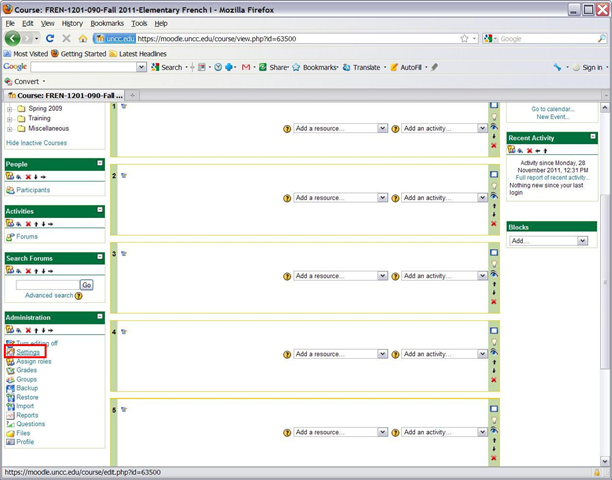
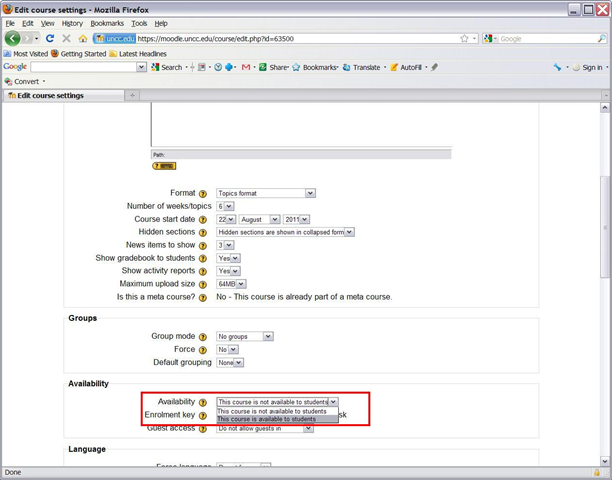
- Three simple steps:

-


- Beats making courses available by default, when you might still refine them.

Categories: audience-is-teachers, e-learning, lms, service-is-training
FAQs, moodle, settings, unhiding


Questions? Read the About. Or just ask me a quick Our Databases: Resources with calendars -- Language learning material Moodle Sites, multimedia files -- films


FAQs for LRC student staff or for students or for teachers. To search our FAQs, in the browser addressbar, add after "https://plagwitz.wordpress.com/feed/?tag=faqs+/" "+TAG1" (from tag cloud below) OR "https://plagwitz.wordpress.com/feed/tag=faqs
&category_name=" "CAT1" (from category hierarchy below). OR search both categories and tags, and multiple TAGs/CATs (connect with "," for OR-search, with "+" for AND-search), like so: https://plagwitz.wordpress.com/feed/?tag=TAG1+TAG2+...TAGn&category_name=CAT1
+CAT2+...CATn"
Other ways to find help
If you cannot find it here, look there: 5,500 Language-Learning Links and Programs for learning or teaching 150 languages
Shortcuts:Our Lists, Our Maps, LRC Staff Moodle Site,LRC Project Moodle Site, 49erexpress, UNCC Moodle, Student Recordings: s:claslcslrcsanakostudent
Learning usage samples: Sanako oral exam, Kaltura webcam presentation, Dictation with speech recognition, Sanako written exam, Chinese and Japanese interactive stroke-order practice
Test the Sanako Installer, Webbrowser Popup Konfigurator for XP, or Windows7, faster LRC TeacherPC Log-in Let MS facilitate diacritics writing by installing for you US-International keyboard layout
This is my personal blog (Google+). The views expressed on these pages are mine alone and not those of my employer. The information in this weblog is provided “AS IS” with no warranties, and confers no rights.
 Thomas' Work Space