Archive
How to more easily stay up-to-date using RSS feeds in Windows Live and elsewhere
RSS-feeds are a structured format for content items which a computer can read and pre-process for you – thus e.g. aggregate different sources automatically and keep track which information you have not seen yet. For you, that means: fewer menial tasks, more time for human-grade information processing.
Let me put it another way with a paragraph “stolen” from http://delhitools.net/cisblog/?p=89 on “Syndication”: “The newspaper comes to your doorstep. You don’t have to drive to NYC or Oneonta to read the news. Likewise, Real Simple Syndication (RSS) delivers news and changes to your “news reader”. Many people have and use “news readers” and don’t even know it, because that’s what shows the weather and latest news headlines in My Yahoo, or iGoogle. One can “subscribe” to any site with an RSS feed using them. But if a site does not have an RSS feed, it requires visitors to keep coming back to figure out what is new. (This RSS in Plain English video shows this very well:
”
RSS-feeds have been ubiquitous on the WWW for a while – e.g. many Windows Live services and sites come with built-in RSS-feed processing. If you go to your http://home.live.com, “What’s new” is based on an RSS-feed, and you can add other feeds to your live home page by going top “Add web activities” in the upper right corner.
You can also read your “What’s new” feed outside of http://home.live.com, e.g. in Google Reader or by clicking on the orange RSS-icon in the Firefox address-bar:

Note that by categorizing our information in our Blog, we personalize our communication and allow you to subscribe only to the news relevant to you (beyond what is currently supported in http://home.live.login “What’s new” feed):

In the Firefox 3 browser, RSS categories looks like this:

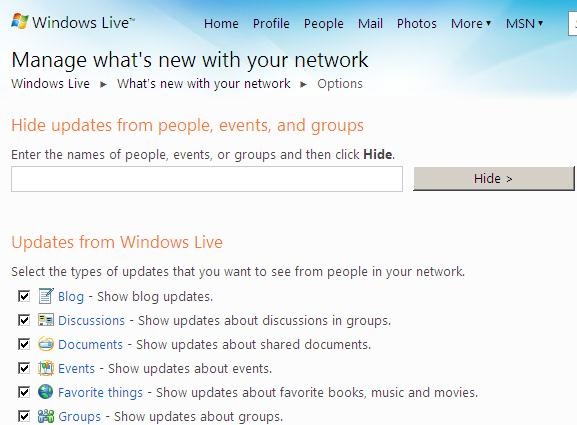
A powerful feature of Windows Live is the What’s new RSS feed which can save you a lot of time by aggregating important news from your professional (e.g. http://hale-interpreting.groups.live.com or http://hale-translation.groups.live.com) and personal (remember, it is only aggregated for you and your login) live. And you can customized what you want to see there, if you at the end of your “What’s new”section on http://home.live.com click on options, like here:
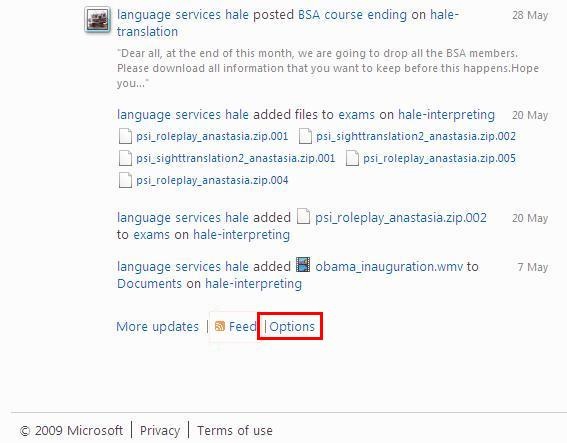
Then you can make changes:
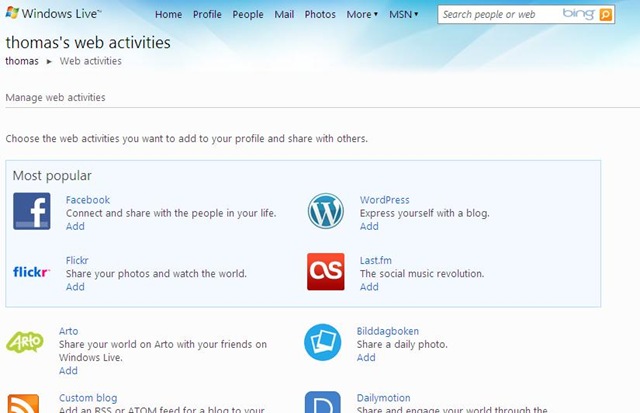
You can even import news from activities outside of your Windows Live network if you add them through the Web Activities link which appears on your http://home.live.com, or go directly to: http://profile.live.com/webactivities, as you can see in this screenshot:
Even better, you do not have to check http://home.live.com regularly or make it your home page – you can export your What’s new RSS feed if you click on the “Feed”-link at the end of your “What’s new”section on http://home.live.com, like here:
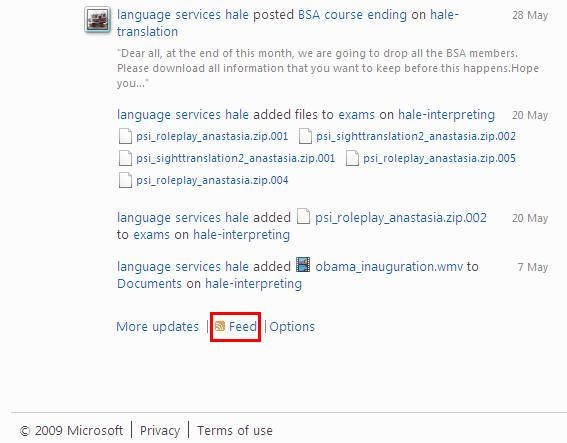
Using the link to the feed, you can read this feed in the feed reader of your choice. I keep up to date on all kinds of feeds beyond my immediate professional and personal network using Google Reader, but my professional news is easily visible here also,as you can see in this screenshot:

Demoing a requirements gathering template for IT project management
Designed for SME focus group meeting capture when upgrading the City-of-London conference interpreting facility at London Metropolitan University. Querying users for business requirements in use case form. Watch a demo: 
to generate functional requirements:

and to generate technical requirements (and questions for vendors):
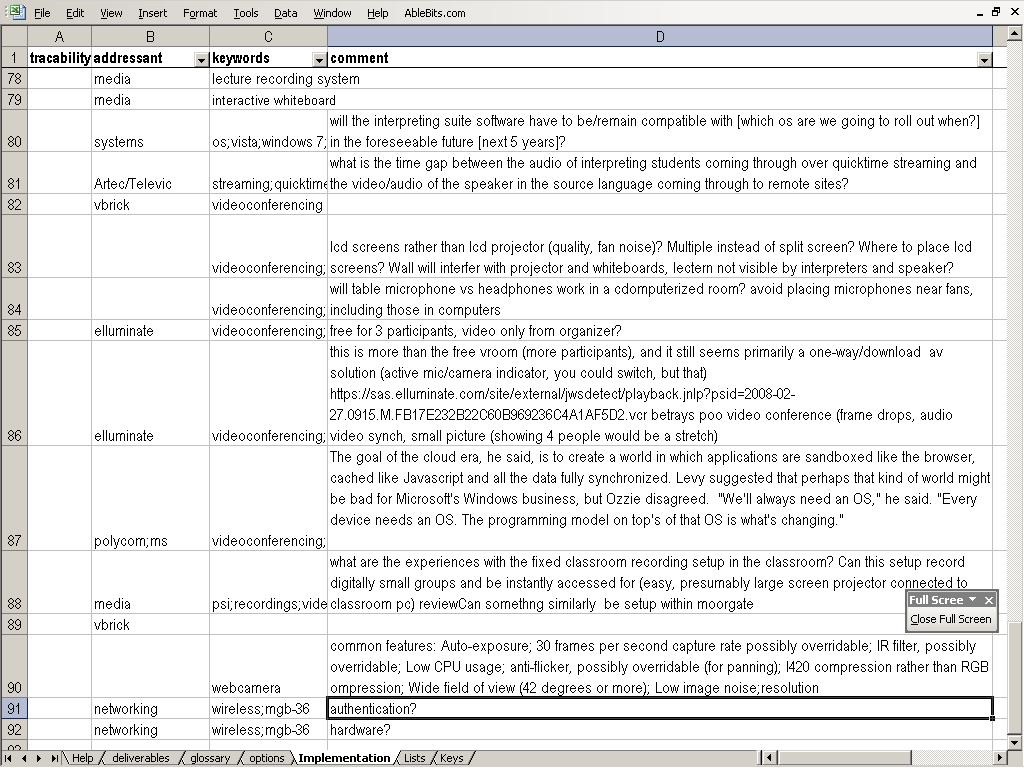
While keeping an eye on requirements metrics (what is important, contentious, unclear):

What to try if you cannot view things on your computer screen
No matter what “cannot view”refers to, the easiest way in Windows XP is to change display properties settings is right-click on desktop, choose “properties” from the context menu which pops up, then click on tab “settings”:
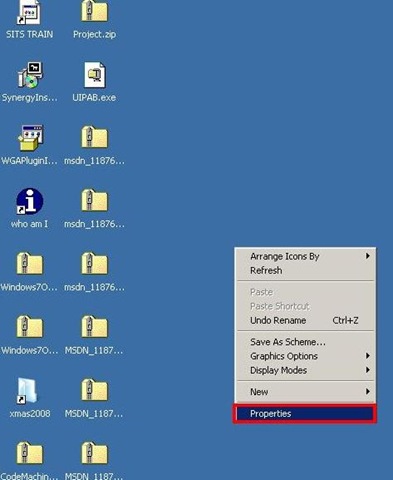

Output to older (CRT) monitors can relatively freely be adjusted here. LCD (“flat”) screens have a built-in (hardware) “standard/native/physical” resolution. The signal your computer (graphics chip) sends to the monitor should be matched to this resolution, or otherwise the image quality will be compromised (blurry).
If “things cannot be viewed” means: “are too small to decipher” and you have your resolution set to match your LCD screen’s built-in resolution, instead of changing your resolution, you should change the DPI value, buy going to the “advanced” button in this dialogue:
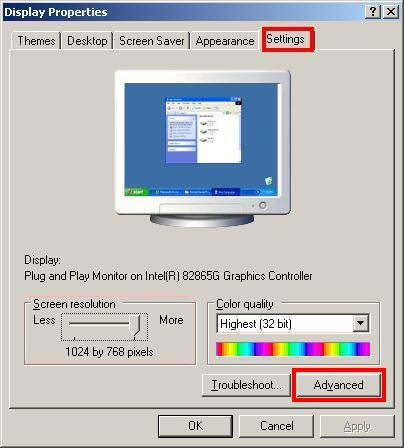

If “things cannot be viewed” means you try to use an application, like a video, that has been produced for a larger screen resolution and cannot be resized, then you do have to change the resolution, using the slider under “Screen resolution” here:

If you find, like in the picture above, that your screen resolution is already maxed out, then try and take your problematic application to another physical computer (you may first have to change the resolution on that one also).
Instant language services support on office and classroom IT lab computers using MS-Messenger
1. If you have Windows XP on your office computer, we can use MS-Messenger “Application Sharing” to provide immediate live assistance with computer problems in remote parts (also useful for collaboration with colleagues on documents, including web pages, when a phone call is too little and a meeting is too much).
1.1. click "Start", "Run", type (or copy/paste): "C:\Program Files\Messenger\msmsgs.exe", click “OK”
2. Initial setup (you have to do this only once)
2.1. “Add a .net passport to your windows XP user account”:
2.1.1. Email account
2.1.1.1. 
2.1.1.2. Users of http://hale-translation.groups.live.com/, http://hale-interpreting.groups.live.com/, or the Interpreting online calendar (http://calendar.live.com) can re-use their windows live account
2.1.1.3. Other users can use existing hotmail/windows live accounts or create a new hotmail/windows live account (you may want to create a separate account for work related messaging)
2.1.2. On your office computer, also check the checkbox to “Associate your account with your windows user account”, like here: 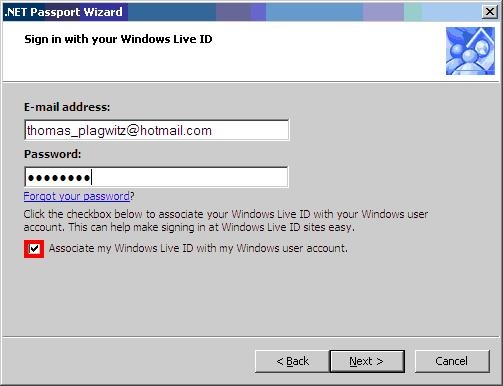 , when asking for help on a student computer, uncheck this
2.2. Add Thomas_plagwitz@hotmail.com as a contact (initially, I will have to accept this before you can contact me):
2.2.1. Click on “I Want To … Add A Contact”
2.3. click "Start", "Run", type (or copy/paste): "C:\Program Files\Messenger\msmsgs.exe", click “OK”
2.4. Start a conversation by double clicking on the user icon (“Thomas Plagwitz” or whoever) in your contact list
2.4.1. Right Menu: Section: “I want to” / “Start Application Sharing”
2.4.2. 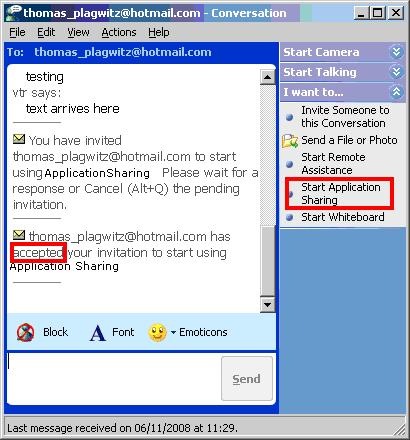
2.4.3. All is well if the other party has “accepted your invitation”, like above – allow some time for the screen sharing to start up on old computers.
2.4.4. When a dialogue comes up which asks you which application to share, use “Desktop”, like below – this will allow the other party to see your screen.
2.4.5. 
2.4.6. At the end of the session, “Unshare” your desktop, or simply end the “conversation”
MS-Office Templates and Macros
- Templates
- A number of MS-Office-templates (and Add-ins) have been set up and/or programmed to facilitate teaching and learning as well as administration in the language services environment.
- The templates can be accessed in the language services network environment to base documents on (browse to the template in explorer, then double click the template).
- Documents that are based on language services templates can be taken outside the language services network environment. While some template-features (i.e. the macros) will be (temporarily, until the document is brought back into the language services network environment) lost, as long as the document cannot access the template file, the instructor or student written text will not.
- Prerequisites for the template macro code to work
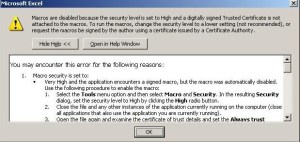
- Do this once: in MS-Office, menu:tools / macros / macro security needs be set to “medium”, then “ok” – otherwise you will see this warning:
- Do this every time: click “enable” when opening a document form a trusted source, like based on one of your templates:

- Do this once: in MS-Office, menu:tools / macros / macro security needs be set to “medium”, then “ok” – otherwise you will see this warning:
- Add-ins
- Some customizations required the installation of add-ins. These add-ins have been only installed on the computers where they are needed (i.e. the instructor computer).
- PowerPoint HALE Lookup Menu Add-in
- The custom-made consoleadd-in.ppa has been added to the MGB-36 TEACHER COMPUTER and the code in consoleadd-in.reg added to the MGB-36 TEACHER COMPUTER’s registry to load the menu add-in upon startup of PowerPoint on the TEACHER COMPUTER.


How to handle large files by splitting them into smaller zip-files
When you zip a large file, a nice side-effect is that you can "span” it across multiple “volumes”. I remember first using this when restricted to 360kB floppy disks. Today it could be useful for getting around the 50000kB restriction (not sure about the exact limit?) in MS-Skydrive. Tempora mutantur…
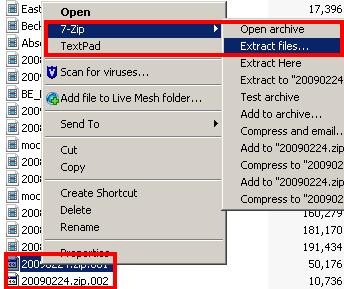
Unfortunately, Windows XP’s built-in ZIP-support does not cover spanned media. However, a good zip-utility which does, 7-zip, is free. Once downloaded and installed (can’t install? try http://media-convert.com for splitting, but it does not reassemble), you can right-click on a large file, e.g. this video below, and from the context menu choose 7-zip / “Add to archive", like so:

In the upcoming dialogue, enter in “Split to volumes” the size you want, then press “OK”:

7zip will automatically generate as many files as needed out of your big source file – remember that for unpacking you also need a zip program which supports spanned media.
Let’s enjoy ourselves and not worry about details like KB-MB conversion and that you could turn compression off to speed things up if you use 7-zip this way…
How to start a blog.
There are many ways to start an open blog. One is to download Windows Live Writer which works with many free blogging services.
One such free blogging service is on Windows Live itself: Among its many services, you can start your own Windows Live Space, and part of your space can be a blog.
You can download a free copy of Windows Live Writer from this blog: http://windowslivewriter.spaces.live.com/ (which at the same time can give you an idea what your own blog can look like, in case you had not noticed that this is a Windows Live blog also…).
I do not recall whether you will be given the opportunity of signing up for a Windows Live Account during your initial configuration of Windows Live Writer. Just give it a try – if it asks for your Windows Live Account, you can still get one here: https://signup.live.com.
However students may want to consider blogging with MS-Word 2007 instead. Microsoft’s offers to students MS-Office 2007 at a considerable discount: http://www.microsoft.com/student/discounts/theultimatesteal-uk/default.aspx
And yes: the Windows Live Blog lacks, among many things, multi-tag search which some WordPress users managed to implement quite a while ago. Turning out more machine-readable information, shouldn’t that be part of “Project Cool”? 😉
Moving large files beyond the intranet (for access from home, external examiners etc.)
To start, go to http://skydrive.live.com:  , or, if you have a Windows Live account, go through the menu of Windows Live or Hotmail: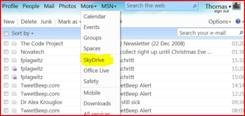
“Sign in” with or “sign up” for your Windows Live account: 
Create a new shared folder.
To give specific other users access to files: Click “Folder options”, and then click “Change permissions”. ”Click People I choose”, check box for each of your contacts that you want to add. Or add people who aren’t in your contact list, using their E-mail address (they will be invited and will have to sign up – send them a heads up to check their junk mail folder): 
To link to a file (e.g. in an email), navigate to the folder or file, and on the right side of the page, use the "Web address" box as a link (for folders first click folder options): 


Questions? Read the About. Or just ask me a quick Our Databases: Resources with calendars -- Language learning material Moodle Sites, multimedia files -- films


FAQs for LRC student staff or for students or for teachers. To search our FAQs, in the browser addressbar, add after "https://plagwitz.wordpress.com/feed/?tag=faqs+/" "+TAG1" (from tag cloud below) OR "https://plagwitz.wordpress.com/feed/tag=faqs
&category_name=" "CAT1" (from category hierarchy below). OR search both categories and tags, and multiple TAGs/CATs (connect with "," for OR-search, with "+" for AND-search), like so: https://plagwitz.wordpress.com/feed/?tag=TAG1+TAG2+...TAGn&category_name=CAT1
+CAT2+...CATn"
Other ways to find help
If you cannot find it here, look there: 5,500 Language-Learning Links and Programs for learning or teaching 150 languages
Shortcuts:Our Lists, Our Maps, LRC Staff Moodle Site,LRC Project Moodle Site, 49erexpress, UNCC Moodle, Student Recordings: s:claslcslrcsanakostudent
Learning usage samples: Sanako oral exam, Kaltura webcam presentation, Dictation with speech recognition, Sanako written exam, Chinese and Japanese interactive stroke-order practice
Test the Sanako Installer, Webbrowser Popup Konfigurator for XP, or Windows7, faster LRC TeacherPC Log-in Let MS facilitate diacritics writing by installing for you US-International keyboard layout
This is my personal blog (Google+). The views expressed on these pages are mine alone and not those of my employer. The information in this weblog is provided “AS IS” with no warranties, and confers no rights.
 Thomas' Work Space