Archive
Free screencast recording software from Microsoft
Teachers ask me about software for making screencasts explaining procedures to their students. I have not googled for free screencast recorders recently, since I have been happy for many years to use (or rather work with extensively, and recommend) Windows Media Encoder 9 on MS-Windows. Allegedly as of end of 2010, this software is not linked on Microsoft’s website anymore (but can still be googled and downloaded). Even though not officially supported on this OS any more, I have also used it successfully on Windows 7 (64-bit) (after Vista (64-bit) and Windows XP)).
The official replacement screencast recorder from Microsoft is Windows Expression Encoder (of which I still use the inexpensive Version 3), which is available here (Version 4 SP1) for free. Media Encoder is almost 10 years old, so Expression Encoder is clearly superior – however, the free version is somewhat crippled, most notably in this context I seem to remember the time limit for screencasts is 10 minutes.
Both Encoders are somewhat technical in nature. In particular, I suspect the reason why considerable experts did not know Media Encoder as a screencast recorder (which is not the same as a documentation and training maker: its post-editing capabilities are limited and not specialized for documentation, unlike e.g. Camtasia), was that its default settings for screencast recordings are low quality.
To “uncork” the real possibilities of this software, your first need to alter the compression settings within the WME configuration file that your screencast is based on (you can do this from within Windows Media Encoder itself). Moreover, for this change to stick, you need to alter an underlying PRX template file also. This file is hidden away in the depths of the Encoder install directories; after installing Windows Media Encoder, search your programs folder for a file named schia.prx, it is an XML file that will open with the Windows Media Encoder utilities.
How to do Call forwarding on the Cisco IP Phone 7912
Press button “CFwdAll“:
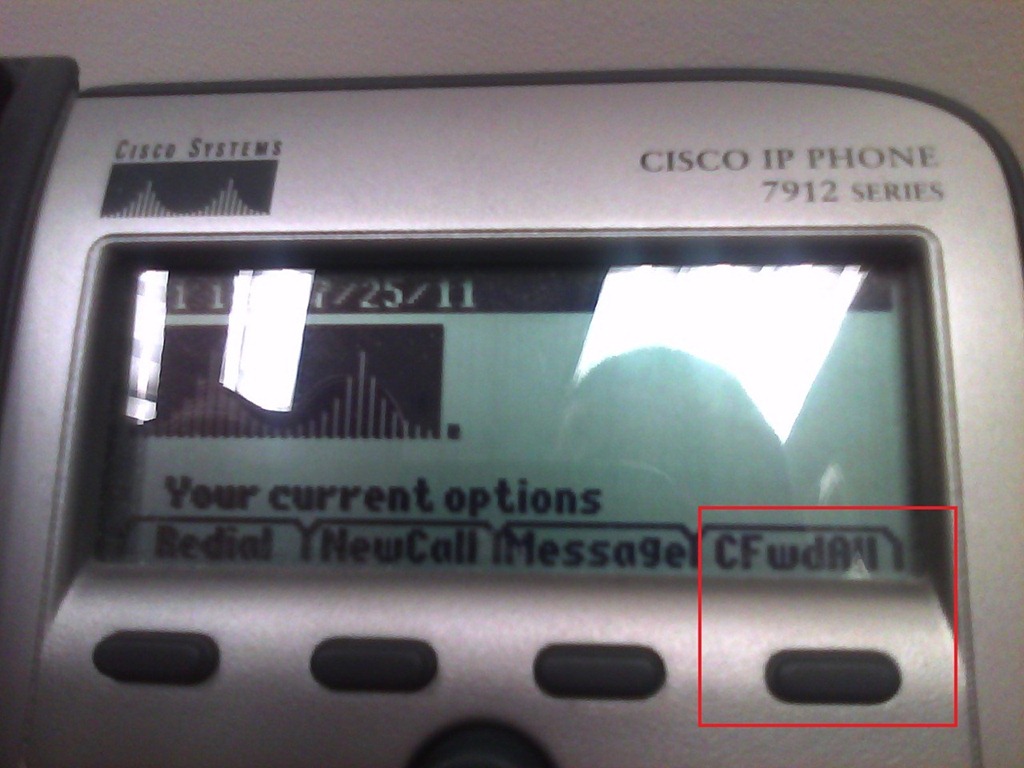
Type the phone number:
 .
.
To un-forward, press button “CFwdAll” again.
How to enable screen cloning and switching between display modes on the LRC reception desk dual screen Dell OptiPlex 780 with WinXP
Short, non-technical answer: on the keyboards of the reception desk computers, press key combination
- ALT+CTRL+F10 to mirror the same image on both monitors;
- ALT+CTRL+F11 to return to extending the primary screen, i.e. showing something different on the second screen.
- if this stops working, restart the computer.
We do not use any more key combination ALT+CTRL+F10 to cycle through the different desktop configurations, which include cloning/mirroring the same image on both screens (also keep pressing the key combination, in order to get back to extending the image to the 2nd screen, for running an informational display (calendar, PowerPoint) to display on the 2nd screen after mirroring the lab assistant’s screen onto the 2nd screen when interacting with a client on the other side of the help desk counter).
Longer, technical answer: You have to configure this. But the Win XP dialogue: Display Properties / tab: Settings only allows for “extending” the desktop to the secondary screen. However, button: Advanced leads to another dialogue, with a tab: ATI Control Center, by the graphics card manufacturer.
If you also enable the advanced settings in this dialogue, you can get to the hotkey settings where, among other things, you can enter a key combination for cycling through Display Configurations, one of which being cloning.

In addition, you can save this configuration as such:

Why all these minutiae? You cannot have LRC clients and staff at the help desk communicate with the help of a computer (and all the goodies accessible now, from intranet to interwebs) if they cannot easily share the screen (and, in order to both even interact with the screen, share keyboard and mouse, which are easy to duplicate, if you have some spare USB input devices lying around). If you can make them share, you have applied AI to business problems (compare dual screen system in the LLC entrance area here). If calling the after state “AI” sounds too lofty to you, you may call the before state “flying blind” instead: I just care about the delta which remains the same.
How to efficiently find help on this blog
- Searching
- Full-text search: quick, even though dumb (“Computers are only machines…”). It may not return the most relevant results.

- Human-curated search: The author adds metadata to his posts as he sees fit. The metadata vocabulary is somewhat stable from past experience, but may change (”The author is only a human.”
 ). You effectively execute a humanly-curated search when clicking in the right column on either
- a tag link, e.g.
 https://plagwitz.wordpress.com/tag/moodle/
 - a category link, e.g.

- a tag link, e.g.
- Humanly-curated and Boolean AND search combined: This can be powerful in drilling down to an answer to a specific problem – provided there is one on the blog.
- Even though there is no easily clickable interface for this, by building URLs in the web browser address bar
 , combining tags or categories with the plus-sign, you can execute an AND-search against multiple tags(or categories) on WordPress.com
 - Example: https://plagwitz.wordpress.com/tag/moodle+erepository/ finds posts that the author related to both Moodle and eRepository. This can be especially useful for searching the FAQs: https://plagwitz.wordpress.com/tag/faq+[add your problem-technology-tag here, e.g. Audacity]/
- Even though there is no easily clickable interface for this, by building URLs in the web browser address bar
- Full-text search: quick, even though dumb (“Computers are only machines…”). It may not return the most relevant results.
- Notifications: Subscribe to RSS-feeds to receive timely updates on the topics that matter most to you. Both
- WordPress.com, providing RSS-feeds for all categories and tags (click on a tag or category link and find the
 icon, it will link to the RSS feed – Example: https://plagwitz.wordpress.com/tag/moodle/feed/) – watch either the webpage or your browser GUI for orange RSS icons you can click on to initiate a subscription -and also for multiple categories/tags (even though this feature is even better hidden, you need to construct a URL in your browser address bar. Example: https://plagwitz.wordpress.com/tag/moodle+erepository/feed/). If you want to go beyond our own metadata, WordPress allows also for subscribing to your own searches via RSS: “To keep up with your favorite search results we offer an RSS feed for all search results. Simply click the Follow this search via RSS link in the side bar of any search results page to subscribe to updates in the search result”, consult the WordPress search documentation.
 - and MS-Outlook, making RSS-subscriptions look familiar like email (of importance in certain environments), greatly facilitate this.
- WordPress.com, providing RSS-feeds for all categories and tags (click on a tag or category link and find the
- Text-messaging: Get synchronous human help through the Moodle-Wimba Room link.


How to self-enroll in a Moodle course
If a Moodle course is set to allow for self-enrolment (both regular and Project courses here can be), if you go for the first time to this such a course – e.g. by clicking on a link to the course (which we don’t show you here, since we want to give only a select user group to self-enroll in our course) – you will be taken to a logon page (if not already logged into Moodle), and, upon successful login, be immediately offered to self-enroll. Click the “Yes” button and you are taken to your course, like is done in this screencast on self-enrolling in Moodle.
Moodle metacourses, part II: The technology
One of the most missed business requirements for a LMS in version 1 of Moodle has been lack of support for sharing files across courses. This has been addressed by the e-Repository API in version 2 of Moodle, which, however, we will not have in the foreseeable future. In version 1, metacourses have been the most widely used workaround.
The technical concept behind a metacourse in Moodle seems to be best described like so: “A child course gives its [student - TBA:teachers need to be added manually, but fortunately do not change as frequently as students] enrolments [= access to] to the parent course” or meta course, which has no enrolment of its own. In practice, this can go either way: Using metacourses, one can “populate many [meta]courses [= building blocks of content (e.g. chapters, weeks, can even be separate, but required courses with different teachers – TBA: then exclude the teacher role from being added with enrolments, in Admin/Users/User Policies , flexibly combinable to make up a specific version of your regular course] from one enrollment or one [meta]course from many enrollments [= many sectional regular courses that need access to the same content]”. Either assign to many metacourses [= building blocks] 1 child course each, or vice versa assign 1 metacourse many child courses [=sectional regular courses].
For base Moodle version 1.9 administration information, simply watch the first half-minute of this screencast, or read this extract from the Moodle documentation:
“To change a course to a meta course, set "Is this a meta course?" question to yes in the course settings.”

(Note that this option will disappear as soon as the course has an enrolment!)

In your metacourse “you can link [=”associate”] to or unlink from (add or delete) "child" courses by the course Administration menu. This icon and link only appears in meta courses: “

How to make a metacourse visible: “Making a metacourse visible before the metacourse is properly setup can cause Moodle to return ‘This course does not allow public access'(…) Verify that the linked "child" course(s) exists. “
Note: Metacourses may be set to inactive and unavailable to enrolled students until the teacher activates the metacourse.
Note: It takes some time for the meta-enrollment to apply (time depends on the setting for the cron-job).
How to handle metacourse teacher role enrollments: Certain roles can be excluded from being passed on as enrollment from child courses to metacourses. For our shared resource courses, this does not make sense (in the contrary, since any teacher from the child course may want to manage resources contained in the metacourses – this does not to be coordinated between teachers of similar child courses.).
TBA: How to handle metacourse enrollments across terms: Our metacourse shells will stay across the term, while enrollment will be automatically dropped with the child courses “going out of scope”.
How to manually add a user to your course.
Less than intuitive, but you have to go via “Assign roles”. Here are the steps:
- Go to “Assign Roles” in your bottom left hand course menu
- Choose a role you want to assign
- Search, add and assign the role to a user. This will also add the user to the course.
- Check results by going to “Participants” in your bottom left hand course menu
Here is the screencast of adding users to your Moodle course.


Questions? Read the About. Or just ask me a quick Our Databases: Resources with calendars -- Language learning material Moodle Sites, multimedia files -- films


FAQs for LRC student staff or for students or for teachers. To search our FAQs, in the browser addressbar, add after "https://plagwitz.wordpress.com/feed/?tag=faqs+/" "+TAG1" (from tag cloud below) OR "https://plagwitz.wordpress.com/feed/tag=faqs
&category_name=" "CAT1" (from category hierarchy below). OR search both categories and tags, and multiple TAGs/CATs (connect with "," for OR-search, with "+" for AND-search), like so: https://plagwitz.wordpress.com/feed/?tag=TAG1+TAG2+...TAGn&category_name=CAT1
+CAT2+...CATn"
Other ways to find help
If you cannot find it here, look there: 5,500 Language-Learning Links and Programs for learning or teaching 150 languages
Shortcuts:Our Lists, Our Maps, LRC Staff Moodle Site,LRC Project Moodle Site, 49erexpress, UNCC Moodle, Student Recordings: s:claslcslrcsanakostudent
Learning usage samples: Sanako oral exam, Kaltura webcam presentation, Dictation with speech recognition, Sanako written exam, Chinese and Japanese interactive stroke-order practice
Test the Sanako Installer, Webbrowser Popup Konfigurator for XP, or Windows7, faster LRC TeacherPC Log-in Let MS facilitate diacritics writing by installing for you US-International keyboard layout
This is my personal blog (Google+). The views expressed on these pages are mine alone and not those of my employer. The information in this weblog is provided “AS IS” with no warranties, and confers no rights.
 Thomas' Work Space