Archive
Face-to-face-teaching exam using Sanako Study 1200
- Sanako Exam is an add-on at additional cost and not currently available in our setup.
- Sanako Exam teacher-created content is stored locally, file management beyond that is up to the user. This makes such polls less portable, but potentially sharing within a department might be easier.
- Student Results can be identified by student, and saved.
 View here a screencast demo of how a Sanako Exam can be
- authored and
- deployed.
Replace clickers with students’ phones using PollEverywhere.com
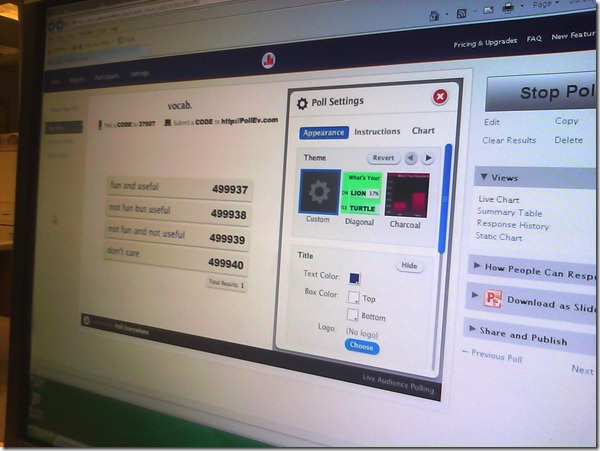
- PollEverywhere.com allows teachers to set up polls with answer options that students choose by sending a number code as text message.
- Pro’s
- Freemium.
- Low- to No- university infrastructure requirements. Best-used in a non-computerized classroom or during startup time of students’ computers.
- Content can be managed online.
- Con’s
- Freemium:
- “You get what you pay for”. “You may be the business”. What happens with your data
- Not free for students unless you consider a phone plan that comes with unlimited texts free. With increasing use of other messaging options over SMS, that may be not a given even if you deal mostly with an affluent student population.
- Low- to No- university infrastructure requirements:
- you are relying on students providing the infrastructure. Are they better keeping their phones in service (on them, charged, turned on) than we are keeping our computer labs up and running?
- you are relying on mobile network operators, including the choices of operator that your students made.
- Anonymous: Not useful for assessment purposes.
- The number codes are long (6 digits, while 1 could be sufficient).
- Freemium:
- Competitors
- The university has a clicker infrastructure which is partially outsourced to students (purchase and bring).
- The LRC has a Classroom Management system infrastructure which supports clicker-like activities.
- Sanako Study 1200 comes with Live Feedback and Voting.
- NetOp School comes with an examination/polling feature also.

UCL Internet Grammar of English
I2speak.com: Web-based IPA Keyboard
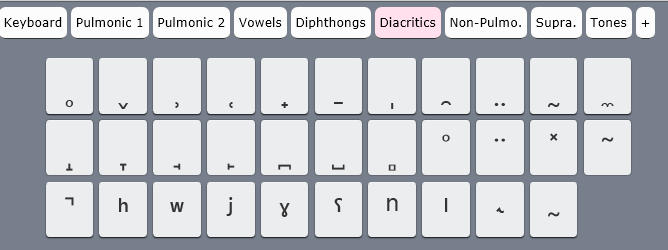
The Sciweavers Team announces http://www.i2speak.com: “an online Smart IPA Keyboard that lets you quickly type IPA phonetics without the need to memorize any symbol code. For every Roman character you type, a popup menu displays a group of phonetic symbols that share the same sound or shape beneath typed character. Use arrow keys to select the proper symbol then hit the Enter button. I2Speak also supports the following features:
1. The Sampa English Keyboard lets you type English phonetics using Roman characters according to SAMPA (Speech Assessment Methods Phonetic Alphabet) rules.
2. The IPA English Keyboard provides you with a full English phonetics keyboard. Press the symbol of interest using a suitable input device.
3. You can type directly on your physical keyboard or on the virtual on-screen keyboard using a suitable input device such as mouse or touch screen device.
4. You can change the keyboard symbols by selecting another layout from the list box located above the virtual keyboard.
5. For every keyboard layout, more symbols can be displayed by pressing the CAPS Lock.
6. When you hover the mouse over an English phonetic button, a slick tooltip will show some example English words.
7. You can save typed phonetics as an MS-Word file by clicking the Save button, copy them to clipboard using the Copy button, or post them to Twitter, Facebook, etc. by clicking the desired button.”



Farsi phonetic input using Behnevis
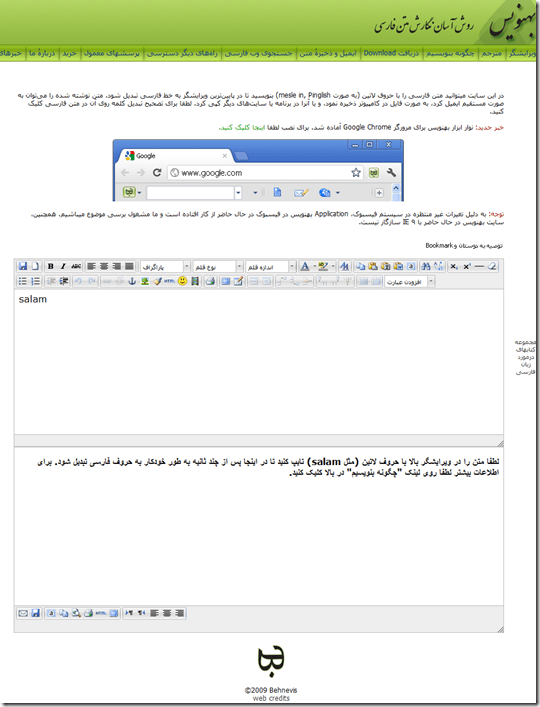
- Behnevis.com (web form or downloadable Google Chrome browser toolbar) offers transliteration of phonetic input in Roman letters into Farsi and is said to be on a par with Google translate (which offers no toolbar) and MS-UIME (which has no toolbar, but can be installed in your browser to alter any web page for users lacking a physical Farsi keyboard (or overlay).

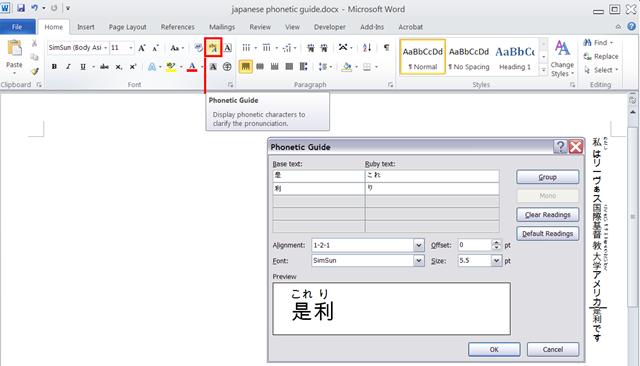
How to display Furigana phonetic guide for Japanese Kanji in MS-Word 2010
- Furigana uses Kana (usually Hiragana) to phonetically transcribe Kanji, above (for horizontally written Kanji) or to the right (if in vertical writing mode), for special characters or audiences (children and second language learners).
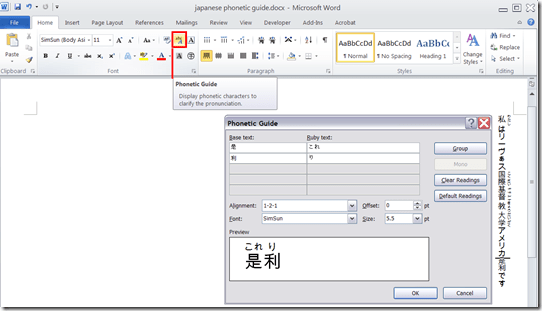
- In MS-Office, if you have a Japanese Input Method Editor selected in MS-Windows, select some Kanji and in the ribbon, under tab: home, section: font; click on the Phonetic guide, to bring up a dialogue that attempts to auto detect the furigana.
- You can make adjustments there, click “OK “to insert. Like so:
Protected: Moodle-Kaltura webcam recording assignment results
How to use Google translate for writing Cyrillic letters with a western keyboard, pronunciation help, and text-to-speech
Go to Google translate and do like so. Useful for learning, as well as typing when teaching.


Questions? Read the About. Or just ask me a quick Our Databases: Resources with calendars -- Language learning material Moodle Sites, multimedia files -- films


FAQs for LRC student staff or for students or for teachers. To search our FAQs, in the browser addressbar, add after "https://plagwitz.wordpress.com/feed/?tag=faqs+/" "+TAG1" (from tag cloud below) OR "https://plagwitz.wordpress.com/feed/tag=faqs
&category_name=" "CAT1" (from category hierarchy below). OR search both categories and tags, and multiple TAGs/CATs (connect with "," for OR-search, with "+" for AND-search), like so: https://plagwitz.wordpress.com/feed/?tag=TAG1+TAG2+...TAGn&category_name=CAT1
+CAT2+...CATn"
Other ways to find help
If you cannot find it here, look there: 5,500 Language-Learning Links and Programs for learning or teaching 150 languages
Shortcuts:Our Lists, Our Maps, LRC Staff Moodle Site,LRC Project Moodle Site, 49erexpress, UNCC Moodle, Student Recordings: s:claslcslrcsanakostudent
Learning usage samples: Sanako oral exam, Kaltura webcam presentation, Dictation with speech recognition, Sanako written exam, Chinese and Japanese interactive stroke-order practice
Test the Sanako Installer, Webbrowser Popup Konfigurator for XP, or Windows7, faster LRC TeacherPC Log-in Let MS facilitate diacritics writing by installing for you US-International keyboard layout
This is my personal blog (Google+). The views expressed on these pages are mine alone and not those of my employer. The information in this weblog is provided “AS IS” with no warranties, and confers no rights.
 Thomas' Work Space