Archive
How to comprehensively identify your software packages using the MS-Installer infrastructure
- Problem:
- Some packages may have built-in checks which prevent installation. The built-in error messages may be difficult to interpret (even if you speak foreign languages).
- Some built-in checks may be erroneous.
- Product name and version may be difficult to identify.
- Etc.
- Solution: Take advantage of the features of the MS Installer infrastructure.
- If necessary (setup file does not come as an MSI file), try to unpack your setup file (7zip alone will work in many cases. There are more advanced free extractors available on the web).
- with the the unpacked MSI’s
- run with the “/log” parameter and to generate and examine the log file for more speaking (an English!) installation errors.
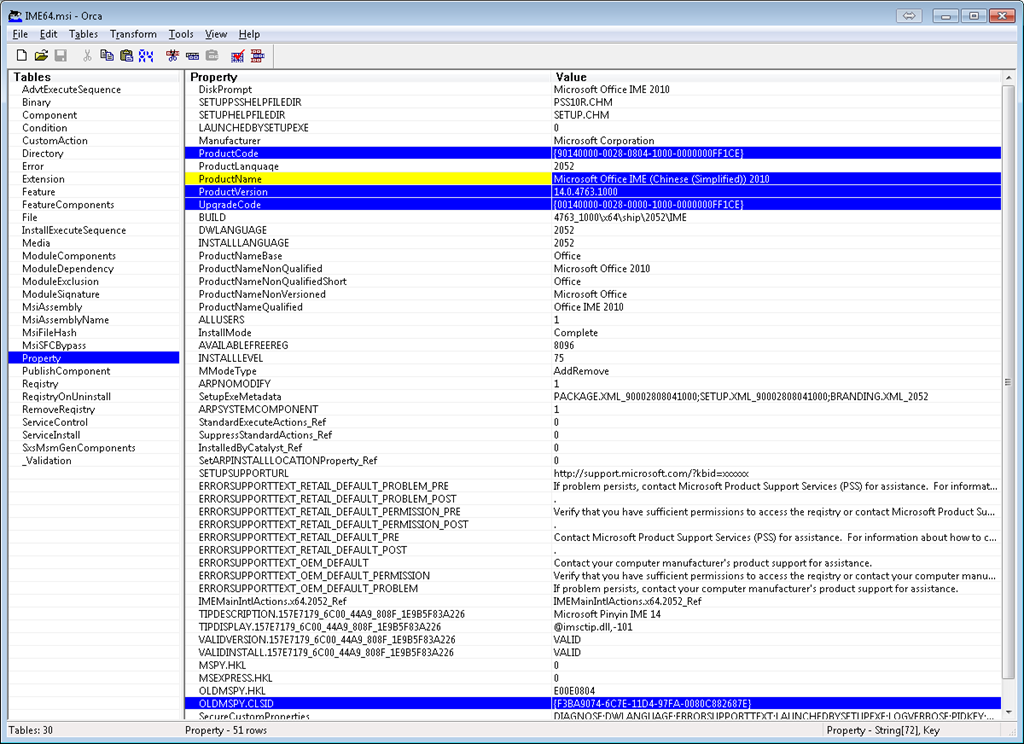
- Open with MS-Orca to examine the software package properties:
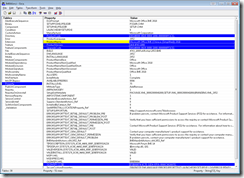 .
. - Right-click and “copy cell” :

- Esp. note the following:
- “Make”
- Productname (base, qualified) variants
- “Model”
- GUID for Upgradecode (e.g. {00140000-0028-0000-1000-0000000FF1CE})
- Productname
- “Year”:
- GUID for Productcode ({90140000-0028-0804-1000-0000000FF1CE})
- ProductVersion
- “Make”
- you can edit your MSI with MS-Orca (better be sure what you are doing).
- you can compare this installer package with what you already have installed in the registry
- use a registry search tool
- you have to search the registry for the compressed GUIDs, to compress, use this: https://thomasplagwitz.com/tag/guid/.

Sanako Study 1200 StudentRecorder.exe install in the LRC
Here is the screencast recording I made during local installation:  . It includes the install option “static classroom” and (near the end) our classroom name.
No audio on listening stations and group rooms, and workaround
- Symptom: Headsets work (test feedback by putting microphone near headset speakers), but audio files from internet do not play with sound.
- Cause: having to support 2 different kinds of headsets (USB with built-in soundcard versus traditional analog) in one PC software image.
- The workaround
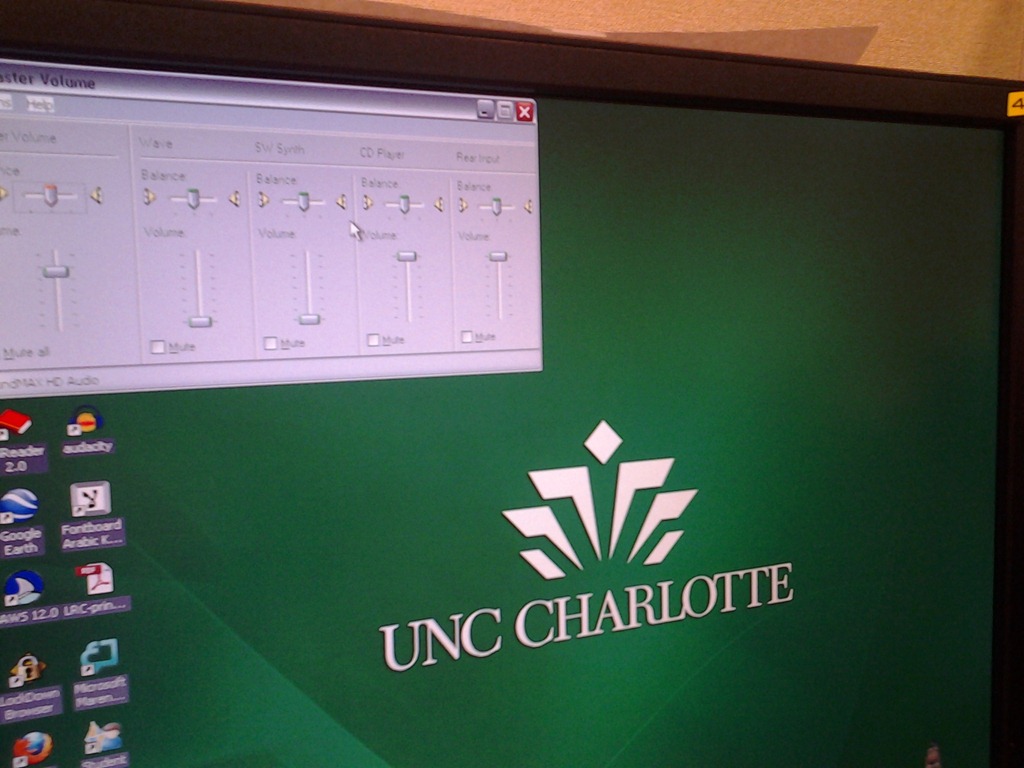
- for temp staff is to start / run / sndvol32.exe and up the low volume sliders here:

- for permanent staff is to unfreeze any computers that have been missed previously
 and put this script into the all users startup folder now: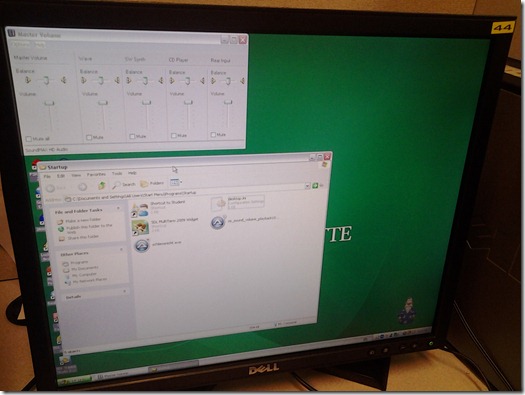
- The solution: standardize on USB headsets when you get a chance.


More ways of making minor changes to a domain-joined, deepfrozen computer lab image
- Re-imaging a domain-joined, deep-frozen Windows XP language lab using Symantec Ghost and Deepfreeze can be a drawn-out process.
- Minor fixes can be achieved by unfreezing and using a Symantec-Ghost file task and a script that loads the default user registry hive – here is how:
-
sTempHive = """HKEY_USERS\Test"""
'//vista and up: sDefaultUserHive = """%USERPROFILE%\..\Default\NTUSER.DAT"""sDefaultUserHive = """%USERPROFILE%\..\Default User\NTUSER.DAT"""
sSName = oUtility.ScriptName
set oShell = WScript.CreateObject ("Wscript.Shell")
- and alters it before freezing the lab again. Here are some examples of such fixes:
- change the default keyboard (after users logs in):
oLogging.CreateEntry sSName & ": Setting US-International as Default Keyboard Layout",LogTypeInfoRegPath = "HKEY_USERS\Test\Keyboard Layout\Substitutes\"oshell.RegWrite Regpath & "00000409", "00020409", "REG_SZ"
If Err<>0 Then
oLogging.CreateEntry sSName & ": Failed to update Default Keyboard Layout setting",LogTypeErrorZTIProcess=60
Exit Function
End If
- change visibility of the developer tab in the ribbon of MS-Word:
oLogging.CreateEntry sSName & ": Setting MS-Word Developer Toolbar to show",LogTypeInfoRegPath = "HKEY_USERS\Test\Software\Microsoft\Office\14.0\Word\Options\"oshell.RegWrite Regpath & "DeveloperTools", "1", "REG_SZ"
If Err<>0 Then
oLogging.CreateEntry sSName & ": Failed to update S-word developer tools settings",LogTypeErrorZTIProcess=40
Exit Function
End If
- change the SDL-Trados licensing server IP:
oLogging.CreateEntry sSName & ": Setting Default User Trados license server",LogTypeInfoRegPath = "HKEY_USERS\Test\Software\Trados\Shared\Licence"oshell.RegWrite Regpath & "Licence_file", "27000@10.18.189.231", "REG_SZ"
If Err<>0 Then
oLogging.CreateEntry sSName & ": Failed to update Default User Trados license server setting",LogTypeErrorZTIProcess=35
Exit Function
End If
oLogging.CreateEntry sSName & ": Setting Default User Screensaver timeout settings",LogTypeInfoRegPath = "HKEY_LOCAL_MACHINE\SOFTWARE\FLEXlm License Manager"oshell.RegWrite Regpath & "Trados_License_File", "27000@10.18.189.231;27000@xlcs4sbynj1www", "REG_SZ"
If Err<>0 Then
oLogging.CreateEntry sSName & ": Failed to update Screensaver to timeout settings",LogTypeErrorZTIProcess=30
Exit Function
End If
- change the default keyboard (after users logs in):
- On Ghost:
- We create a Ghost file task that points to the wsf file with the current changes we want to implement:

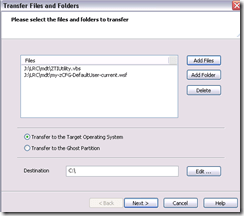
 To apply other changes, just change the filename of your script , e.g.:
- to apply to other computers, just change the target in the ghost task.
- Output:

- These scripts use the ZTIUtility.vbs from the MDT.
- You may have to update the location: <script language="VBScript" src="ZTIUtility.vbs"/>.
- For a while, the logging success made me believe I I had accessed the ntuser.dat and had run into registry permission settings loading it. In fact, I just did not resolve to the XP path of the ntuser.dat. Take advantage of the the logging facilities that come with MDT: Here are your logs on the client:
 .
. - Read the logs with TRACE32, part of the SMS 2003 Toolkit 2.
- Result: Provided the client has been cleanly frozen, and the domain user has no profile created before on this machine, and his profile is based on the altered default user profile, his HKCU will inherit the changes:





How to peek inside your MSI files with LessMSI
In spite of a few typos in the (generally very helpful) descriptions (and the pun at the cost of poor Victor), this seems a very useful tool that gives you an overview of what you are embarking on when installing software, like so:
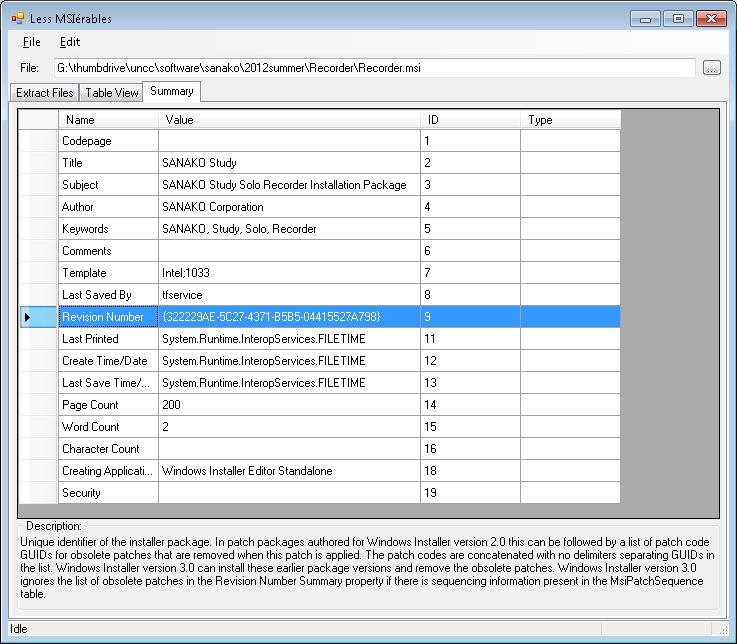

LessMSI allows you can even extract individual files to investigate further:
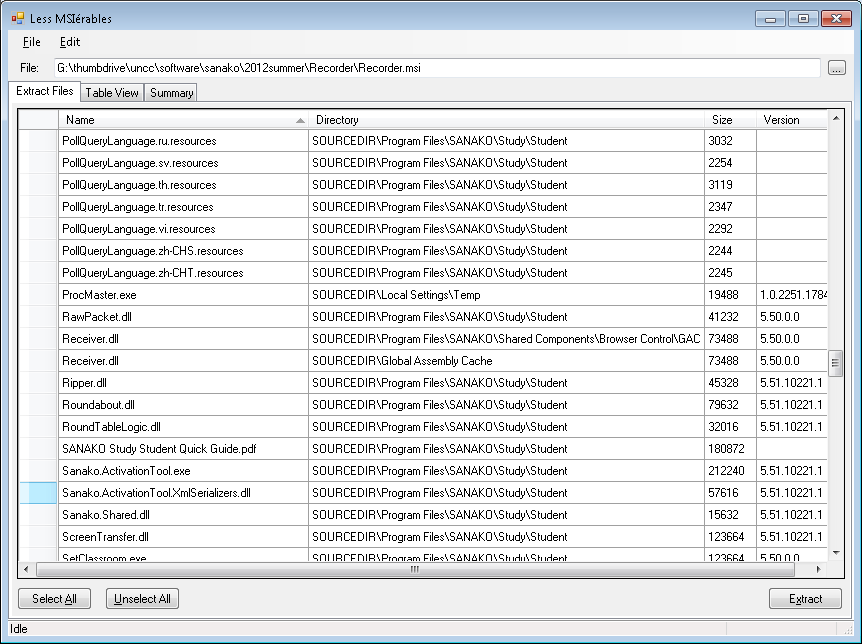 Moreover, it is extremely easy to install using chocolatey after which it is going to be in your PATH, to be called as “LessMSI.bat”.
Yes, Chrome, you too can display my RSS feeds nicely…
… if you install this extension made by Google themselves (who, I think, should include this RSS feed display extension in the default Chrome distribution):
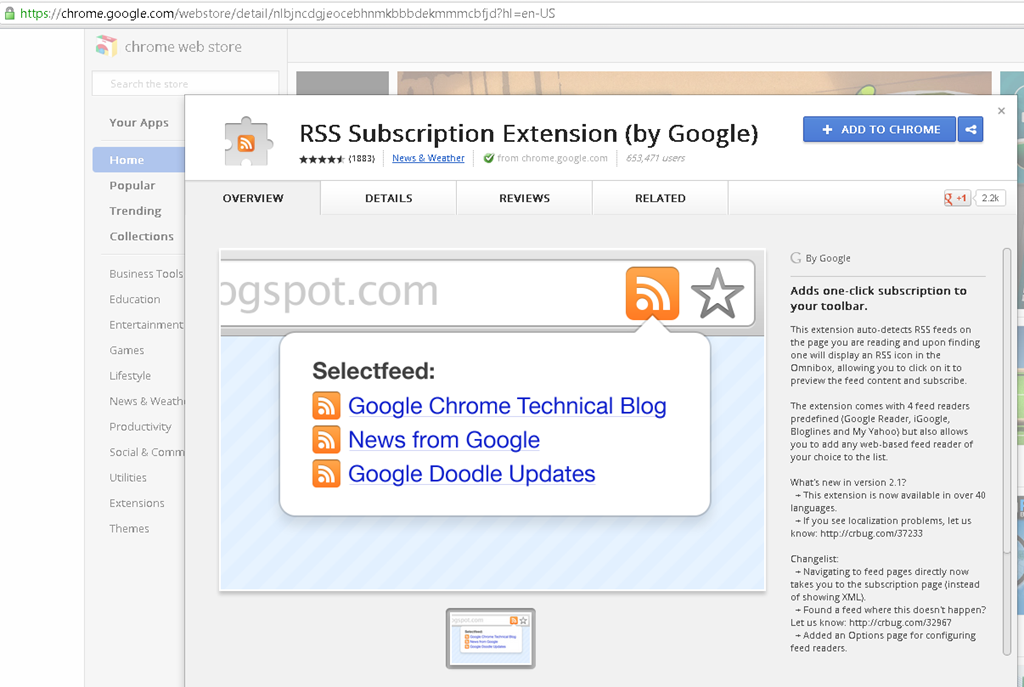
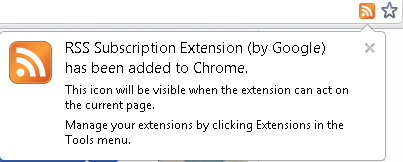
No comparison with Internet-Explorer’s feed display, but much legible than the XML code display Chrome defaults to:

If students have no mp3 audio on LRCRoomCoed433a Listening Stations
Problem: A Student that took the French Respondus Lockdown browser on PC 43, when playing to listening comprehension files, had no audio on her headset (except for her microphone input was played back for her. The test is single attempt only, and lockdown browser prevents us from troubleshooting.
Cause: Master volume for Wave and SW Synth on lrcroomcoed433b back to 0, like so:

Workaround: plug in one of the black headsets (USB) temporarily (plugging in another brown headset did not resolve the issue).
Solution: None currently: even when the Respondus lockdown browser is not running, Deepfreeze will not allow making changes, and changes in the current user profile will not affect users whose profiels gets created upon login (which is all student users). Longterm: Don’t try to run identical software images on different hardware configurations. Not as longterm: Autoit FTW?


Questions? Read the About. Or just ask me a quick Our Databases: Resources with calendars -- Language learning material Moodle Sites, multimedia files -- films


FAQs for LRC student staff or for students or for teachers. To search our FAQs, in the browser addressbar, add after "https://plagwitz.wordpress.com/feed/?tag=faqs+/" "+TAG1" (from tag cloud below) OR "https://plagwitz.wordpress.com/feed/tag=faqs
&category_name=" "CAT1" (from category hierarchy below). OR search both categories and tags, and multiple TAGs/CATs (connect with "," for OR-search, with "+" for AND-search), like so: https://plagwitz.wordpress.com/feed/?tag=TAG1+TAG2+...TAGn&category_name=CAT1
+CAT2+...CATn"
Other ways to find help
If you cannot find it here, look there: 5,500 Language-Learning Links and Programs for learning or teaching 150 languages
Shortcuts:Our Lists, Our Maps, LRC Staff Moodle Site,LRC Project Moodle Site, 49erexpress, UNCC Moodle, Student Recordings: s:claslcslrcsanakostudent
Learning usage samples: Sanako oral exam, Kaltura webcam presentation, Dictation with speech recognition, Sanako written exam, Chinese and Japanese interactive stroke-order practice
Test the Sanako Installer, Webbrowser Popup Konfigurator for XP, or Windows7, faster LRC TeacherPC Log-in Let MS facilitate diacritics writing by installing for you US-International keyboard layout
This is my personal blog (Google+). The views expressed on these pages are mine alone and not those of my employer. The information in this weblog is provided “AS IS” with no warranties, and confers no rights.
 Thomas' Work Space