Archive
Treffpunkt Deutsch Companion Website with Online Exercises
- This first-year German textbook comes with a Companion Website with free online exercises, organized by chapter, on the publisher’s website (different from the Quia.com –based workbook and lab manual exercises).
- From the instructor guide: “The Companion Website is a robust online resource designed to give students a chance to practice and further explore the vocabulary, structures, and cultural themes introduced in the text. For each chapter, students will find self-grading practice exercises on vocabulary and grammar topics as well as Web-based reading and writing activities. Web links to carefully selected sites in Germany, Austria, Switzerland, Luxemburg, Liechtenstein, and South Tyrol (Italy), accompanied by interesting activities, provide additional interaction with the cultures of these German-speaking areas of Europe. Also available on the Website are the audio components of the Student Text and the SAM, as well as an interactive vocabulary flashcards tool. ”
- These exercises include vocabulary practice, even flash cards.
- The auto-correction feature provides:
- some useful feedback for further study,

- summary grades

- and an email to teacher function that should facilitate Syllabus integration of this useful resource:

- some useful feedback for further study,


Evaluating Student Writing with Adobe Acrobat Pro
- Interesting article on how audio comments (which save grader time) get through through to students better, by an language teaching practitioner in the EDUCAUSE Quarterly Magazine 2011.
- Using simple standard and readily available tools: your version of Adobe Acrobat Professional is ready for your use under Novell Applications.
-
Thinking through the observation that students tend to read only the bottom line grade of a returned paper, and do not even bother looking at the teacher’s comments, and that forcing them to the latter by assigning them to revise their papers is less popular, leads one to the question: what more advanced technology is available to take advantage of the teachable moments when writing? Maybe a blend of automated corrective feedback by natural language processing tools like the MS-Office proofing tools and – for the demise of the advanced real-time online collaboration platform Google Wave – a face-to-face writing tutorial emporium where a tutor monitors the writing progress of many students using screensharing applications of classroom management systems like NetOp School or Sanako Study 1200, like here (in a better resolution than this thumbnail, obviously, but you get the idea):
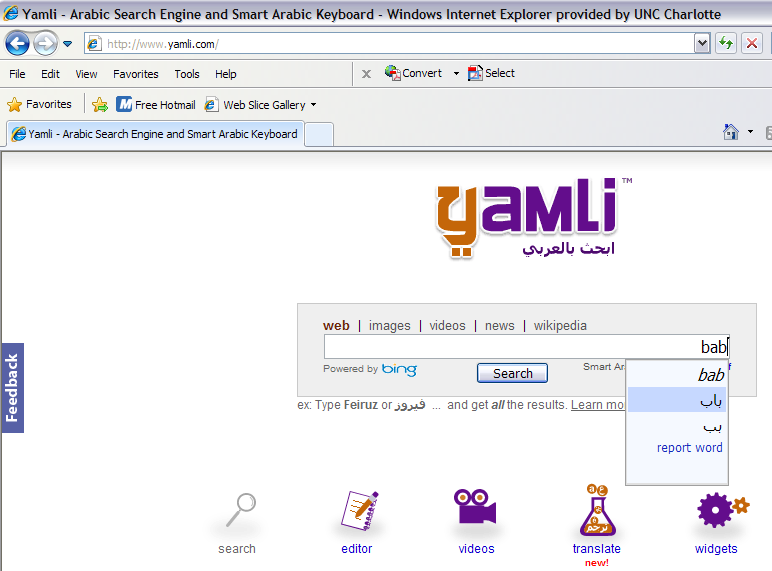
Transcribe sounds into Arabic letters on the web using Yamli
How do you compare this to Microsoft Maren and Google Arabic keyboard input?
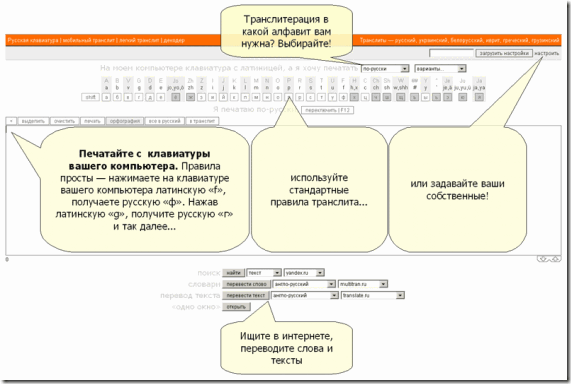
Web-based romanized letters to Cyrillic transliteration tool.
- Our Russian tutor uses this transliteration tool HTTP://TRANSLIT.RU which allows for phonetic input on a keyboard that does not have Cyrillic letters and seems popular with native speakers of languages written in Cyrillic.
- As so often, that implies: not designed for language learners. The explanation attests to that:
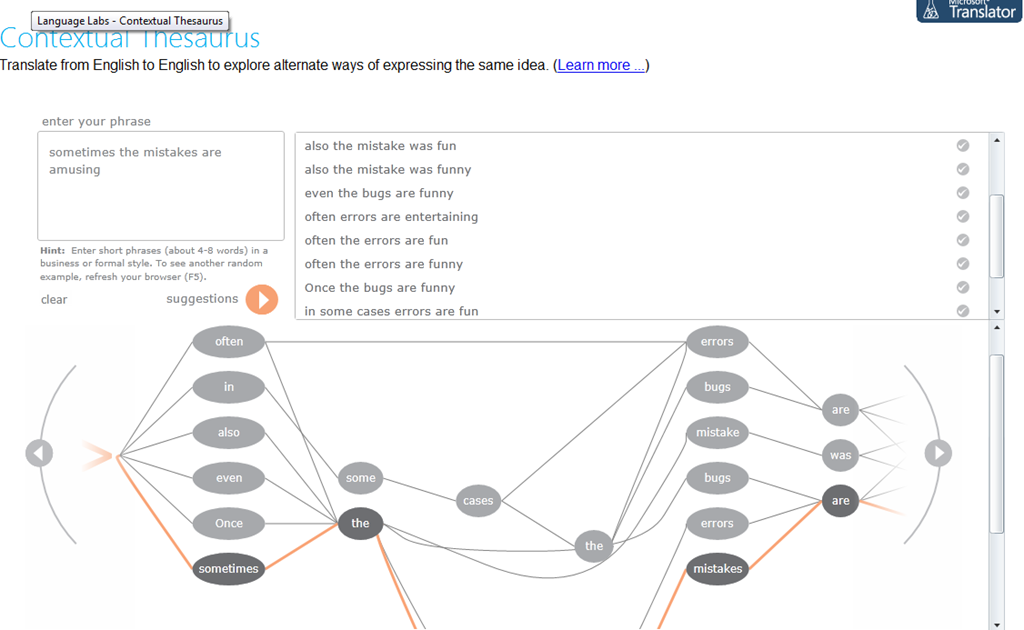
Microsoft Contextual Translator
Certainly an advance over the MS-Word thesaurus (unlike the MS-Word 2007 and up spell check, still not contextual). Does this work at least well enough to serve as a fruitful pedagogical exercise: “Which phrase does not belong in the group?”
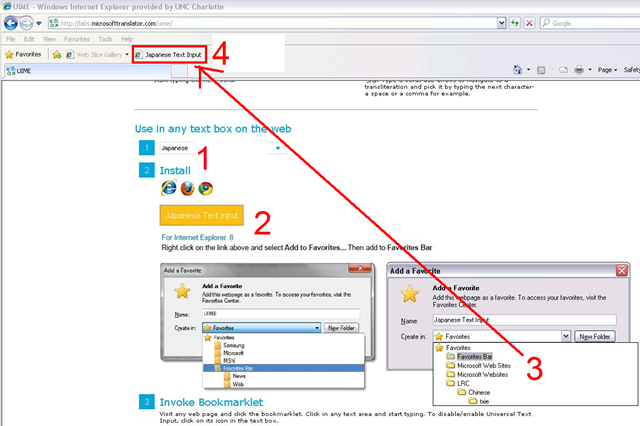
MS Universal Language Input Tool offers correction and transliteration on any web page
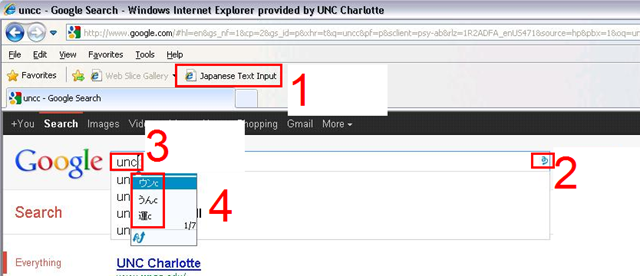
Using the UIME, you can “type any language with any keyboard on any web page, using only the Roman characters present on every keyboard.”

And you can install your favorite input language in your web browser, like so:
Learn Chinese character stroke-order with slowed-down animated GIFs
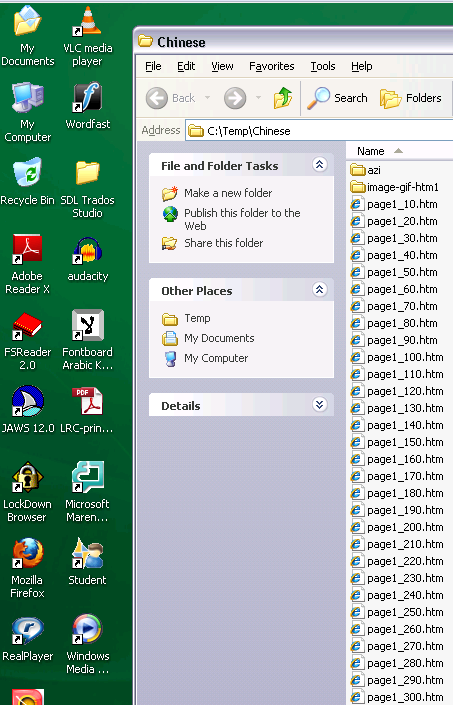
Further to our prior tips on learning Chinese stroke order, now you can take your time, in the LRC: To facilitate your practicing of Chinese character stroke-order, we have used the most helpful site (also available by direct download) created by Tim Xie for the California State University, Long Beach, to create 100 different speed versions, and one comic strip like static image, for each of the several hundred of animated GIFs demonstrating Chinese character writing, and made them available on the LRC computers under Internet Explorer Favorites – Example:
 |
 |
 |
|
 |
|
 |
|
 |
|
 |
|
 |
|
 |
You can access the files with the stroke order speed of your preference from the LRCCOED434 student computers, like so:
(Many thanks also to the authors of programmable ImageMagick image editor and corresponding Unix shell scripts that we could use in the production of the slowed down animated GIFs. To create your own version of these slowed down animated GIFs, or others similar websites, feel free to pick up and/or adapt our shell script here).
Keyboard overlay stickers improve foreign character writing support in the LRC
Some non-western, but character-based languages benefit from having keyboard overlay stickers installed. Here is a list of what the LRC has:
| Amount | Languages | installed@ |
| 3 | Arabic | 1 list. station, 2 rightmost computers in the front row of the left (teacher perspective) half of the main classroom |
| 2 | Farsi | 2 rightmost computers in the middle row of the left (teacher perspective) half of the main classroom |
| 1 | Greek | 1 list. station |
| 3 | Russian | 1 list. station, 2 rightmost computers of the rear row of the left (teacher perspective) half of the main classroom |
Here are photos of the Arabic and Cyrillic keyboards:
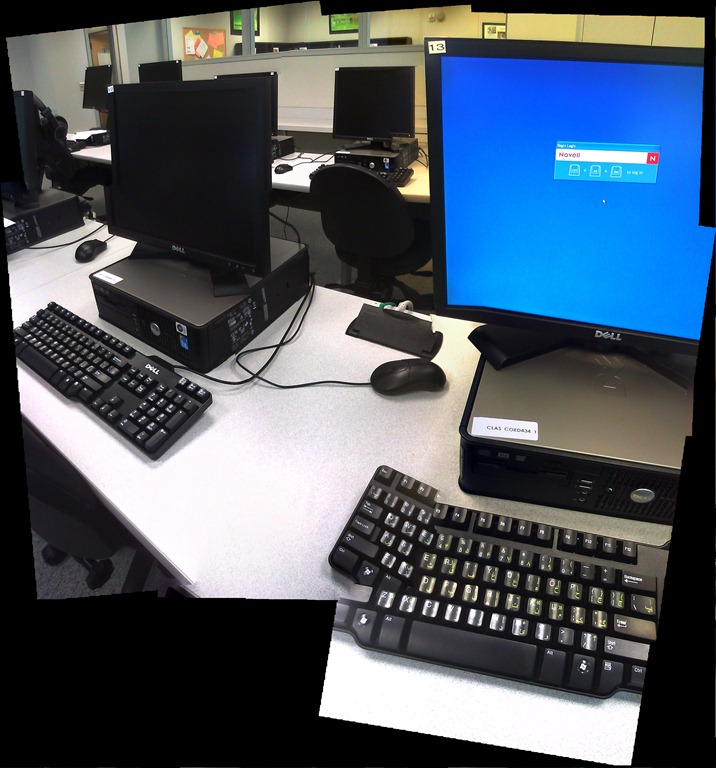

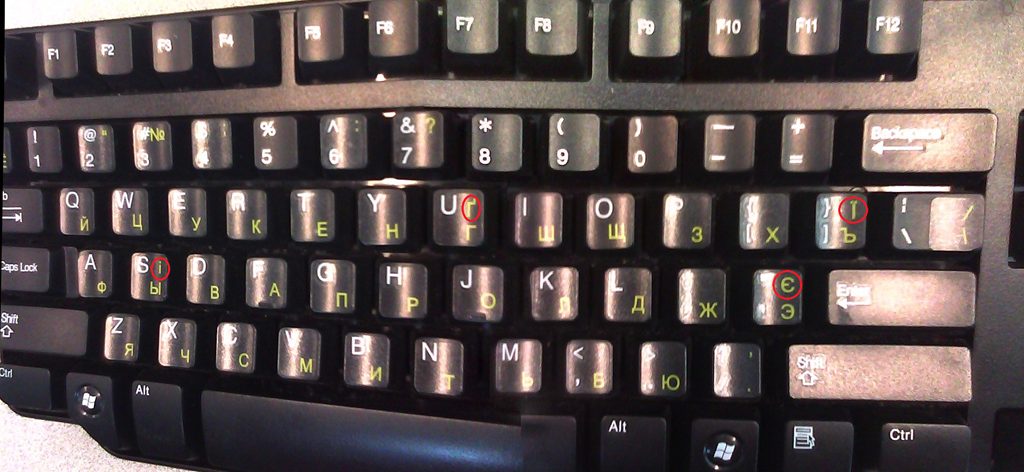
We installed the stickers, so that they reflect the software layout of the keyboard that you get when choosing the respective language from the international toolbar. Note that the letters marked in red on the Cyrillic keyboard picture below are not supported by the Russian keyboard layout:
Since only one set can be added to any existing physical keyboard, the teacher computer keyboard can not have an overlay. The student computers with overlays are the listening stations and computers 6,7,12,13,18,19 on the LRC layout map.
Remember that the On-screen-keyboard software remains accessible at all PC’s through clicking “Start”, “Run”, typing “OSK”, clicking "OK".
Example where you can get your own keyboard overlay stickers.


Questions? Read the About. Or just ask me a quick Our Databases: Resources with calendars -- Language learning material Moodle Sites, multimedia files -- films


FAQs for LRC student staff or for students or for teachers. To search our FAQs, in the browser addressbar, add after "https://plagwitz.wordpress.com/feed/?tag=faqs+/" "+TAG1" (from tag cloud below) OR "https://plagwitz.wordpress.com/feed/tag=faqs
&category_name=" "CAT1" (from category hierarchy below). OR search both categories and tags, and multiple TAGs/CATs (connect with "," for OR-search, with "+" for AND-search), like so: https://plagwitz.wordpress.com/feed/?tag=TAG1+TAG2+...TAGn&category_name=CAT1
+CAT2+...CATn"
Other ways to find help
If you cannot find it here, look there: 5,500 Language-Learning Links and Programs for learning or teaching 150 languages
Shortcuts:Our Lists, Our Maps, LRC Staff Moodle Site,LRC Project Moodle Site, 49erexpress, UNCC Moodle, Student Recordings: s:claslcslrcsanakostudent
Learning usage samples: Sanako oral exam, Kaltura webcam presentation, Dictation with speech recognition, Sanako written exam, Chinese and Japanese interactive stroke-order practice
Test the Sanako Installer, Webbrowser Popup Konfigurator for XP, or Windows7, faster LRC TeacherPC Log-in Let MS facilitate diacritics writing by installing for you US-International keyboard layout
This is my personal blog (Google+). The views expressed on these pages are mine alone and not those of my employer. The information in this weblog is provided “AS IS” with no warranties, and confers no rights.
 Thomas' Work Space