Archive
Archive for the ‘Screencasts’ Category

Equipment circulation training with NINERMAIL meeting requests for Film studies students Fall 2013
2013/09/12
Leave a comment
Click to view screencast: .
.
Click to view handout.
First steps with the Sanako Study 1200 vocabulary test activity
2013/09/06
Leave a comment
- Click to watch an example below of the new (in version 6, we are now on 7) activity:”Vocabulary Test”
 which allows you to administer during a face-top-face-class just exactly what its name says –
 - with these benefits:
- needing no paper,
- digital contents
- “can” and reuse past tests with ease
- TBA: can you swap target and source language?
- blending automated and teacher feedback:
- the example I give below is based on what the teacher gave me: single words and very short idiomatic expression.
- You can use longer phrases (I prefer teaching and studying vocabulary in context), but then it become increasingly unlikely that the automated feedback is accurate (The automated feedback is limited to exact, up to case-insensitive string matching – now distance metrics).
- You can override the automated feedback before sending the results back to the student. This is somewhat practical, since the submitting is fast and not all students will finish at the same time, and if you provided students with the follow up activity after submission, The teacher overriding the feedback gets unpractical in large classes, so it is recommended restricting the test to short source/target language pairs. Also be clear about or minimize punctuation and, if required, the format of other metalinguistic information (gender, plural forms etc).
- Issues:
- not communicative, how can this be used or fitted in with other activities to make best use of a fully computerized face-to-face teaching environment?
- simplistic autocorrecting algorithm (case-insensitive, otherwise exact, right or wrong, my way or the highway” string matching)
- no tracking, no memory, personalization only via the other built-in Sanako personalization features (groups – to be left to the teacher to handle)
- no learning content – at least no vocabulary learning materials usable out of the box for us (TBA).
Demo of Puntos de partida on the McGraw-Hill Connect online platform for Hybrid Spanish teachers
2013/08/17
Leave a comment
- For your review:

- Highlights:
-
Learnsmart: adaptive learning content that asks for and tracks for the teacher and adapts for the student to students metacognitive confidence about her knowledge before testing it
-
In a flipped classroom setting, highest failure areas in the online learning results can be easily seen by the teacher to adapt the next class meeting.
-
Example 6: How even a false beginner can work with foreign language Speech recognition on Windows 7 Enterprise
2013/08/14
Leave a comment
- Executive summary: Don’t let initial poor speech recognition results discourage your from using this feature. Results will much improve if you go through a few minutes of the built-in voice training for speech recognition. Like in the last 30 seconds of this video.
- With the upgrade to Windows 7 Enterprise in the LRC – and the continued availability of high-quality Sanako headphones on the majority of LRC PCs – , we can now offer speech recognition in a number of foreign languages – including French.
- This feature can be used for language learning exercises, including dictation, like in this example. How robust is windows 7 speech recognition?
- You can expose yourself to some embarrassingly bad French in this screencast – and that is the point. (My French is limited to a mere 2 high school years of 3-hour per week voluntary French studies, more than 30 years ago, no practice since).
- The screencast shows how even a (false) beginner can,
- 0:00-1:00: from terrible initial results,
- 11:45-12:10: considerably improve (not make perfect!) the foreign language (here French) speech recognition on Windows 7,
- 1:00-10:40: by going through the built-in voice training.
- The LRC computers are “frozen”between reboots, but students still need to train them only once, since they can back up and restore their training data easily.

- (This is not proof of the overall validity of the recognition – for that, you are better off watching this screencast with Windows 7 Enterprise speech recognition in German).
Workaround for Sanako study 1200 tutor v7 window limitations
2013/08/06
Leave a comment
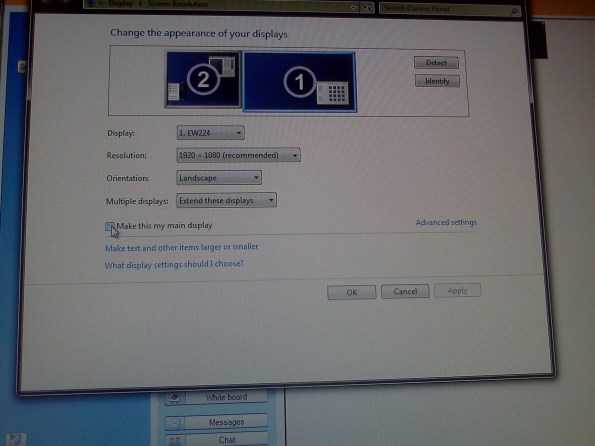
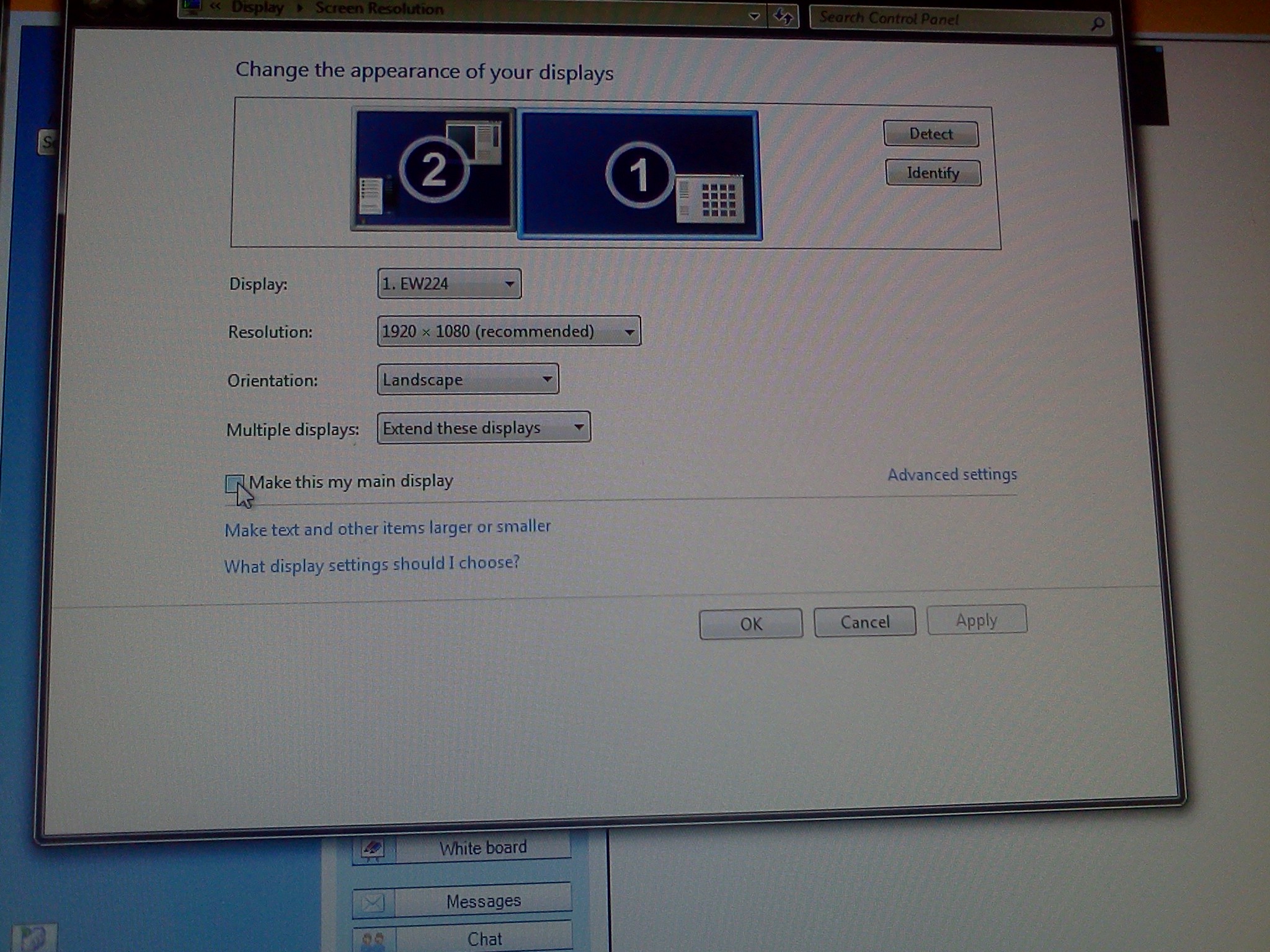
- Problem: Window maximizes only to size of,and location defaults to, primary screen. This is now on windows7.
- Workaround: make the screen whose size you desire the primary (and live with the side effects).
- Downside:
- Screencast recordings of instruction won’t work: Community Clips can only record the primary screen, which is not the screen displayed to students during regular teaching. Windows Media Encoder does not work with our non-standard dual screen configuration on Windows7.
How to provide students with blended human/computer-automated feedback on their speaking using a dictation with speech recognition assignment screencast
2013/05/08
Leave a comment
- Teachers often feel there is never enough time for grading students’ speaking proficiency. Fortunately, we can now automate feedback on pronunciation using Windows 7 dictation with speech recognition.
- This feature will be available for 7 languages on Windows 7 in the LRC, here is a demo for a reading exercise dictating German.
- An assignment step-by-step could look like this: Students
- record a screencast of their dictation,
- read a text to the computer in MS-Word,
- turn track changes on in MS-Word and correct the text (immediately or after dictation) where the computer could not recognize their speech,
- upload their screencast to Kaltura in Moodle.
- To grade the performance, the teacher has to review only at the very end of the screencast to see how many corrections the student needed to make (when it doubtabout the speech recognition validiiy, the teacher can easily jump to the screencast segment in question and, if necessary, override the speech recognition).
- This could be a regular assignment type since it provides the following benefits:
- immediate automated intelligent feedback for the student
- little grading overhead for the teacher, so that the teacher can concentrate her work on providing aural feedback on student recorded speech as a highlight maybe twice per term, maybe after mock exams before a midterm and final exam
- some multimedia pieces demonstrating language proficiency for the student’s ePortfolio.
- Requirements:
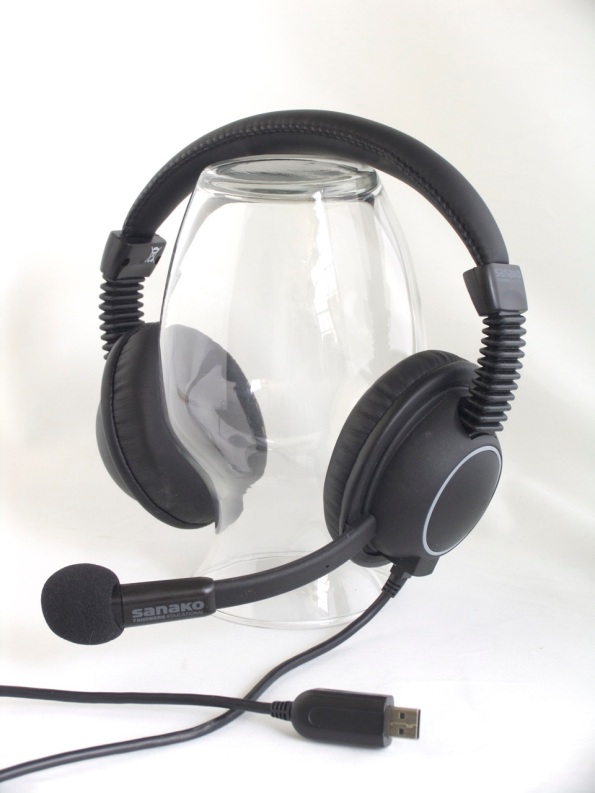
- a quality headset (we use Sanako SLH-07
 )
) - Windows 7 Enterprise/Ultimate with Language Packs,
- knowing how to switch the display language, (optional/recommended:) TBA:a simplified language switching facility,
- individual voice training data: speech recognition users have to train the computer – once, even in a deepfrozen computer enviroinment, since we enabled you to save this data to and restore it from a flash drive or personal network share space,
- a reading text (often authentic texts can be taken straight from the textbook, to fit in with the syllabus, like in this example from Treffpunkt-Deutsch 1st-year German),
- MS-Word with track changes
- screencast software (we use MS community clips)
- a way to submit the results to the teacher (we use Moodle with Kaltura video uploading (example for teachers, students do it similarly), but email could be sufficient depending on screencast length and attachment size allowance).
- a quality headset (we use Sanako SLH-07

Protected: Sanako Study 1200 hangs on “changing control method”?
2013/03/13
Enter your password to view comments.


Questions? Read the About. Or just ask me a quick Our Databases: Resources with calendars -- Language learning material Moodle Sites, multimedia files -- films


FAQs for LRC student staff or for students or for teachers. To search our FAQs, in the browser addressbar, add after "https://plagwitz.wordpress.com/feed/?tag=faqs+/" "+TAG1" (from tag cloud below) OR "https://plagwitz.wordpress.com/feed/tag=faqs
&category_name=" "CAT1" (from category hierarchy below). OR search both categories and tags, and multiple TAGs/CATs (connect with "," for OR-search, with "+" for AND-search), like so: https://plagwitz.wordpress.com/feed/?tag=TAG1+TAG2+...TAGn&category_name=CAT1
+CAT2+...CATn"
Other ways to find help
If you cannot find it here, look there: 5,500 Language-Learning Links and Programs for learning or teaching 150 languages
Shortcuts:Our Lists, Our Maps, LRC Staff Moodle Site,LRC Project Moodle Site, 49erexpress, UNCC Moodle, Student Recordings: s:claslcslrcsanakostudent
Learning usage samples: Sanako oral exam, Kaltura webcam presentation, Dictation with speech recognition, Sanako written exam, Chinese and Japanese interactive stroke-order practice
Test the Sanako Installer, Webbrowser Popup Konfigurator for XP, or Windows7, faster LRC TeacherPC Log-in Let MS facilitate diacritics writing by installing for you US-International keyboard layout
This is my personal blog (Google+). The views expressed on these pages are mine alone and not those of my employer. The information in this weblog is provided “AS IS” with no warranties, and confers no rights.
 Thomas' Work Space