Archive
Another way to upload many files into Moodle 2
- Last time we started from “Add folder” to get to the handy drag-and-drop file upload control in Moodle 2.
- This time we do not want to create a new folder, but work within an existing folder (better for categorizing lots of files).
- Browse into the folder and click edit

- click create folder

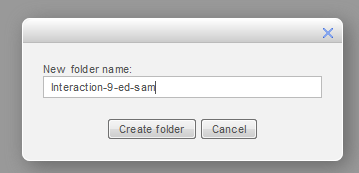
- add name and click create
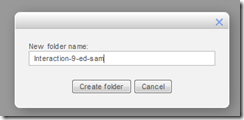
- click to open folder

- drag/drop files as zip in folder
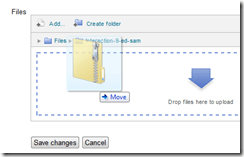
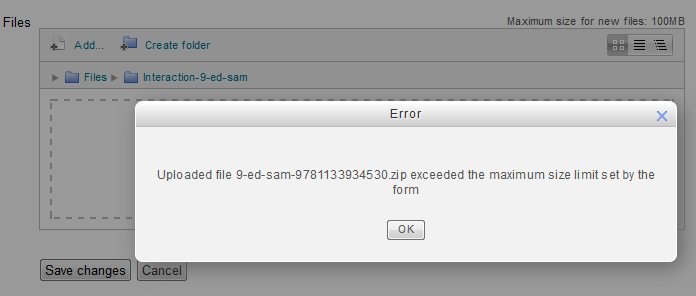
- oops, check the upper right warning :

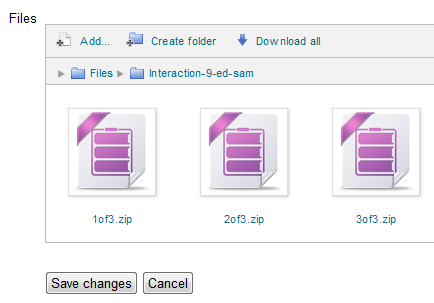
- Split your files into smaller segments
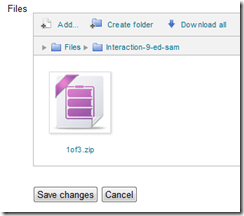
- And be patient, there is no visual indicator of progress, or any action, after the drop), or else you get duplicates:

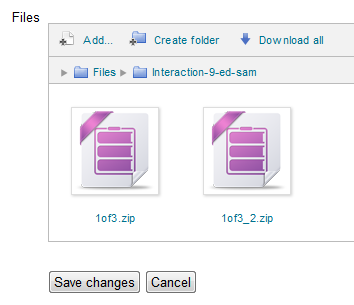
- Just delete duplicates you might have created:

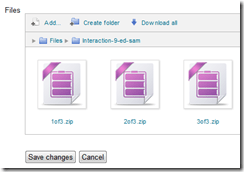
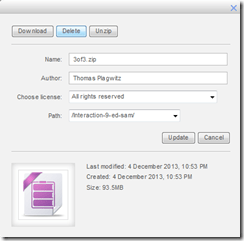
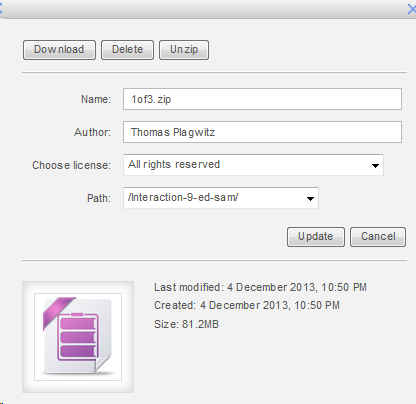
- click on each zip file and choose “unzip”:

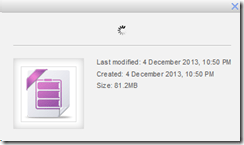

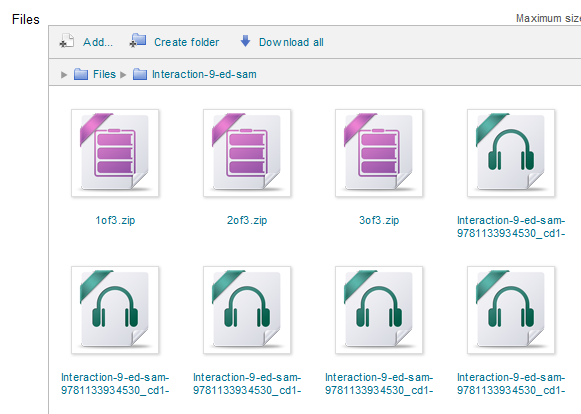
- Delete the zip files (not needed anymore)
- Finally, click “save changes”
-
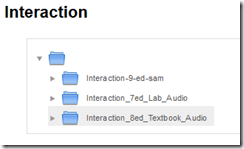
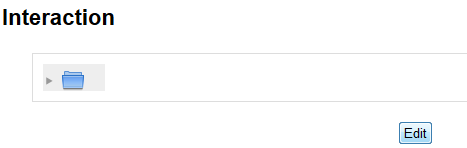
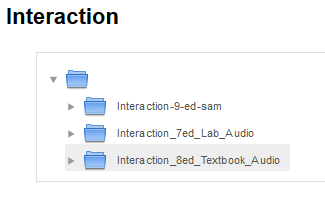
- Note, by working within a folder, you cannot link directly to the new folder you created. It should however be easy enough to navigate to it if you send the link to the root folder, here “Interaction”.








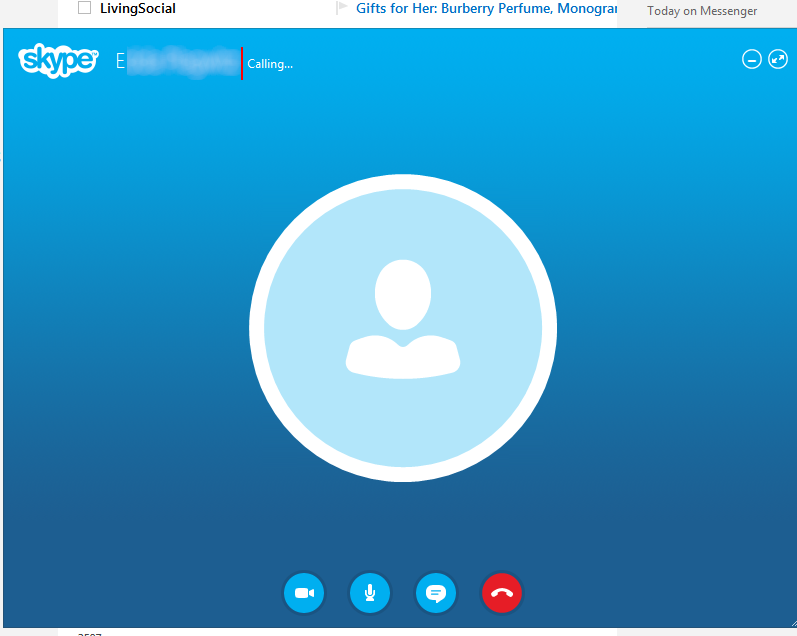
How to access Skype using the web browser plugin in your Outlook.com web mail


Working around problems getting ELTI course worksheet out of Report Express
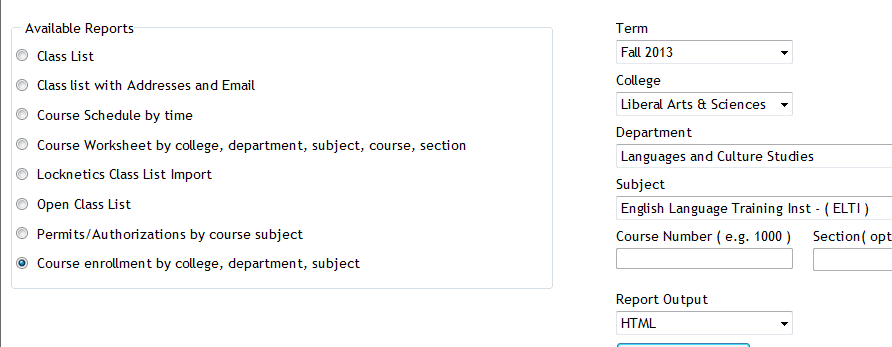
Problem: I used to, but cannot anymore get the course worksheet for ELTI out of Report Express. My choices:

Result set is empty:
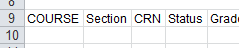
Course enrollment does not work either:

I am still in a position to get the full class list out of the system, but that is not what I need, and is not the course worksheet sheet just a calculation based on the


Solution: Use “international programs” as the “department”.
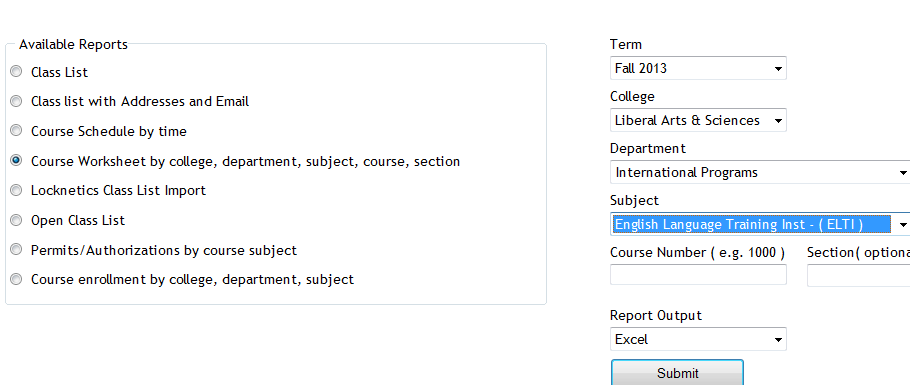
It seems “department”and “subject” drop downs synchronize only with the selection of “college”, but selection of “department” can be in conflict with selection of “subject” (Is this a good GUI?).
It also seems that this affects only the “course worksheet", but not the “class list”(Huh?)
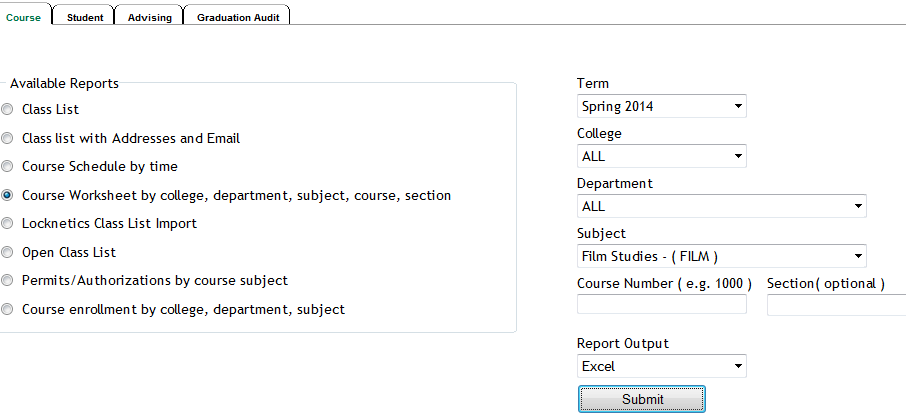
Another example: I seem to be able to get to the Film studies course list only if I leave all other drop down to “all”..
How to record screencasts with Kaltura in Moodle 2
- Go to your video assignment in Moodle:
 .
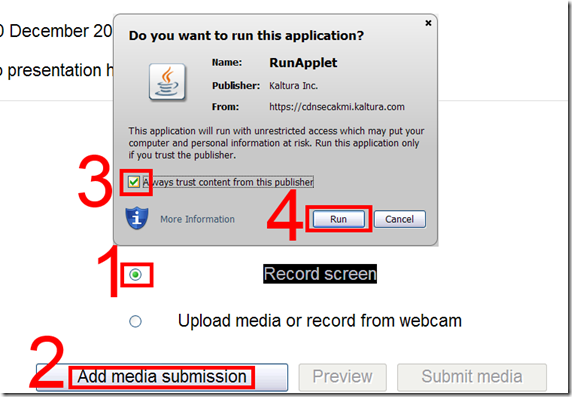
. - Click “Record screen”, “Add”, and pass the Java security Dialogues:
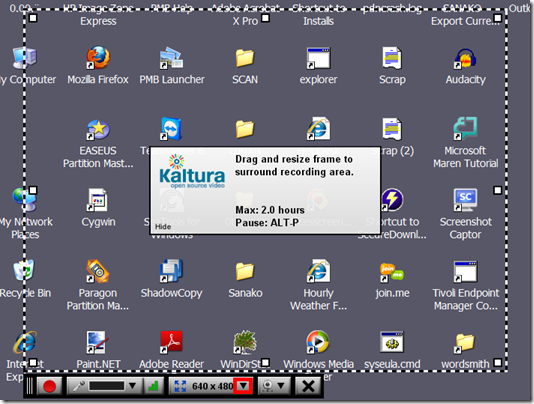
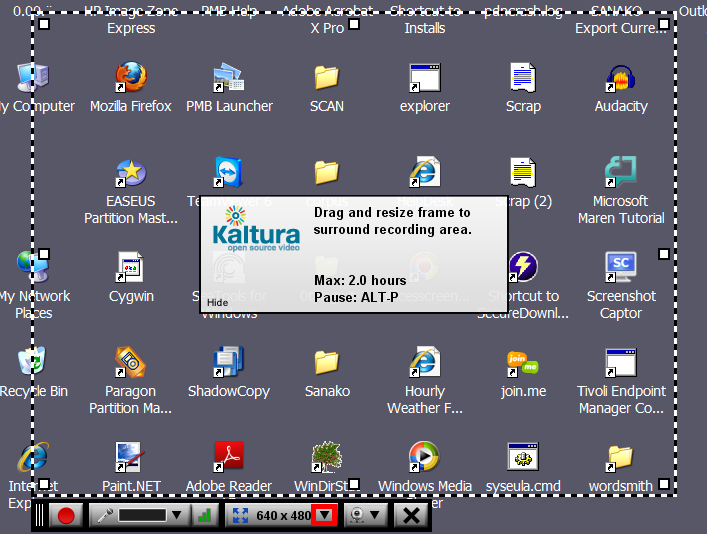
- The default video resolution is 640*480, but you can change this by unfolding the drop down menu:
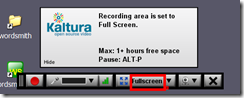
- Full screen is recommended for a Slideshow:
- To start, click the red record button:
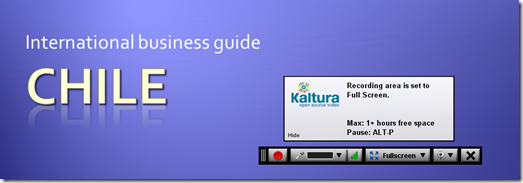
- You will get a few seconds to collect your thoughts:

- After finishing your slide show, stop the recording from the taskbar icon, and stop the recording:
 .
. - From the video window that opens:
- You can preview it
![clip_image001[4]](https://thomasplagwitz.com/wp-content/uploads/2013/11/clip_image0014_thumb1.png?w=541&h=373 "clip_image001[4]")
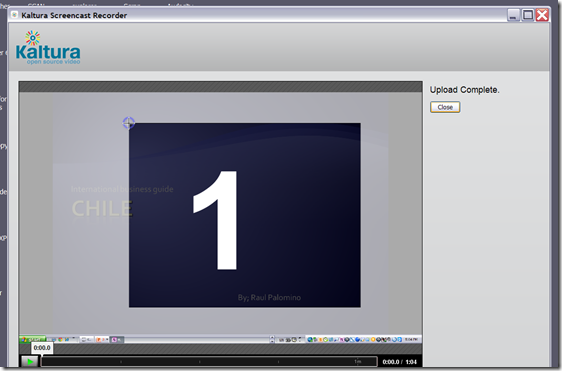
And upload it which includes encoding which takes a bit of time (but not as much as encoding of webcam footage).
![clip_image002[4]](https://thomasplagwitz.com/wp-content/uploads/2013/11/clip_image0024_thumb1.png?w=548&h=385 "clip_image002[4]")
- You can preview it
- Finally,
- you can see the result in your media library
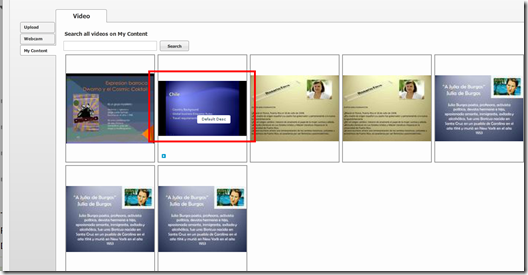
- preview it once more:
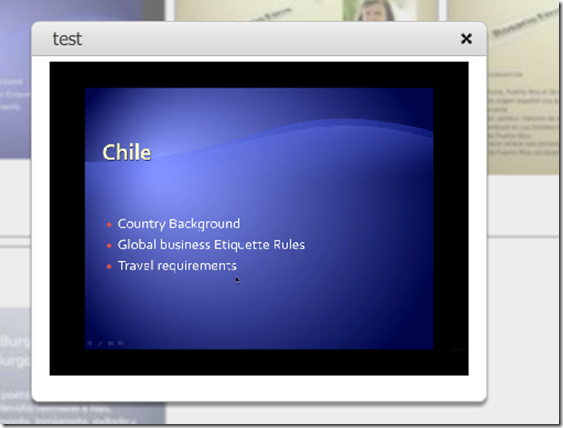
- and submit your video content from the media library.
- Kaltura screencasts can be used from any Java-compatible device. In the LRC, however, you can also record screencasts to files, using MS-Community Clips which you can still upload to Kaltura – extra step, though –, while maintaining compatibility with Mahara.



![clip_image001[4]](https://thomasplagwitz.com/wp-content/uploads/2013/11/clip_image00141.png "clip_image001[4]")
![clip_image002[4]](https://thomasplagwitz.com/wp-content/uploads/2013/11/clip_image00241.png "clip_image002[4]")


How a student submits prior content from “My content” into a Moodle Kaltura video assignment
- Go to your video assignment in Moodle:
 .
. - Click “Add media submission”:
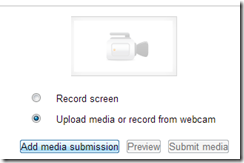
- Jump through the hoops:
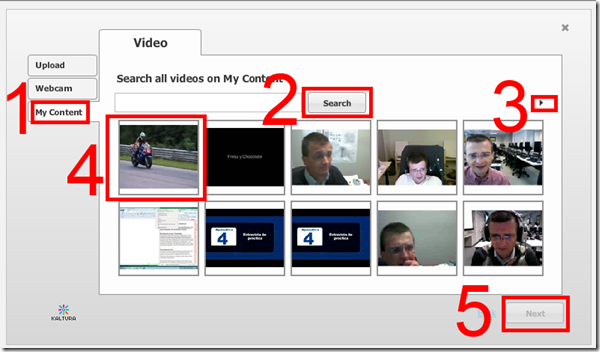
- switch to “my content”
- you have to click the “search” button to show content, leave search filed empty to show all
- note that there may be more
- you have to select a video
- before that, you cannot click next
- confirm on the next screen
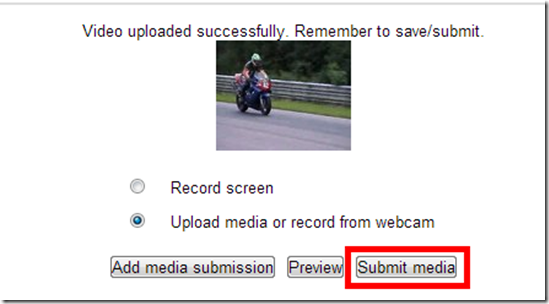
- You are done when you see this:
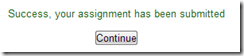 , but hey, better press “continue” to be safe:
 - On the next screen, you can review:
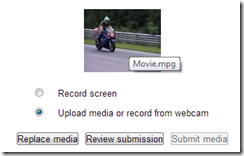
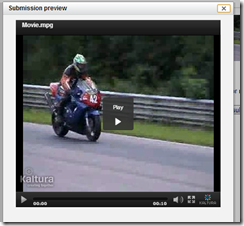
- Not so clear how you get out of there…
- Troubleshooting: If you run into problems, the first thing to try usually is a different web browser.


Exam integrity considerations during mock and proctored written exams in the LRC
The easiest way to hold a mock or proctor a written exam in the LRC is provide the students a printout of the exam. For larger classes preparing, and under some circumstances (writing impediment due to injury), providing the MS-Word file on a computer to the student would seem a more convenient solution.
However, the LRC prides itself in the large collection of MS-Office proofing tools it has installed and preconfigured – accessing which from within MS-Word could be construed as cheating during a writing exam. As a matter of fact, since MS-Word auto-detects language, under-waving of misspelled words and incorrect Grammar provides unsolicited and unavoidable extra help.
MS-Office proofing tools could be turned off by using a special MS-word template as the basis for the exam. Easier and quicker is using the SANAKO which can not only block internet access of the examined students, but also block use of entire applications like MS-Word.
Instead of in MS-Word, your students could write their responses in an application that is not part of the proofing tools infrastructure, like Notepad. Western language diacritics can easily be written in any application on LRC PCs thanks to US-International keyboard layout, and non-Western characters even easier than on paper.
For full security, the best environment for exams we can offer remains Respondus lockdown browser, integrated with Moodle, but this requires converting the exam to into a Moodle quiz (which Respondus has tools to facilitate). In certain cases, it might be easiest to create a “dummy” quiz with one long text input field, which your students could type everything in, without having access to any other resources (internet, proofing tools, chat, what not…). However, this quiz still would have to be in your Moodle course so that your students can access access, and their results get put into your gradebook.
Outside of Moodle – if you do not want to go down the Respondus-path – , you can rely on the SANAKO homework collection feature and my langlabemailer to receive the results.


Questions? Read the About. Or just ask me a quick Our Databases: Resources with calendars -- Language learning material Moodle Sites, multimedia files -- films


FAQs for LRC student staff or for students or for teachers. To search our FAQs, in the browser addressbar, add after "https://plagwitz.wordpress.com/feed/?tag=faqs+/" "+TAG1" (from tag cloud below) OR "https://plagwitz.wordpress.com/feed/tag=faqs
&category_name=" "CAT1" (from category hierarchy below). OR search both categories and tags, and multiple TAGs/CATs (connect with "," for OR-search, with "+" for AND-search), like so: https://plagwitz.wordpress.com/feed/?tag=TAG1+TAG2+...TAGn&category_name=CAT1
+CAT2+...CATn"
Other ways to find help
If you cannot find it here, look there: 5,500 Language-Learning Links and Programs for learning or teaching 150 languages
Shortcuts:Our Lists, Our Maps, LRC Staff Moodle Site,LRC Project Moodle Site, 49erexpress, UNCC Moodle, Student Recordings: s:claslcslrcsanakostudent
Learning usage samples: Sanako oral exam, Kaltura webcam presentation, Dictation with speech recognition, Sanako written exam, Chinese and Japanese interactive stroke-order practice
Test the Sanako Installer, Webbrowser Popup Konfigurator for XP, or Windows7, faster LRC TeacherPC Log-in Let MS facilitate diacritics writing by installing for you US-International keyboard layout
This is my personal blog (Google+). The views expressed on these pages are mine alone and not those of my employer. The information in this weblog is provided “AS IS” with no warranties, and confers no rights.
 Thomas' Work Space