Archive
A better way to do student homework audio recordings in the Sanako LAB 300, using Blackboard:Assignment
-
More robust than the more common way using the default network shares of a Sanako Lab 300 – to my knowledge, up to this day Sanako Labs lack any integration with the LMS/VLE regarding the upload of student output – is using the assignment tool of the VLE which provides integration with the Student Information System and an entire infrastructure for assessment purposes (gradebook and beyond).
-
I know that some teachers use Blackboard email with attachments for assignments, others the blackboard drop-box. Some, including me, use the assignment tool which, since it appears to be far superior to the older tools, this post would like to advertise.
-
The assignment tool automatically creates a grade center column.
-
You can batch download student file submission (papers or recordings) and blackboard assignment tool puts the assignment name and the username in the file name for easier management,
-
and you can upload a graded version to return assignments to the student and include comments.
-
You can also create comments for the instructors only to view.
-
Faculty can also use track changes and insert more fine-grained comments and corrections within MS-Word.
-
-
Here are the parts of this series:
-
How the student reviews a grade Blackboard audio recording assignments: TBA.
Blackboard: Rolling over courses between terms
In your old course, go to CONTROL PANEL > COURSE COPY”.
Choose: “Copy Course Materials into an Existing Course” (assuming your new course shell has been created for you by your IT admin).
Click button:“Browse” and in the opening window, choose your existing current course, by the term identifier:
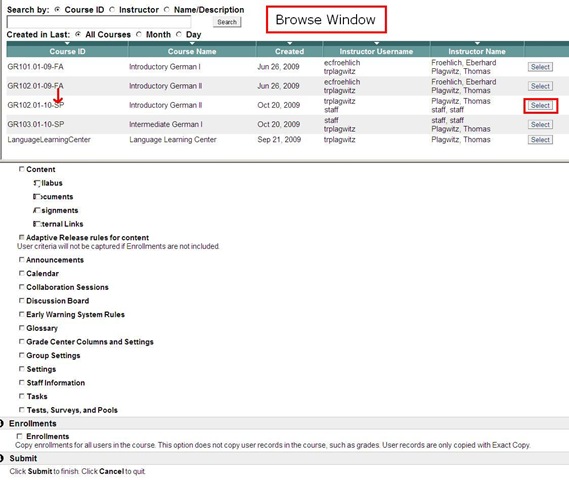
Check all items you want to copy. What is safest to avoid errors? Everything, except enrollments?
Click “Submit”/“OK” until done.
The course copy operation will be queued up, and you will be notified when the operation is finished.
Then go to your new course. This operation also copied the content items, including the content management system items.


Blackboard: Discussion board: Unread posts
- The Blackboard discussion board is designed for busy people keeping track of large constituencies – some classes have 1 instructor, 100s of participants and discussion board assignments….
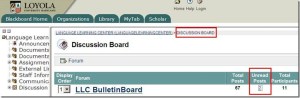
- One of the most useful features is when you enter the discussion board, there is a shortcut to the “Unread Posts”, like marked here:
- If you click on this number of unread posts, you are taken to an overview page (sorted counter-chronologically be default; not threaded, but you have plenty of other display and management options), which you can skim for new developments, as well as use to manage your posts:

- Examine the top menu for options. You can either for individual posts click “mark as read”, as you read each one. Or you can use the “select all” tool and the “mark all as read” button in the top menu to clean up your board. Once you leave, your discussion board home page should look like this:


How to distribute learning materials using the Blackboard Content System
I needed to make a large set of textbook mp3 files accessible to myself in the classroom, as well as to students and myself from dorm/home.
The Blackboard Content System makes this easy, while observing copyright restrictions.
Below is a 6-minute narrated screencast on how to set up and use the Blackboard Content System to easily (work on batches of files on the web, just like on your computer, access from office, classrooms or home office) and securely (allow access only to qualified students) handle multimedia files
The example involves numerous mp3 files from a Textbook Audio CD previously only accessible from the LLC computers)).
This would work as well with your self-created teaching materials, from text handouts to video recordings.
If you need better management (many files, reuse across terms) than the standard course document upload can provide.
See the video file name for a brief table of contents:
If the teaching material item is already in the content collection, to publish it to a new course:
- add a new item to a content area of the course,
- follow the numbered steps 1-4 in this screenshot:

- then click submit twice: first close the content system window with
 , to automatically give your students access to the files:
  , then finish adding



Blackboard VLE Training Videos Overview
|
2006 |
Video |
|
|
2006 |
Video |
|
|
2007 |
Video |
|
|
2007 |
Video |
|
|
2007 |
Video |
|
|
How to do a language lab recording exercise as Blackboard assignment |
2007 |
Video |
| Blackboard controlpanel_export_import_course_or_parts.wmv | 2008 |
Video |
| Blackboard dropbox_sort_filter.wmv | 2008 |
Video |
|
Blackboard Content System: Add a content item instead of attaching a file |
2009 |
Video |
|
2010 |
Video |
|
|
2010 |
Video |
|
|
2010 |
Video |
|
|
2010 |
Video |


Questions? Read the About. Or just ask me a quick Our Databases: Resources with calendars -- Language learning material Moodle Sites, multimedia files -- films


FAQs for LRC student staff or for students or for teachers. To search our FAQs, in the browser addressbar, add after "https://plagwitz.wordpress.com/feed/?tag=faqs+/" "+TAG1" (from tag cloud below) OR "https://plagwitz.wordpress.com/feed/tag=faqs
&category_name=" "CAT1" (from category hierarchy below). OR search both categories and tags, and multiple TAGs/CATs (connect with "," for OR-search, with "+" for AND-search), like so: https://plagwitz.wordpress.com/feed/?tag=TAG1+TAG2+...TAGn&category_name=CAT1
+CAT2+...CATn"
Other ways to find help
If you cannot find it here, look there: 5,500 Language-Learning Links and Programs for learning or teaching 150 languages
Shortcuts:Our Lists, Our Maps, LRC Staff Moodle Site,LRC Project Moodle Site, 49erexpress, UNCC Moodle, Student Recordings: s:claslcslrcsanakostudent
Learning usage samples: Sanako oral exam, Kaltura webcam presentation, Dictation with speech recognition, Sanako written exam, Chinese and Japanese interactive stroke-order practice
Test the Sanako Installer, Webbrowser Popup Konfigurator for XP, or Windows7, faster LRC TeacherPC Log-in Let MS facilitate diacritics writing by installing for you US-International keyboard layout
This is my personal blog (Google+). The views expressed on these pages are mine alone and not those of my employer. The information in this weblog is provided “AS IS” with no warranties, and confers no rights.
 Thomas' Work Space