Archive
Archive for the ‘Institution-is-any’ Category
Camera available to document issues
2014/01/13
Leave a comment
Find it in coed436 and take it with you during routine checks and when assisting clients.

The simplest OCR options you have here
2014/01/10
Leave a comment
- (Staff:) Using the departmental scanner which outputs PDF to a network share (that you can link from your desktop). The PDF is searchable at least
- (Staff & Students:) Using only your desktop, at work or at home:
- MS-Office
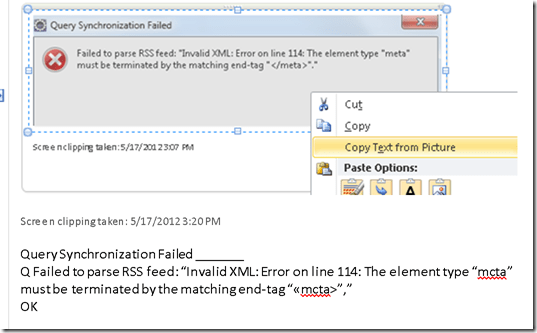
- OneNote 2007/2010: paste image, right-click to access context menu, “extract text”. Example (you can see it is quick and simple, but not error-free):
- Imaging components :TBA
- OneNote 2007/2010: paste image, right-click to access context menu, “extract text”. Example (you can see it is quick and simple, but not error-free):
- Google Apps can also OCR the files you upload to Google Docs.
- You first need to change the default settings. Choose from hard-drive icon for file uploads, context menu: “Settings” / “Convert text form uploaded PDF and image files”.
- You may want to upload an entire folder – then you need to either use Chrome or allow the install of a Java applet.
- You may want to use not have to deal with one Googledoc for each image you upload. So bind your scanned pages (unless your OCR software already allows this – I have been restricted to “Windows Scan and Fax”) to multi-page PDFs (imagemagick’s convert command can do it for free). Note that the max upload size in Google Docs is 2mb, which restricted me to about 10 pages per document (strangely, since I had scanned to b lack and white and very small size, but the PDF size grew, likely using a less efficient encoding – might be able to optimize this).
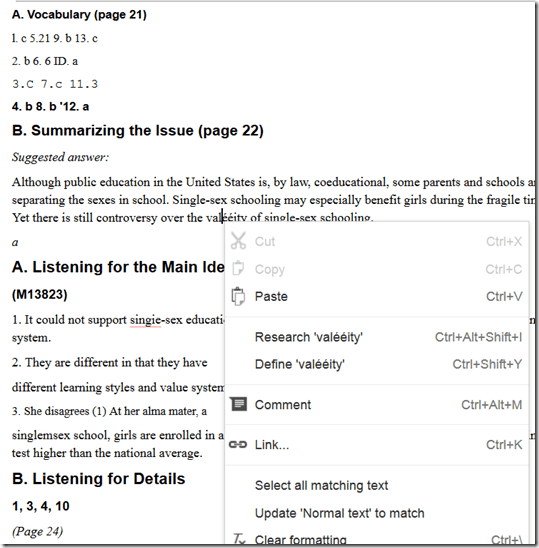
- Google Apps uses the same OCR engine as Google Books. Not much formatting is being retained, in the below examples note the line breaks, but that is fine for me, since I am only after large chunks of text for further processing:

- I have only tested English (largely current affairs) text, but was impressed with the OCR results.
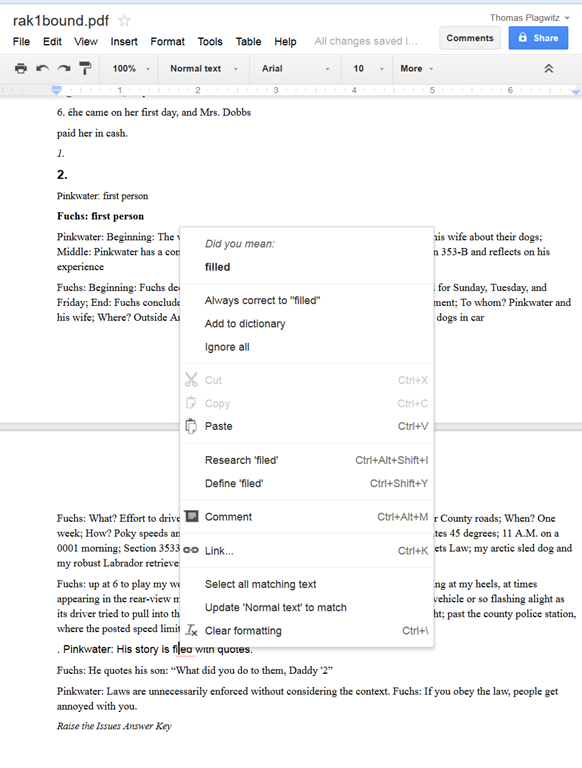
- Also, where the OCR went wrong (2-times 4 per page; also some artifacts, my scans were not very clean: Google Apps seems to handle dark spots on the page better then unstraightened lines),
- the proofreading suggestions (as usual, right click to access) are very good (better than MS-Word’s when I downloaded the files).

- Sometimes you have to consult the original image which conveniently gets put above the OCR’ed: text.
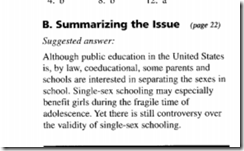
- You can download the results as MS-Word files and within MS-Word, remove all the scan images using ^g.

- MS-Office




Spring 2014 LRC report
2014/01/08
Leave a comment
- Old issues (continued from the Fall 2013 report ):
- The LRC software image:
- UPDATE: Recent Java updates are issues with textbook publisher pages.
- We are still trying to get some of the Sanako digital audio lab functionality from last year back.
- To help with this, we are upgrading the Sanako software once again, to a maintenance release (v 7.1.) which we have also been given for free – it is not clear whether the fall Sanako version was unstable or whether the LRC computers are overtaxed with the upgrade to Windows 7.
- We also still have configuration issues with the new imaging process which we try to get resolved.
- Please do not hesitate to use the Sanako: talk to me in advance what you are trying to do, and I will test for you and, if necessary, try find workarounds or provide additional training.
- The Moodle audio recorder: The Center for Teaching and Learning, after pulling the Nanogong recorder which was released by mistake, on the basis of the survey you responded to, have kindly installed a test (not public yet) version of PoodLL. We will be testing with a teacher this term.
- The LRC software image:
- New issues: We have had repeated issues with LRC hardware and equipment readiness which tended to crop up in the middle of attempted usage. To increase LRC readiness for use by you and your students, this term:
- We schedule LRC assistants to do regular walkthroughs, checks and inventories :
- of headphones, computers, film and faculty equipment functionality and
- also of the teaching and learning environment: maintain status of projector, teacher computer, furniture, blind and cleanliness…
- We will have the most experienced LRC assistant function as a supervisor at the reception desk: Unless there is a pile-up of clients, this supervising assistant has been instructed not to interact directly with clients, but monitor and – as required – correct and re-train the less experienced LRC assistants.
- Please support LRC assistants in their tasks, and let us know of any problems, service breakdowns etc.
- We schedule LRC assistants to do regular walkthroughs, checks and inventories :
Sanako recorder still requiring configuration from student on every log in?
2014/01/08
Leave a comment

Personalization error when logging in?
2014/01/07
Leave a comment
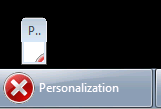
This dialogue – an error message apparently, but not expandable to a size where it is legible – seems to hang around.
LRC daily walkthrough for all computers
2014/01/02
Leave a comment
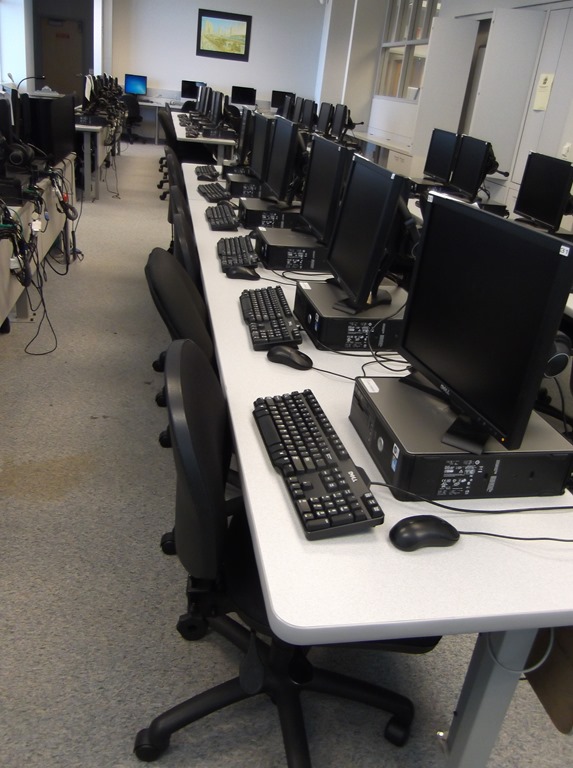
- Push chairs under desk
-
Remove any trash from computers desk.
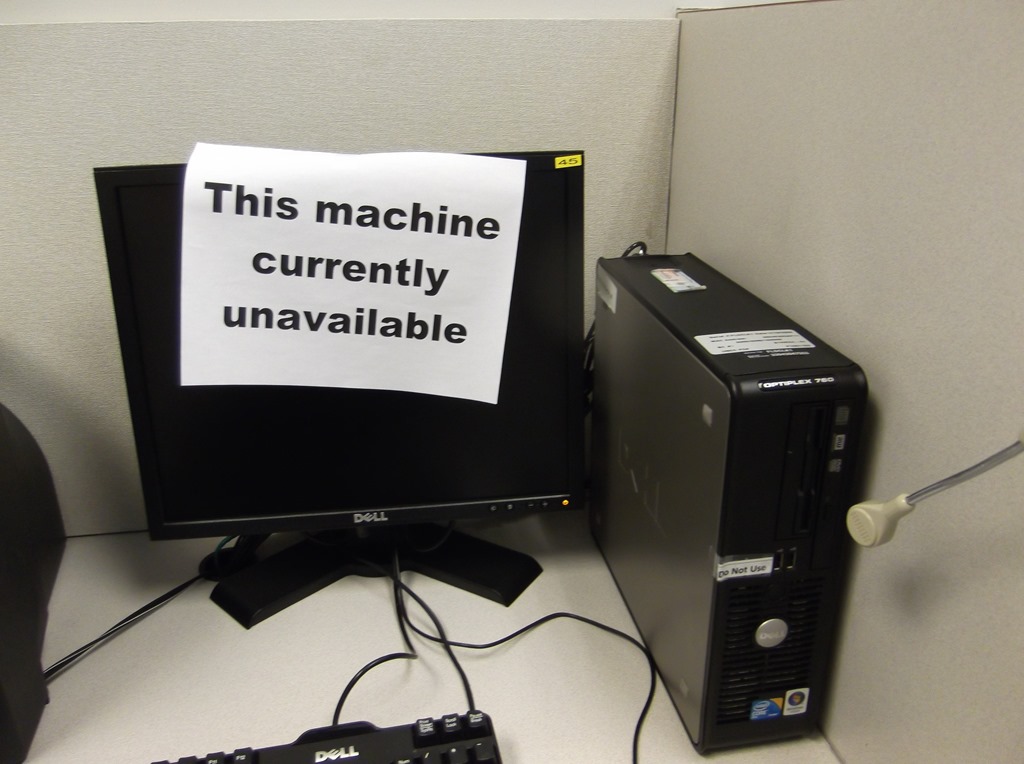
- "Machine unavailable" signs
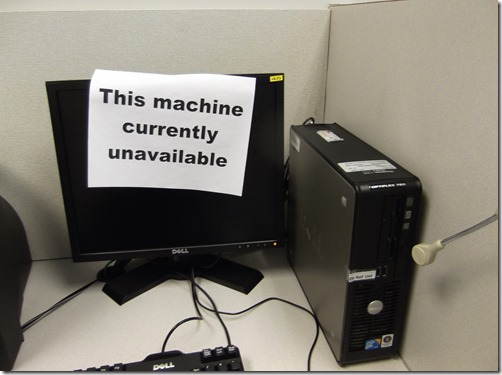
- Make sure each computer has one attached to it (or apply spares from box on reception desk).
- Put the "unavailable"sign down, where needed: Requires that you first look up which computers currently unavailable in here: http://goo.gl/RqSLme, in sheet"computers+monitors",column:"unavailable (= is the sign down), they are marked as "1" (sort the column to see).
- Make sure computers that are available are turned on and ready for students to log in.


LRC headset test on PCs
2014/01/02
Leave a comment
- Log in on a PC.
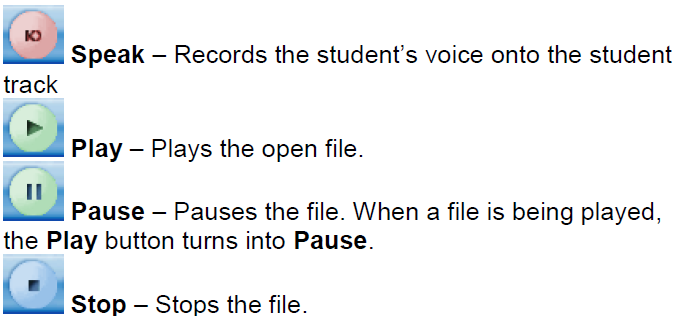
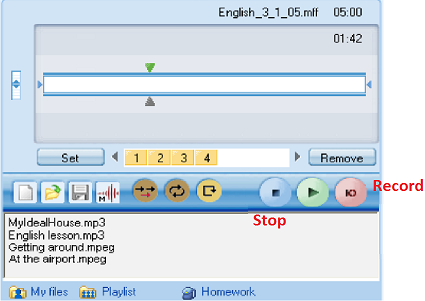
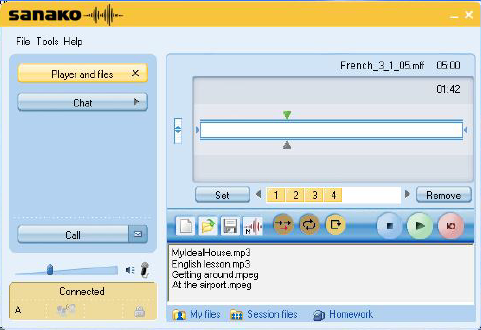
- Launch the Sanako student recorder form the desktop:

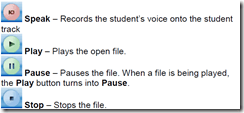
- Click the red recording button then record for 5 sec (speak into the microphone; then tab the microphone with your finger several times, to make sure you are recording through this source), then the blue stop button
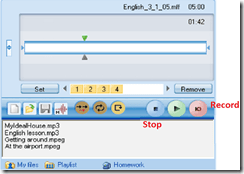
- Click the green Play (from beginning):
- can you hear yourself speaking/ the noise from the tabs?
- turn your head left and right: can you still hear (sometimes a short cuts out the sound).
- If not check headsets cables as described in LRC routine walkthrough for classroom PCs (Sanako headsets) or in LRC routine walkthrough for listening and group room stations(brown headsets).
- If it still does not work, report Computer # on clip board.



Questions? Read the About. Or just ask me a quick Our Databases: Resources with calendars -- Language learning material Moodle Sites, multimedia files -- films


FAQs for LRC student staff or for students or for teachers. To search our FAQs, in the browser addressbar, add after "https://plagwitz.wordpress.com/feed/?tag=faqs+/" "+TAG1" (from tag cloud below) OR "https://plagwitz.wordpress.com/feed/tag=faqs
&category_name=" "CAT1" (from category hierarchy below). OR search both categories and tags, and multiple TAGs/CATs (connect with "," for OR-search, with "+" for AND-search), like so: https://plagwitz.wordpress.com/feed/?tag=TAG1+TAG2+...TAGn&category_name=CAT1
+CAT2+...CATn"
Other ways to find help
If you cannot find it here, look there: 5,500 Language-Learning Links and Programs for learning or teaching 150 languages
Shortcuts:Our Lists, Our Maps, LRC Staff Moodle Site,LRC Project Moodle Site, 49erexpress, UNCC Moodle, Student Recordings: s:claslcslrcsanakostudent
Learning usage samples: Sanako oral exam, Kaltura webcam presentation, Dictation with speech recognition, Sanako written exam, Chinese and Japanese interactive stroke-order practice
Test the Sanako Installer, Webbrowser Popup Konfigurator for XP, or Windows7, faster LRC TeacherPC Log-in Let MS facilitate diacritics writing by installing for you US-International keyboard layout
This is my personal blog (Google+). The views expressed on these pages are mine alone and not those of my employer. The information in this weblog is provided “AS IS” with no warranties, and confers no rights.
 Thomas' Work Space