Archive
Archive for the ‘audience-is-any’ Category
How do I make a video out of my PowerPoint Presentation?
2011/09/14
Leave a comment
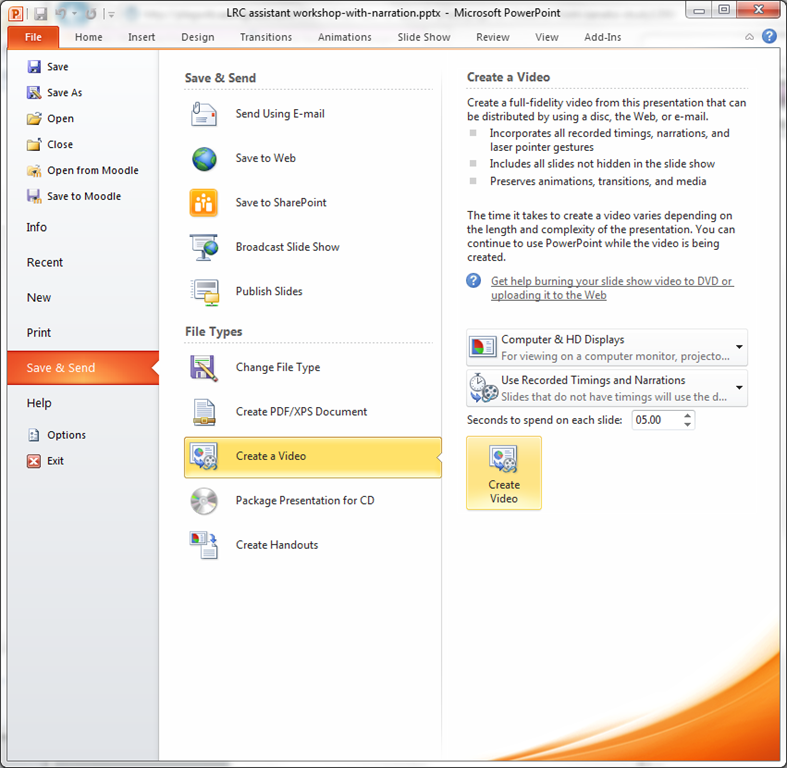
- Many streets may lead to Rome, but here is the "One Microsoft way”, built into PowerPoint 2010: http://office.microsoft.com/en-us/powerpoint-help/turn-your-presentation-into-a-video-HA010336763.aspx: You can essentially “save as” video, including recorded narrations. You have to have your media inserted in 2010 format. Here is a walk-through:
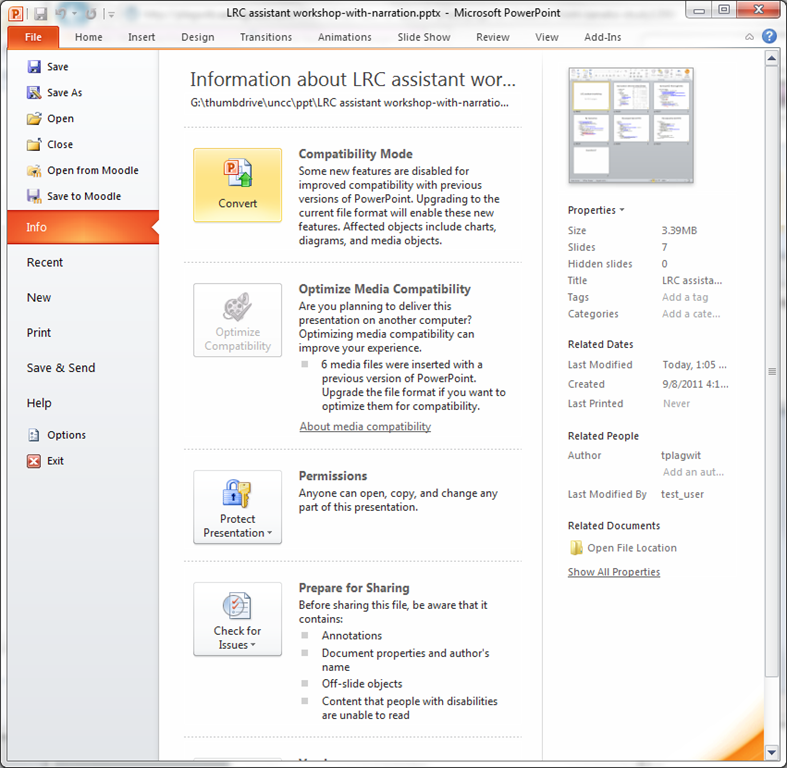
- under “file”, “save&send”, use “create video”

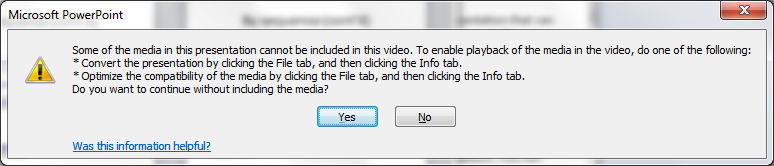
- if you get a compatibility error like so:
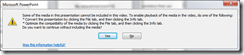
- follow the instructions given;

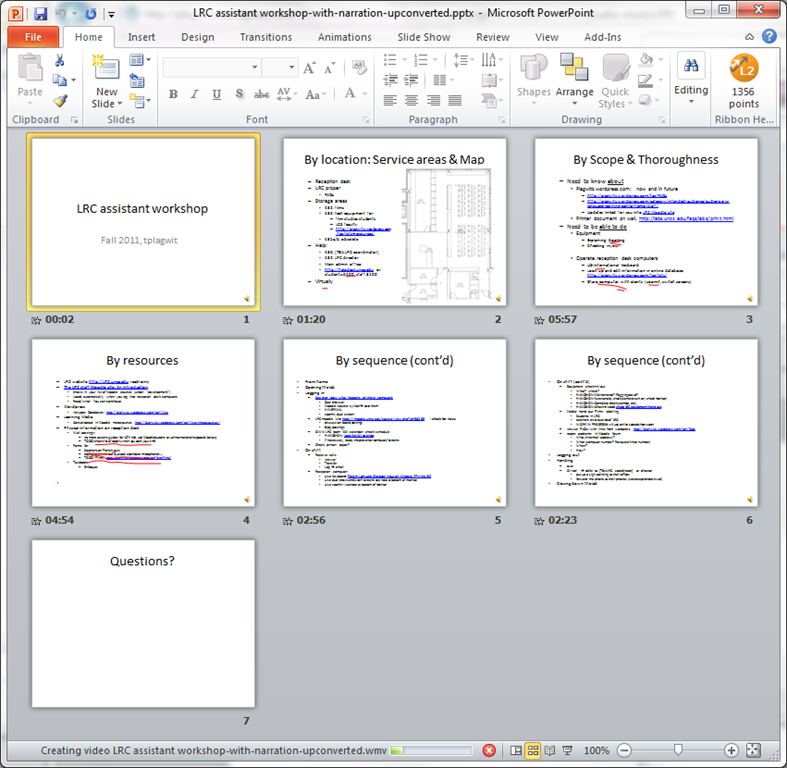
- watch the progress bar:
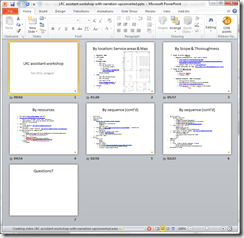
- Takes over 60 minutes with on average over 50% CPU of an Intel i5 with 8 GB Ram, to produce a 75MB file of 920*760 and less than 18 minutes in length. But this video streams from MS-SkyDrive.
Categories: audience-is-teachers, documentation, e-infrastructure, learning-materials
2010, FAQs, ms-powerpoint, narrration, recording, video
Room and Equipment handling using MS-Exchange Resource Mailboxes: Sharing Resource Calendars with Students in Outlook Live. A running log
2011/09/13
6 comments
-
Our users can view the free/busy information of our Resource mailboxes in the Scheduling Assistant of their Meeting request – and also, though even less convenient and more limiting, in the GAL.
-
This includes student accounts (hosted) being able to view resource mailboxes (on premise) free/busy – which seems the default, different from the solution to achieve this here – or are resource mailboxes permissions more liberal than regular mailboxes?
-
-
To allow users the more convenient access to the calendar of the resources (without being able to book through this interface), we have used this:
-
# permissions: make default user a reviewer (read-only) of resource mailbox calendar
# so that default user cannot schedule through the calendar & bypass resourcescheduling attendant
Set-MailboxFolderPermission
-Identity LRCLcdproject01@uncc.edu:\Calendar
-AccessRights Reviewer -User Default
# work around apparent permissions bug:
# http://www.flobee.net/found-a-bug-with-set-mailboxfolderpermission/Set-MailboxFolderPermission
-Identity LRCLcdproject01@uncc.edu:\non_ipm_subtree\freebusy data
-AccessRights Reviewer -User Default
-
Based on this, we have successfully tested sharing our resource calendars with staff accounts (which are on premises).
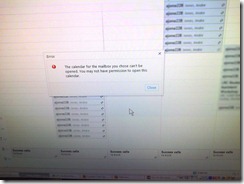
- We have been hoping to share calendars of our resources also with our student user accounts (which are hosted). However, “Default” in the above does not seem to include these. When students use the built-in “Add Calendar”feature from their Outlook Live/NINERMAIL, they receive a permission error: “The calendar for the mailbox you chose can’t be opened. You may not have permission to open this calendar”.
- We have been hoping to share calendars of our resources also with our student user accounts (which are hosted). However, “Default” in the above does not seem to include these. When students use the built-in “Add Calendar”feature from their Outlook Live/NINERMAIL, they receive a permission error: “The calendar for the mailbox you chose can’t be opened. You may not have permission to open this calendar”.
-
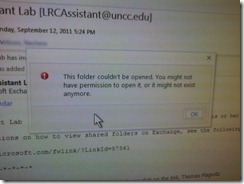
Student staff cannot view the resource calendars. A limited workaround could be to share calendars with individual student staff, so that they can display these calendars to walk-up clients. However, we cannot even share such resource calendars manually with individual students. While, when impersonating the resource, I can send out an invitation email to student staff, the student again gets an error when clicking the “Add calendar” link in the invitation mail: “This folder could not be opened. you might not have permission to open it, or it might not exist anymore”.
-
We also cannot see our student staff’s busy time, even if this busy times when working for us: “No information (Error code: undefined”):


-
A similar issue elsewhere seems to have been addressed successfully by adding federation for
-
multiple tenancies within live@edu in “Sharing Free Busy across the cloud”, example:
Get-FederationInformation
–DomainName <the other Live@edu tenant> | New-OrganizationRelationship
–Name <the other Live@edu tenant>
-FreeBusyAccessEnabled $true
-FreeBusyAccessLevel LimitedDetails
-
and for mixed hosted/on-premises environments “Set up Federated Free/Busy and Calendar Sharing between Exchange 2010 SP1 and Outlook Live”, which is a bit too evolved for posting a short sample/summary here.
-
-
Another workaround could be to add calendar internet publishing privileges to individual resource mailboxes and sharing calendars with student staff, having them display these to walk-up clients.
-
What data gets published needs to be careful considered. However, it should be possible to hide personal information and just display usage of resources, using the built-in sharing levels (note that organizer may have been put in subject by Resourcebookingasssistant configured with AddOrganizerToSubject, so subject should not be included for calendars “LRCAssistant” and “LRCTutor”## which are offices held/resources booked by students):
- CalendarSharingFreeBusySimple Share free/busy hours only
- CalendarSharingFreeBusyDetail Share free/busy hours, subject, and location
- CalendarSharingFreeBusyReviewer Share free/busy hours, subject, location, and the body of the message or calendar item
-
Code samples are given here (for hosted):
-
New-SharingPolicy -Name "Calendar Sharing Policy"-Domains "anonymous:calendarsharingfreebusysimple"set-mailbox <all LRC resource mailboxes here>
-SharingPolicy "Calendar Sharing Policy"
-
-
Categories: audience-is-IT-staff, e-infrastructure, service-is-library, Uncategorized
2007, 2010, 2011, calendaring, live@edu, ms-exchange, outlook, outlook-live, resources, scheduling
LRC Assistant Start of Year Training: The PowerPoint
2011/09/13
Leave a comment
Categories: audience-is-language-learning-center-temp-staff, training, workshops
pptx
How LRC assistants log into the reception desk computers
2011/09/08
Leave a comment
- Let the computer finish its startup tasks:
- Browsers: both internet Explorer and Firefox will open on relevant pages, since you and your client will have to work in different browsers, ensuring that both your and your client can be logged into different NINERNET accounts.
- Excel will load a checkin.xlsm. In Excel, under the ribbon, press button:"Enable content". Use this to generate codes that you can paste into users"’ meeting requests when they check in and out LRC equipment. The spreadsheet will not save the codes since your computer is frozen.
- A program called bginfo will analyze the computer settings and display the results on the desktop
- ZoomIt: press “ok” on the startup dialogue. You can now press CTRL-2 (thanks Ashley) and drag the left mouse button (ESC to stop) to paint on screen to communicate with client across mirrored screens, and vice versa.
- Do you have a client at the counter?
- yes: press CTRL-ALT-F10 to clone/mirror (= show the same screen on) both monitors. You can now collaborate with the client using a computer (e.g. in OWA or in a database)
- no client: press CTRL-ALT-F11 to extend the desktop. You can now display an informational window on the LRC-facing monitor, while working on your own monitor in privacy.
- The reception computers use Deepfreeze. You cannot save information on reception desk computers between reboots.
- All personal information you want to save needs to go to your H: drive.
- All information you want to share with LRC staff needs to go into LRC Moodle site, UNCC-LRC website or NINERMAIL.
Reception area PCs: Remaining issues with the software image
2011/09/08
Leave a comment
- That’s a new one:
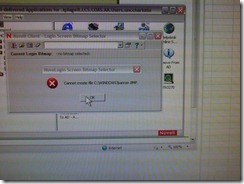 . likely fixed by logging in with an admin account first before freezing.
 - IE8 windows in kiosk mode where clients need to log in (and out, using the built in links not by closing the browser)
- 49erexpress , the rest is linked there and opens in a new window which can also be closed, as long as the login dialogue stays up
- mail.uncc.edu
- Moodle
- Safari
- default dialogues need to be changed
- no “not default browser”:
- close w/o saving settings/tabs
- no “not default browser”:
- should start and load the UNCC-LRRC calendar (could be home page)
- default dialogues need to be changed
- Chrome
- business chrome install, but interferes with zoomit shortcuts
- Firefox
- is missing tab 49erexpress: use this also for lrc assistants
- LRC Moodle
- LRC lists
- loads its required tabs twice – probably related to “save and quit” feature which needs to be set to “quit” and “never ask again”.
- Spreadsheet opens read-only.
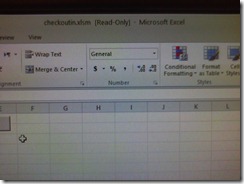
- Trying to set the file attribute to read/write fails

- Trying to set the file attribute to read/write fails
- not needed, store in outlook, also we do not output code to spreadsheet anymore anyway to discourage manual copy: Writable spreadsheet is not useful anyway on a frozen PC
- w/o thawspace: implement one in Deepfreeze (which requires alteration of the DFWks.exe installer) (and during creation of the image, fake the drive letter from which the spreadsheet autoloads, with a removable drive).
- Better would be Faronics Igloo which would with install of deepfreeze redirect spreadsheet folder to thawed virtual partition, but is not available
- Deepfreeze did install and could be frozen, but does not accept its password for thawing locally and needs to be thawed from the Deepfreeze Console. Password has been updated.
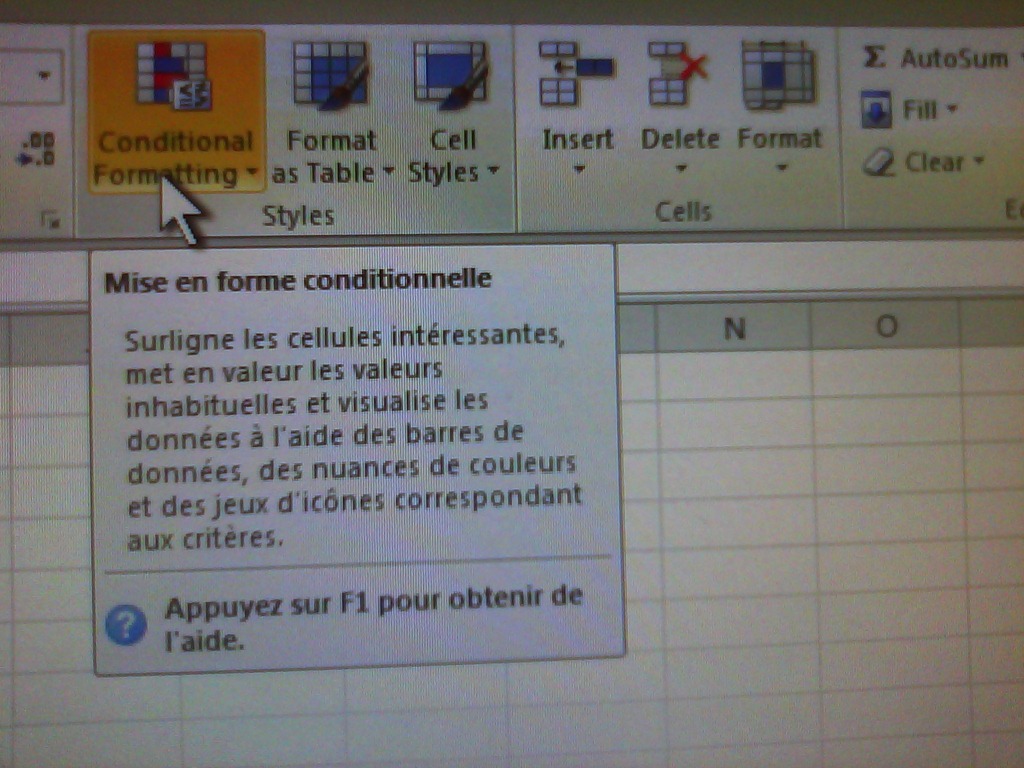
- The MS-Office tooltips are set to French – this is for testing:

- Internet Explorer managed to sneak in Bing as the default search provider;

- When starting MS-word, there is a DOCUMENT Recovery pane.
- in explorer, protected operating files are not shown, but hidden files
- label screens on lrc assistant side.
- LRC assistants use Firefox, clients use Internet explorer (full-screen – use ALT+TAB to switch windows)
- show on 2nd screen:
- SAFARI with UNCC-LRC calendar
- Moodle Spanish announcement (?)
- Printers
- department: optional
- Ricoh: default



Adapting a Symantec Ghost 11 Dell Optiplex 760 imaging setup to 780 hardware using Boot Wizard Win-PE editor
2011/09/07
Leave a comment
-
I have set up locally, and documented, a default installation of Symantec Ghost 11 (Ghost console version 11.5.1.2266) that can image a computer lab of dell OptiPlex 760 (not sure how I ended up with doing even this part).
-
Trying to set to implement use of our new live@edu communications infrastructure in this environment, I need to image a Dell OptiPlex 780 lab with this setup results in an error: “To Virtual Partition Drivers could not be found in the PreOS for the following devices:Manufacturer: "Intel", Description: "Intel(R) ICH10D/DO SATA AHCI Controller", PCI Vendor: 0x8086, PCI Device: 0x3a02, PCI Subsystem: 0x4201028”
-
The institution has not produced any documentation on this adaptation, so here goes: You can get a complete set of MS-Vista 32 drivers (which is the OS version that Ghost 11 Win-PE uses ) for Dell Optiplex 780 from Dell’s Driver CABs Homepage, including a table of contents.
-
You can expand this in Windows Explorer and look for the x86 storage driver, and you will find only one suitable: R222843, Matrix Storage Manager (OS Pre-Install Driver Only), A17, 8.8.0.1009
-
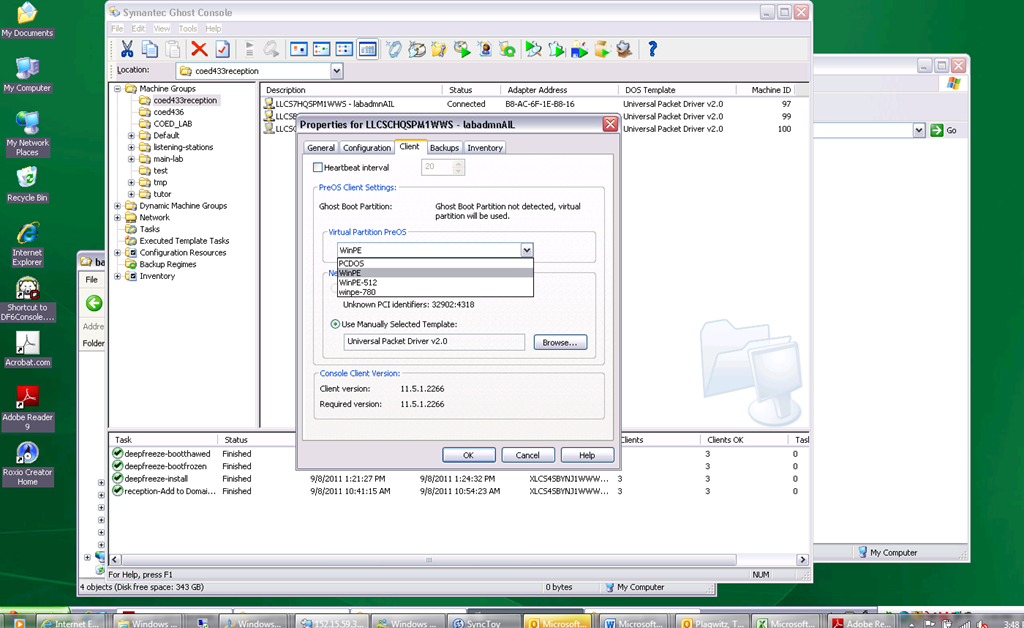
In Ghost console / tools / boot wizard, You can add this driver (entire dir, as long as it has a friendly name for ghost – could you have done this with the entire dell driver cab of 300mb?) to the win-pe-780 (I made a copy of the default win pee environment which I still need to use for a different set of hardware) (which then compiles the win-pe image), and
-
You also have to check the driver , to have it included (which compiles the win-pe image again – why? ).
-
You have to set in Ghost console menu; tools / options / the win-pe as the default remote boot os (this will have to be changed for 760 imaging back to win-pe).
-
Now, did this really “take”?

-
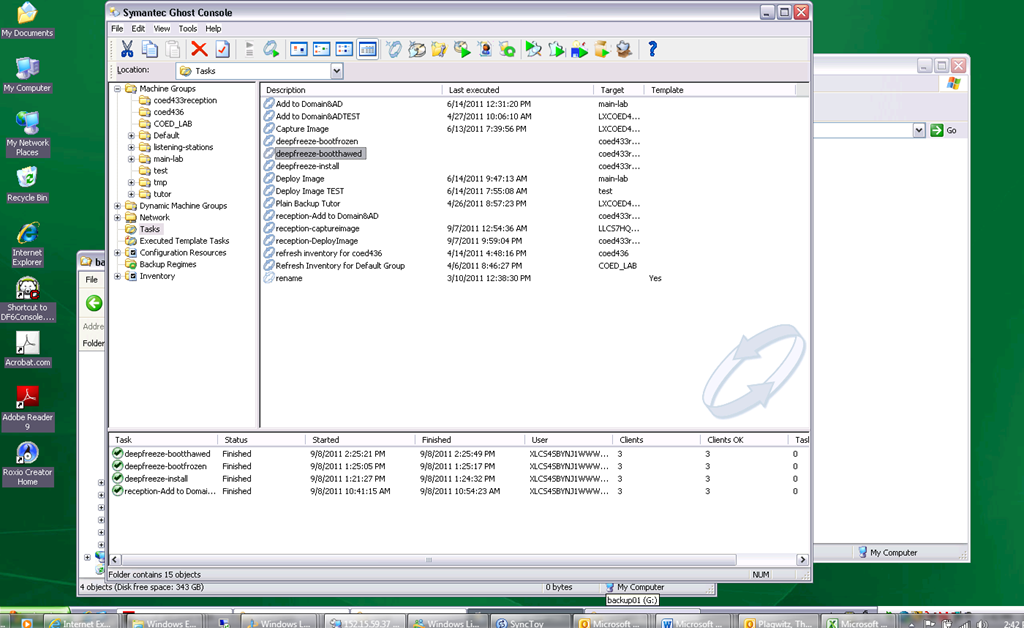
This allows the reception-captureimage task to complete.
-
Additional tasks reception-DeployImage and reception-Add to Domain&AD can be derived from the default installation.
-
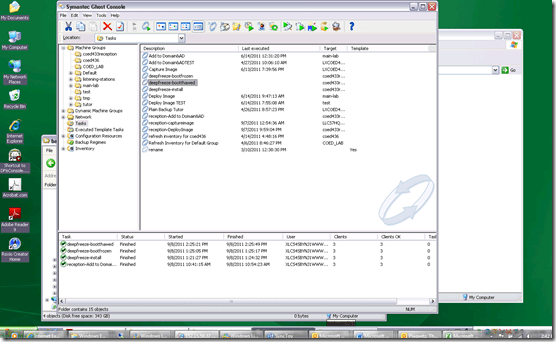
We can also deploy and manage Deepfreeze now from the Ghost Console, bypassing Deepfreeze Console.
-
-
I hope this was my last trip down the “general computing” infrastructure Geisterbahn for a while. I was actually trying to apply productivity software infrastructure to a local business process, and merely to free up some time for elearning pedagogy…
Categories: audience-is-IT-staff, documentation, Glitches&Errors, hardware, software
boot-wizard, symantec-ghost, win-pe
How to transfer calls on the Cisco IP Phone 7912
2011/09/07
Leave a comment

If you mistype, don’t leave the caller hanging, but rather follow these steps (kindly provided by Alesha) to recover: Likely you left the caller on hold.
- Press the hold key (illuminated red button that is shaped like a stop sign)
- Press transfer
- Dial appropriate extension
- Press transfer again!
- Because the telephone is already in the cradle, students do not need to hang up or press the EndCall key.
Sanako Study-1200 Oral Exams: More result examples
2011/09/07
1 comment
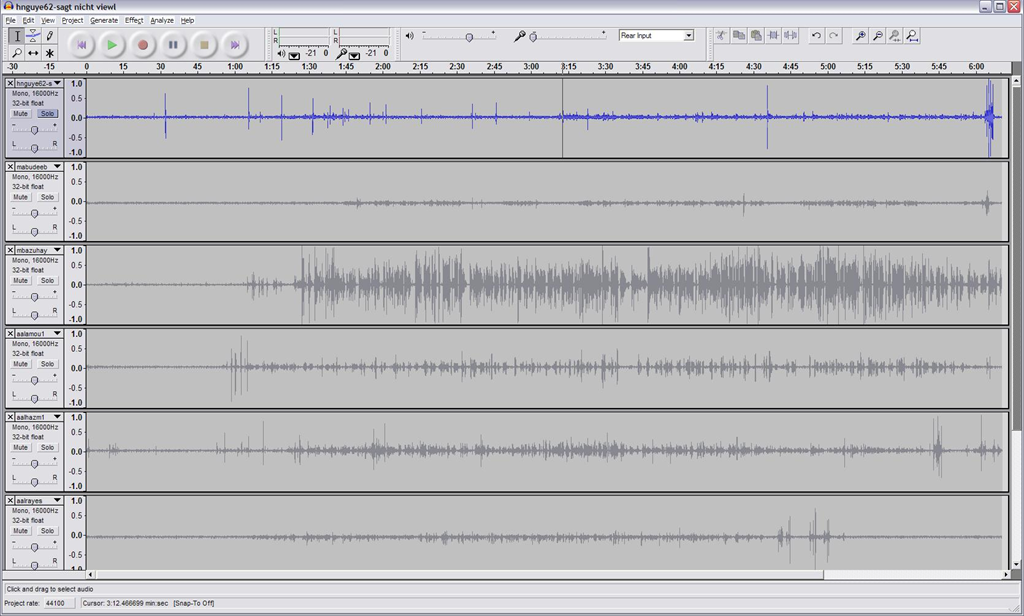
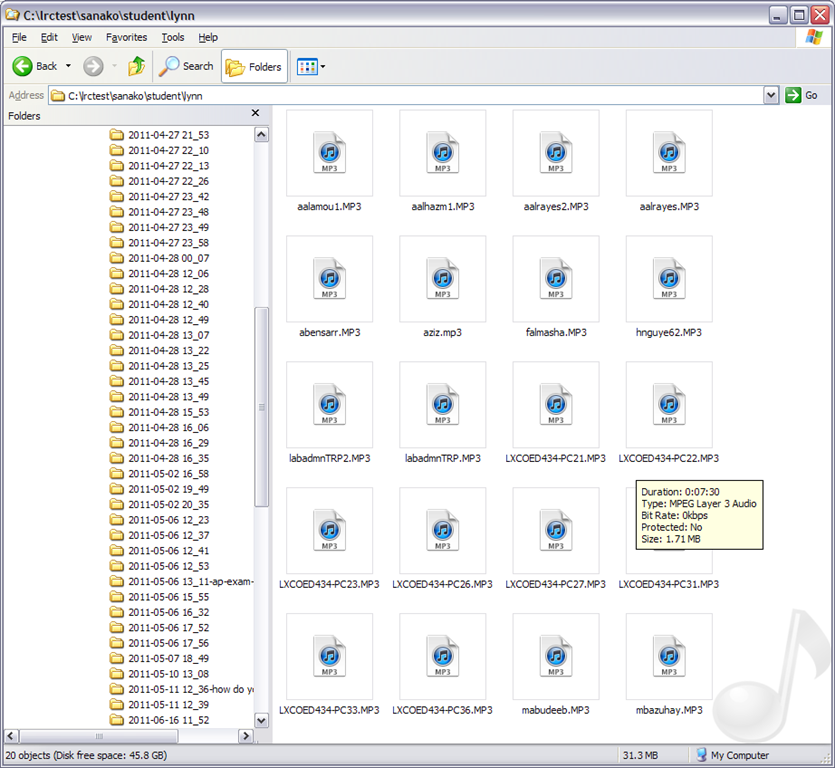
- Study 1200 will automatically save the exam recordings of each of your students under a distinct name (you can choose student email name or seat number) in a location which you can access from your office desktop:

- You can load this recordings in Audacity to grade them, including skipping past the questions and increasing the play speed, but not the pitch, and easy comparison of students like in the picture below:
-




Questions? Read the About. Or just ask me a quick Our Databases: Resources with calendars -- Language learning material Moodle Sites, multimedia files -- films


FAQs for LRC student staff or for students or for teachers. To search our FAQs, in the browser addressbar, add after "https://plagwitz.wordpress.com/feed/?tag=faqs+/" "+TAG1" (from tag cloud below) OR "https://plagwitz.wordpress.com/feed/tag=faqs
&category_name=" "CAT1" (from category hierarchy below). OR search both categories and tags, and multiple TAGs/CATs (connect with "," for OR-search, with "+" for AND-search), like so: https://plagwitz.wordpress.com/feed/?tag=TAG1+TAG2+...TAGn&category_name=CAT1
+CAT2+...CATn"
Other ways to find help
If you cannot find it here, look there: 5,500 Language-Learning Links and Programs for learning or teaching 150 languages
Shortcuts:Our Lists, Our Maps, LRC Staff Moodle Site,LRC Project Moodle Site, 49erexpress, UNCC Moodle, Student Recordings: s:claslcslrcsanakostudent
Learning usage samples: Sanako oral exam, Kaltura webcam presentation, Dictation with speech recognition, Sanako written exam, Chinese and Japanese interactive stroke-order practice
Test the Sanako Installer, Webbrowser Popup Konfigurator for XP, or Windows7, faster LRC TeacherPC Log-in Let MS facilitate diacritics writing by installing for you US-International keyboard layout
This is my personal blog (Google+). The views expressed on these pages are mine alone and not those of my employer. The information in this weblog is provided “AS IS” with no warranties, and confers no rights.
 Thomas' Work Space