Archive
New keyboard shortcuts for diacritics on LRC Teacher PC
- The US international keyboard layout that has come with MS-Windows for many years (though – except in the LRC – not set as default, you need to enable it in the control panel) greatly facilitates typing of characters for most languages that use Roman script with common diacritical marks, but does not cover Pinyin and similar diacritical marks.
- Carly from Carleton, as avid a language teacher as a technologist, had the great idea to extend Microsoft’s US-international keyboard so as to include all the Pinyin tone marks (and other accents useful for linguists). Here is the upshot, extracted from her instructions, but excluding what (either shortcut or (use of common accents within Pinyin is now covered also below) purpose) has not changed from the shortcuts of the non-extended US-international keyboard that used to be the default in the LRC:
-
What you want Which keys you press (before comma is “dead” key = no result until after next key) Example acute accent, pinyin 2nd tone
‘(=apostrophe), vowel
á é í ó ú
grave accent, pinyin 4th tone
`(=grave), vowel
à è ì ò ù
macron accent, pinyin 1st tone
hyphen, vowel
ā ē ī ō ū
pinyin 3rd tone
%(=shift+5), vowel
e.g. ǎ ě ǐ ǒ ǔ
ü with pinyin tones
Accent, double-quote
e.g. ǖ ǘ ǚ ǜ
letter with dot below
; (=shift+period), letter
e.g.

letter with double acute
: (=shift+;) , o or u
ő, ű, Ő, Ű
- We are offering the extended US-international keyboard this as an optional keyboard on the teacher and student PCs with Windows 7.
- To select the new keyboard layout, use the language toolbar, click on 2nd option:
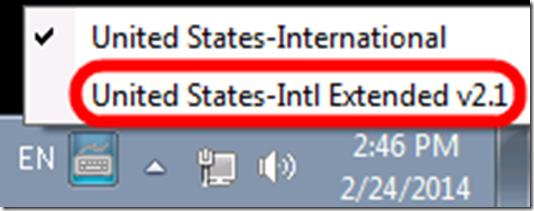
- To explore the new keyboard layout use the Windows On-screen keyboard which will let you peek ahead after your pressed a dead key.
- To bypass a special dead key (= get the normal behavior of the key), press SPACE after it.

How students can record their picture or photo presentations with PowerPoint 2007

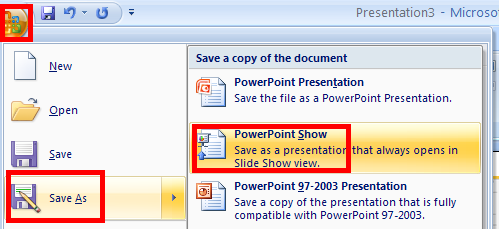
- On the ribbon:slideshow, click “record narration”,
- click “Change quality”,
- change the quality to 16Kbit from the default of 8kbit (which caused audio break-ups when I tested),
- click OK and present, using the headphones,
- then Save As / Show.
- You can easily use the saved file to e.g. upload the assignment to your teacher’s Moodle / File Upload Assignment.
LRC learning resources Moodle metacourses: Our list
UPDATE: The LRC Metacourses are being rolled over to MOODLE2. Metacourses having only an OldID are currently still unavailable in Moodle2. And the student enrollment needs to be updated manually until the end of add/drop. On the upside, teachers do not need to make course available to students anymore. The LRC can do this (Metacourses for languages saying #Ref are waiting to be rolled over, tell me if you need them)..
The following LRC Moodle metacourses for teaching materials are available to LCS and ELTI (including LRC-Resource with training materials for using language learning technology in and outside of the LRC, as well as for independent study languages).
The naming scheme follows the course abbreviations taught in the departments that the LRC supports:
These courses appear in the Training branch of the Moodle-courses tree-menu on the left (for all study programs you teach in):

The metacourse for a language (or field of study) is accessible to all students studying this language during the term of their study.
What is “Content location” in Sanako Study Student Recorder (including Lite) for?


- While working on rolling out the free Sanako Light recorder to all faculty computers in a more systematic, automated way, the question has come up:
- What is “Content location” in Sanako Study Student Recorder (Ver 6, including Lite) “Administrative Settings” for, and how can it accept a URL?
- No such field in Ver 5.51; no mention in the help file; no manual this new (free) version would help seems included with the download.
- I am trying to point the “My files” to a more shared and LRC-accessible location on our SANAKO network share. Should I try the same with “Content Location”, or is this (defaults to “Application Data”) a strictly temporary location for during authoring?
- Answer: Sanako seems to be planning using this for distributing their own learning materials, esp. for ESL.
FERPA in the Language Resource Center
Here I am collecting (i.e. simply curating; my thanks go to http://www2.ed.gov/policy/gen/guid/fpco/ferpa/students.html and http://counsel.cua.edu/ferpa/questions/index.cfm) guidance and a few opinions on cases that are common in the Language Resource Center:
- http://www2.ed.gov/policy/gen/guid/fpco/ferpa/students.html:
This guidance document is designed to provide eligible students with some general information regarding FERPA and their rights, and to address some of the basic questions most frequently asked by eligible students. You can review the FERPA regulations, frequently asked questions, significant opinions of the Office, and other information regarding FERPA at our Website as follows:
www.ed.gov/policy/gen/guid/fpco/index.html
The term "education records" is defined as those records that contain information directly related to a student and which are maintained by an educational agency or institution or by a party acting for the agency or institution.
FERPA generally prohibits the improper disclosure of personally identifiable information derived from education records.
Another exception permits a school to non-consensually disclose personally identifiable information from a student’s education records when such information has been appropriately designated as directory information. "Directory information" is defined as information contained in the education records of a student that would not generally be considered harmful or an invasion of privacy if disclosed. Directory information could include information such as the student’s name, address, e-mail address, telephone listing, photograph, date and place of birth, major field of study, participation in officially recognized activities and sports, weight and height of members of athletic teams, dates of attendance, degrees and awards received, the most recent previous educational agency or institution attended, grade level or year (such as freshman or junior), and enrollment status (undergraduate or graduate; full-time or part-time).
A school may disclose directory information without consent if it has given public notice of the types of information it has designated as directory information, the eligible student’s right to restrict the disclosure of such information, and the period of time within which an eligible student has to notify the school that he or she does not want any or all of those types of information designated as directory information. Also, FERPA does not require a school to notify eligible students individually of the types of information it has designated as directory information. Rather, the school may provide this notice by any means likely to inform eligible students of the types of information it has designated as directory information.
Pasted from <http://www2.ed.gov/policy/gen/guid/fpco/ferpa/students.html>
- Q Is a student’s assignment (written or perhaps a video production), once handed in to a professor, an education record protected by FERPA? A In a September 1, 1993, opinion letter to the American Library Association, LeRoy Rooker, the Director of the Family Policy Compliance Office, stated the following: "Generally any written examination or paper that is prepared by a student and that reveals or discloses a student’s identity would be considered an ‘education record’ under [the regulatory] definition (so long as it is maintained by the institution). That is, in ordinary circumstances FERPA prevents an institution from disclosing or publishing a student’s written examination or paper without prior written consent, except in accordance with the specific exceptions set forth in 34 C.F.R. § 99.31." 34 CFR 99.31 lists a number of exceptions, including disclosure to other school officials with a legitimate educational interest; disclosure in connection with financial aid for certain purposes; stated and local educational authorities; and to accrediting organizations among others."
-
- Q. My institution has migrated to Google for email and now is interested in making Google Docs available to the community. The idea is that faculty and students will be able to collaborate on documents using Google Docs which would make the learning environment richer. I am concerned that this "sharing" may inadvertently lead to the inappropriate disclosure of FERPA protected information especially the information of those students who have opted out of disclosing "directory information". I would love to learn what other institutions have done to deal with this issue. A. The first thing to figure out is whether your contract with Google (which typically covers both e-mail and apps together) is FERPA-compliant to begin with. Google doesn’t "volunteer" that, so chances are it isn’t, which raises issues as to whether you can disclose information even to Google. To the extent that the "docs" are accessible only to students enrolled in a particular class, I believe that your faculty have some leeway to discuss students and their work — much as they do in a physical class. (For example, FPCO has stated that students have no right under FERPA to remain anonymous in class, and, as one Justice noted in the Owasso case, much to the dismay of law students everywhere, FERPA does not prohibit use of the Socratic method.) However, if the "docs" are accessible more broadly, your faculty could not post anything that would constitute an education record without the student’s consent, and it’s worth thinking through, from a policy perspective, whether faculty should be allowed to require students to post things directly to an open site. Another issue to think through is copyright. While most of the commercial CMS systems are now capable of facilitating TEACH compliance easily, through integration with your SIS, my understanding of Google Apps is that it currently would require each individual faculty member to take all of the necessary steps manually. Answer courtesy of Steven J. McDonald, General Counsel, Rhode Island School of Design.
- Q. An on-campus speaker was videotaped, and the sponsoring department wants to put the video up on its website (i.e., non-commercial use). The videographer was in plain sight. The speaker’s consent was obtained, but not those of students who asked questions (mostly off-camera). Anyone have a problem with posting the video? A. If any of the students are "personally identifiable" (under FERPA’s broad definition), I think you’d need FERPA consent. In a similar context, FPCO has stated that the transcript of a hearing that was held open at the student’s request is still an "education record" and therefore can’t be released without the student’s consent. You can include photographs in your list of directory information, but I doubt FPCO would agree to audio, at least generically. Answer courtesy of Steven J. McDonald, General Counsel, Rhode Island School of Design.
- Q. My institution has migrated to Google for email and now is interested in making Google Docs available to the community. The idea is that faculty and students will be able to collaborate on documents using Google Docs which would make the learning environment richer. I am concerned that this "sharing" may inadvertently lead to the inappropriate disclosure of FERPA protected information especially the information of those students who have opted out of disclosing "directory information". I would love to learn what other institutions have done to deal with this issue. A. The first thing to figure out is whether your contract with Google (which typically covers both e-mail and apps together) is FERPA-compliant to begin with. Google doesn’t "volunteer" that, so chances are it isn’t, which raises issues as to whether you can disclose information even to Google. To the extent that the "docs" are accessible only to students enrolled in a particular class, I believe that your faculty have some leeway to discuss students and their work — much as they do in a physical class. (For example, FPCO has stated that students have no right under FERPA to remain anonymous in class, and, as one Justice noted in the Owasso case, much to the dismay of law students everywhere, FERPA does not prohibit use of the Socratic method.) However, if the "docs" are accessible more broadly, your faculty could not post anything that would constitute an education record without the student’s consent, and it’s worth thinking through, from a policy perspective, whether faculty should be allowed to require students to post things directly to an open site. Another issue to think through is copyright. While most of the commercial CMS systems are now capable of facilitating TEACH compliance easily, through integration with your SIS, my understanding of Google Apps is that it currently would require each individual faculty member to take all of the necessary steps manually. Answer courtesy of Steven J. McDonald, General Counsel, Rhode Island School of Design.


Questions? Read the About. Or just ask me a quick Our Databases: Resources with calendars -- Language learning material Moodle Sites, multimedia files -- films


FAQs for LRC student staff or for students or for teachers. To search our FAQs, in the browser addressbar, add after "https://plagwitz.wordpress.com/feed/?tag=faqs+/" "+TAG1" (from tag cloud below) OR "https://plagwitz.wordpress.com/feed/tag=faqs
&category_name=" "CAT1" (from category hierarchy below). OR search both categories and tags, and multiple TAGs/CATs (connect with "," for OR-search, with "+" for AND-search), like so: https://plagwitz.wordpress.com/feed/?tag=TAG1+TAG2+...TAGn&category_name=CAT1
+CAT2+...CATn"
Other ways to find help
If you cannot find it here, look there: 5,500 Language-Learning Links and Programs for learning or teaching 150 languages
Shortcuts:Our Lists, Our Maps, LRC Staff Moodle Site,LRC Project Moodle Site, 49erexpress, UNCC Moodle, Student Recordings: s:claslcslrcsanakostudent
Learning usage samples: Sanako oral exam, Kaltura webcam presentation, Dictation with speech recognition, Sanako written exam, Chinese and Japanese interactive stroke-order practice
Test the Sanako Installer, Webbrowser Popup Konfigurator for XP, or Windows7, faster LRC TeacherPC Log-in Let MS facilitate diacritics writing by installing for you US-International keyboard layout
This is my personal blog (Google+). The views expressed on these pages are mine alone and not those of my employer. The information in this weblog is provided “AS IS” with no warranties, and confers no rights.
 Thomas' Work Space