Archive
Archive for the ‘audience-is-teachers’ Category
How to get started with the new text-to-speech support in Sanako 7
2014/01/31
Leave a comment
- With the new text-to-speech feature, students can generate their own pronunciation help:
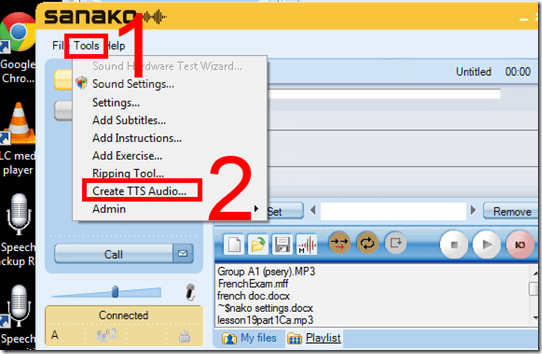
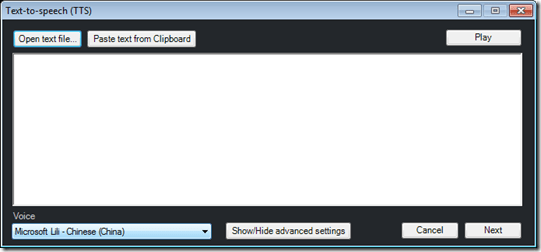
- Using the button:Advanced settings, you can even
- vary the speed of,
- insert bookmarks to use with Sanako player
- or insert thinking pauses for the learner into the audio – excellent ideas, I find
 !
!
- Unfortunately, the LRC currently has voices only for English and Mandarin. Extra voices cost extra
 .
. - Then there is Google translate text-to-speech, but that cannot be saved to file.


How to create a form on Google Apps
2014/01/31
Leave a comment
- If you want to collect input from others (including students outside of a course = Moodle), including recurring input from the same student (multiple submissions are the default andsingle submission limit can apparently only be enforced offwith JavaScript hacks)(.
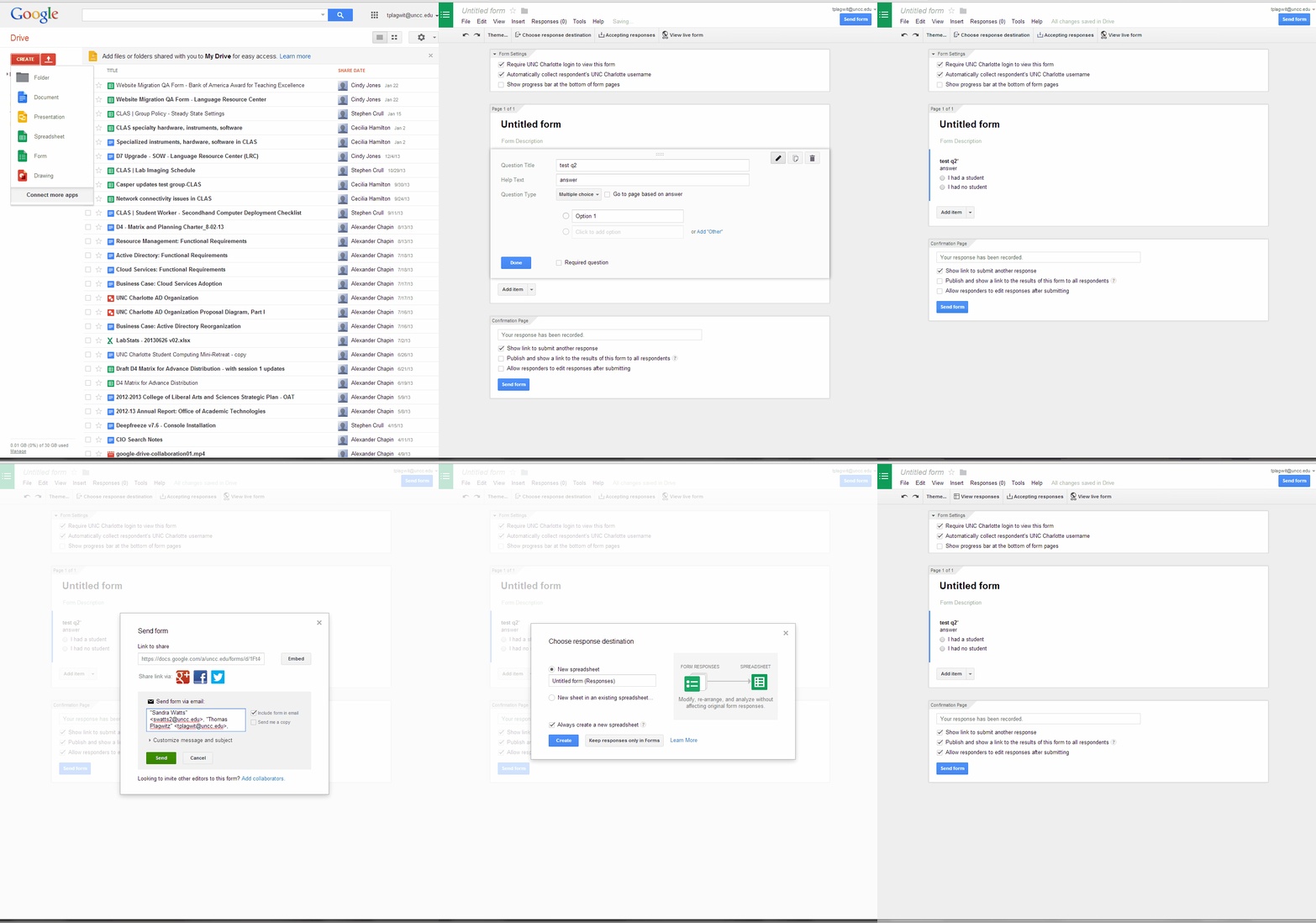
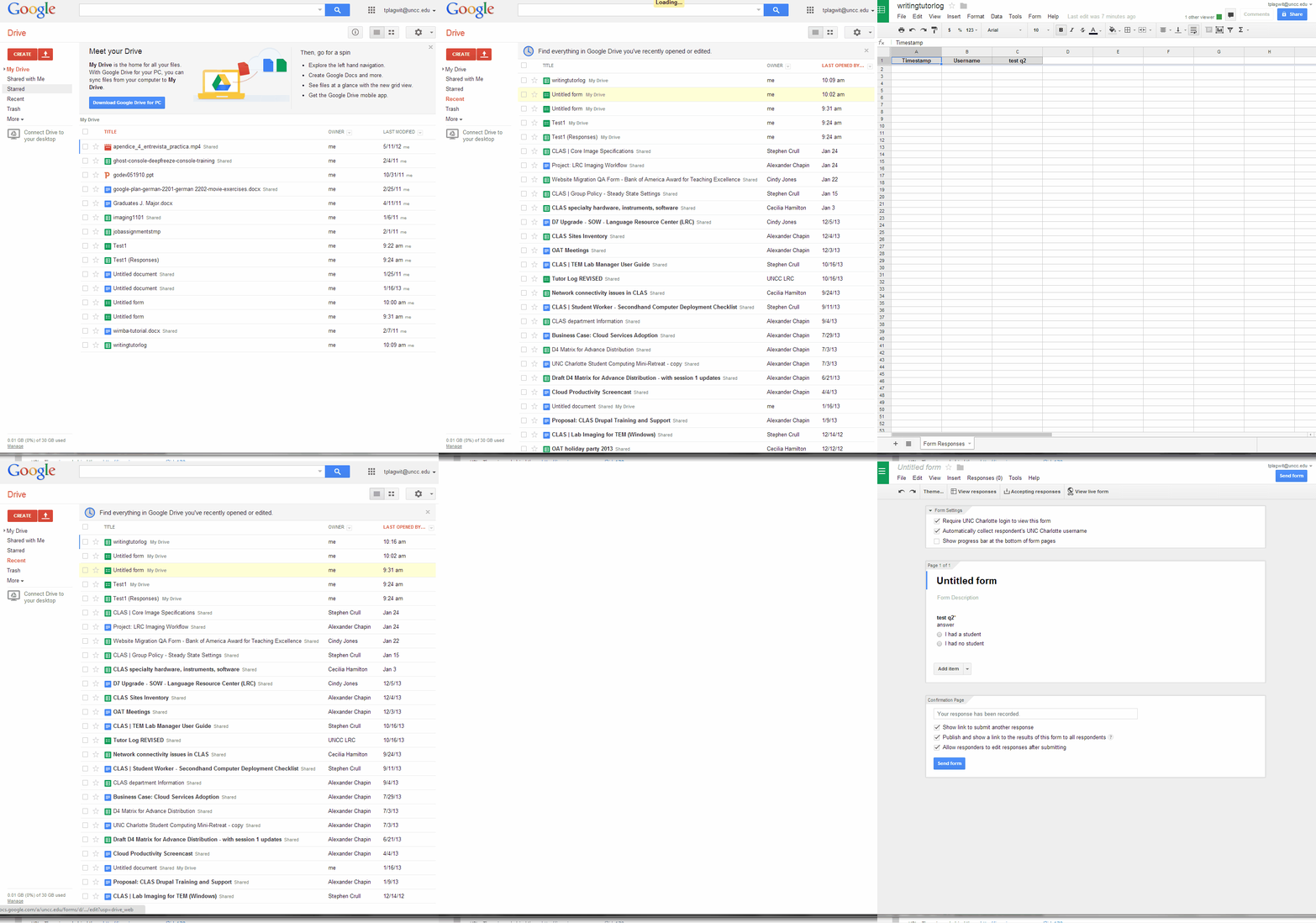
- Do this to create a form in Google Apps:

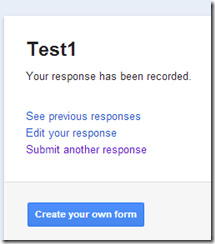
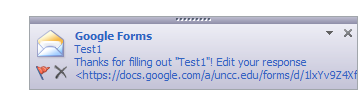
- Here is what you can have your submitters see:


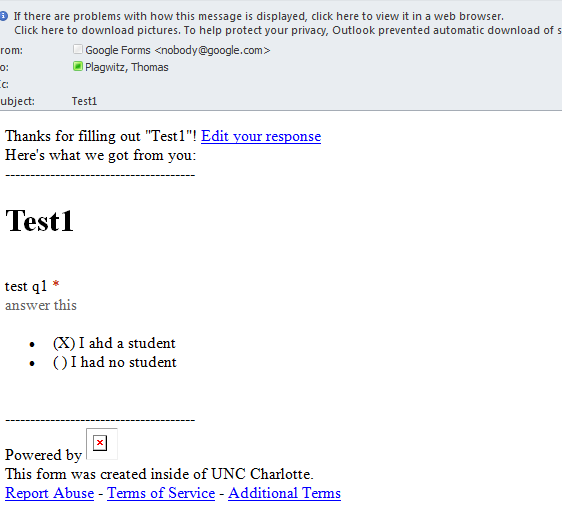
- Here is what you get:


LRC Faculty Showcase: Enhancing reading fluency in Spanish through Online Courses
2014/01/24
Leave a comment
- The videos of the presentation by Maria Mahaffey, Emily Kristoff and Shaun Stone on SPAN2200, using Hot Potatoes exercises in Moodle, and the ensuing discussion, are available on the intranet:
- PowerPoint screencast with audio: “S:\CLAS\LCS\MYDEPT\mahaffey\span2200\showcase\SLP_2014_PowerPoint.wmv” (size: 130MB).
- Video with presenter and PowerPoint on projector: “S:\CLAS\LCS\MYDEPT\mahaffey\span2200\showcase\showcase-SLP-2014.mp4” (size:410MB).
Layout of the Language Resource Center (LRC)
2014/01/22
3 comments
The numbers in the layout correspond to the numbers we posted (to facilitate teacher and student orientation and to aid in LRC temp staff troubleshooting) on the computer monitors and also (for IT staff) to the number part of the underlying computer names which can also be displayed in the classroom management systems NetOP School and Sanako Study 1200 on the teacher computer (32).

The simplest OCR options you have here
2014/01/10
Leave a comment
- (Staff:) Using the departmental scanner which outputs PDF to a network share (that you can link from your desktop). The PDF is searchable at least
- (Staff & Students:) Using only your desktop, at work or at home:
- MS-Office
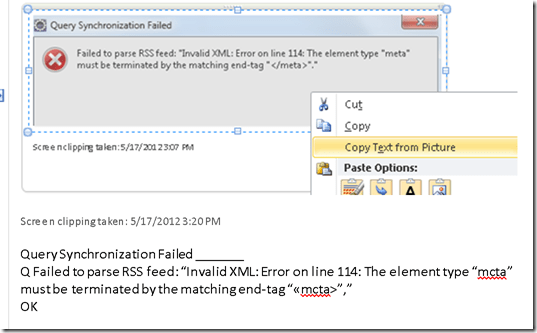
- OneNote 2007/2010: paste image, right-click to access context menu, “extract text”. Example (you can see it is quick and simple, but not error-free):
- Imaging components :TBA
- OneNote 2007/2010: paste image, right-click to access context menu, “extract text”. Example (you can see it is quick and simple, but not error-free):
- Google Apps can also OCR the files you upload to Google Docs.
- You first need to change the default settings. Choose from hard-drive icon for file uploads, context menu: “Settings” / “Convert text form uploaded PDF and image files”.
- You may want to upload an entire folder – then you need to either use Chrome or allow the install of a Java applet.
- You may want to use not have to deal with one Googledoc for each image you upload. So bind your scanned pages (unless your OCR software already allows this – I have been restricted to “Windows Scan and Fax”) to multi-page PDFs (imagemagick’s convert command can do it for free). Note that the max upload size in Google Docs is 2mb, which restricted me to about 10 pages per document (strangely, since I had scanned to b lack and white and very small size, but the PDF size grew, likely using a less efficient encoding – might be able to optimize this).
- Google Apps uses the same OCR engine as Google Books. Not much formatting is being retained, in the below examples note the line breaks, but that is fine for me, since I am only after large chunks of text for further processing:

- I have only tested English (largely current affairs) text, but was impressed with the OCR results.
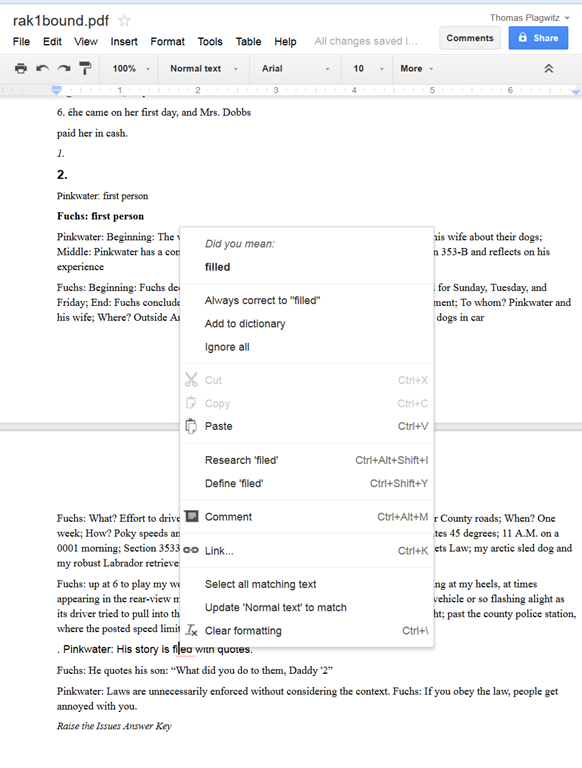
- Also, where the OCR went wrong (2-times 4 per page; also some artifacts, my scans were not very clean: Google Apps seems to handle dark spots on the page better then unstraightened lines),
- the proofreading suggestions (as usual, right click to access) are very good (better than MS-Word’s when I downloaded the files).

- Sometimes you have to consult the original image which conveniently gets put above the OCR’ed: text.

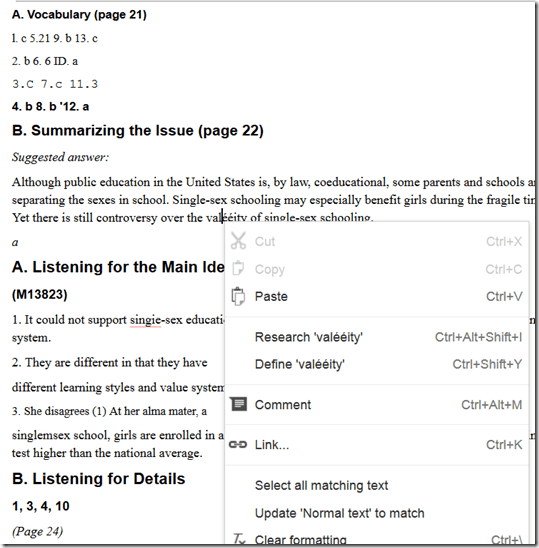
- You can download the results as MS-Word files and within MS-Word, remove all the scan images using ^g.

- MS-Office




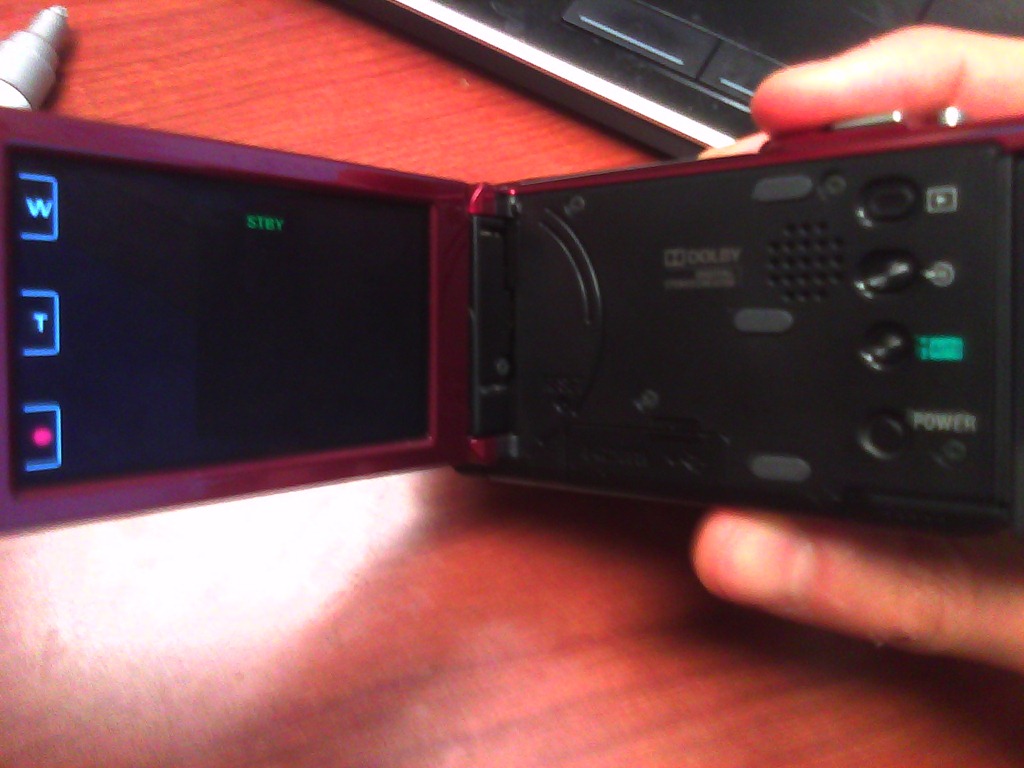
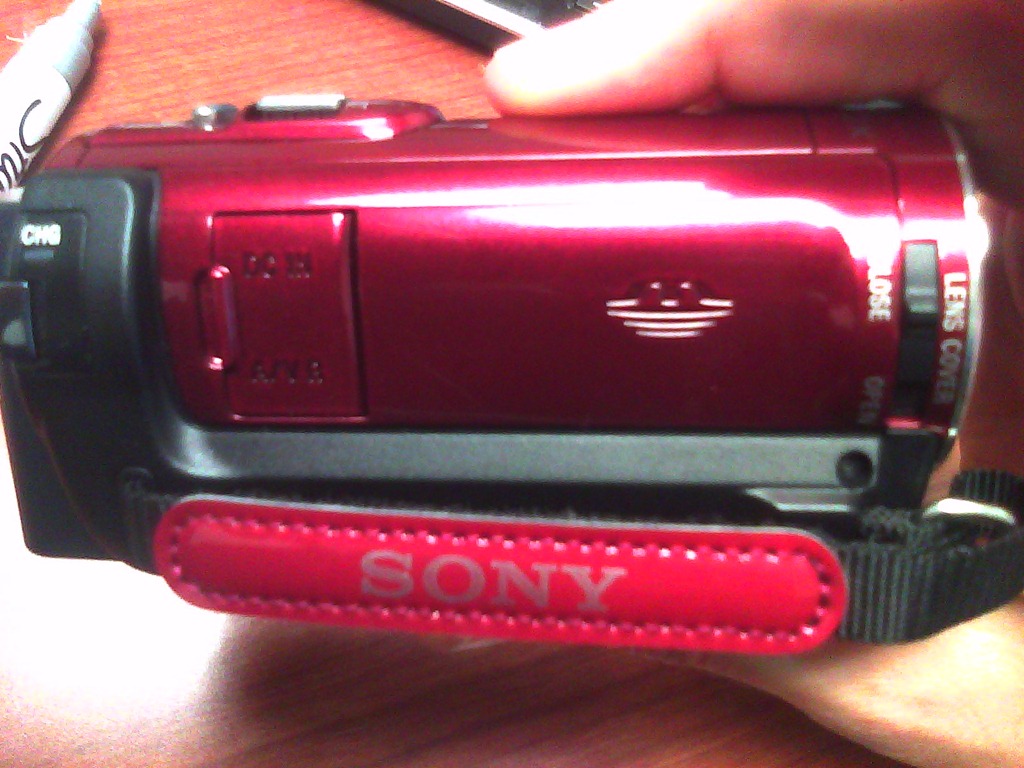
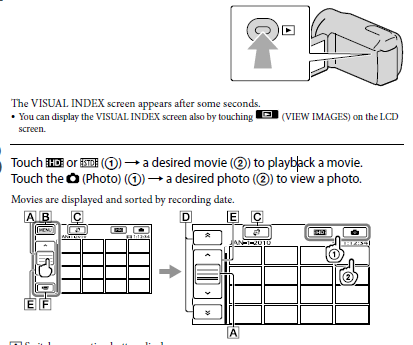
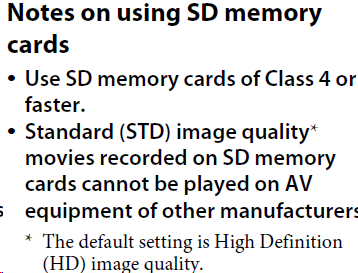
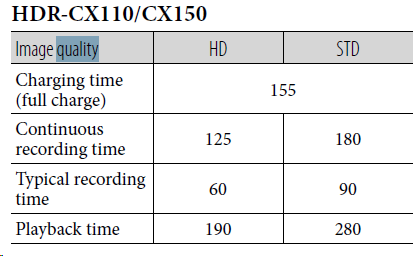
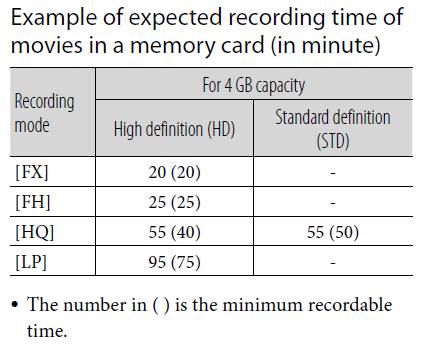
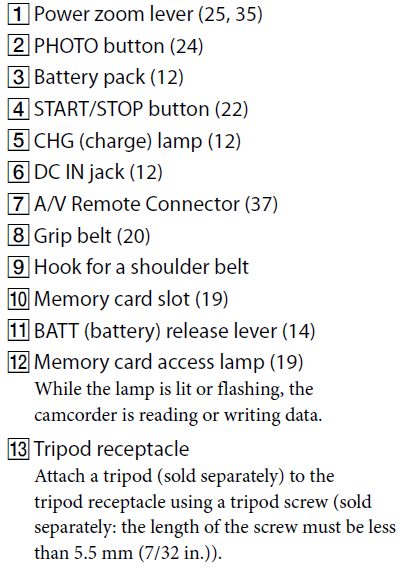
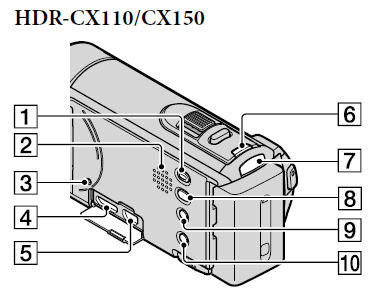
How to record and playback movies on the Sony Hdr-cx110
2013/12/24
Leave a comment

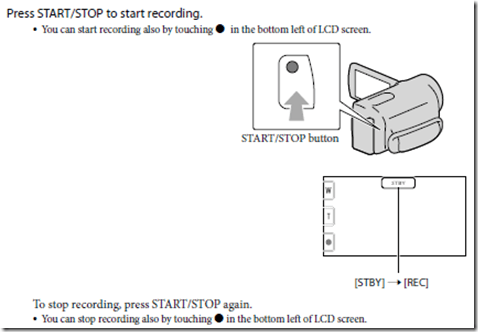
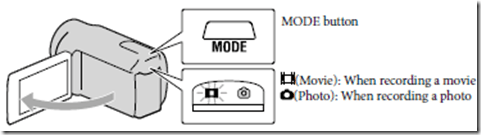

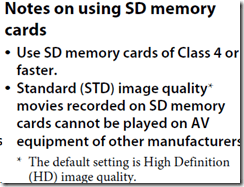
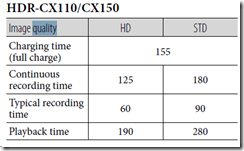
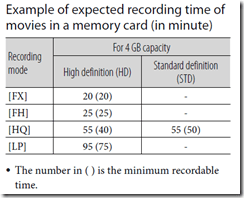
- Complete Overview:



Categories: audience-is-teachers, documentation, e-infrastructure, hardware
cameras, sony, video
Checklist for the LRCCamera15
2013/12/23
Leave a comment
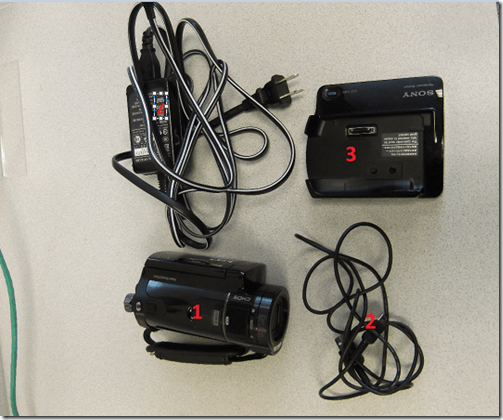
- Are the Parts there?
- camera
- USB Cable
- camera station
- Power cord
- Test the Functionality
- Plug power to camera
- Record for 15sec. By pressing "start, then same button "stop"
-

- TBA: Playback: how?
- Maintenance
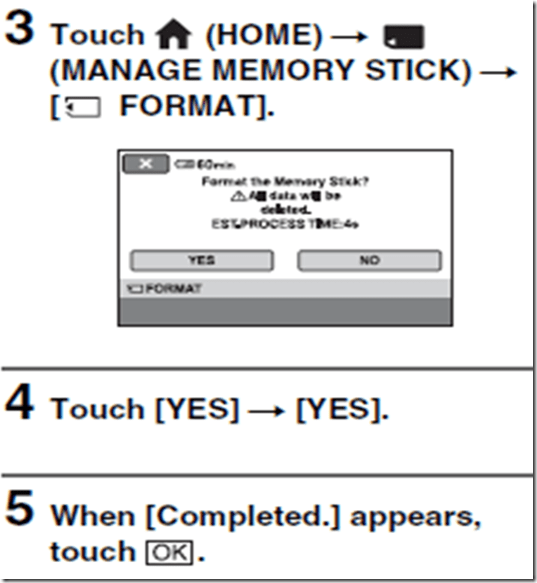
- Format memory to completely delete , according to manual (add screenshot of necessary menu operations): Turn camera on /
- Charge battery
- Overview


Checklist for the LRC Camera16
2013/12/23
Leave a comment
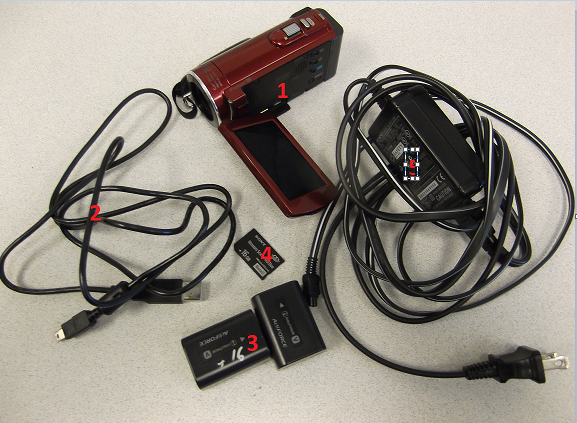
- Are the Parts there?
- Sony camera
- USB Cable
- Batteries
- Memory stick
- Power cord

- Test the Functionality
- Plug power to camera
- Record for 5sec.:


- Playback:

- Choose desired scene to play.
- Maintenance
- Erase, according to manual (add screenshot of necessary menu operations) : Plug camera into wall power outlet;

-
Charge
- Erase, according to manual (add screenshot of necessary menu operations) : Plug camera into wall power outlet;





Questions? Read the About. Or just ask me a quick
Your message has been sent

FAQs for LRC student staff or for students or for teachers. To search our FAQs, in the browser addressbar, add after "https://plagwitz.wordpress.com/feed/?tag=faqs+/" "+TAG1" (from tag cloud below) OR "https://plagwitz.wordpress.com/feed/tag=faqs
&category_name=" "CAT1" (from category hierarchy below). OR search both categories and tags, and multiple TAGs/CATs (connect with "," for OR-search, with "+" for AND-search), like so: https://plagwitz.wordpress.com/feed/?tag=TAG1+TAG2+...TAGn&category_name=CAT1
+CAT2+...CATn"
Other ways to find help
If you cannot find it here, look there: 5,500 Language-Learning Links and Programs for learning or teaching 150 languages
Shortcuts:Our Lists, Our Maps, LRC Staff Moodle Site,LRC Project Moodle Site, 49erexpress, UNCC Moodle, Student Recordings: s:claslcslrcsanakostudent
Learning usage samples: Sanako oral exam, Kaltura webcam presentation, Dictation with speech recognition, Sanako written exam, Chinese and Japanese interactive stroke-order practice
Test the Sanako Installer, Webbrowser Popup Konfigurator for XP, or Windows7, faster LRC TeacherPC Log-in Let MS facilitate diacritics writing by installing for you US-International keyboard layout
This is my personal blog (Google+). The views expressed on these pages are mine alone and not those of my employer. The information in this weblog is provided “AS IS” with no warranties, and confers no rights.
 Thomas' Work Space