Archive
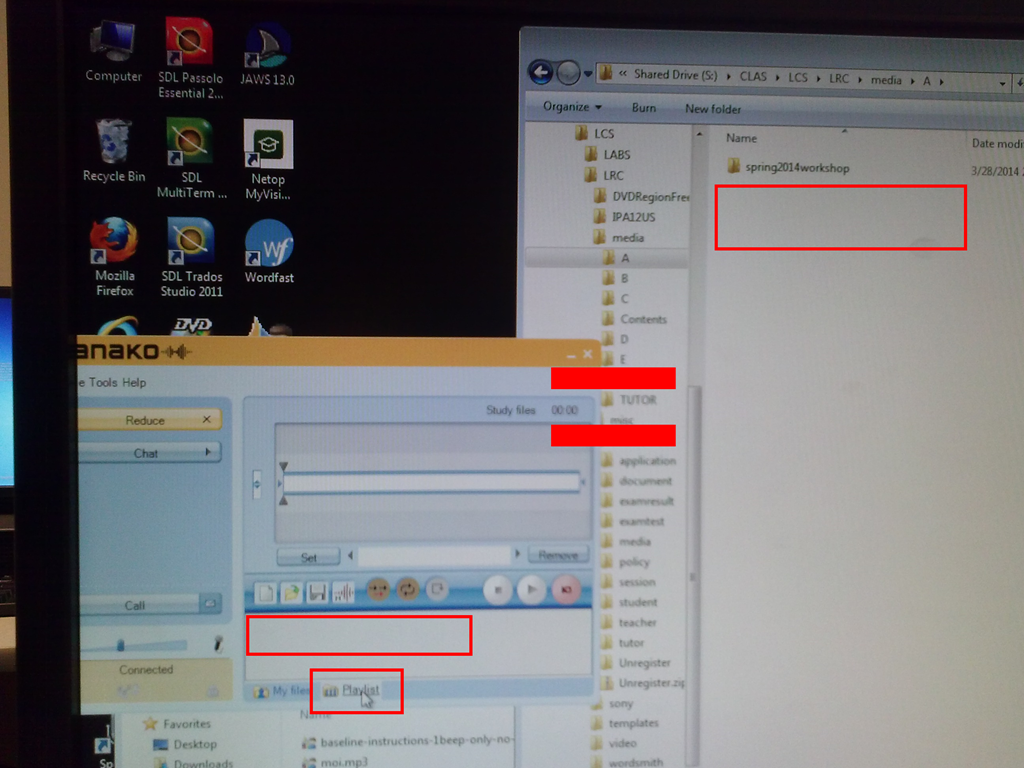
You need to click the Sanako Student Recorder Playlist and Homework tab to refresh changes
The Playlist does not sync automatically:

The playlist syncs (reflects what is actually there) when you click “Playlist”:
Learn and teach writing in your second language on Lang-8.com

Improving language learning with technology for me seems to have 2 avenues: AI and human intelligence. Automated feedback on writing provided by proofing tools – even if they have become smarter and more contextual to spot (in MS-Word 2007 and up) common errors like your/you’re or their/there – makes one wonder about the feasibility of the former. But that automated essay-scoring tools which have been developed and deployed (at least for ESL) claim to score similarly as teachers makes one wonder about much more… Correcting writing remains expensive!
So may be we should look into crowd-sourced writing correction which needs no cutting edge NLP, only well-understood WWW-infrastructural technology to connect interested parties, but requires social engineering to attract and keep good contributors (and a viable business model to stay afloat: This site seems freemium).
Reading online comments and postings in your native language makes one wonder: can language teachers be replaced by crowdsourcing? I became aware of this the language learning website that offers peer correction of writing input by native-speaker through a language learner corpus. I have not thoroughly evaluated the site, but the fact that its data is being used by SLA researchers here (http://cl.naist.jp/nldata/lang-8/) seems a strong indicator that the work done on the website is of value.
To judge by the numbers accompanying the corpus (it is a snapshot from 2010, a newer version is available however on request), these are the most-represented L2 on lang-8.com: 
How to manage balance on stereo audio using Audacity, Sanako student recorder, or any audio player on Windows
- For language lab use, stereo is more important than usual, since the channels may carry source versus translation/interpretation, L1 versus L2, teacher versus student, model versus imitation and so forth.
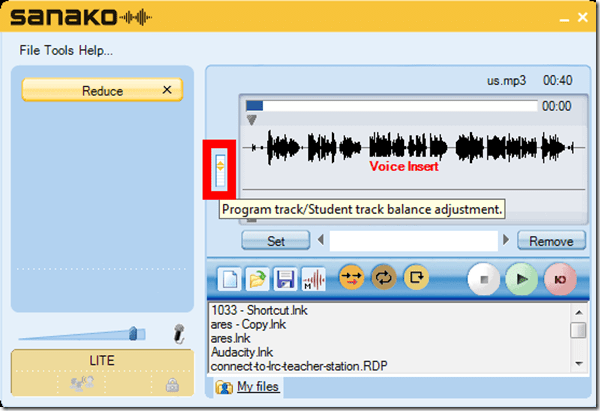
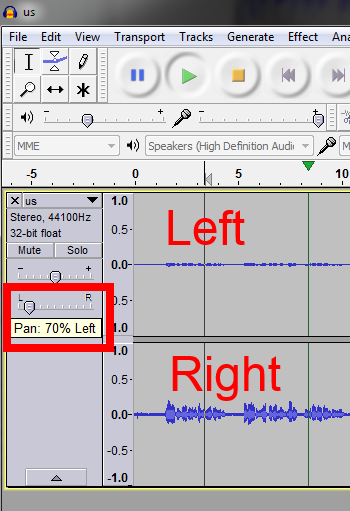
- You can choose which channel to listen to by adjusting the balance for stereo playback.
- In the Sanako Student recorder (free for all), click here:
- In Audacity, click here::

- From any other player on Windows, hold Win-key and press R, type mmsys.cpl, on tab playback, double click the speaker you are outputting to, and on tab levels, change “Balance”:



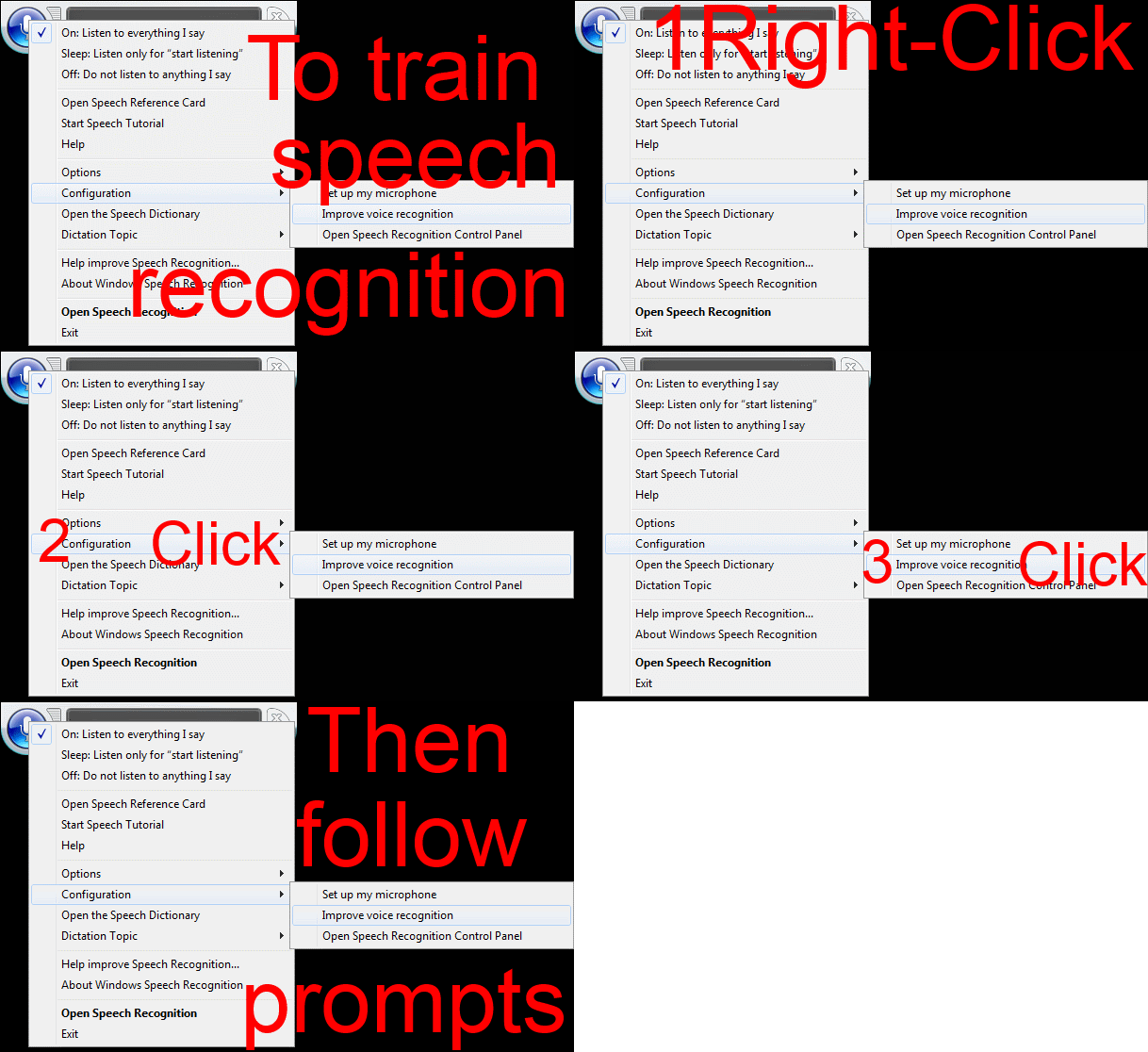
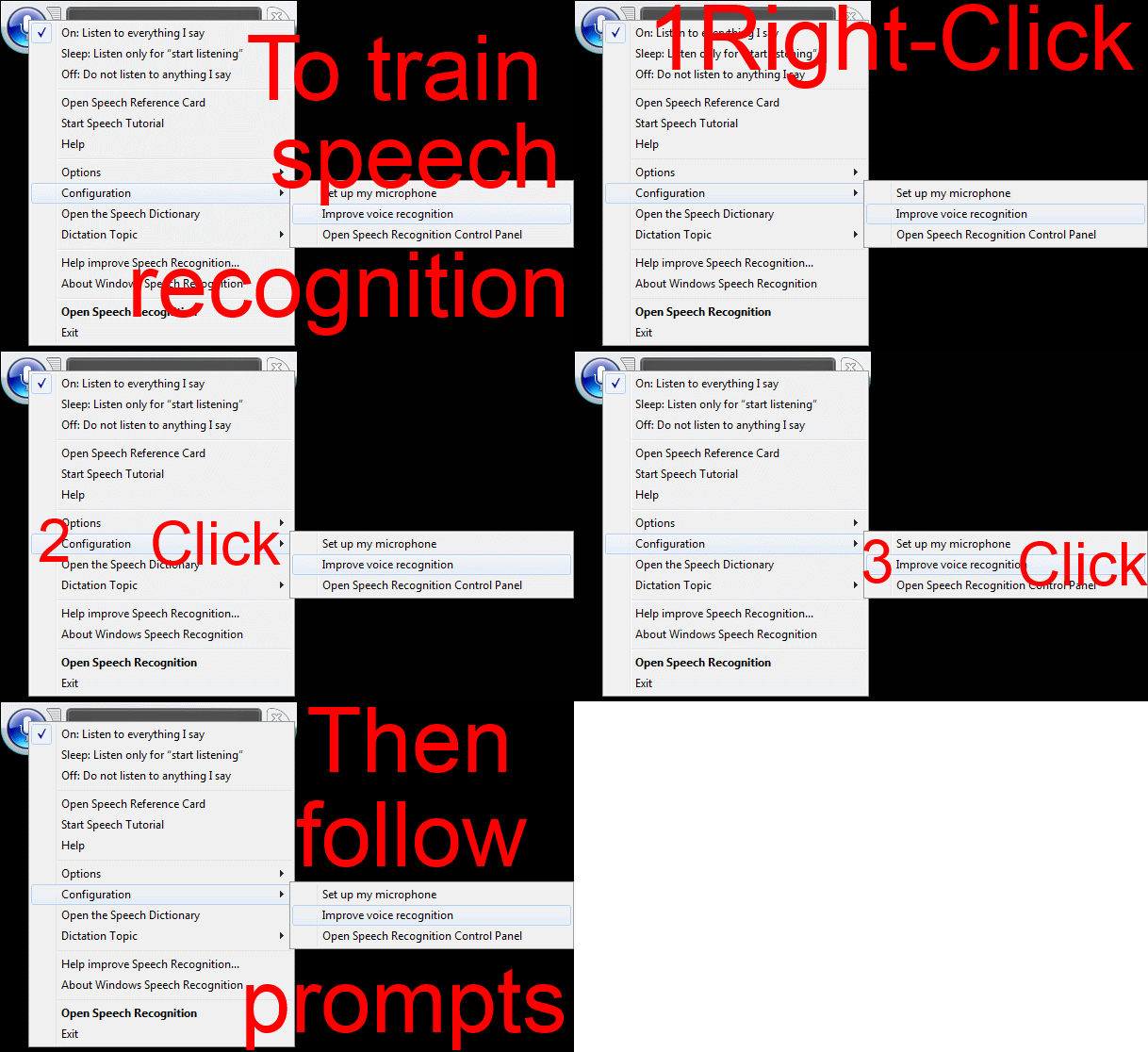
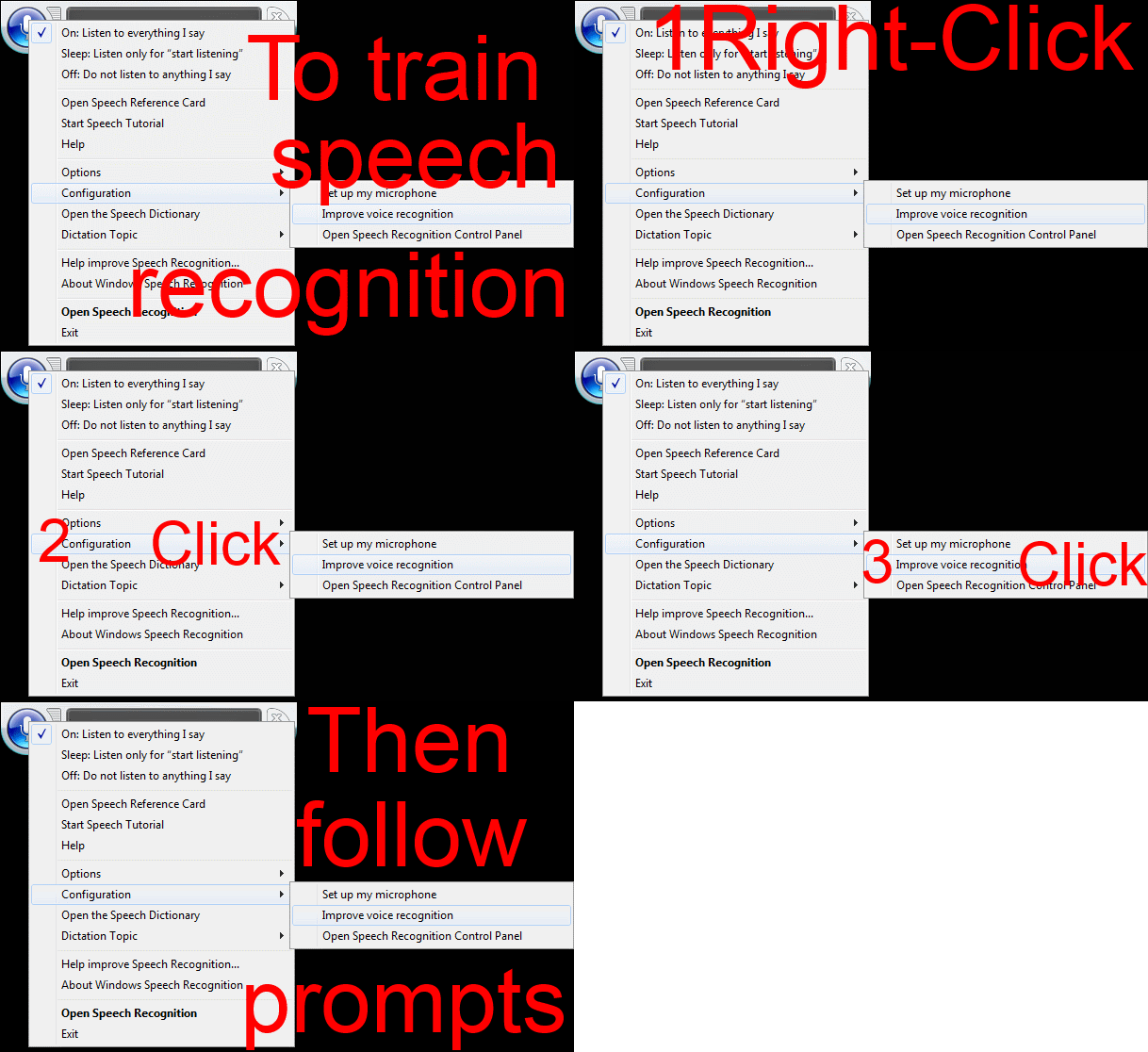
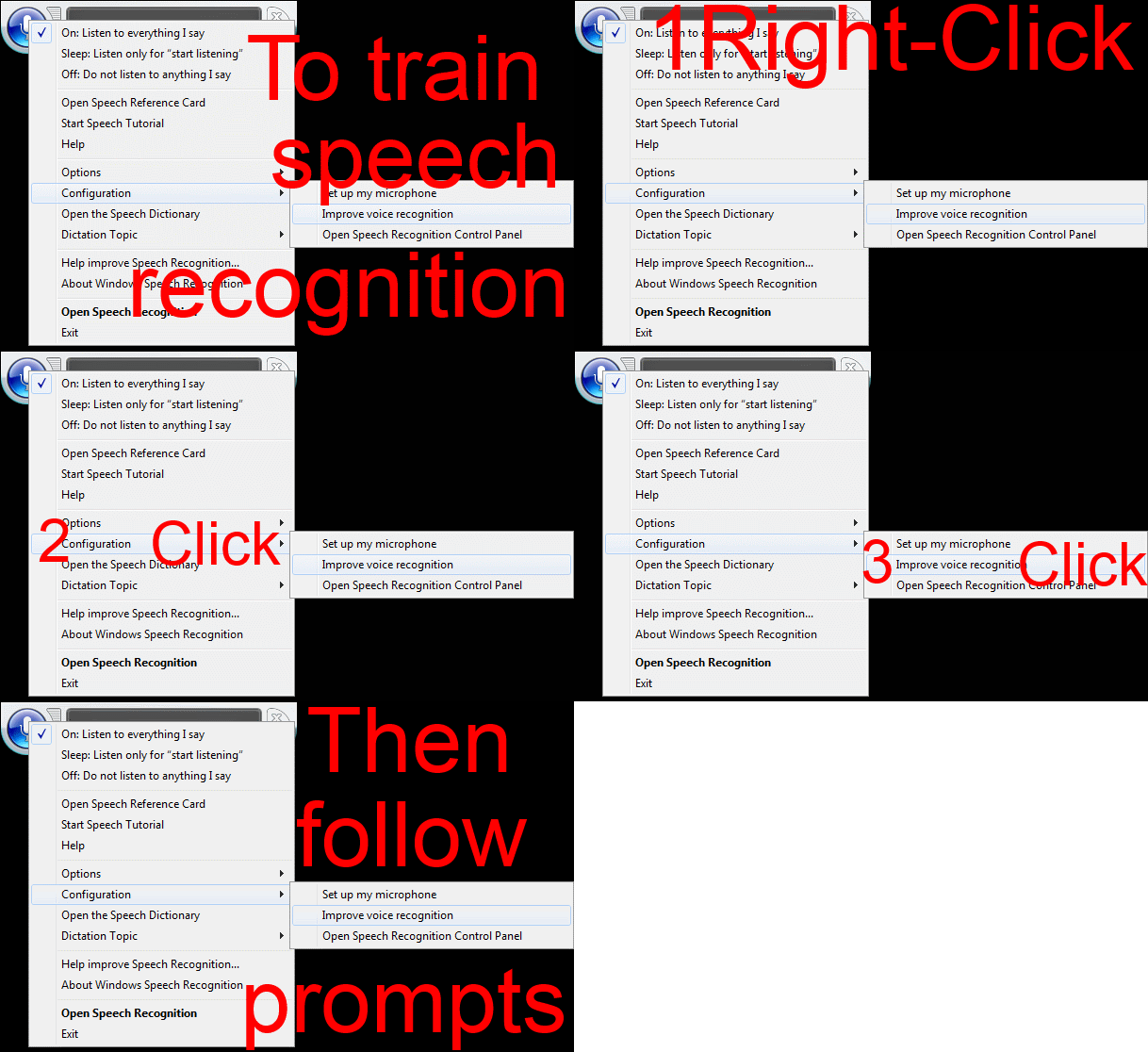
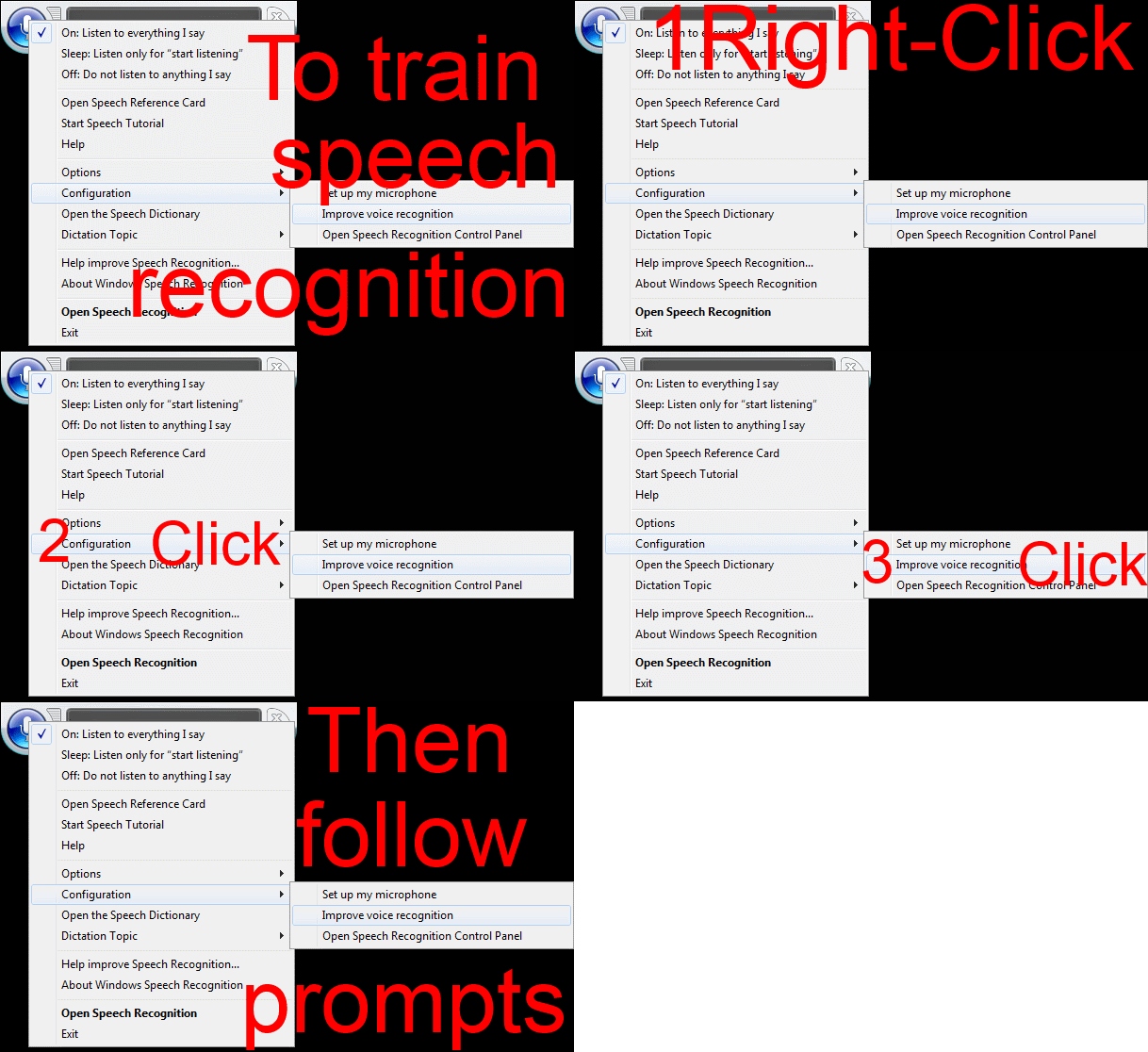
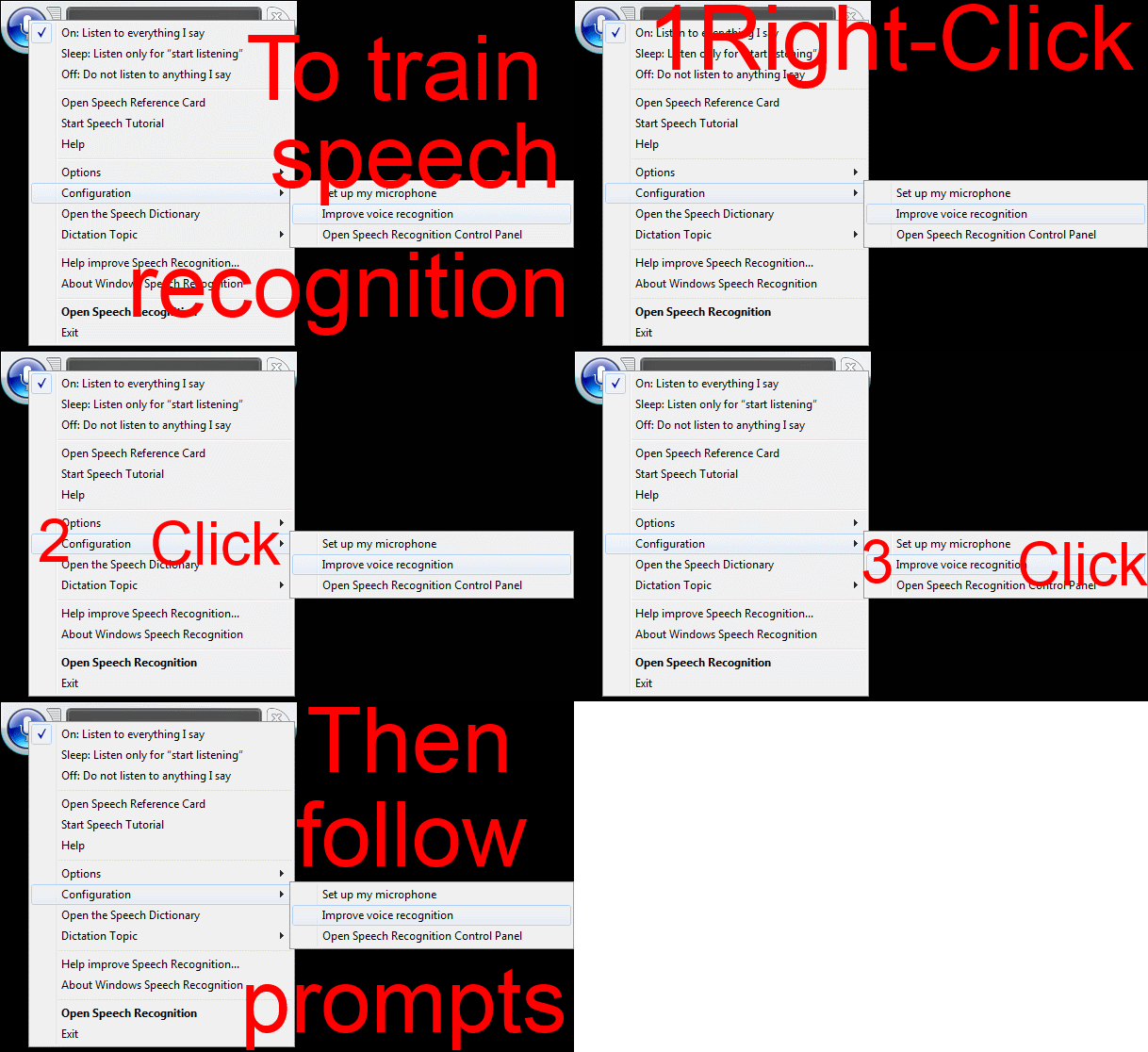
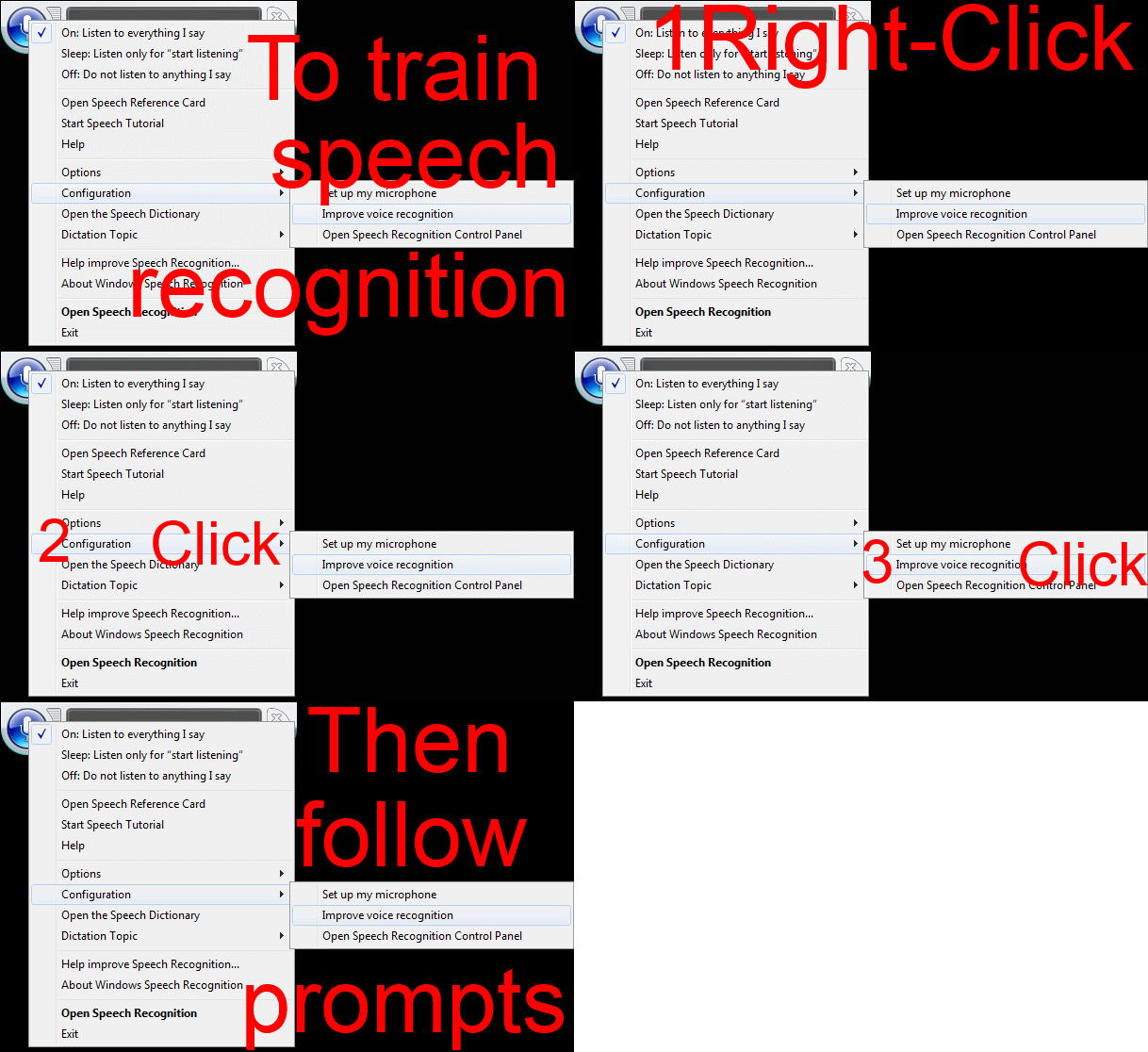
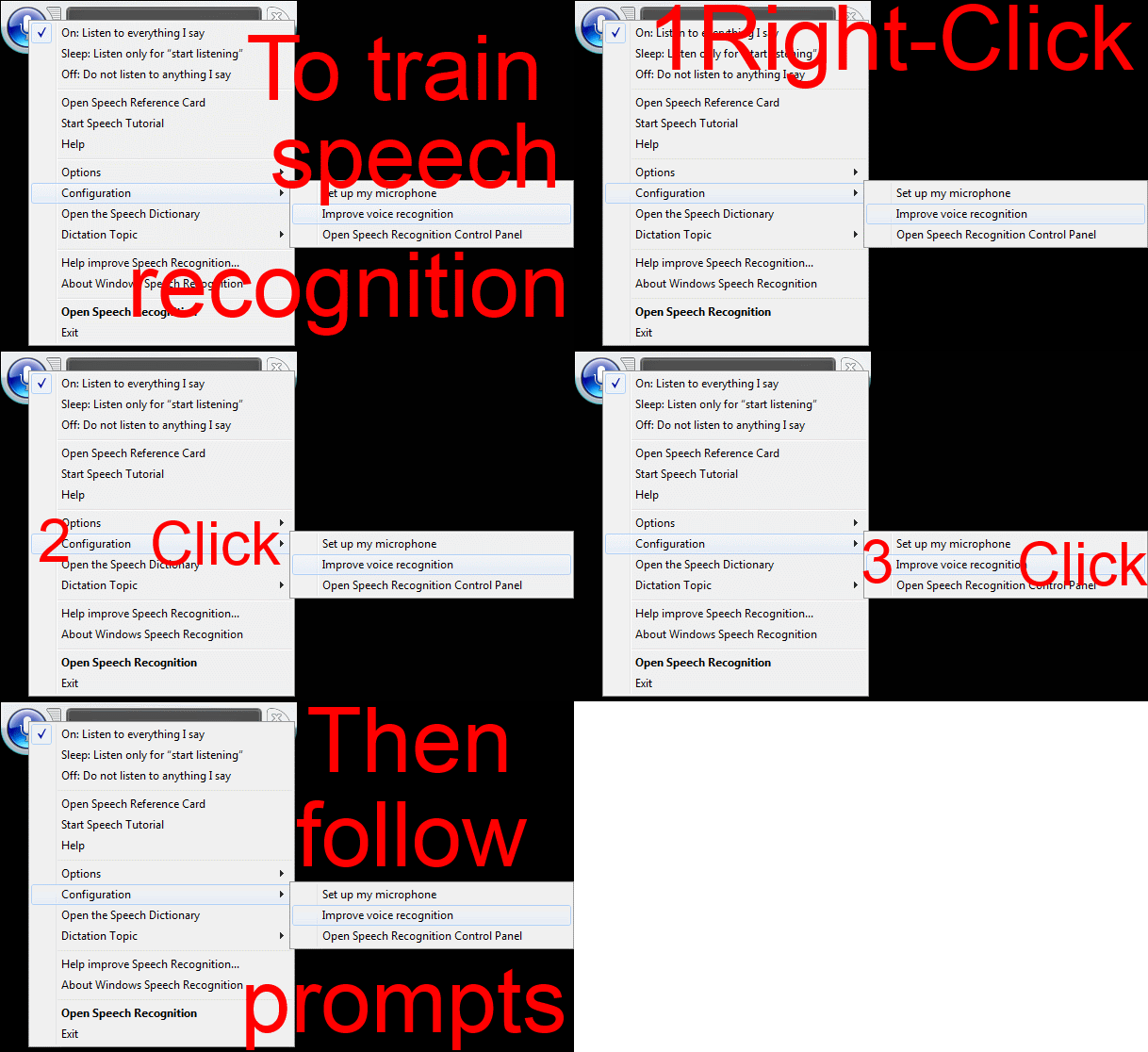
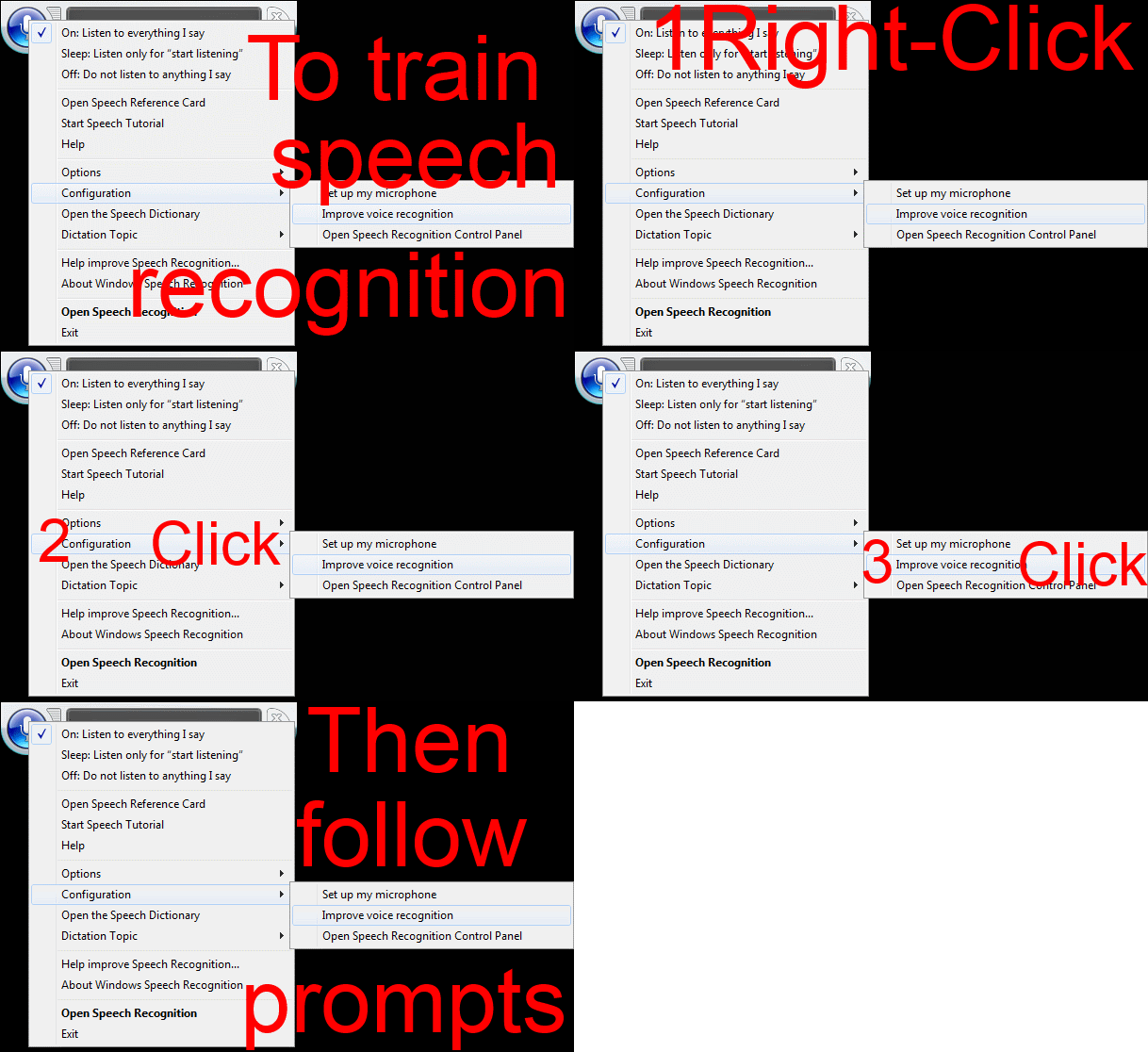
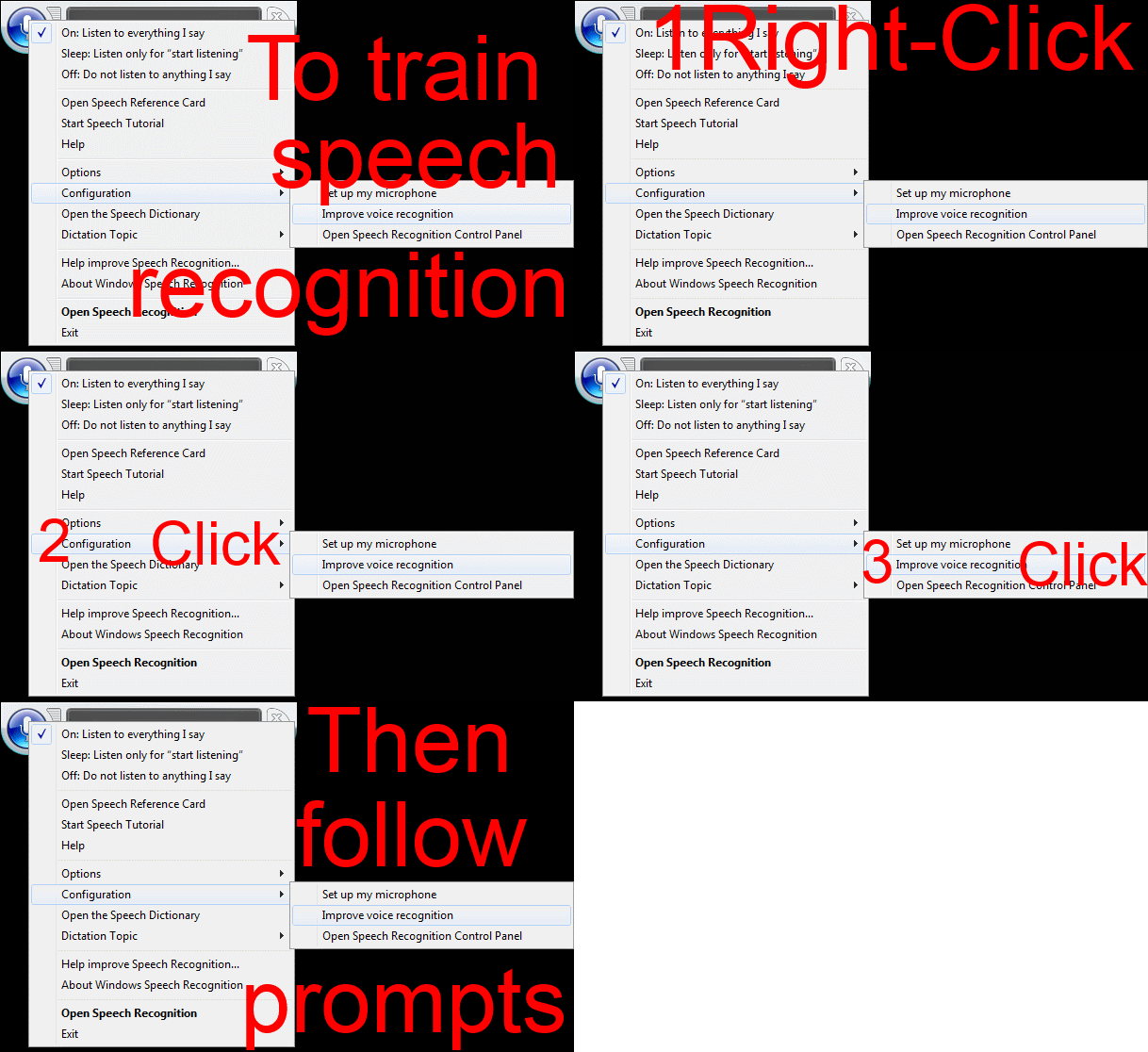
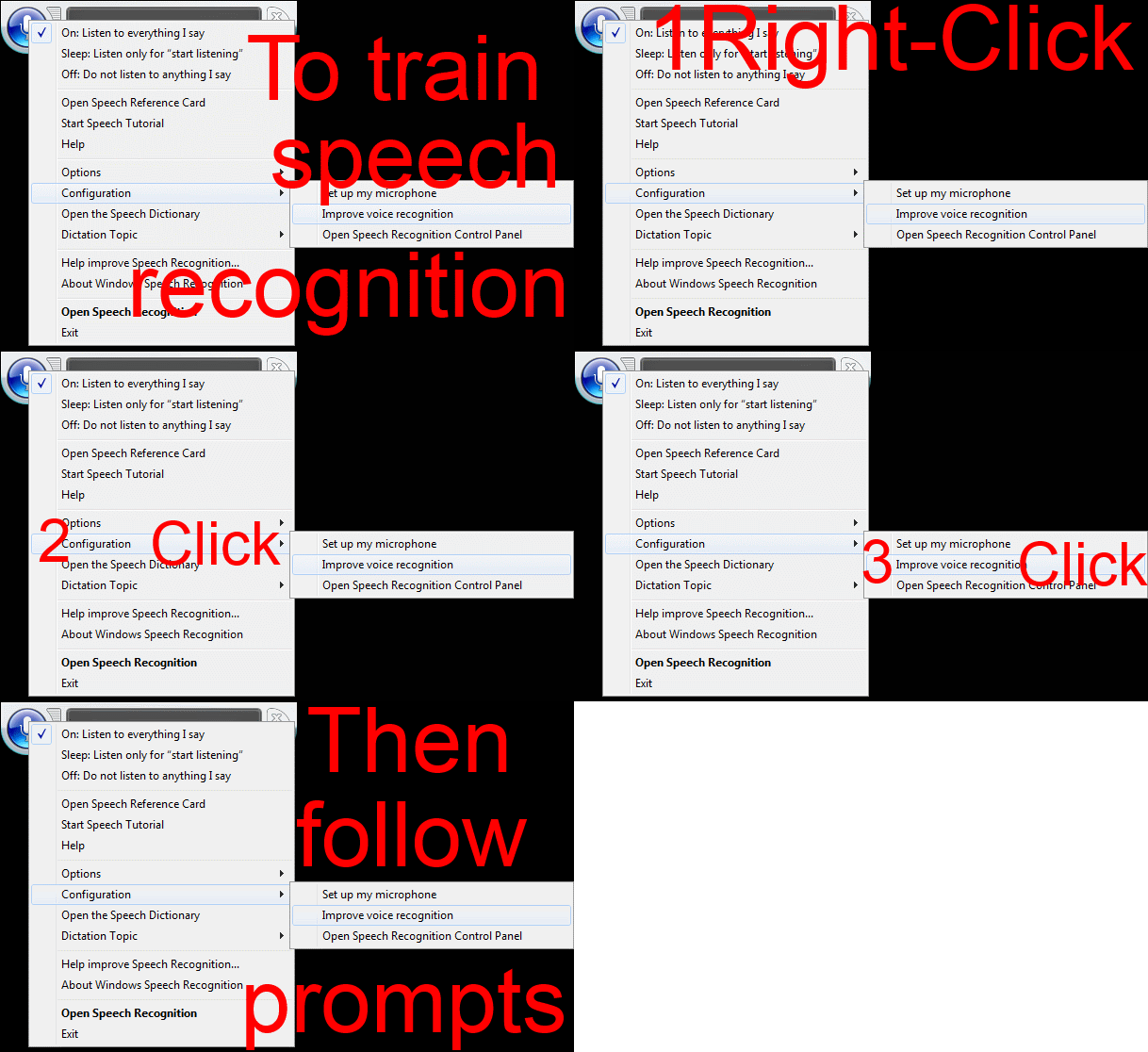
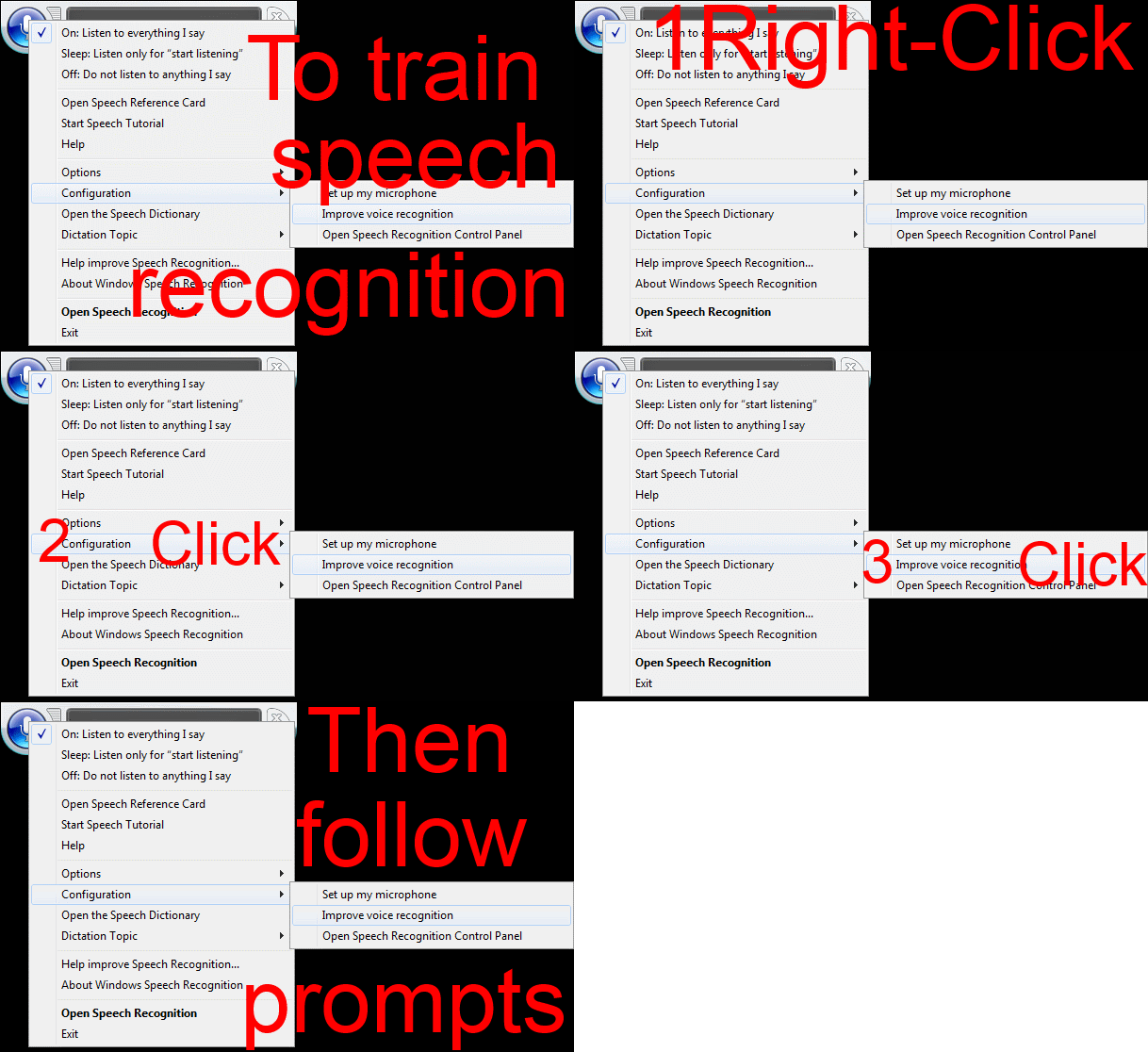
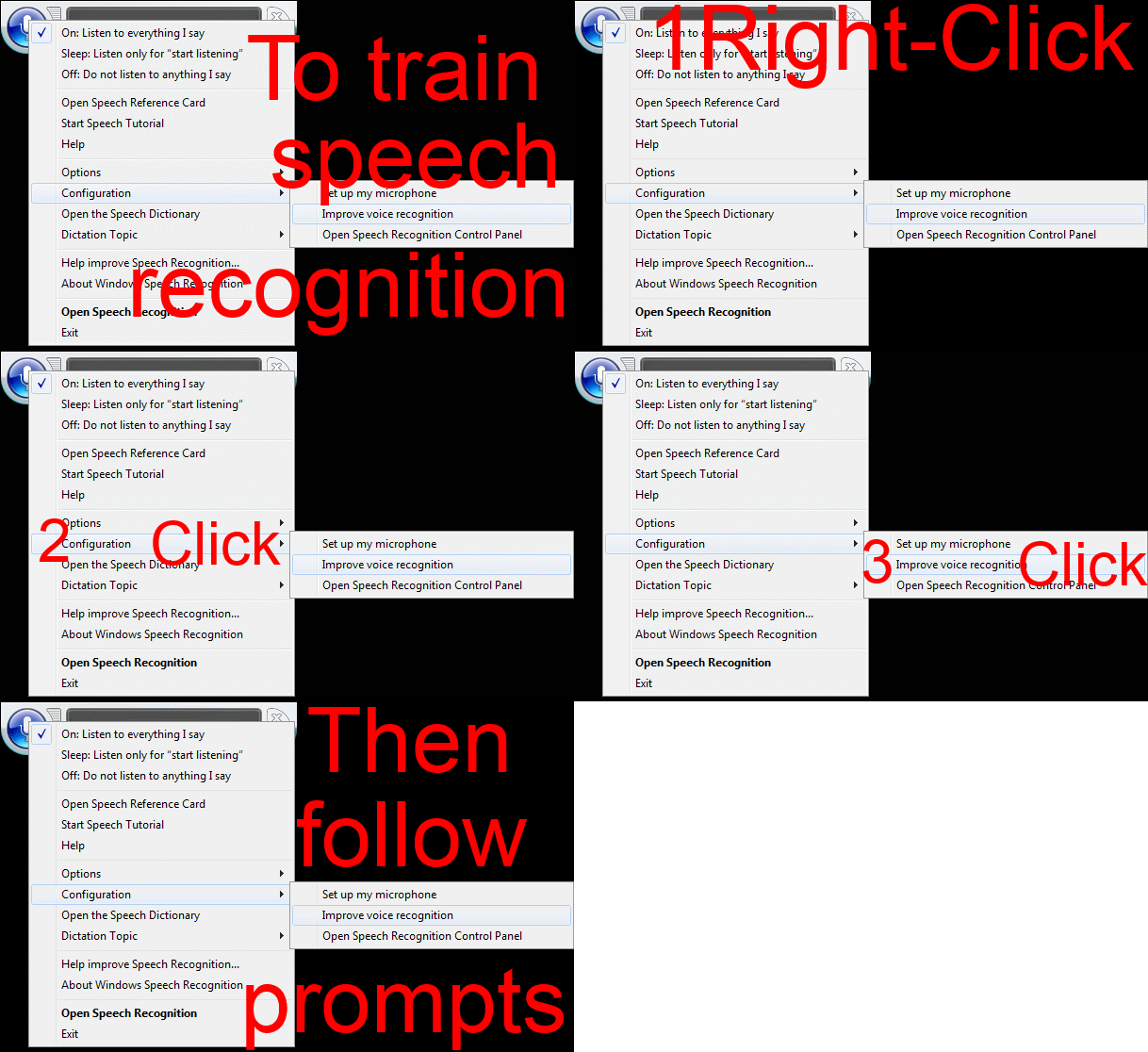
Watch how to start voice training of Windows speech recognition–the ultimate training…
…using animated GIFs. Slower? Click 0.50sec, 0.50sec, 0.75sec, 1sec, 2sec, 3sec, 4sec, 5sec, 6sec, 7sec, 8sec, 9sec, 10sec.
Software-based laser pointer in PowerPoint
- You can activate software laser pointer in PowerPoint by pressing CTRL and P (= Pointer) while displaying your slideshow. Then you can draw on your show to highlight points, just like with a laser pointer – but unlike that, it cannot run out of battery power!
- Other keys you can press:
- Erase = E (unlike with a laser pointer, you have to),
- deActivate = CTRL and A.
- Other advantages: unlike some other screen drawing tools that freeze the screen (MS-ZoomIt notably), the software laser pointer:
- allows you to proceed through the PowerPoint presentation normally;
- can be saved as ink annotations, and will show up if you convert your PowerPoint to a video or play it with narrations.
Save the web, with Clip to OneNote
No, I don’t mean save from proprietary vendors or from spies  – I mean: save it to your personal storage during web browsing, like so:

The essence of http://blogs.office.com/2014/03/17/onenote-clipper-clip-the-web-right-to-onenote/. https://www.onenote.com/Clipper/OneNote should be useful not only for personal research on the web.
How to resolve error “Speech Recognition could not start because the language configuration is not supported”
- Problem: I have seen this error
 ,
, - Root cause: when the display language and speech language do not match (the latter is set to default to the former in the LRC, but it seems they can get out of sync), as you can witness here (English display does not match Chinese speech recognition):

- Solution: Follow the instructions in the error message, i.e.
- Access the Speech recognition control panel here:
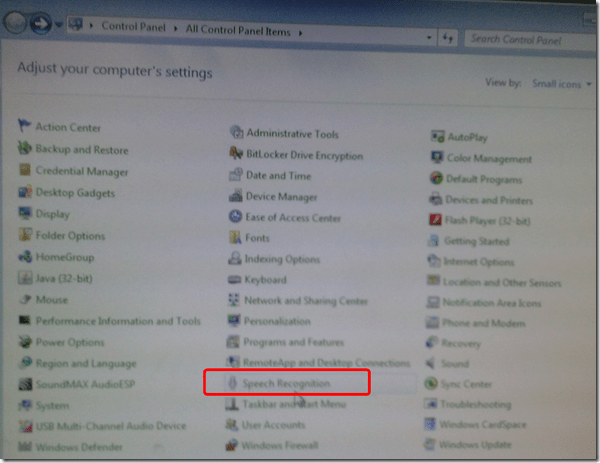
- Then change the speech recognition language to match the display language, like I am doing here:

- Quick workaround: Not sure about how quick, but in the LRC, you can also just try and restart the computers, they are “frozen” to a default configuration in display and speech recognition language (English/English – matches).




Questions? Read the About. Or just ask me a quick Our Databases: Resources with calendars -- Language learning material Moodle Sites, multimedia files -- films


FAQs for LRC student staff or for students or for teachers. To search our FAQs, in the browser addressbar, add after "https://plagwitz.wordpress.com/feed/?tag=faqs+/" "+TAG1" (from tag cloud below) OR "https://plagwitz.wordpress.com/feed/tag=faqs
&category_name=" "CAT1" (from category hierarchy below). OR search both categories and tags, and multiple TAGs/CATs (connect with "," for OR-search, with "+" for AND-search), like so: https://plagwitz.wordpress.com/feed/?tag=TAG1+TAG2+...TAGn&category_name=CAT1
+CAT2+...CATn"
Other ways to find help
If you cannot find it here, look there: 5,500 Language-Learning Links and Programs for learning or teaching 150 languages
Shortcuts:Our Lists, Our Maps, LRC Staff Moodle Site,LRC Project Moodle Site, 49erexpress, UNCC Moodle, Student Recordings: s:claslcslrcsanakostudent
Learning usage samples: Sanako oral exam, Kaltura webcam presentation, Dictation with speech recognition, Sanako written exam, Chinese and Japanese interactive stroke-order practice
Test the Sanako Installer, Webbrowser Popup Konfigurator for XP, or Windows7, faster LRC TeacherPC Log-in Let MS facilitate diacritics writing by installing for you US-International keyboard layout
This is my personal blog (Google+). The views expressed on these pages are mine alone and not those of my employer. The information in this weblog is provided “AS IS” with no warranties, and confers no rights.
 Thomas' Work Space