Archive
Archive for December, 2013
Checklist for light-kits
2013/12/11
Leave a comment
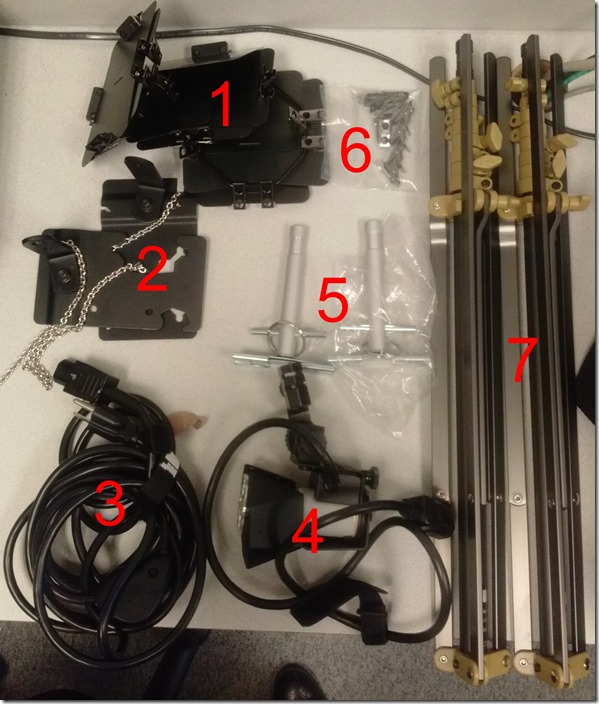
- Parts: 25 each, .i.e.:
- 4 plates (1)
- 2 more plates (2)
- 3 extension power cables (3)
- 3 lamps (4), containing 3 bulbs (not pictured)
- 2 thingamabobs (5)
- 8 clamps (6)
- 2 stands (7)
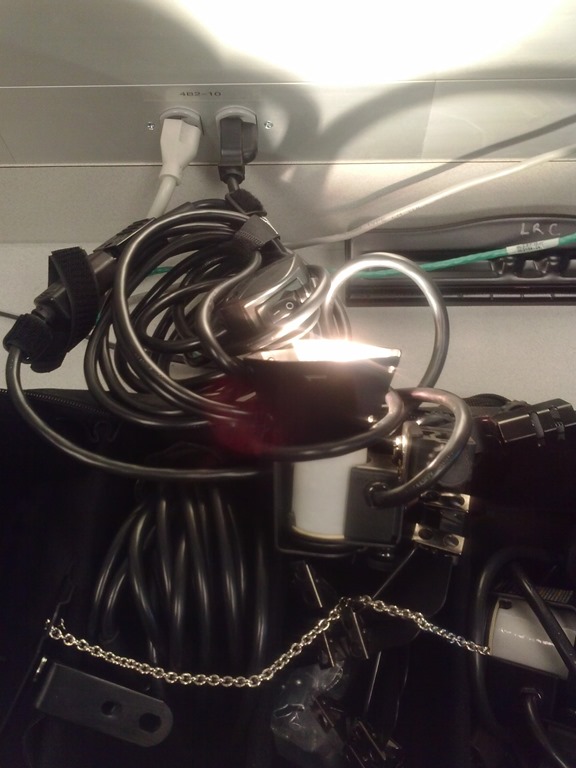
- Functionality: plug them in and turn them on, like so:


Sanakoaudioconfigonthefly software utilities updated for Vista/Windows7
2013/12/09
Leave a comment
- (Shortcut to download – now fixed) The reason why a colleague’s signature reads: “Worrying about a large institution, especially when it has computers, is like worrying about a large gorilla, especially when it’s on fire" (Bruce Sterling) might just be that a multimedia-capable fully computerized classroom – think 30 PCs and 30 students trying not only to listen to, but record responses to exam audio – is a notoriously difficult beast to control, and all too easily spins out of the same (a classroom humming in an endless audio feedback loop is neither a pleasant nor an unfamiliar sight).
- The Sanako Study 1200 is a digital audio lab software that facilitates the use of personal computers in face-to-face class settings. However, while the Sanako Study 1200 features many ways for the teacher to control and manage the student PCs, the students’ audio settings cannot be controlled on the fly.
- Enter these little sanakoaudioconfigonthefly utilities (written in AutoIt) for Windows 7 and Vista (old Windows PX version still available here) that extend the Sanako Study 1200.
- We now use (as it is completely adequate and actually superior to to the seemingly more applicable PC control / Launch programs features which is requires the program executable to reside under the same path on student and tutor computer) Playlist / copy and launch (folder icon) and the Sanako grouping feature to send a program with your choice of action to the student PCs of your choice. In this example,
- click playlist,

- and in the window that opens, click (1) to send to “all”, then click (2) to select which program to send:
![image_thumb[3]](https://thomasplagwitz.com/wp-content/uploads/2013/12/image_thumb3_thumb.png?w=341&h=244 "image_thumb[3]")
- Files included in this release (each for 64-bit, and as source code, so that you can compile your own if you are still on MS-Vista/MS-Windows-732-bit platform):
- Change student recording levels (microphone sensitivity).
- Toggle student sidetone ( in Sanako = “listen” to this device in Windows)
- Control student playback level (headphone volume).
- Likely these programs can be adapted beyond Sanako Study 1200, but I do not remember (helpful comments appreciated)
-
- whether other digital audio lab platforms (Sony Virtuoso, Robotel SmartClass) allow for changing the student audio config on the fly
- and what mechanism (if any – but likely) they (and Sanako Lab300) provide to launch programs on the students’ computers
- Prerequisites:
- None other than your digital audio lab software and the utilities you can download below. In particular, it is not required to install AutoIt on teacher or student computers.
- However, there should be only 1 microphone/speaker per student computer in the digital audio lab. If you have more, you likely have bigger problems to solve first, but you also need to alter the source code (included) to select the microphone you want to work with (should be easy; note however, that I have not tested this scenario, for: “There should be only 1 microphone/speaker per student computer in the digital audio lab”

- Request here to download these utilities.

![image_thumb[3]](https://thomasplagwitz.com/wp-content/uploads/2013/12/image_thumb31.png "image_thumb[3]")
Request to download the digital audio lab classroom audio configuration on the fly, program and source for Windows 7
2013/12/09
Leave a comment


Free German online proofing tool by Duden
2013/12/09
Leave a comment
- Don’t have MS-Word Proofing Tools, and can’t come to the LRC which has proofing tools for German and many other languages installed?
- Try Duden’s (= authoritative German dictionary publisher, and nowadays much more) free (up to 800 characters at a time; a time-limited (=30 days add-in for MS-Word is also available) Online version:

- Use it wisely: Learning is not cheating. But please consult your teacher whether this is legitimate help.
- Now how’s the quality? Drop us a comment below.
Categories: audience-is-students, German, websites, Writing
proofing-tools
Testing and semi-automatically changing the Sanako student audio configuration
2013/12/09
Leave a comment
- Problem
- We have had teacher complaints about too much background noise from neighboring students being recorded in our Sanako Study 1200, with SLH-07 headsets.
- In addition, upon looking through some recordings as samples for a workshop, I found cases of clipping audio, especially in pair recordings.
- We are using the default settings for the Sanako SLH-07 headset. However, the default recording level (67) seems high.
- Solution approach
- We need to test
- many other settings quickly for these recording levels. We use my sanakoaudioconfigonthefly utility for this
- in an acoustically realistic environment: 5 Lab assistants site in tight lab area and read out sample English text during a Sanako reading activity
- Reading practice
- Todo: Pairing
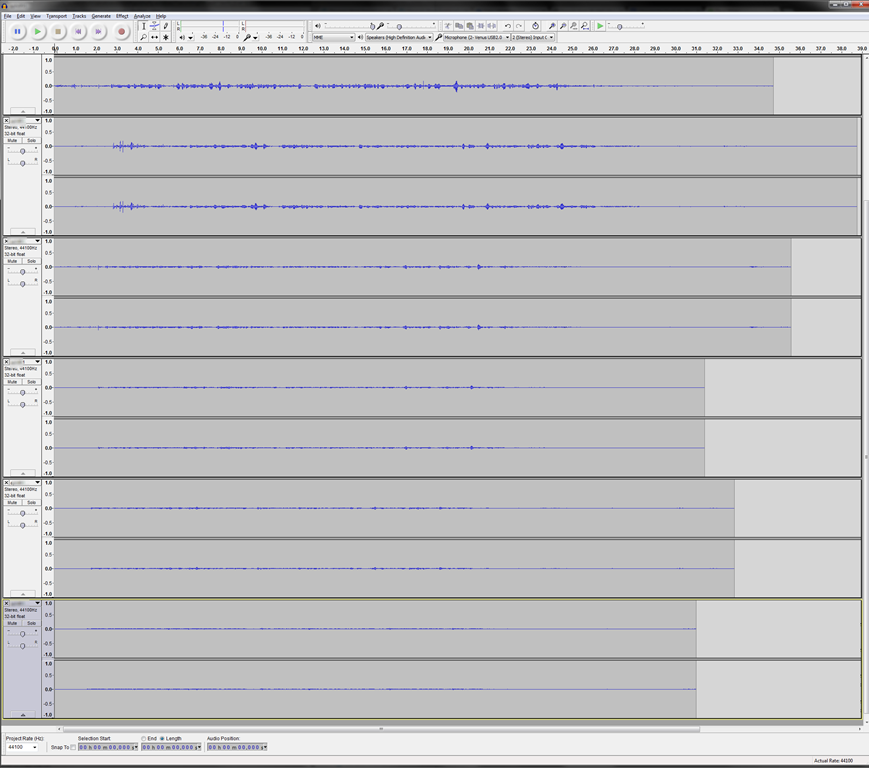
- Here is a “window” into the recorded results set, a student’s audio recording shown in Audacity at various (but all lowered) recording levels from (visible) 30 to 5, you can see the diminishing waveform amplitude.

- The waveform per se is not conclusive. You will have to listen in and compare, especially to evaluate background noise (the original complaint – we have no and will not be able to go back to language lab carrels). The Sanako SLH-07 headset microphones are supposed to be highly directional. However, our students to not always wear the headsets properly. And our acoustics is marred by large (almost 50%) window spaces and a tight positioning of the student seats.
- Any test recording is only as good as it can mimic the acoustics during an actual class session which we did as much as we could with only 6 concurrent LRC staff. This means unfortunately some more testing will have to spill into actual classes, but this test is a start.
- We need to test
Another way to upload many files into Moodle 2
2013/12/04
Leave a comment
- Last time we started from “Add folder” to get to the handy drag-and-drop file upload control in Moodle 2.
- This time we do not want to create a new folder, but work within an existing folder (better for categorizing lots of files).
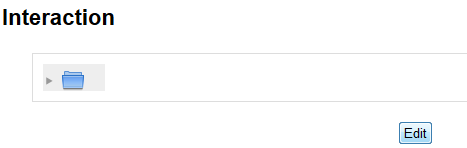
- Browse into the folder and click edit

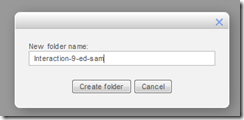
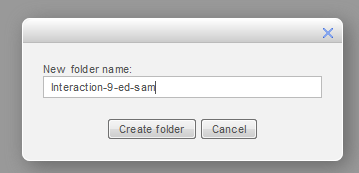
- click create folder

- add name and click create
- click to open folder

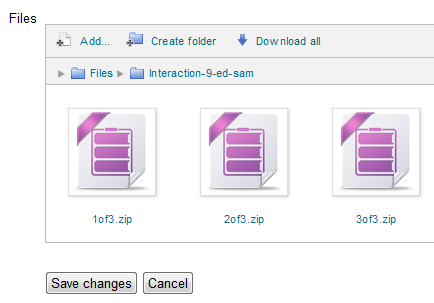
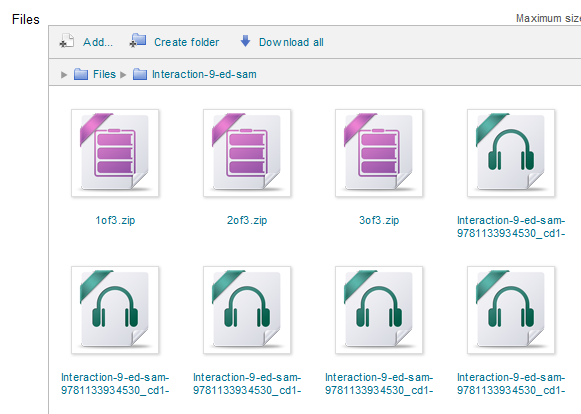
- drag/drop files as zip in folder
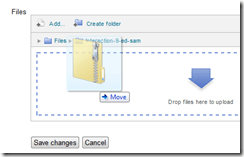
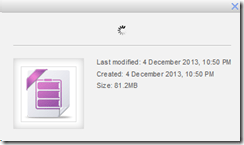
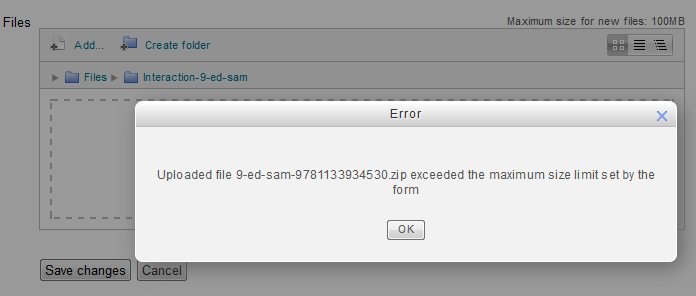
- oops, check the upper right warning :

- Split your files into smaller segments
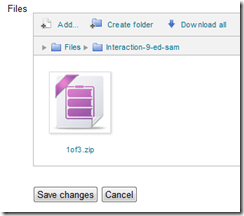
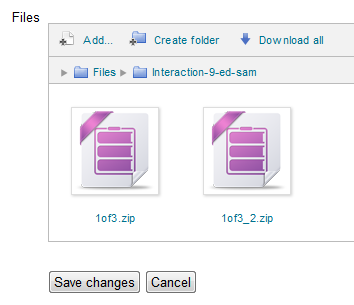
- And be patient, there is no visual indicator of progress, or any action, after the drop), or else you get duplicates:

- Just delete duplicates you might have created:

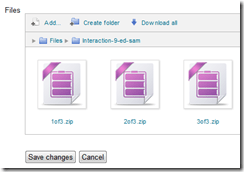
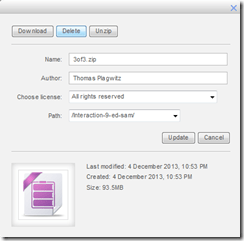
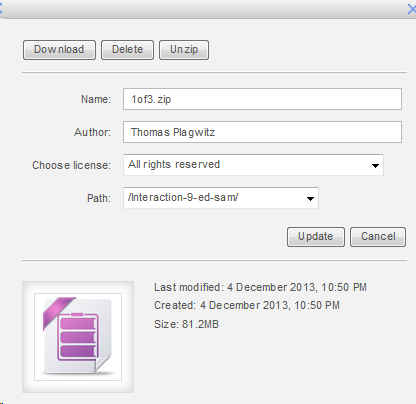
- click on each zip file and choose “unzip”:


- Delete the zip files (not needed anymore)
- Finally, click “save changes”
-
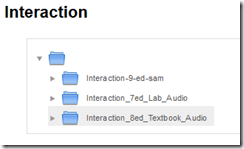
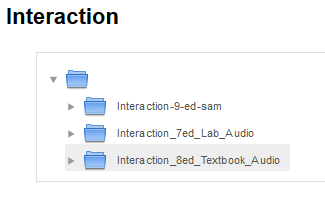
- Note, by working within a folder, you cannot link directly to the new folder you created. It should however be easy enough to navigate to it if you send the link to the root folder, here “Interaction”.








Categories: audience-is-teachers, e-learning, lms, training
files, folders, moodle
A few examples of recessed aka downview computer screens in face-to-face learning environments
2013/12/04
Leave a comment
Receded computer screens would save us having to rename the LRC learning environment from “face-to-face” to “face-hidden-behind-screen-from-face”,  and are especially good for communicative language class activities that are not computer-mediated, but only –aided. Receded screens also provide pretty good privacy, and are essential for written exam integrity.
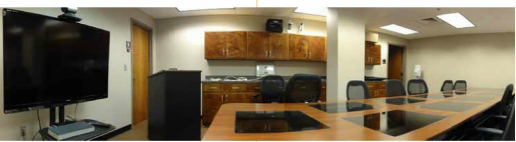


Newer design claim ergonomic problems of older designs and are not as recessed, but make it easier to cheat in exams:




Questions? Read the About. Or just ask me a quick Our Databases: Resources with calendars -- Language learning material Moodle Sites, multimedia files -- films
FAQs for LRC student staff or for students or for teachers. To search our FAQs, in the browser addressbar, add after "https://plagwitz.wordpress.com/feed/?tag=faqs+/" "+TAG1" (from tag cloud below) OR "https://plagwitz.wordpress.com/feed/tag=faqs
&category_name=" "CAT1" (from category hierarchy below). OR search both categories and tags, and multiple TAGs/CATs (connect with "," for OR-search, with "+" for AND-search), like so: https://plagwitz.wordpress.com/feed/?tag=TAG1+TAG2+...TAGn&category_name=CAT1
+CAT2+...CATn"
Other ways to find help
If you cannot find it here, look there: 5,500 Language-Learning Links and Programs for learning or teaching 150 languages
Shortcuts:Our Lists, Our Maps, LRC Staff Moodle Site,LRC Project Moodle Site, 49erexpress, UNCC Moodle, Student Recordings: s:claslcslrcsanakostudent
Learning usage samples: Sanako oral exam, Kaltura webcam presentation, Dictation with speech recognition, Sanako written exam, Chinese and Japanese interactive stroke-order practice
Test the Sanako Installer, Webbrowser Popup Konfigurator for XP, or Windows7, faster LRC TeacherPC Log-in Let MS facilitate diacritics writing by installing for you US-International keyboard layout
This is my personal blog (Google+). The views expressed on these pages are mine alone and not those of my employer. The information in this weblog is provided “AS IS” with no warranties, and confers no rights.
 Thomas' Work Space