Archive
Archive for May, 2012
How to play a DVD from the LRC teacher podium
2012/05/04
Leave a comment

- On the Control panel, click on “DVD”
- This makes the DVD controls appear, which include play and FF.
- By clicking on “Advanced Controls”, you can access another screen with more controls.
- Or you can play your DVDs from the teacher podium computer which is more integrated with the rest of the computer use, and you do not have to walk over to the AV cabinet to insert the DVD. Read in…
Categories: audience-is-teachers, Presenter-Computer
DVDs, videos
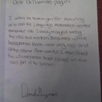
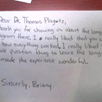
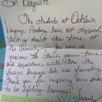
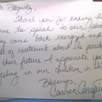
Students of the Oaklawn Language Academy visited the LRC …
2012/05/03
Leave a comment
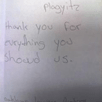
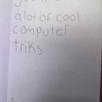
… and sent us a thick envelope chock-full of these very sweet handwritten thank-you notes.
I have twin nieces their age, so I know that it can take a bit to get them to write these notes (I am looking at you, Miss M…!  ).
).
The little man on the screen they mention, that can talk in tongues is the Microsoft-Deskbot, and the headphones they mention were connected to a Sanako Study 1200 digital audio lab.
I hope we can upgrade all this to Windows 7 this summer, and that the Language Academy will be back next spring to admire it all…




How to stream video clips to students in classroom and at home, using Moodle Kaltura
2012/05/02
Leave a comment
- DVDs are getting a bit long in the tooth, not to mention VHS, and can form a real obstacle or time-consuming distraction in an educational setting, from handling the media to finding compatible software and/or hardware players for the media.
- Fortunately, there is a now a better way to make video clips available to students than uploading them to YouTube.com:
- university-supported,
- more compliant with copyright and fair use restrictions (which still apply)
- also requiring only a web browser (available on all campus computers, including teacher computers in classrooms, including those that have no (region-free) DVD-player installed)
- and a course enrolment. But access to a Moodle course can now be considered a given, both for teachers and students.
- Moodle Kaltura allows for easy
- uploading of a video file by the teacher
- viewing by the student (streamed – Flash required, not different from YouTube.com).
- View a screencast example how easy it is with Moodle Kaltura to upload and playback a video clip from a movie DVD.

- Not different from YouTube.com, you still need to edit out the segment from the DVD that you want to show in your class, uploading a full DVD I do not intend to test.
- From this example, you can also get an idea how long the server-side encode takes before the video an be streamed back to students: the short clip of a few minutes here starts playing back at 12:40. Naturally, a teacher would prepare their course, including all video uploads, before the term starts or possibly before the week starts, or, in extremis, before the class starts – in practice, only the – extremely unlikely – scenario where the teacher would try and upload the video during the class is not supported.


Questions? Read the About. Or just ask me a quick Our Databases: Resources with calendars -- Language learning material Moodle Sites, multimedia files -- films


FAQs for LRC student staff or for students or for teachers. To search our FAQs, in the browser addressbar, add after "https://plagwitz.wordpress.com/feed/?tag=faqs+/" "+TAG1" (from tag cloud below) OR "https://plagwitz.wordpress.com/feed/tag=faqs
&category_name=" "CAT1" (from category hierarchy below). OR search both categories and tags, and multiple TAGs/CATs (connect with "," for OR-search, with "+" for AND-search), like so: https://plagwitz.wordpress.com/feed/?tag=TAG1+TAG2+...TAGn&category_name=CAT1
+CAT2+...CATn"
Other ways to find help
If you cannot find it here, look there: 5,500 Language-Learning Links and Programs for learning or teaching 150 languages
Shortcuts:Our Lists, Our Maps, LRC Staff Moodle Site,LRC Project Moodle Site, 49erexpress, UNCC Moodle, Student Recordings: s:claslcslrcsanakostudent
Learning usage samples: Sanako oral exam, Kaltura webcam presentation, Dictation with speech recognition, Sanako written exam, Chinese and Japanese interactive stroke-order practice
Test the Sanako Installer, Webbrowser Popup Konfigurator for XP, or Windows7, faster LRC TeacherPC Log-in Let MS facilitate diacritics writing by installing for you US-International keyboard layout
This is my personal blog (Google+). The views expressed on these pages are mine alone and not those of my employer. The information in this weblog is provided “AS IS” with no warranties, and confers no rights.
 Thomas' Work Space