Archive
Adapting a Symantec Ghost 11 Dell Optiplex 760 imaging setup to 780 hardware using Boot Wizard Win-PE editor
-
I have set up locally, and documented, a default installation of Symantec Ghost 11 (Ghost console version 11.5.1.2266) that can image a computer lab of dell OptiPlex 760 (not sure how I ended up with doing even this part).
-
Trying to set to implement use of our new live@edu communications infrastructure in this environment, I need to image a Dell OptiPlex 780 lab with this setup results in an error: “To Virtual Partition Drivers could not be found in the PreOS for the following devices:Manufacturer: "Intel", Description: "Intel(R) ICH10D/DO SATA AHCI Controller", PCI Vendor: 0x8086, PCI Device: 0x3a02, PCI Subsystem: 0x4201028”
-
The institution has not produced any documentation on this adaptation, so here goes: You can get a complete set of MS-Vista 32 drivers (which is the OS version that Ghost 11 Win-PE uses ) for Dell Optiplex 780 from Dell’s Driver CABs Homepage, including a table of contents.
-
You can expand this in Windows Explorer and look for the x86 storage driver, and you will find only one suitable: R222843, Matrix Storage Manager (OS Pre-Install Driver Only), A17, 8.8.0.1009
-
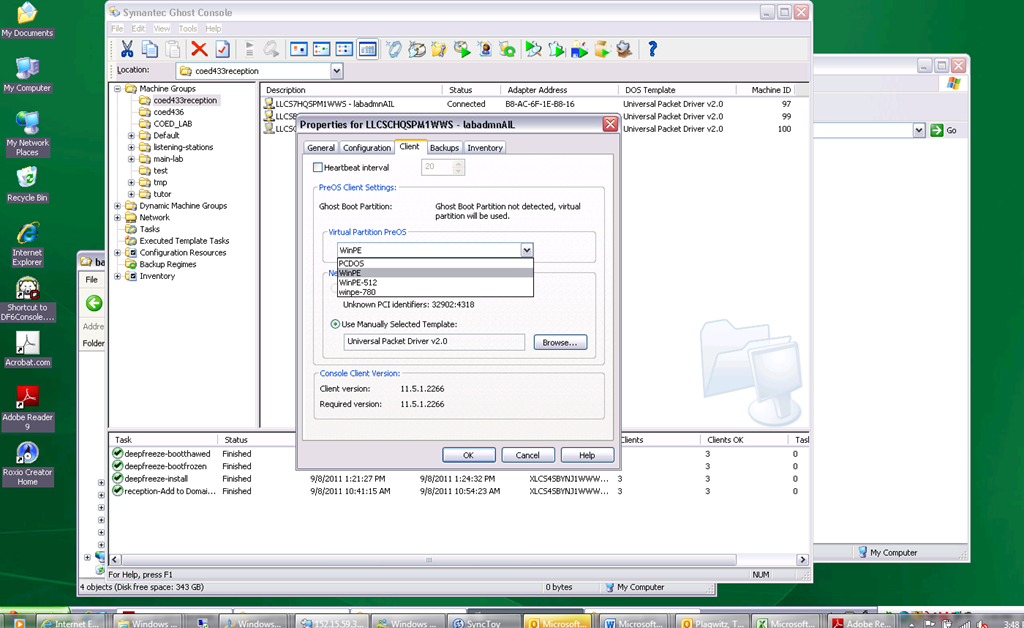
In Ghost console / tools / boot wizard, You can add this driver (entire dir, as long as it has a friendly name for ghost – could you have done this with the entire dell driver cab of 300mb?) to the win-pe-780 (I made a copy of the default win pee environment which I still need to use for a different set of hardware) (which then compiles the win-pe image), and
-
You also have to check the driver , to have it included (which compiles the win-pe image again – why? ).
-
You have to set in Ghost console menu; tools / options / the win-pe as the default remote boot os (this will have to be changed for 760 imaging back to win-pe).
-
Now, did this really “take”?

-
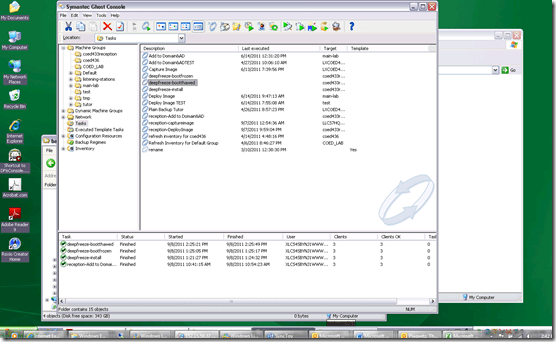
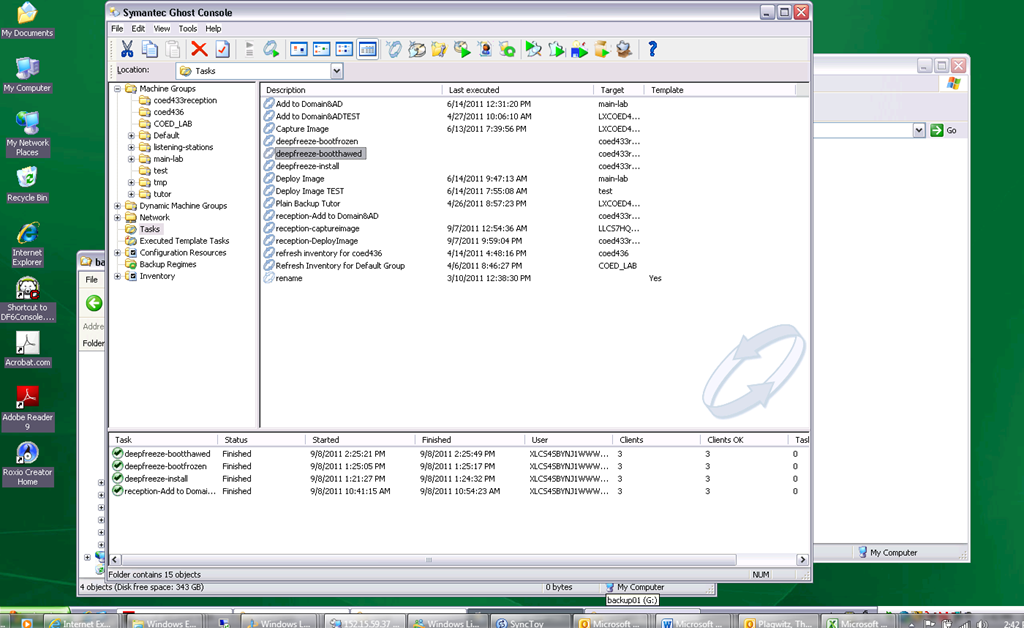
This allows the reception-captureimage task to complete.
-
Additional tasks reception-DeployImage and reception-Add to Domain&AD can be derived from the default installation.
-
We can also deploy and manage Deepfreeze now from the Ghost Console, bypassing Deepfreeze Console.
-
-
I hope this was my last trip down the “general computing” infrastructure Geisterbahn for a while. I was actually trying to apply productivity software infrastructure to a local business process, and merely to free up some time for elearning pedagogy…
How to transfer calls on the Cisco IP Phone 7912

If you mistype, don’t leave the caller hanging, but rather follow these steps (kindly provided by Alesha) to recover: Likely you left the caller on hold.
- Press the hold key (illuminated red button that is shaped like a stop sign)
- Press transfer
- Dial appropriate extension
- Press transfer again!
- Because the telephone is already in the cradle, students do not need to hang up or press the EndCall key.
Sanako Study-1200 Oral Exams: More result examples
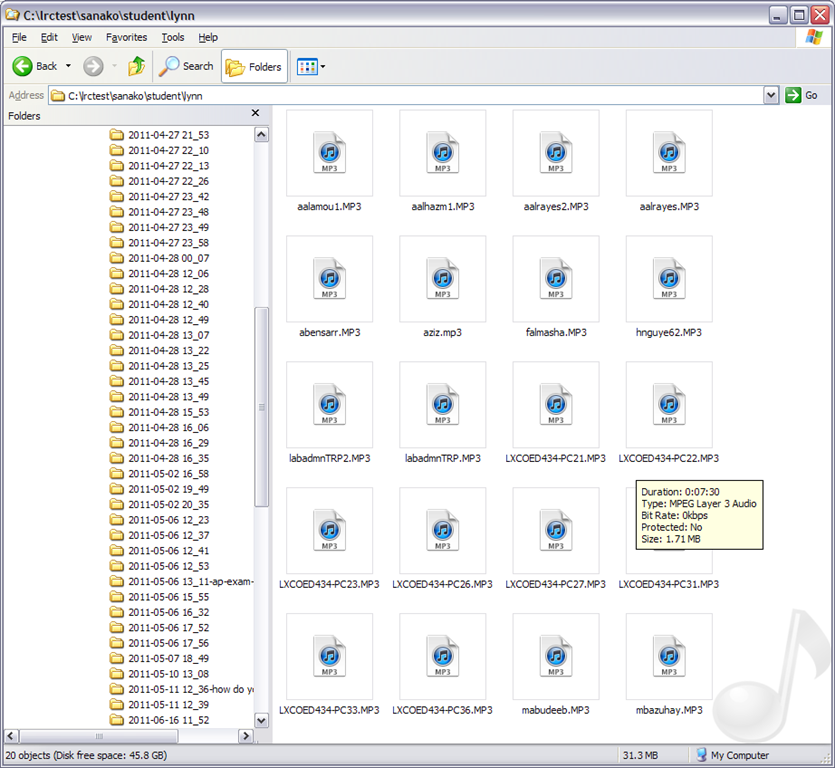
- Study 1200 will automatically save the exam recordings of each of your students under a distinct name (you can choose student email name or seat number) in a location which you can access from your office desktop:

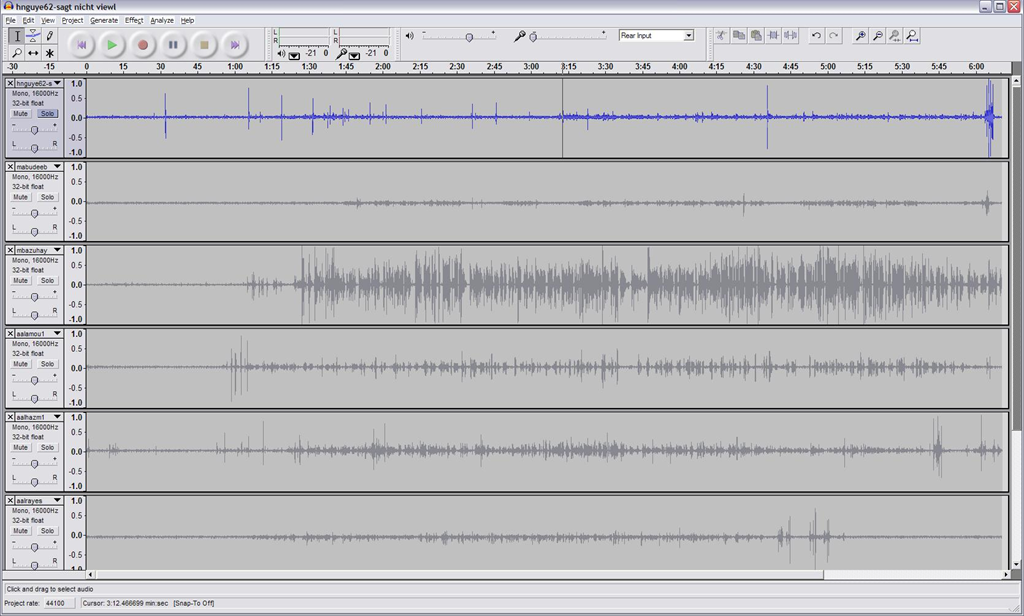
- You can load this recordings in Audacity to grade them, including skipping past the questions and increasing the play speed, but not the pitch, and easy comparison of students like in the picture below:
-


How to do Sanako Oral Exams with large classes, but few licenses: A workaround using partial classroom layouts
When you open the Study1200 tutor, a dialogue comes up which lets you select you the “classroom layout’. What this actually means – since the physical classroom (LRC layout) is obviously immutable –, is: which computers do you want the Study1200 to connect.
The “template classroom” (this happens to be just the default name within Sanako) tries to connect all students logged in on computer in COED434 to the teacher from the “corridor” (= where Study1200 leaves all computers that it knows of, but that you do “into” want to let into the classroom; the corridor has link in the bottom center of the Study1200 teacher window, and it flashes if there is a change “in “ the corridor Stuy1200 wants to make you aware of) that the Study1200.
However, beyond the 20th client (first come, first serve), this will fail because of licensing restrictions, and a grey exclamation mark will appear in the classroom layout in the Study1200 window for these student icons.
The “left-half”and “right-half” layouts that I created load only the computers in either the left or right half of the COED434 classroom (each without the wall/window-facing computers at the very edges) into the classroom layout (other logged-in students will remain in the “corridor”, linked in the bottom center of the tutor interface, if you want to add select students – note that the student icon will not appear on screen in their approximate physical position in the classroom.
You can also bring up the dialogue from which you can choose classroom layout after the initial startup of the tutor: Go to top menu: file / classroom layout. A 45-second screencast of this switching our classroom layouts in Sanako Study 1200 is available for download (requires Windows Media player).
In the screencast, you can see how the visual layout on screen reflects the physical layout in the classroom (the number labels on top of our computer monitors appear (optionally) in seat numbers): rotate by 90% clock- or counterclockwise (I wish we would have not only more licenses, but also a higher screen resolution. Stay tuned).
This technique of splitting the classroom, unloading and loading half of it at a time, you can exploit for administering oral exams consecutively with class sizes (current maximum is 25/30, depending on level) that exceed the number of licenses we have (currently 20 + teacher).
This technique of excluding computers from connecting to the teacher we could also use to merge the listening station computers, even though they have a different audio hardware configuration (analog headsets only, no Sanako headsets with built-in sound card and disabled on board sound) into the main software image without consuming valuable licenses – not without other problems.
LRC Renovation Proposal: Add small group collaboration spaces by consolidating equipment storage and circulation
- Objective:
- to support new requirements in LCS
- increased and further increasing 1-on-1 tutoring and small group collaboration spaces for the (current) hybrid Spanish program and tele-taught LCTL (imminent: Hindi) programs,
- collaborative presentation and multimedia (e.g. ePortfolio projects) in other languages,
- circulation of multimedia equipment to teachers and students
- with
- small group work spaces
- which we free up by streamlining the workflow (cope with higher traffic, keep accurate records, monitor repair state and provide hands-on instructions) for the increased tech equipment circulation needs (and to make up for one lost office)
- to support new requirements in LCS
- Action proposed:
- centralize circulation desk & materials in COED436, with storage, student assistants, supervisor in fishbowl, and walkup circulation counter;
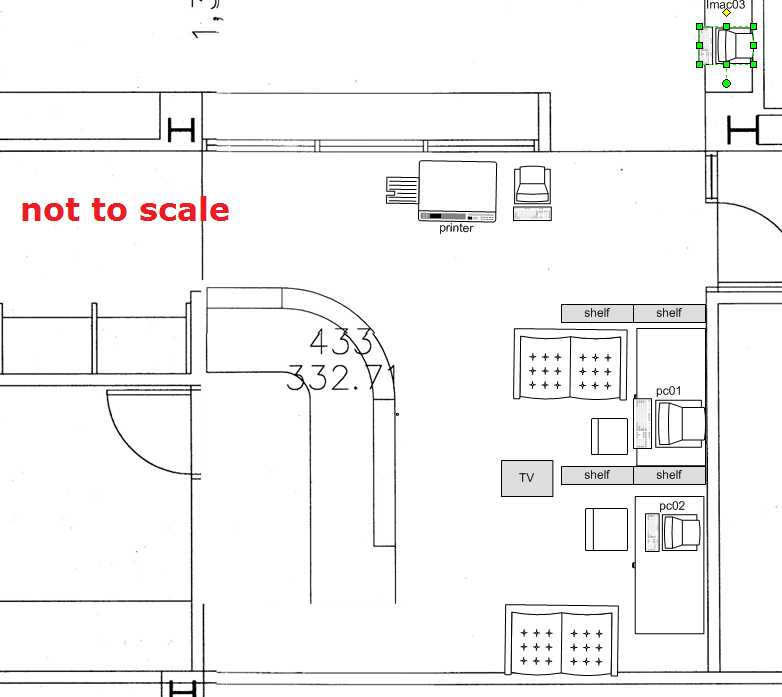
- equip the freed-up spaces 431,433&435a/b with furniture (portable walls, seats,desks,insulation) and technology (power, internet access) for tutoring&small group work.
- Illustrations:
- inspiration from other institutions:
- Shared computer screen small group collaboration spaces
- UNCC Atkins library installation by TBA: We would need better sound insulation to accommodate multiple tutors and groups for currently 12 languages taught:


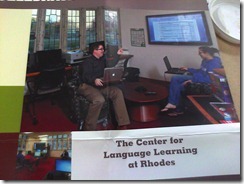
- Rhodes College. We would prefer booths with tables (for laptops, notebooks) to easy chairs.
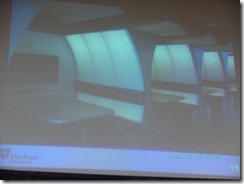
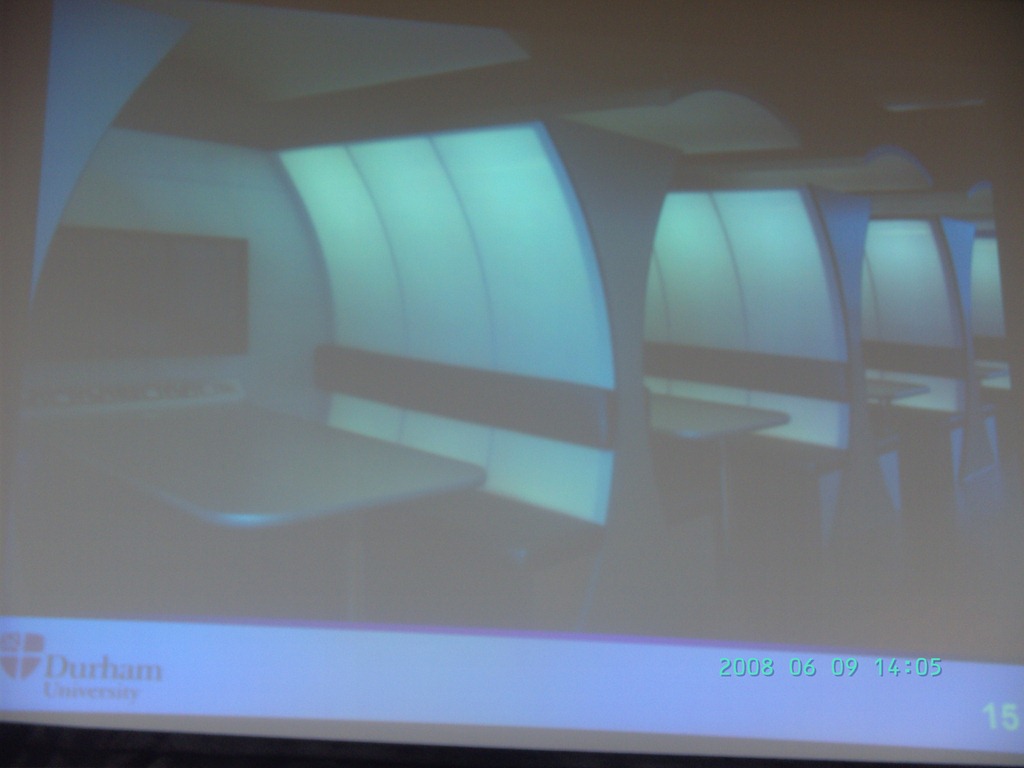
- Computer science collaboration spaces, Durham University, UK. For foreign language exchanges, we would want better sound proofing:

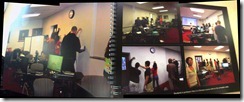
- Rhodes College. whiteboard writable walls would be excellent space savers for small group workspaces:
- The Atkins library videoconferencing facility: For small groups in (many different) LCTL, one would better set up a more intimate facility with better audio, possibly with facilities for directed audio channels and possibly breakout groups which are a requirement for SLA classes.
- Loyola University language resource center library walkup counter with one computer shared between staff and client (the LRC would want 2 computers, to serve 2 lines)

- UNCC Atkins library installation by TBA: We would need better sound insulation to accommodate multiple tutors and groups for currently 12 languages taught:
- Shared computer screen small group collaboration spaces
- to document our current facilities:
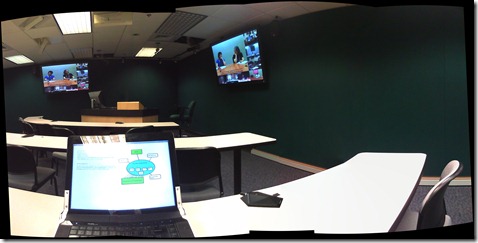
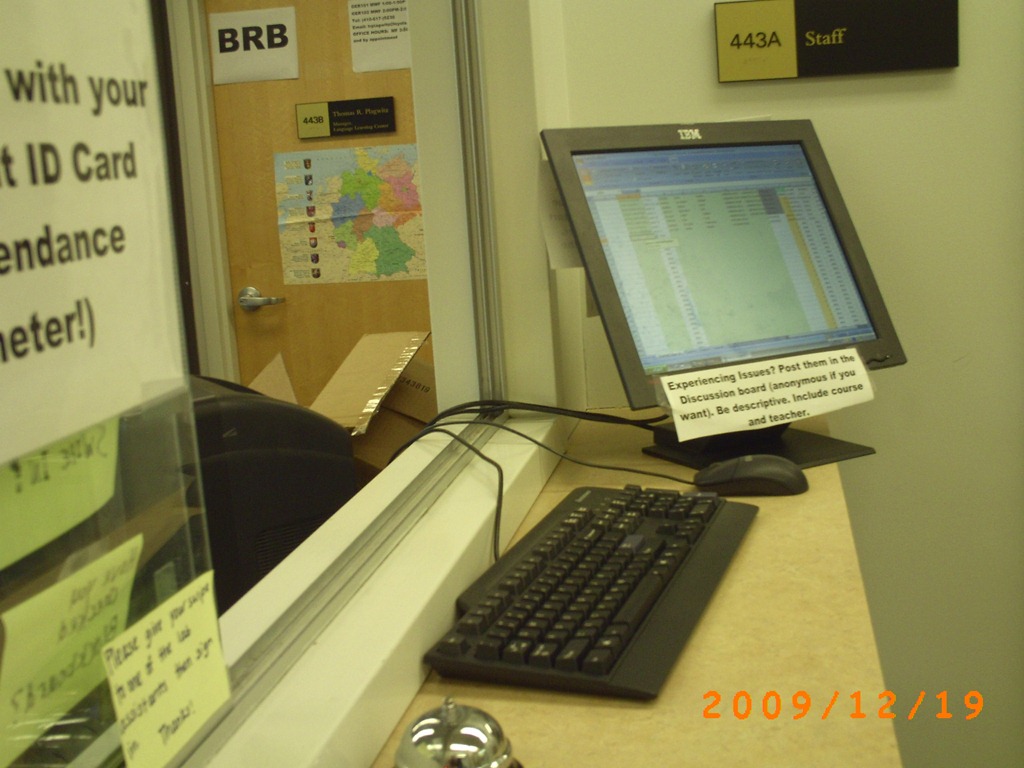
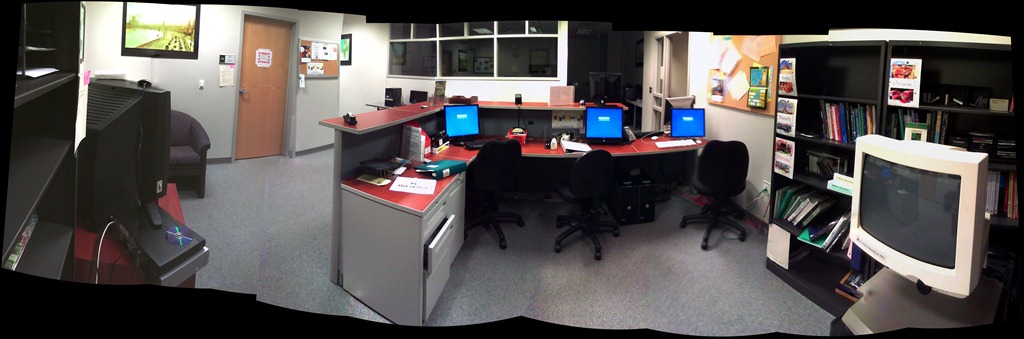
- To the right: Coed 434 (large classroom). To the left: Coed433 (reception area part which should be converted into 2-3 small group workspaces:
- Rooms to be converted into small group workspaces:
- Storage Coed435a, to become teleconferencing or pair workspace:

- Storage Coed4355b, to become teleconferencing or pair workspace:

- Storage Coed431, to become small group workspace:

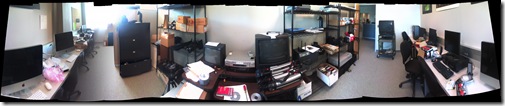
- Coed436, to become consolidated storage area and office:

- Or use this as a stopgap:

- Storage Coed435a, to become teleconferencing or pair workspace:
- To the right: Coed 434 (large classroom). To the left: Coed433 (reception area part which should be converted into 2-3 small group workspaces:
- inspiration from other institutions:








Trying out the new Moodle layout options by integrating my blog via an RSS block
- Running a blog? Feeding a twitter account? It could be worthwhile narrowcasting your (teaching-related) postings (presumably more substantial than tweets about tardiness for class) by integrating it with your Moodle course, via RSS.
- As of today, UNCC-Moodle offers new layout options, including putting blocks into the content (center) column, as a “sticky” post underneath the header.
- This is timely, since I have created a Moodle site for the LRC staff and have been wondering how I can use it to quickly update the LRC staff on new technological opportunities or issues and solutions around the LRC.
- Moodle’s RSS block – linking to the feeds that my blog feed/Twitter hash tag for LRC staff emit – makes that easy.
- Except that up until now, outside the center column, there has not been enough space to display also the teaser of blog posts – an area I invest some thought in, in accordance with age old publishing principles transferred into the internet age.
- The layout options upgrade allows me to fix that – here is how:
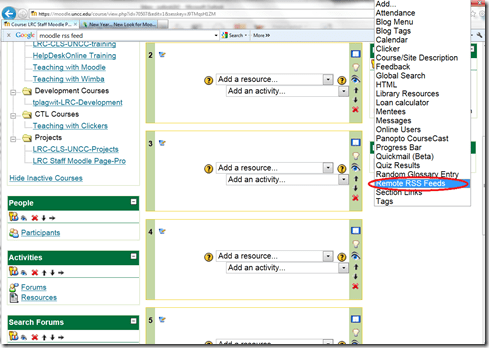
- After pressing button: editing on, choose from the dropdown “blocks”: remote RSS feeds

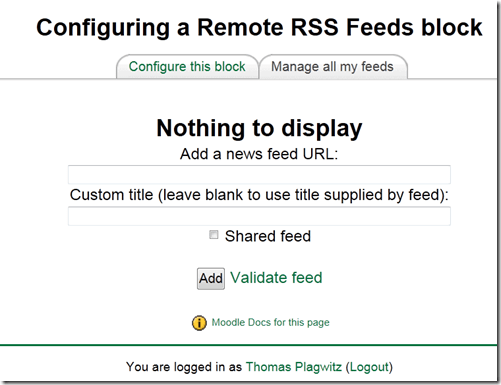
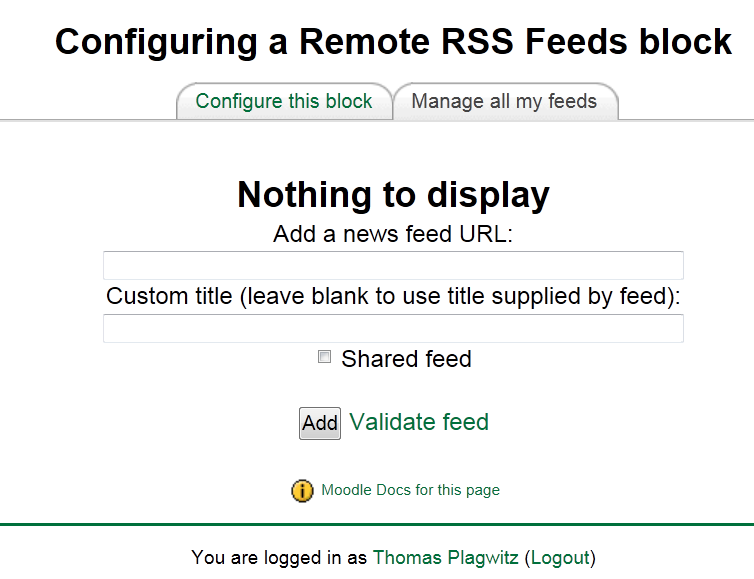
- Don’t be confused by the inability to add your feed source – you need to change to the tab: “manage my feeds” first:
- if you make your feed a “share feed”, it becomes an option for all institutional Moodle sites.
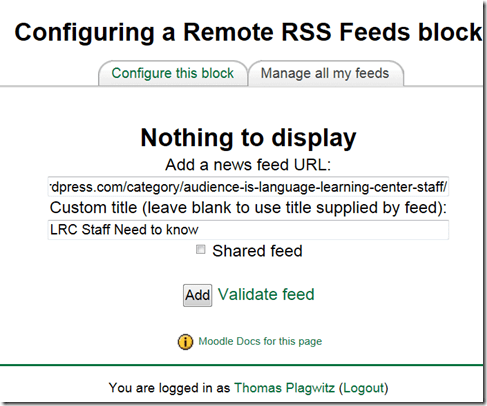
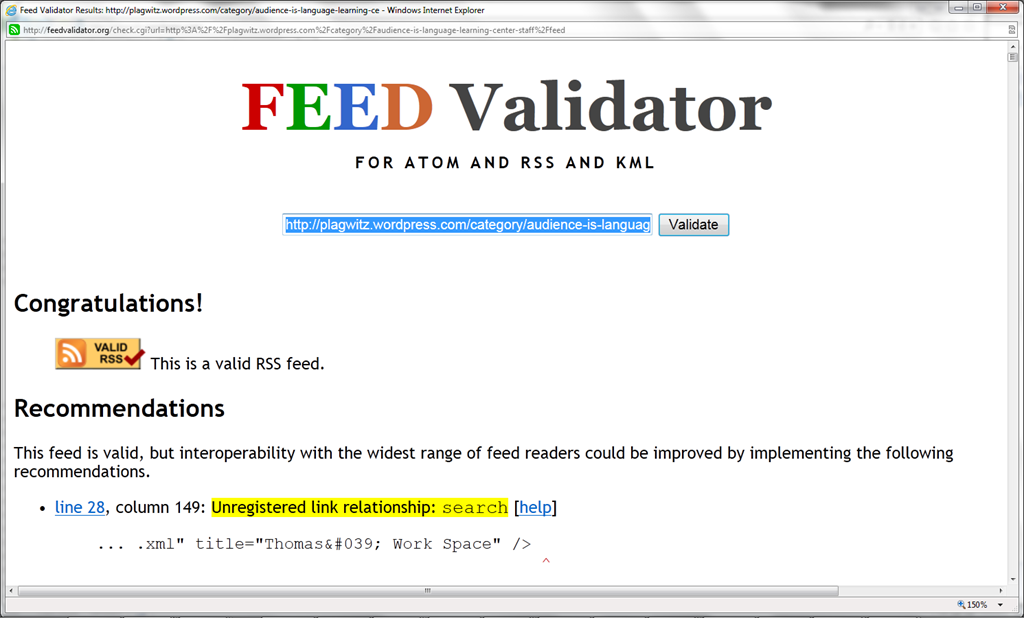
- Validate your feed so that Moodle doe not outright refuse to display (the linked validator will give you error information that can help you fix your feed).

- After moving your feed to the center with the “left arrow”, you can

- You can see more of the Moodle RSS block results here.

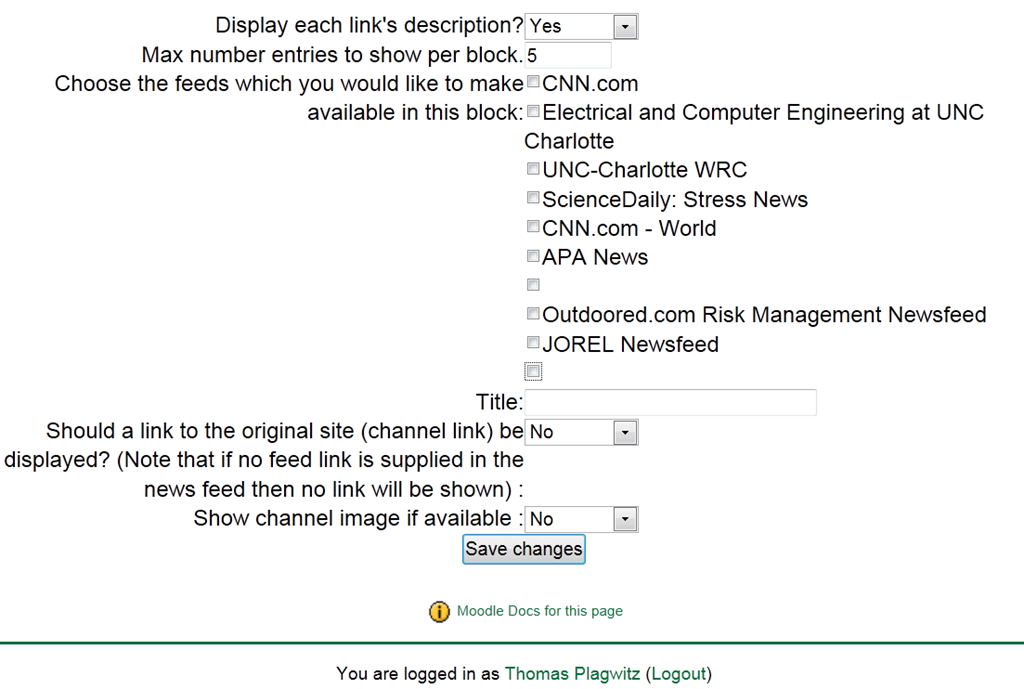
Adjust the settings: for me it is important to display descriptions.


The LRC staff Moodle site: An Introduction
- The LRC has now a Moodle site for staff. All permanent and temporary LRC staff members will be enrolled in this site.
- All permanent and temporary LRC staff members will participate in this site. This means logging in at shift start and reviewing the following sections for new items:
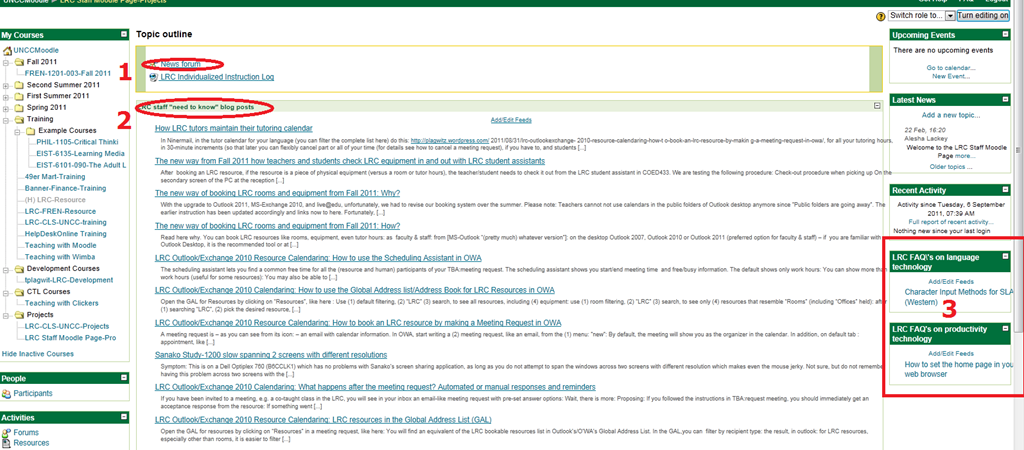
- The news forum: here LRC assistants can find announcements and assigned jobs, as well as post notes of their own for all colleagues and responses.
- The most recent LRC assistant training articles appear here. In these tasks, LRC assistants are supposed to assist clients hands-on with more general
- LRC FAQ’s: LRC assistants have to monitor this block to be in the know about what the LRC has in terms of answer guides to FAQs about technology use in learning, and be able to point clients with questions to these answer guides (i.e. identify an applicable answer guide, display it on the reception computer, email the client the link for the client to review the guide).
How LRC tutors&assistants maintain their schedule
- In Ninermail,
- in the tutor calendar for your language/LRCassistant calendar (you can filter the complete list here)
- do this: https://plagwitz.wordpress.com/2011/08/31/lrc-outlookexchange-2010-resource-calendaring-how-to-book-an-lrc-resource-by-making-a-meeting-request-in-owa/,
- for all your tutoring hours,
- in one block (there is an easier way to cancel part than using 30-minute increments (so that later you can flexibly cancel part or all of your time (for details see how to cancel a meeting request), if you have to, and students can sign up for tutoring timeslots));
- with weekly recurrence until the end of the current academic term;
- with the subject of the meeting request stating the levels you are tutoring for/”LRC Assistant” (do not put your name or email in the subject).
- Note that your resulting work schedule will appear in your own NINERMAIL calendar, and, if you have requested, you will be remindedd of your shift.


Questions? Read the About. Or just ask me a quick Our Databases: Resources with calendars -- Language learning material Moodle Sites, multimedia files -- films


FAQs for LRC student staff or for students or for teachers. To search our FAQs, in the browser addressbar, add after "https://plagwitz.wordpress.com/feed/?tag=faqs+/" "+TAG1" (from tag cloud below) OR "https://plagwitz.wordpress.com/feed/tag=faqs
&category_name=" "CAT1" (from category hierarchy below). OR search both categories and tags, and multiple TAGs/CATs (connect with "," for OR-search, with "+" for AND-search), like so: https://plagwitz.wordpress.com/feed/?tag=TAG1+TAG2+...TAGn&category_name=CAT1
+CAT2+...CATn"
Other ways to find help
If you cannot find it here, look there: 5,500 Language-Learning Links and Programs for learning or teaching 150 languages
Shortcuts:Our Lists, Our Maps, LRC Staff Moodle Site,LRC Project Moodle Site, 49erexpress, UNCC Moodle, Student Recordings: s:claslcslrcsanakostudent
Learning usage samples: Sanako oral exam, Kaltura webcam presentation, Dictation with speech recognition, Sanako written exam, Chinese and Japanese interactive stroke-order practice
Test the Sanako Installer, Webbrowser Popup Konfigurator for XP, or Windows7, faster LRC TeacherPC Log-in Let MS facilitate diacritics writing by installing for you US-International keyboard layout
This is my personal blog (Google+). The views expressed on these pages are mine alone and not those of my employer. The information in this weblog is provided “AS IS” with no warranties, and confers no rights.
 Thomas' Work Space