Archive
Archive for the ‘Teaching-delivery-format-is-any’ Category
Video Conferencing during Simultaneous Conference Interpreting Training
2009/05/17
Leave a comment
- i should probably step further away from implementation details, but i am looking for an anchor in a field which is heavily in flux, and in an environment which seems opaque.
- existing solutions: seem to be a superficially adapted/integrated application of existing video conferencing implementations for business meetings (Polycom VXS 7000 based?). I have seen academics complaining about “the emperor’s new clothes” when it came to teaching with technology innovation that made much more sense to me than this one, so i am concerned what will be the uptake once the hype is over (Yes, you can video conference over the internet. And for quite some time now. My 70-year old mother calls me every Sunday night on Windows Live Messenger. But we do not do interpreting training in an educational business environment).
- solutions more fit for purpose for interpreting in general and interpreter training in particular: the incoming speaker audio can be displayed to every one; but the interpreter audio, insofar outgoing (as opposed to be displayed to select audience locally), while being able to use the video conferencing unit, if its audio is full duplex, should not be universally displayed remotely,
- neither on the speaker-side (it would confuse and interrupt the speaker; but another part of the speaker-side audience likely needs to hear it, either for interpreting or for training (evaluation) purposes;
- nor on the 3rd-party (if video conferencing unit supports 3-point connections) site, but rather be displayed separate from the speaker audio
- for 3-point conferences, if the video conferencing unit supports separate (left – right) tracks for incoming audio, and if the incoming audio can be routed/switched, it should be possible to transmit 1 speaker (a-language) and 2 interpreters (b-language 1 and b-language 2) during the same video conferencing session
- implementation example: audio should be sent from video conferencing unit to headphones, or better a headphone connected to a system that allows switching and routing locally (e.g. a language lab system);
- video is only needed from the speaker
- live video from the speaker is not needed: there is no interaction between the speaker and the interpreter and (practically? sometimes it is recommended that the interpreter can visually sign to the audience) no visual interaction between the interpreter and the audience. if the video of the speaker can be launched to remote sites (streamed or downloaded as an archived file), only audio connections are needed.
Categories: Interpreting, web-conferencing
Instant language services support on office and classroom IT lab computers. Part I: Initial Setup
2009/02/08
Leave a comment
-
If you have Windows XP on your office computer, we can use MS-Messenger (ver 4.7) “Application Sharing” to provide immediate live assistance with computer problems in remote parts (also useful for collaboration with colleagues on documents, including web pages, when a phone call is too little and a meeting is too much).
-
click “Start”, “Run”, type (or copy/paste): “C:\Program Files\Messenger\msmsgs.exe“, click “OK”
-
Initial setup (you have to do this only once)
-
“Add a .net passport to your windows xp user account”:
-
Email account
-

-
Users of http://hale-translation.groups.live.com/, http://hale-interpreting.groups.live.com/, or the Interpreting online calendar (http://calendar.live.com) can re-use their windows live account
-
Other users can use existing hotmail/windows live accounts or create a new hotmail/windows live account (you may want to create a separate account for work related messaging)
-
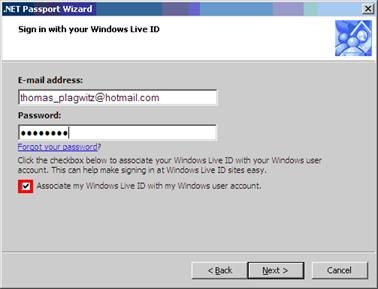
On your office computer, also check the checkbox to “Associate your account with your windows user account”, like here:
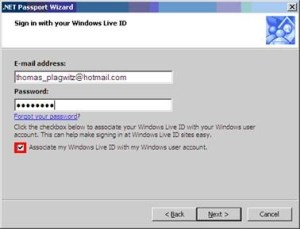 , when asking for help on a student computer, uncheck this
 -
Add “Thomas_plagwitz” at “hotmail.com” as a contact (initially, I will have to accept this before you can contact me):
-
Click on “I Want To … Add A Contact” (green plus sign)
-
Once set up with Messenger like described here, go to PART II.
Instant language services support on office and classroom IT lab computers. Part II: Usage
2009/02/08
Leave a comment
-
Once set up, if you have Windows XP on your office computer, we can use MS-Messenger “Application Sharing” to provide immediate live assistance with computer problems in remote parts (also useful for collaboration with colleagues on documents, including web pages, when a phone call is too little and a meeting is too much).
Click “Start”, “Run”, type (or copy/paste): “C:\Program Files\Messenger\msmsgs.exe“, click “OK”.
-
Start a conversation by double clicking on the user icon (“Thomas Plagwitz” or whoever) in your contact list.
-
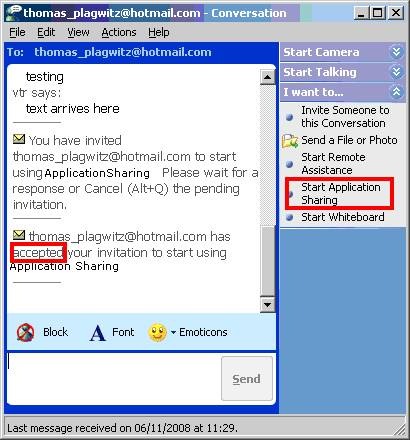
Right Menu: Section: “I want to” / “Start Application Sharing”
-

-
All is well if the other party has “accepted your invitation”, like above – allow some time for the screen sharing to start up on old computers.
-
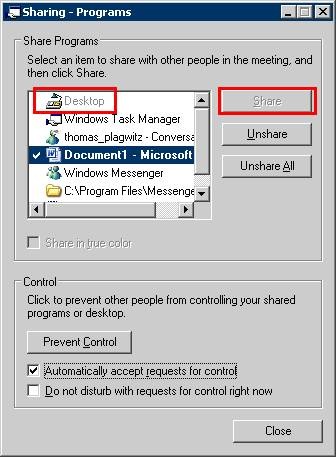
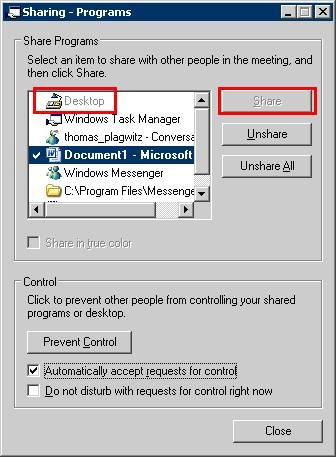
When a dialogue comes up which asks you which application to share, use “Desktop”, like below – this will allow the other party to see your screen.
-

-
At the end of the session, “Unshare” your desktop, or simply end the “conversation”.


Questions? Read the About. Or just ask me a quick Our Databases: Resources with calendars -- Language learning material Moodle Sites, multimedia files -- films


FAQs for LRC student staff or for students or for teachers. To search our FAQs, in the browser addressbar, add after "https://plagwitz.wordpress.com/feed/?tag=faqs+/" "+TAG1" (from tag cloud below) OR "https://plagwitz.wordpress.com/feed/tag=faqs
&category_name=" "CAT1" (from category hierarchy below). OR search both categories and tags, and multiple TAGs/CATs (connect with "," for OR-search, with "+" for AND-search), like so: https://plagwitz.wordpress.com/feed/?tag=TAG1+TAG2+...TAGn&category_name=CAT1
+CAT2+...CATn"
Other ways to find help
If you cannot find it here, look there: 5,500 Language-Learning Links and Programs for learning or teaching 150 languages
Shortcuts:Our Lists, Our Maps, LRC Staff Moodle Site,LRC Project Moodle Site, 49erexpress, UNCC Moodle, Student Recordings: s:claslcslrcsanakostudent
Learning usage samples: Sanako oral exam, Kaltura webcam presentation, Dictation with speech recognition, Sanako written exam, Chinese and Japanese interactive stroke-order practice
Test the Sanako Installer, Webbrowser Popup Konfigurator for XP, or Windows7, faster LRC TeacherPC Log-in Let MS facilitate diacritics writing by installing for you US-International keyboard layout
This is my personal blog (Google+). The views expressed on these pages are mine alone and not those of my employer. The information in this weblog is provided “AS IS” with no warranties, and confers no rights.
 Thomas' Work Space