Archive
Archive for the ‘Screencasts’ Category
Sanako Study 1200 controlled web browsing–strict policy
2012/04/18
Leave a comment
- View an
 80-seconds screencast showing how a teacher can set up a student activity where students are only allowed to access on web site.
 - In this example, the website is a common dictionary: http://www.dict.cc which the student will be allowed to access during an exam (in lieu of a paper dictionary policy).
- Never mind that the voiceover is partially in German – the video should be self-explanatory. If not, here is a written step-by-step on Sanako controlled webbrowsing.
How a teacher uploads a video resource to Moodle using Kaltura
2012/03/20
Leave a comment
- Moodle Kaltura facilitates making segments of video (created from e.g. source DVD with the video editor of your choice) available for film studies classes, within the bounds of Fair Use and the Teach Act, since it makes video
- easily available (streamed to anywhere where Adobe-Flash runs),
- but only to those who have an account in the Moodle installation and are registered for the course
- In addition, access to the video segments can be restricted further (by choosing from the management options that Moodle affords),
- only to the teacher, for display during face-to-face teaching)
- only during a time window, for timed assignments.
- Here is a (somewhat longwinded, but authentic) demonstration of how to make a Kaltura video resource available through a Moodle course.
- The demonstration includes the server-side encoding which happens only once during teacher upload – you do not have to wait for it to finish, just if you want to check immediately, like I do on the example whether your upload went through.
Categories: documentation, e-learning, Film-studies, lms, Screencasts, service-is-evaluating-learning-tools
adobe-flash, kaltura, moodle, videos
Download WordPress blog post overview into Excel table
2012/03/15
Leave a comment
See what I mean:  Downloading and browsing the full content XML is of course more powerful than this.
Categories: blog, documentation, Screencasts, service-is-documenting
MS-Excel, wordpress
Face-to-face-teaching exam using Sanako Study 1200
2012/03/01
Leave a comment
- Sanako Exam is an add-on at additional cost and not currently available in our setup.
- Sanako Exam teacher-created content is stored locally, file management beyond that is up to the user. This makes such polls less portable, but potentially sharing within a department might be easier.
- Student Results can be identified by student, and saved.
 View here a screencast demo of how a Sanako Exam can be
- authored and
- deployed.
Replace clickers with students’ phones using PollEverywhere.com
2012/02/29
Leave a comment
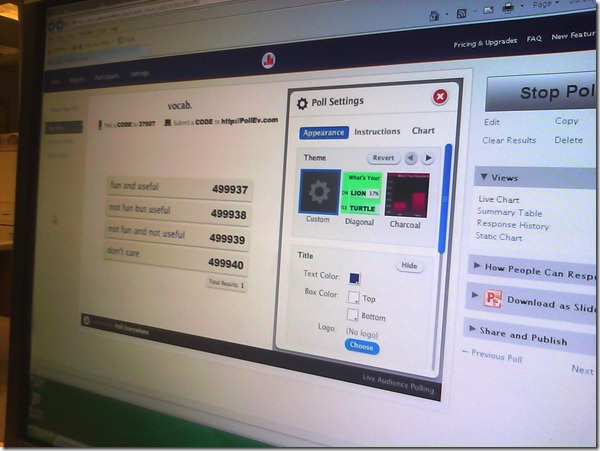
- PollEverywhere.com allows teachers to set up polls with answer options that students choose by sending a number code as text message.
- Pro’s
- Freemium.
- Low- to No- university infrastructure requirements. Best-used in a non-computerized classroom or during startup time of students’ computers.
- Content can be managed online.
- Con’s
- Freemium:
- “You get what you pay for”. “You may be the business”. What happens with your data
- Not free for students unless you consider a phone plan that comes with unlimited texts free. With increasing use of other messaging options over SMS, that may be not a given even if you deal mostly with an affluent student population.
- Low- to No- university infrastructure requirements:
- you are relying on students providing the infrastructure. Are they better keeping their phones in service (on them, charged, turned on) than we are keeping our computer labs up and running?
- you are relying on mobile network operators, including the choices of operator that your students made.
- Anonymous: Not useful for assessment purposes.
- The number codes are long (6 digits, while 1 could be sufficient).
- Freemium:
- Competitors
- The university has a clicker infrastructure which is partially outsourced to students (purchase and bring).
- The LRC has a Classroom Management system infrastructure which supports clicker-like activities.
- Sanako Study 1200 comes with Live Feedback and Voting.
- NetOp School comes with an examination/polling feature also.

How a teacher best adds cues and pauses to an mp3-recording with Audacity to create student language exercises
2012/01/25
1 comment
- The first screencast example uses insert tones and a gut amount of pause, for an interpreting exercise, into an authentic German political speech
- 1:00 search for a break (button: play/stop – pause prevents edits)
- 1:05 move the cursor to the break (mouse left-click on timeline)
- 1:20 insert a pause (menu:Generate / Silence )
- 1:25 zoom in (button:magnifying glass, CTRL + mouse scroll wheel)
- 1:45 generate a tone (menu:Generate / Noise), change the duration
- 2:10 do not replace the selection
- 2:20 use undo, just like in MS-word and other programs
- 2:30 move the cursor to the start of the selection (mouse left-click on timeline)
- 2:40 generate a tone (menu:Generate / Noise)
- don’t forget to review results before distributing to students
- the second screencast example, of post-editing a questions/response exercise in ESL, takes the amount of pause inserted from the recorded teacher instruction for the student, and uses copy/paste to speed things up even more.
- You can also only insert tones and not pauses, as in the 3rd screencast, and allow the students flexible pause lengths, if you can rely on the Sanako Student recorder Voice insert. Or if you must, let students use audacity for recording also, and have them learn how to move the recording cursor around manually, and throw away the source track.
How to record your speech with Audacity
2012/01/11
Leave a comment
- For a cut-and-dry recording session, the LRC has a simple instruction on
- For more advanced editing with Audacity, I have a detailed screencast here.


Questions? Read the About. Or just ask me a quick Our Databases: Resources with calendars -- Language learning material Moodle Sites, multimedia files -- films


FAQs for LRC student staff or for students or for teachers. To search our FAQs, in the browser addressbar, add after "https://plagwitz.wordpress.com/feed/?tag=faqs+/" "+TAG1" (from tag cloud below) OR "https://plagwitz.wordpress.com/feed/tag=faqs
&category_name=" "CAT1" (from category hierarchy below). OR search both categories and tags, and multiple TAGs/CATs (connect with "," for OR-search, with "+" for AND-search), like so: https://plagwitz.wordpress.com/feed/?tag=TAG1+TAG2+...TAGn&category_name=CAT1
+CAT2+...CATn"
Other ways to find help
If you cannot find it here, look there: 5,500 Language-Learning Links and Programs for learning or teaching 150 languages
Shortcuts:Our Lists, Our Maps, LRC Staff Moodle Site,LRC Project Moodle Site, 49erexpress, UNCC Moodle, Student Recordings: s:claslcslrcsanakostudent
Learning usage samples: Sanako oral exam, Kaltura webcam presentation, Dictation with speech recognition, Sanako written exam, Chinese and Japanese interactive stroke-order practice
Test the Sanako Installer, Webbrowser Popup Konfigurator for XP, or Windows7, faster LRC TeacherPC Log-in Let MS facilitate diacritics writing by installing for you US-International keyboard layout
This is my personal blog (Google+). The views expressed on these pages are mine alone and not those of my employer. The information in this weblog is provided “AS IS” with no warranties, and confers no rights.
 Thomas' Work Space