Archive

Archive for the ‘audience-is-any’ Category

How Teachers grade Student recordings from the Sanako Lab 300

  1. Teacher on their office PC (MAC users talk to OTS at loyola.edu) can press  windows-key+e, and in the window, that opens,
  2. browse to the student mp3 recordings in the “studentcollect” folder or in “their” folder on S:\[put teacher name here] (no S: drive on office PC? read the “Shortcuts” section on http://plagwitz1.spaces.live.com, right hand side, under my portrait),
  3. open the student recording file, either by doubleclicking to, presumably, open it in  Windows Media Player, or, preferably, by selecting multiple files, right-clicking and chosing “Open with” to open them for comparative grading in Audacity).

How students make audio recordings using Sanako Lab300 Media Assistant

  1. Open Sanako Media Assistant
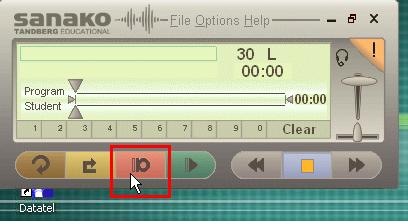
  2. Click Button:Record
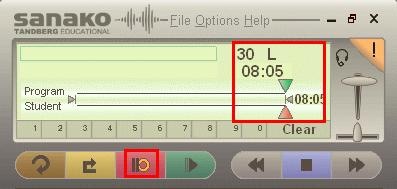
  3. Say what you have to say, into headset mic
  4. Click Button:Stop
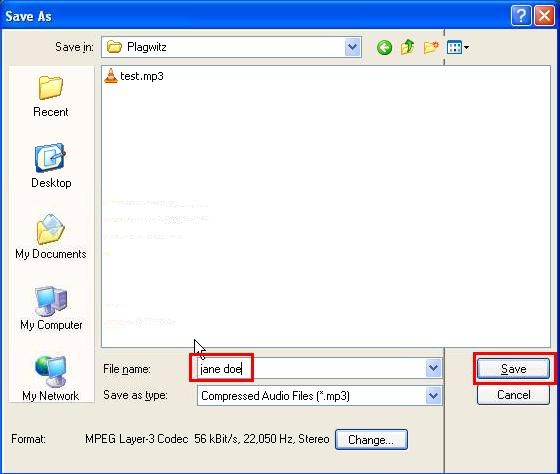
  5. Menu: File / Save As
  6. Browse to your teacher’s folder
  7. Per your teacher’s instructions, name the file
  8. Leave the default  format as is (mp3) and click button:save
  9. Allow the assistant to finish saving
  10. Click Button: Play to review your recording, using the headset
  11. If you need to redo the recording, click menu: File / New
  12. Start over.

Interpreting Lab Upgrade: Requirements and Vendors (Presentation 2009-07)

Screen-cast of my Slide Presentation: londonmet-interpreting-lab-upgrade-presentation1.wmv

Table of Contents:

00m:30s

Requirements For A Conference Interpreting Training Installation

07m:20s

Flowchart Digitization Of Learning

18m:00s

Vendor Solutions Categories

19m:00s

Vendor Solutions: Conference Interpreting Category

21m:50s

Vendor Solutions: Classroom Management Category

23m:55s

Vendor Solutions: Classroom Management Category: Face To Face Teaching Flowchart

29m:25s

Vendor Solutions: Classroom Management Category: Comparison

30m:30s

Vendor Solutions: Classroom Management Category: Synchroneyes

32m:30s

Vendor Solutions: Conference Interpreting Category: Braehler

36m:00s

Vendor Solutions: Language Lab Category

37m:24s

Vendor Solutions: Language Lab Category: Artec

59m:10s

Vendor Solutions: Language Lab Category: Sanako Lab 100 Sts

73m:30s

Vendor Solutions: Language Lab Category: Sanako Study 1200

87m:20s

Vendor Solutions: Language Lab Category: Sony Virtuoso

102m:20s

Summary & Question Period

105m:25s

Audience Feedback On Presentation

Proposal Conference Interpreting Center Upgrade. London Metropolitan 2009

Language Lab Techniques for (Self-)Evaluation and Grading of Student Recordings with Audacity

This quick and dirty (not narrated and uncut: time is money, and storage cheap…) video demonstrates a technique in (the free audio editor) Audacity with which instructors and students can more easily (self-)evaluate parallel recordings from (be it model imitation, question-response, or consecutive interpreting exercises in) the language lab (in this case the output of a Sanako Study1200, which automatically gets stored in a folder on network share):

When?

What?

0,00

how to load 10 student files à 5mb = 2:30min (but as a batch, allowing you do something else in the foreground instead of waiting)

2,50

how to select a part of the timeline to play

3,00

how to move tracks up to more easily work with them and the menu

3,30

how to play all tracks simultaneously (choir, normally not very useful for evaluation)

3,40

how to play only one track (solo): evaluate & compare

Auralog Tell-me-more Demo Screencasts

Pedagogical rationale of timestretching audio for differentiating instruction

  1. Context: Higher Education in the UK has made considerable investments in digital lab infrastructure to improve second language instruction in times of deteriorating language take-up in the secondary sector, including widening participation. Digital language labs, apart from generic digital media, suffer from a lack of custom-made teaching materials that take advantage of the pedagogic features of the lab: grouping for personalization of teaching and learning. Pedagogical integration and development is needed to achieve the original intentions. A project to timestretch audio language learning materials for the digital audio lab promises integration software, pedagogical materials and, above all, a model of effective digital language lab use in teaching.
  2. Problem: In times of uneven language provision at the secondary school level and of shrinking language program sizes in HE, increasingly language teachers find themselves confronted with uneven language proficiency in their courses. Digital lab technology can help them to overcome the  “one size fits all” approach and personalize the students learning experience, for a greater inclusiveness in language programs and an increased proficiency boost for both the below and above average proficiency student groups.
  3. During my work with the language programmes at an English university, I could witness – and had to record – that the least proficient students, seeing themselves confronted with what was nowhere near “comprehensible input” (Krashen) for them, not only let the communication break down, but appeared so distressed that, despite being fully aware that their language output was being recorded as an assessment for the teacher to evaluate, started to curse and swear (in their native tongue) – while at the same time the upper portion of the class breezed through the exercise without any apparent difficulty.
  4. Proposed Solution:
    1. Technology to the rescue: The slowing down of digital audio – without pitch alteration –has been, while not a perfectly accurate representation of natural slow speech output, a popular benefit of digital technology in the language learning field for several years now (cf. e.g. Calico 2004), and I myself have experimented with it in the digital audio lab (Model imitation and Question – response exercises) and in publications (cf. Plagwitz, Karaoke in the Digital Audio Lab (2006)).
    2. What seems lacking are
      1. both an application that automates (by monitoring one of the network share directories that are part of the digital lab system) the slowing down (and speeding up) of audio for instructors (e.g. in 5% increments from 70% to 120% of original input) that are too time-pressed for producing materials, or even seeking out recordable on-air sources, and
      2. a model implementation in the digital audio lab (using dynamic grouping of students through the digital lab software) that creates exercises that would create exercises that can benefit from this approach (and can be shared), that applies them in a number of suitable (interpreting, ab initio language learning) modules and that assesses the proficiency improvement with this approach (using the outcome exam and a control group).
  5. Benefits: Greater fluency of both the least and most proficient students is to be expect after they were exposed to – as deemed fit by their instructors – slowed down/sped up exercises – ca. 20 exercises in the ab initio language learning module, practicing a small set of suitable new structures and vocabulary compared, with 2 control groups, and five interpreting rounds of 20-30 minutes. We will operationalize this by reusing regular assignment grading and use a control group, also of module-size, which must also use the digital audio lab, but with “one size fits all” audio.

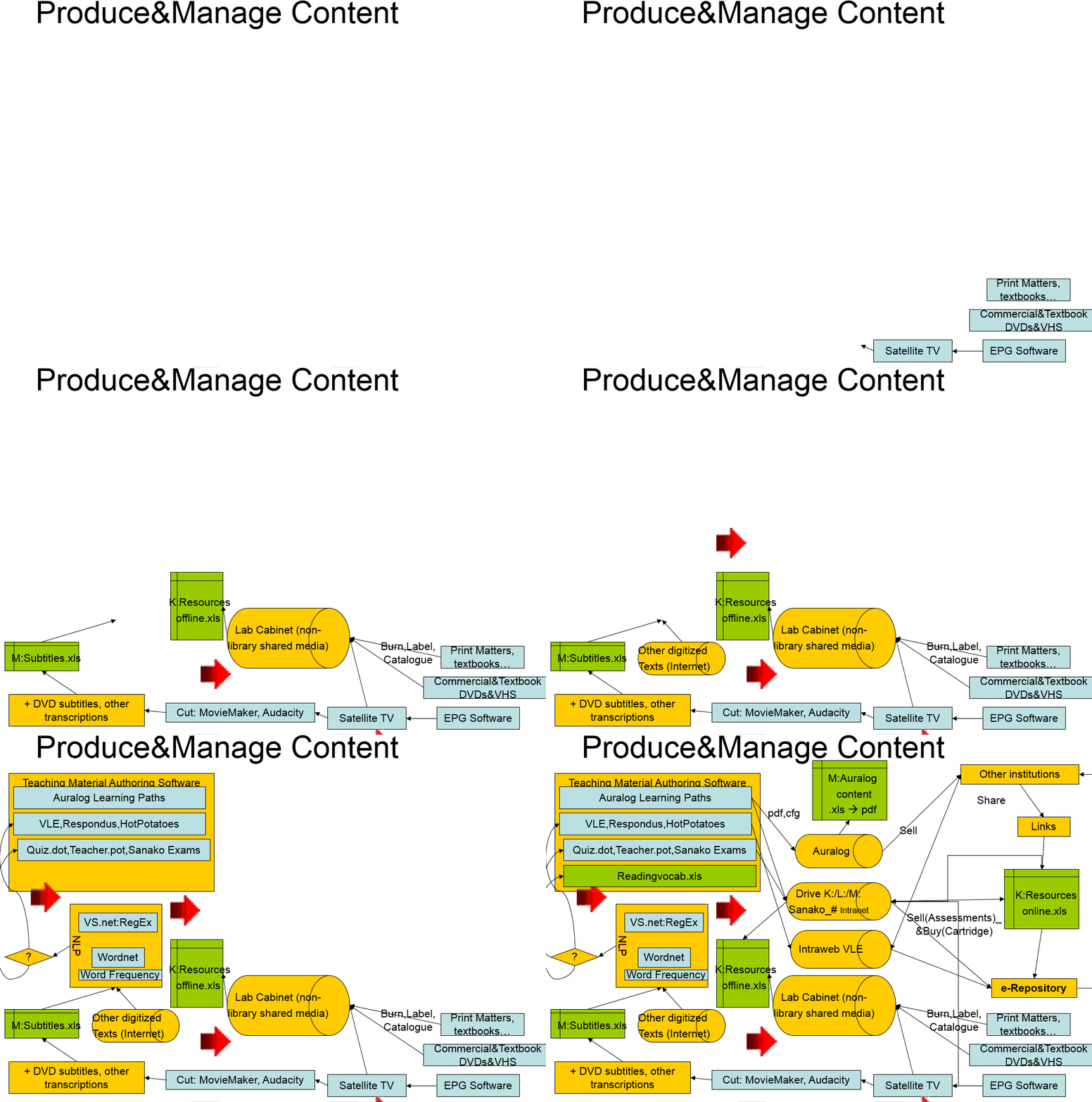
Producing and managing language learning content

produce-manage-content